How to Test and Adjust Audio Volume Before Sending a Digital Video Greeting
A digital video greeting is only as good as its sound. Learn how to test your audio, adjust punctuation for better AI voice pacing, and help your message sound clear to your recipient.
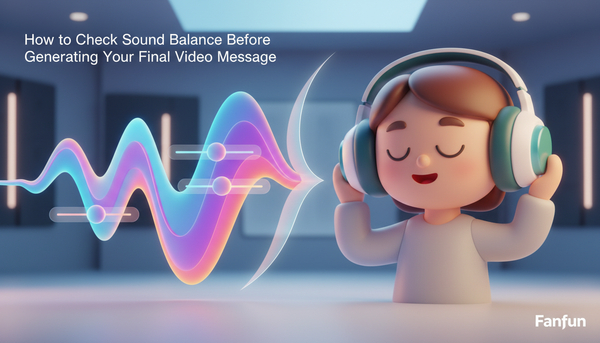
To help your digital video greeting sound clear, it is a good idea to test the audio on your device before sharing it. This simple step helps you catch unexpected volume issues, unclear speech, or awkward pacing before sending the video to your recipient. Checking the audio on your primary device helps ensure your virtual character's message is easy to hear and follow.
Why Audio Volume Calibration Matters for Digital Greetings
When you create a personalized message using Fanfun's AI characters, you are working with synthesized speech models rather than human-engineered studio recordings. Human voiceovers are typically heavily compressed and equalized by sound engineers to maintain a completely flat, predictable volume. AI voices, on the other hand, react dynamically to the exact words and formatting of your script. This means you might experience differences in "perceived loudness"—how loud a voice feels to the human ear—even if the technical audio file remains at a constant volume. To make sure your script flows naturally and sounds consistently clear, it is highly recommended to learn how to preview and check the audio of your digital video card script before finalizing.
The 4-Step Audio Verification Workflow
Calibrating your audio doesn't require professional sound equipment. Follow this straightforward four-step testing workflow to get a reliable baseline:
- Review your script and test the voice: Before generating your final video, you can use available tools like voice notes to hear how the character's voice handles your text. For a detailed walkthrough of preparing your script, consult our guide on how to preview and test your virtual character video before sending.
- Check your device volume: Set your testing device's volume to a moderate, comfortable listening level. If the dialogue feels too quiet or too loud at this level, you can adjust your script's phrasing or punctuation to help the AI voice flow better.
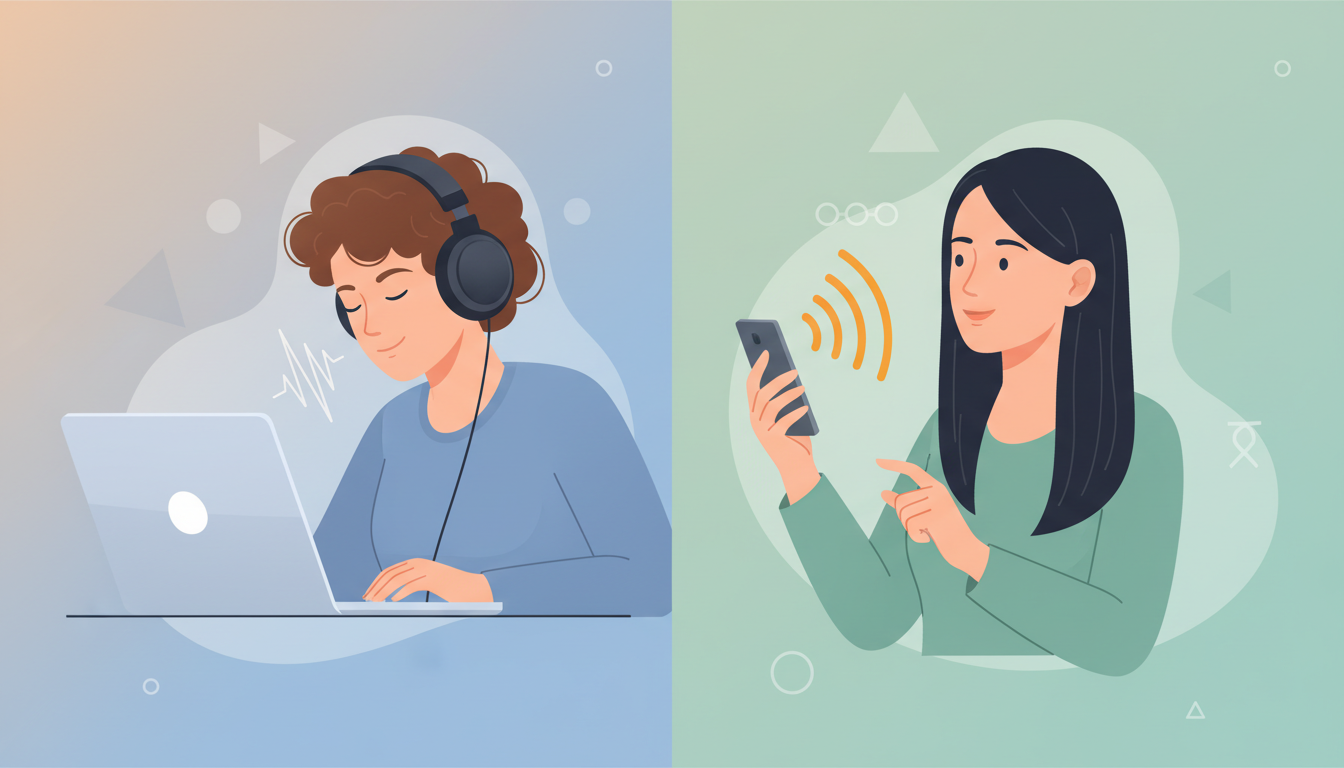
- Test with and without headphones: Your recipient might open your video on a crowded bus with earbuds in, or they might play it out loud at home. Listen to your generated video through both standard phone speakers and a pair of headphones to ensure the voice remains clear in both scenarios.
- Adjust script punctuation: AI characters rely on punctuation to determine when to breathe, pause, and shift emphasis. Adding a comma or a period can completely change how a sentence is paced, which directly impacts its perceived volume.
| Script Style | Example Text | Audio Result |
|---|---|---|
| No Punctuation (Rushed) | "Happy birthday Alex I hope you have an amazing day with your family" | The AI rushes through, causing the volume to drop off at the end due to a lack of natural pauses. |
| Proper Punctuation (Balanced) | "Happy birthday, Alex! I hope you have an amazing day... with your family." | The AI pauses naturally, keeping the volume steady and giving the words a warm, human-like cadence. |
Device-Specific Playback Environments
How and where your recipient opens your digital greeting makes a massive difference in how they experience the audio.
- Mobile Phones: The vast majority of digital greetings are opened on smartphones. Because mobile speakers are small and often bottom-firing, high-pitched frequencies can sound tinny, while low-pitched bass notes can get lost. Ensure the core message is clear and spoken at a moderate, steady pace.
- Smart TVs: If you are sending a milestone video that the entire family will watch together on a big screen, you will want to make sure the audio does not distort when amplified. For a seamless living room experience, follow the steps to play a digital video greeting on a smart TV using a USB drive.
- Event Kiosks: If your greeting is meant to play in a public, high-noise environment, such as a wedding reception or a graduation party, the audio must compete with loud ambient crowd noise. If you are setting up a digital video greeting kiosk on an iPad, we highly recommend pairing the device with external Bluetooth speakers or directional sound bars to ensure the virtual character's voice isn't drowned out by the celebration.
Why does the AI character voice sound quieter in some parts of my script?
AI voices interpret sentences based on punctuation. If a sentence is excessively long, the pacing can sometimes feel rushed or uneven. Try breaking long sentences into shorter, punchier phrases using periods or semicolons to help maintain a steady flow.
How can I make sure the downloaded video greeting sounds correct?
When you generate a video on Fanfun, the final video is delivered directly to your inbox and saved in your creations. Reviewing your script carefully and testing your phrasing using voice notes beforehand is a great way to ensure the final audio track text matches your expectations.
How can I improve the clarity of the AI voice in my video?
If the audio sounds slightly off, try reviewing your script for typos or complex phrasing. Adjusting the punctuation or breaking up long sentences can help the AI voice render a clearer pronunciation.