How to Preview and Check the Audio of Your Digital Video Card Script Before Finalizing
Don't risk wasting video credits on an untested script. Discover how to use low-stakes preview tools and phonetic spellings to check your digital video card's audio before you render.
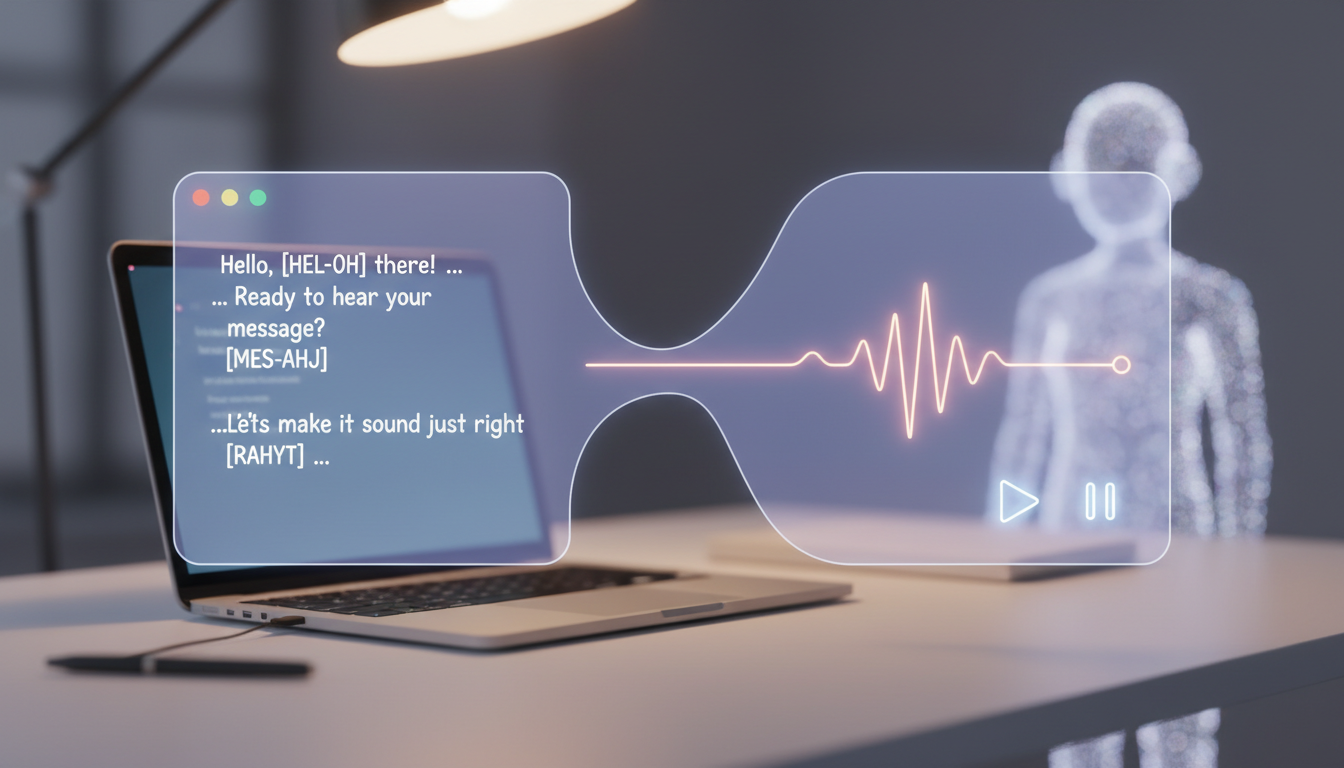
To preview and check the audio of a digital video card before finalizing, you can test your script using low-stakes text-to-speech draft tools, format your text with strategic punctuation to introduce pauses, and write tricky words phonetically. Rather than risking your video generation credits on an untested script, using a quick audio-only preview helps you check the AI character's pacing and pronunciation before you generate the final video asset.
The Golden Rule of AI Video Cards: Audio Proofing First
While AI personas mimic famous voices with incredible style, they do not read minds. An AI generator can occasionally stumble on unique names, slang, or specific brand terms. This is why "audio proofing" is a critical step of the overall preview process. Taking a moment to hear a draft version of your script helps ensure the final video sounds natural.
Before committing to a full video render, you can use Fanfun's ecosystem to test your words. With 500 free voice-note characters, you can generate an MP3 file of your exact script to hear how the AI character delivers the lines. If you need to make adjustments, you can do so easily without using up your video credits. To get the best results, you can learn more about how to preview and test your virtual character video before sending to help align both the visual and audio elements.
A Step-by-Step Workflow to Audition Your Script
To help refine your final video, you can follow this sequential workflow to test your script from initial draft to final render:
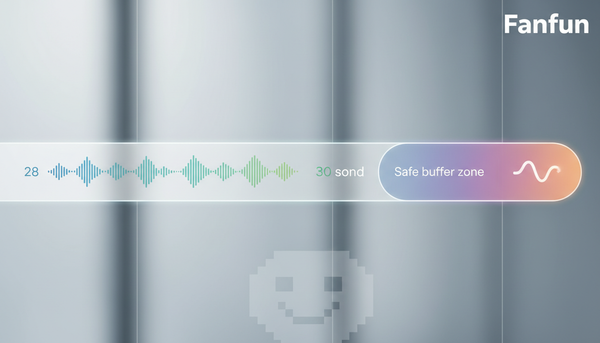
- Draft your script with limits in mind: Keep your script between 60 to 75 words for a standard 30-second video card. This helps ensure the character has enough time to speak naturally without rushing.
- Isolate tricky words: Identify non-traditional names, technical terms, or unique words that might require custom spelling or formatting.
- Run a voice-note test: Enter your text into Fanfun's voice-note tool to generate a quick MP3. Listen carefully to the pronunciation and cadence.
- Tweak punctuation: Add commas, periods, or ellipses to suggest natural pauses where a speaker might take a breath.
- Finalize and export: Once you are satisfied with the audio, paste the finalized script into your chosen video template and render your video greeting.
This rich audio experience is exactly why digital video greeting cards outperform traditional email greetings when you want to make an impact. Taking these steps helps ensure your recipient gets a high-quality, engaging message rather than a flat, text-based note.
How to Use Punctuation to Control AI Voice Pacing
Many AI voice generators interpret punctuation to structure rhythm and pauses. You can experiment with formatting to help guide how the character delivers your message:
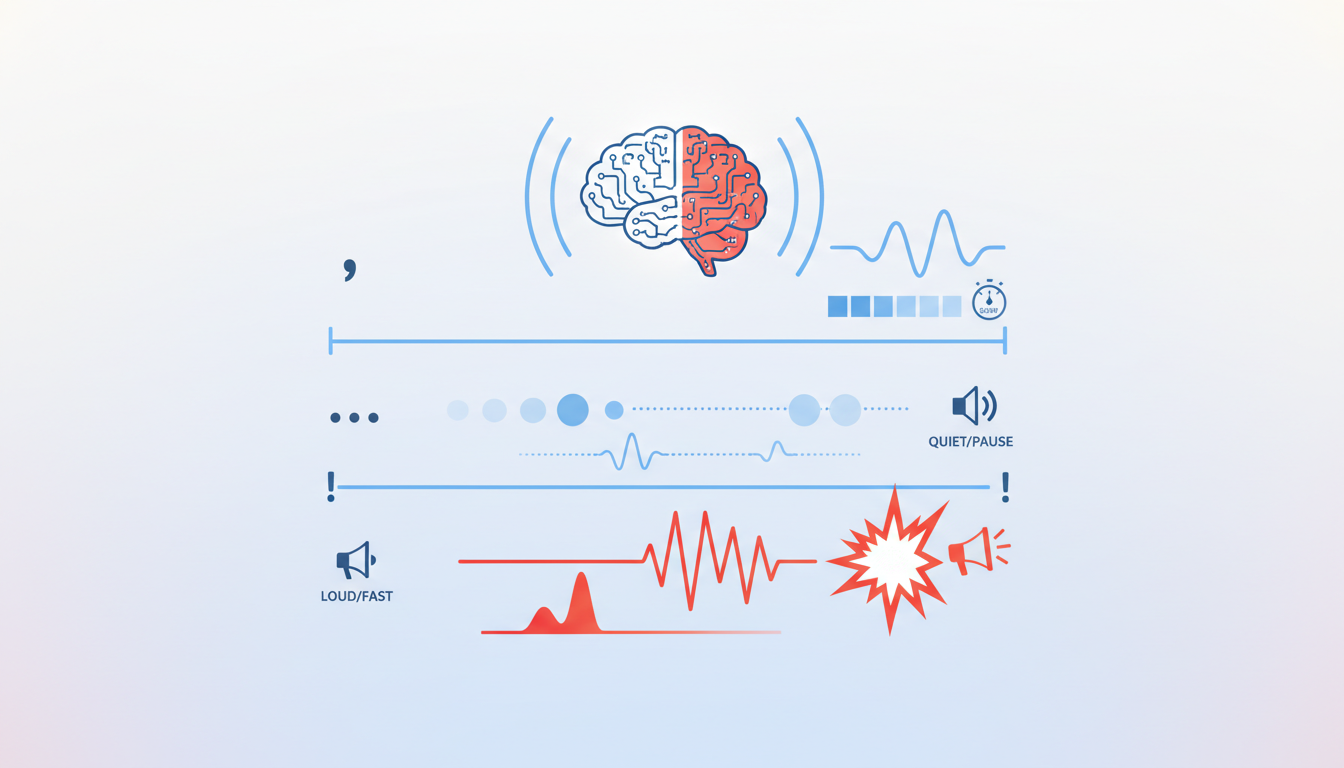
- Commas vs. Periods: A comma typically creates a short pause. A period creates a distinct, longer stop to separate sentences.
- The Ellipsis Trick: Try using three dots (...) to introduce a longer pause or transition between thoughts.
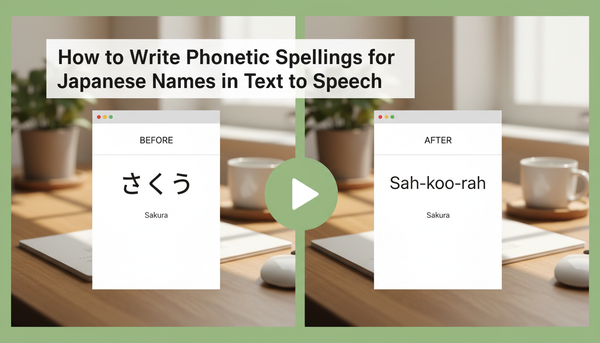
- Phonetic Spellings: If a name or word is pronounced uniquely, spell it out phonetically in your draft (e.g., writing "Al-ee-sha" instead of "Alicia" or "Suh-bhash" instead of "Subhash").
For specific tips on structuring festive scripts and matching the tone of different characters, check out our guide on how to direct an AI holiday greeting video.
Punctuation Tuning Example
| Draft Type | Script Text | Expected Voice Delivery |
|---|---|---|
| Standard Draft | Happy birthday Michael! I hope you have an amazing day and get everything you wanted. | Rushed delivery; the name "Michael" might blend too quickly into the next sentence. |
| Tuned Draft | Happy birthday... My-kul! I hope you have an amazing day... and get everything you wanted. | A pause before the name, phonetic pronunciation of the name, and a natural pause before the final clause. |
Quick Checklist: Is Your Audio Ready to Render?
| Checkpoint | What to Look For | How to Fix It |
|---|---|---|
| Pronunciation | Are names and unique words pronounced correctly? | Use phonetic spelling in the script box. |
| Pacing & Pauses | Does the speaker sound rushed or robotic? | Add commas, periods, or ellipses to slow down the speed. |
| Script Length | Is the script within the 30-second limit (60-75 words)? | Trim unnecessary filler words to prevent using extra credits unexpectedly. |
Can I edit the audio of my video card after it has been finalized?
No, once a digital video card is finalized and rendered, the audio track is baked into the video file and cannot be edited. If you need to make changes, you will need to adjust your script and generate a new video. This is why testing your script beforehand with a voice-note preview is highly recommended.
What should I do if the AI character mispronounces a common word?
If a common word or name sounds incorrect, try spelling it phonetically (the way it sounds, rather than how it is written). For example, write "Wednesday" as "Wenz-day" or "route" as "root" or "rowt" depending on your preferred regional pronunciation.
Does testing my script with a voice note use up my video credits?
No. On Fanfun, generating voice notes uses your voice-note character balance, not your video credits. This allows you to audition multiple variations of your script completely risk-free before committing a video credit to the final render.