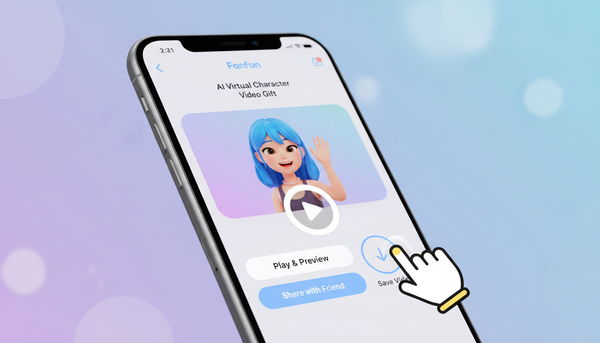
How to Preview and Test Your Virtual Character Video Before Sending
Don't guess how your virtual character message will sound. Use these practical testing steps to verify your script's flow and pronunciation before you generate your final video gift.
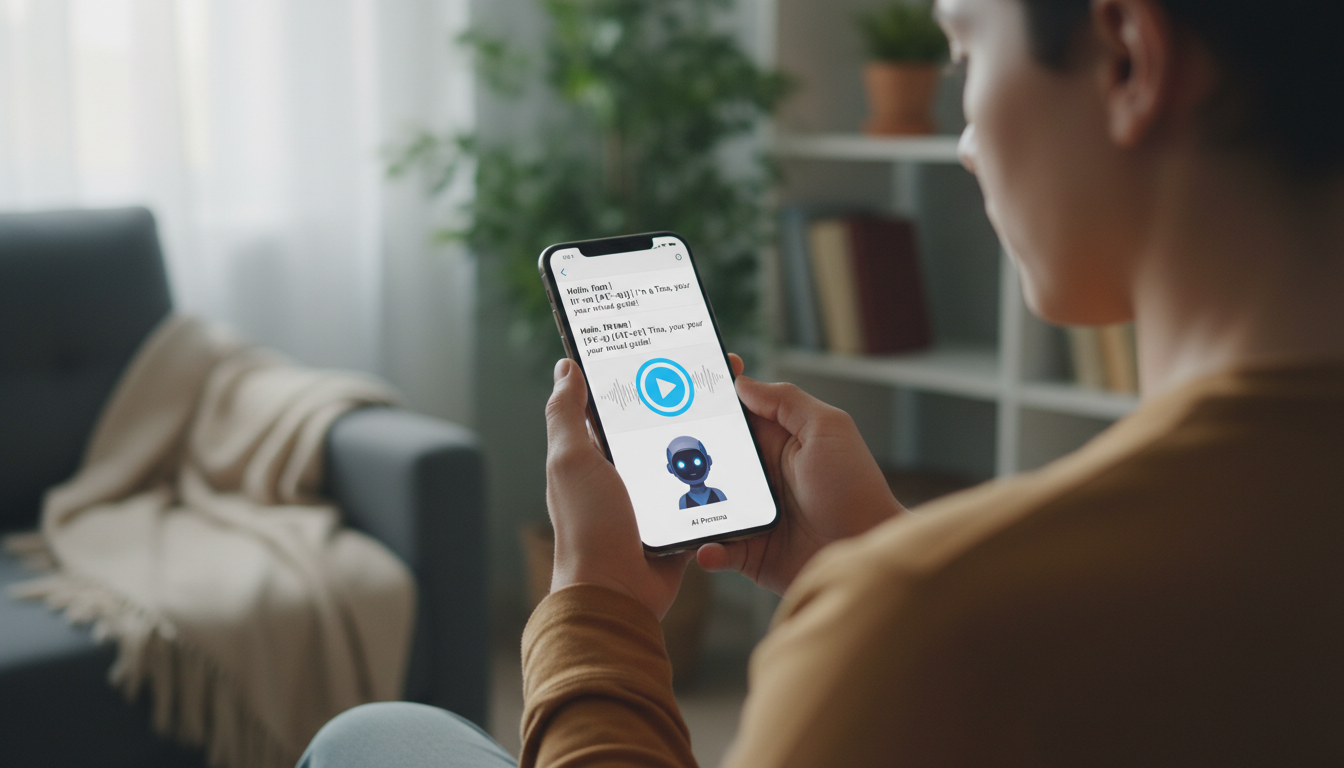
To preview and test a virtual character video before sending, you should audit your script's pacing, use phonetic spelling for tricky words, and test the audio using sandbox tools like voice notes before rendering the final video. On Fanfun, while you cannot generate a full video preview without using a credit, you can use the free Voice Note tool to convert up to 500 characters of your script into an MP3 file. This lets you hear the exact pronunciation, cadence, and tone of the AI character before you commit to generating the final video gift.
Because AI character voices are generated by algorithms rather than real-person recordings, they lack human intuition. They will read your script exactly as written, syllable for syllable. Taking a few minutes to test your script's flow can help you catch awkward phrasing before you generate the final video, whether you are celebrating a major milestone or sending a quick laugh to a friend.
The Pre-Production Checklist
Before you finalize your script, use this table to ensure you have addressed the most common pitfalls in AI-generated speech.
| Task | Why it matters | Action |
|---|---|---|
| Pacing Check | Prevents the AI from sounding rushed. | Read your script aloud at a slow, deliberate pace. |
| Phonetic Audit | Ensures names and places are pronounced correctly. | Spell out tricky names phonetically (e.g., 'Siobhan' as 'Shi-vawn'). |
| Punctuation Test | Creates natural pauses in the dialogue. | Use commas for short breaths and periods for full stops. |
| Audio Sandbox | Allows you to hear the final tone for free. | Generate a Voice Note on Fanfun to verify the delivery. |
Auditing and Structuring Your Script
The foundation of a great virtual character video is a clean, well-paced script. Before you input your text into Fanfun's video generator, read it aloud to yourself. If you trip over a sentence or run out of breath, the AI voice generator will likely struggle with the cadence as well.
Keep your message concise. On Fanfun, one video credit covers up to 30 seconds of speech. To make the most of this time, you can learn how to structure a short virtual character script to ensure your message has a clear beginning, middle, and punchy end. If you are writing for a specific event, tailoring the structure to the occasion is key. For instance, if you are drafting a celebratory toast, reviewing how to write a wedding toast script for a virtual character video can help you nail the timing of the jokes and sentimental beats.
Refining Your Audio with Phonetic Spelling
AI engines process text literally. To get the best vocal performance, you need to write for the ears, not the eyes. If you are welcoming someone home and want to write a personalized greeting, a name like "Siobhan" should be written as "Shi-vawn." If you are using guides like how to write a welcome back script or how to write a housewarming script, make sure local street names or family surnames are simplified phonetically so the AI character pronounces them flawlessly.
You can also use punctuation to control the pace. Commas create short, natural pauses, while periods and exclamation points signal a complete stop and a shift in tone. Ellipses or dashes can be used to stretch out a pause, which is perfect for comedic timing or dramatic effect.
Using Fanfun's Voice Notes as Your Sandbox
You do not have to guess how your script will sound. Fanfun offers a built-in sandbox where you can test your audio for free before spending any video credits. On every character page, you will find the Voice Note option. This feature allows you to type up to 500 characters of your script and generate a downloadable MP3 file using the exact same AI voice model as the video generator.
If you are working on a highly emotional message—such as learning how to write a wedding anniversary script for a virtual character video—paste your draft into the Voice Note box first. Listen to the generated MP3. If the character's voice sounds too rushed or mispronounces a word, adjust your punctuation or phonetic spelling in the text box and generate another voice note. Once the MP3 sounds exactly the way you want, copy that finalized text and paste it into the video gift generator.
For those creating virtual character video messages for long-distance relationships, this testing step is vital to ensure the warmth and personality of the character come through as intended.
What should I do if the AI mispronounces a specific name in the final video?
If the AI mispronounces a word or name, try adjusting the spelling phonetically (e.g., changing 'Sean' to 'Shawn') and generating a new video. To avoid spending extra credits on pronunciation adjustments, it is best to test your script using the Voice Note feature first.
Can I edit a video script after I have already spent a credit to generate it?
Once a video has been generated and delivered, you cannot retroactively edit that specific file. To generate a new version with a refined script, you will need to use another video credit from your balance. Always test your script using the Voice Note feature first to avoid needing multiple iterations.
How long does it typically take for the finished video to arrive in my inbox?
Video generation times can vary based on server load and video length. You will receive an email notification as soon as your video is ready, and it will also appear in your "My creations" section on your dashboard.