How to Download a Virtual Character Video to Your iPhone Camera Roll
Saving your custom virtual character video to your iPhone makes sharing it seamless. Here is the step-by-step guide to downloading your files directly to your Photos app.
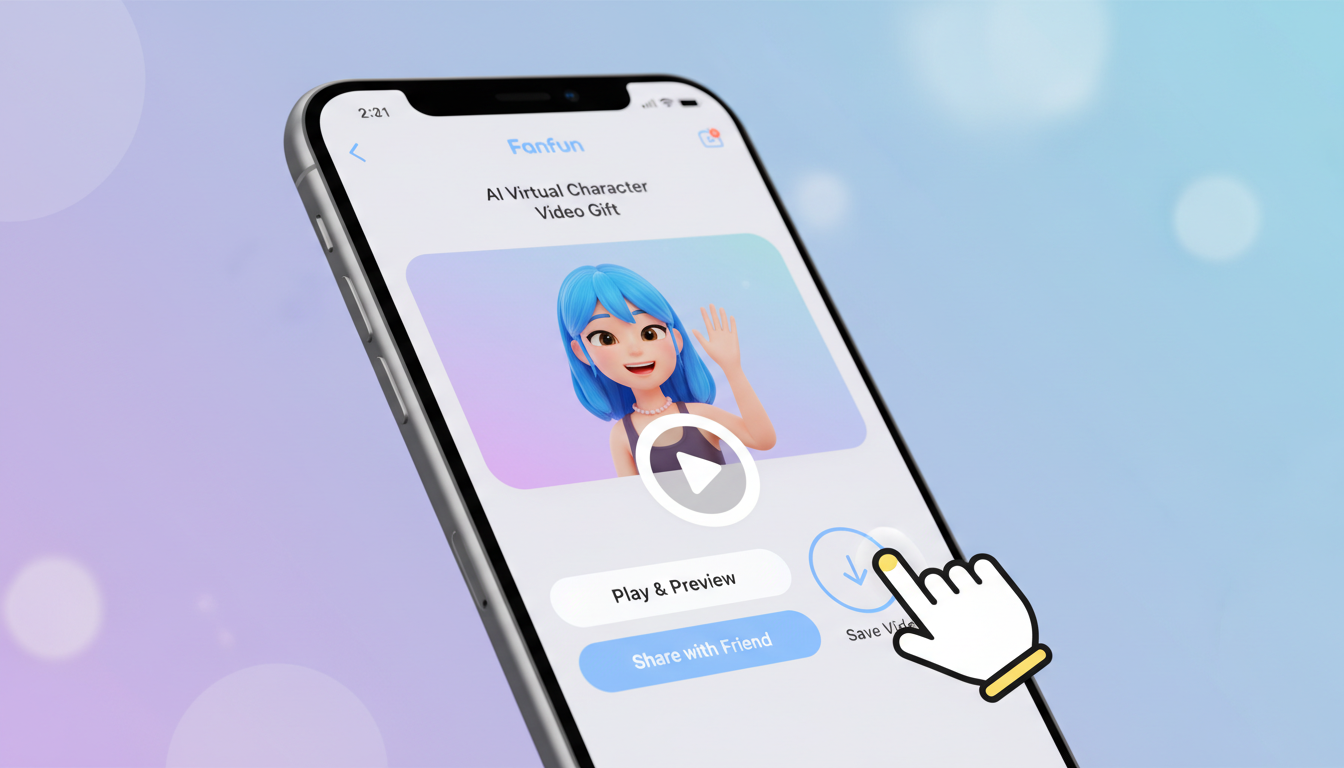
To download a virtual character video to your iPhone camera roll, open your video delivery link in Safari, tap the Share button (the square with an upward arrow), and select Save Video. If the video saves to your local Files app instead, simply locate the file in your Files app, tap Share again, and select Save Video to transfer it to your Photos app. Keep in mind that while custom video gifts and voice notes generated on Fanfun can be downloaded as media files, live interactive chat replies are designed for web play and cannot be exported.
The Direct Route: Saving from Safari to Your Photos App
Using Safari is the most reliable way to download files on an iPhone. Third-party iOS browsers can sometimes restrict direct downloads to your camera roll, so we always recommend copying your delivery link and pasting it directly into Safari.
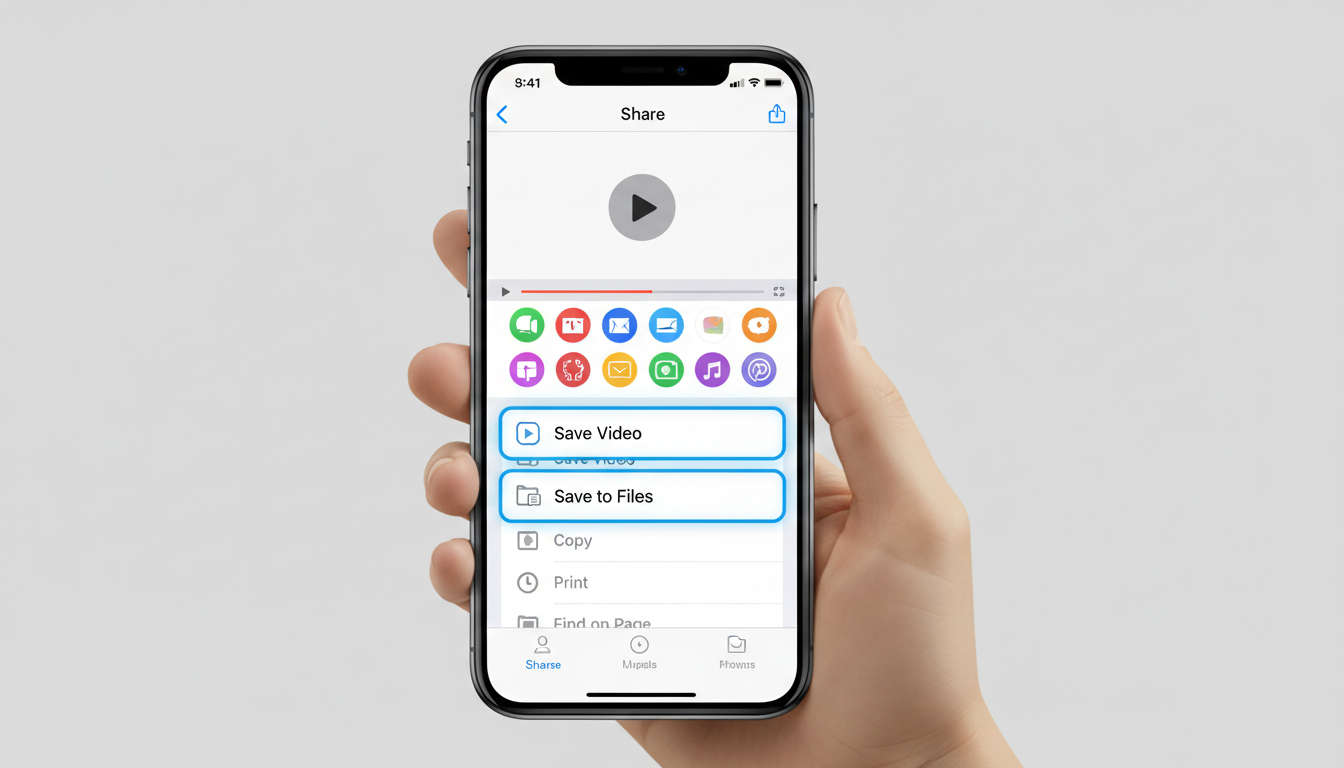
Follow these steps to download your video:
- Open your Fanfun video link in the Safari app on your iPhone.
- Tap the Share button at the bottom of the screen (the square icon with an arrow pointing up).
- Scroll down the share sheet. If you see Save Video, tap it. The video will download directly into your Photos app.
- If you do not see "Save Video," tap Save to Files instead. Choose a folder (like "Downloads") and tap Save.
- Open the native iOS Files app, find your downloaded MP4 video, tap the Share button in the bottom-left corner, and select Save Video. This moves the file from your local files directly to your camera roll.
Saving Your Video Directly from Your Email Inbox
When you create a custom video gift on Fanfun, the completed file is sent directly to your email inbox. How you save it depends on which email app you use on your iPhone.
Using the Native iOS Mail App
If you use Apple's default Mail app, saving is incredibly simple. Press and hold the video attachment preview inside the email until the quick actions menu pops up, then tap Save Video. The file will download immediately into your Photos app.
Using the Gmail App
If you prefer Gmail, open the email containing your video. Tap the download icon (the down arrow) on the video attachment to save it to your device's local storage. If that option is unavailable, tap the video to open it, tap the Share icon in the top right, and select Save Video or open the web link in Safari to complete the browser download workflow.
Pro tip: Avoid opening your email or video link inside social media in-app browsers (like the ones built into Instagram, Facebook, or TikTok). These mini-browsers are highly restricted and often block local file downloads entirely. Always copy the link and open it in Safari.
Troubleshooting Common iOS Download Issues
Sometimes iOS security settings or storage limitations can get in the way of a smooth download. Use this quick troubleshooting guide to resolve common issues:
| Issue | Possible Cause | Quick Solution |
|---|---|---|
| Video doesn't appear in Photos | Saved to Files app instead of Photos | Open the iOS "Files" app, look in "Recents" or "Downloads," tap the Share icon on the video, and tap "Save Video." |
| Download fails to start | Insufficient iPhone storage | Go to Settings > General > iPhone Storage to ensure you have enough space for a high-definition video file. |
| No audio plays in the video | iPhone is on Silent Mode | Flip the physical Ring/Silent switch on the side of your iPhone or toggle Silent Mode off in the Control Center. |
| Cannot find a download button on live chat | Interactive chat limitations | Remember that while video gifts and voice notes are fully downloadable, live chat replies on the web platform are meant for interactive play and cannot be exported as video files. |
What to Do Next with Your Saved Video
Once your virtual character video is safely stored on your iPhone camera roll, you can use it in several fun ways. You can text it directly to a friend via iMessage or WhatsApp, upload it to your favorite social media platforms, or keep it archived as a permanent keepsake.
If you are planning a celebration, you can learn how to loop a virtual character video for a party display using simple iOS slideshow settings or Apple TV, making it the perfect background entertainment for guests.
Ready to create another custom message? Check out our guide on how to write virtual character congratulations prompts for custom video messages to get your next script started and make your next gift truly unforgettable.
Why does my downloaded video play without any sound on my iPhone?
If your video plays without sound, check that your iPhone is not set to Silent Mode. The physical Ring/Silent switch on the side of your phone must be flipped to ring, or you must toggle Silent Mode off in your Control Center. Additionally, make sure your media volume is turned up.
Can I download a Fanfun voice-note as an MP4 video file?
No, Fanfun voice notes are generated and downloaded as MP3 audio files. If you want a full MP4 video file with a styled background scene and animated character, you should choose the "Video Gift" option on the character's page instead of the "Voice Note" option.
Where can I find my generated video file to download it?
Once generated, your video is stored in your "My Creations" tab and sent to your email inbox, allowing you to download it to your devices.