How to Loop a Virtual Character Video for a Party Display
Setting up a repeating virtual character video at your next event is a great way to welcome guests and spark conversations. Here is how to configure continuous playback on any device and write a loop-friendly script.
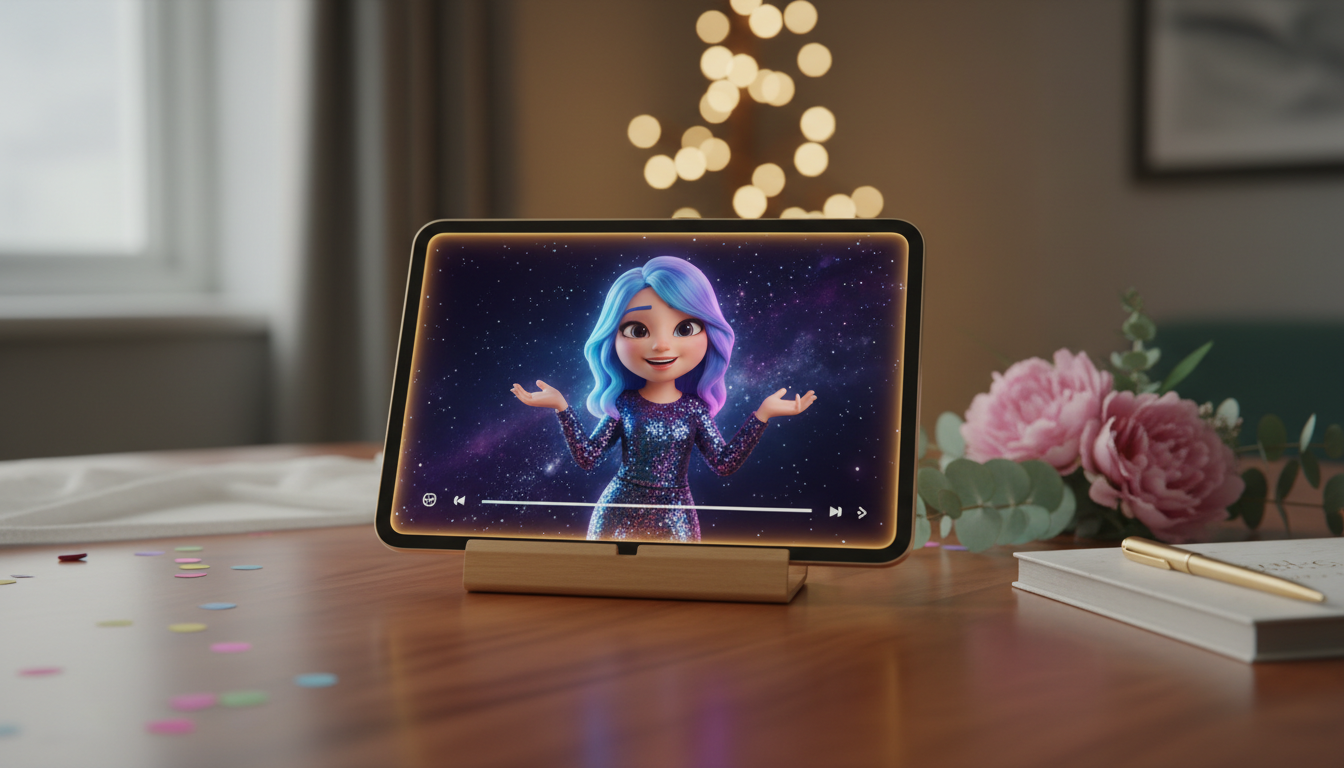
To loop a virtual character video at a party, you must first download the video as an MP4 file to your local device. Because standard mobile and desktop web browsers do not natively loop video files indefinitely, you will need to use a dedicated media player app like VLC (available for free on iOS, Android, macOS, and Windows) or adjust your smart TV's media settings to "Repeat One." This ensures your digital greeting plays continuously without manually pressing restart.
The Quick Answer: How to Keep Your Character Video Playing on Repeat
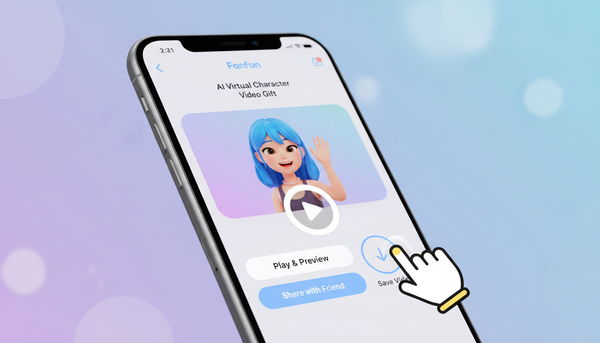
When you generate a custom video message on Fanfun, the final product is delivered directly to your email inbox and saved in your account dashboard as a high-quality MP4 file. While a single play is perfect for a direct message, setting up a continuous display for an event requires a small amount of preparation. While group video greeting platforms are excellent for collaborative team gifts, a dedicated virtual character message offers a unique, theatrical focal point for live event displays.
To make the video play continuously on a loop, you cannot rely on basic web previews or standard gallery apps, which usually stop playing after the file ends. Instead, you will need to use a media player that supports continuous repeat settings. Preparing your loop successfully comes down to two main tasks: configuring the playback settings on your chosen display hardware, and scripting your character's message so that it remains pleasant to hear multiple times throughout the event.
Step-by-Step Looping Instructions for Every Device
Depending on the screen you choose for your party, the setup steps will vary. Here is how to configure continuous looping on the most common display setups:
How to Loop on an iPad or iPhone
The default iOS Photos app does not have an infinite loop button for standard videos. To get around this:
- Download the free VLC for Mobile app from the App Store.
- Save your Fanfun MP4 video file to the Files app on your device, then open it inside VLC.
- Tap the screen to reveal the playback controls, tap the three dots (...), and toggle the circular arrow icon (Loop) until it shows a small "1" or turns active to repeat the single video.
- Pro Tip: Use iOS Guided Access (Settings > Accessibility > Guided Access) to lock the screen. This prevents guests from accidentally swiping away the video or pausing it.
How to Loop on an Android Tablet or Phone
- Open the default Google Photos app and locate your downloaded video.
- Tap the video to play it, then tap the three vertical dots in the top-right corner.
- Toggle the Loop video on option.
- Alternatively, download VLC for Android and use its dedicated "Repeat One" button for a more stable playback experience.
How to Loop on a Smart TV or Monitor
- Transfer your downloaded MP4 video file onto a standard USB flash drive.
- Plug the USB drive into the USB port on the back or side of your Smart TV or monitor.
- Use your TV remote to select the USB input and open the built-in Media Player app.
- Select your video, and look for the playback menu (often accessed by pressing the down or options button on your remote). Select Repeat One or Loop.
How to Loop on a Laptop
- On Mac (QuickTime): Open your MP4 file in QuickTime Player. In the top menu bar, click View and select Loop. Press play.
- On Windows (VLC Media Player): Open the video in VLC. Click the double-arrow loop icon on the bottom control bar until it displays a small "1" to loop the single track continuously.
Scripting Secrets for a Loop-Friendly Video Message
Because your guests will likely hear the video multiple times if they are mingling near the display, the script needs to be written with repetition in mind. A jarring or overly loud video can quickly turn from a fun party novelty into background noise that guests try to avoid.
Keep these creative guidelines in mind when writing your script on Fanfun:
- Keep it brief: A single video credit on Fanfun covers up to 30 seconds of speech. This is the absolute sweet spot for a party display. It is short enough for passing guests to watch in its entirety without blocking traffic.
- Smooth audio transitions: Avoid high-pitched sound effects, sudden loud screams, or intense opening music. A gentle greeting and a smooth fade-out prevent the restart of the loop from startling guests.
- Tailor to the occasion:If you are setting up a display for a major celebration, check out our guide on how to write a milestone birthday script for a virtual character video to keep your content engaging.
- Consider the visual layout: Choose a character template where the framing looks natural on your stand. If your tablet is in portrait mode, a vertical video template works best; for TVs, stick to landscape templates.
Here is an illustrative example of a loop-friendly welcome script template you can customize:
"Hey everyone! Welcome to Sarah's 30th birthday bash! Grab a drink, sign the guest book right here, and make sure to use the party hashtag when you post your photos. Let's make tonight unforgettable—have a blast!"
Party Display Etiquette: Sound, Power, and Placement
A successful looping display requires a bit of physical planning at the venue. Use this quick checklist to ensure your virtual character setup runs smoothly from the start of the party to the cleanup:
| Setup Element | Best Practice | Why It Matters |
|---|---|---|
| Power Source | Keep the device plugged into a wall outlet or a high-capacity portable power bank. | Continuous video playback and screen brightness will drain standard tablet and laptop batteries in under two hours. |
| Screen Placement | Position the screen at eye level near high-traffic, low-noise areas like the guest book, gift table, or photo booth entrance. | This ensures maximum visibility without forcing guests to crowd around active walkways or dance floors. |
| Volume Control | Set the volume to a comfortable conversational level. If the room is noisy, pair the device with a small, hidden Bluetooth speaker. | The audio should be clear to anyone standing within three feet, but quiet enough that it does not disrupt nearby conversations. |
Can I loop a video directly from the Fanfun website?
No, the web player on Fanfun is designed for single-play previews and sharing. For continuous looping at an event, you should download the high-quality MP4 file from your email or your "My creations" dashboard and play it using a local media player.
What should I do if the video audio is too quiet for a noisy party?
If the built-in speakers of your tablet or laptop aren't loud enough, connect the device to a small Bluetooth speaker placed discreetly behind the display. Keep the volume moderate so it doesn't overpower nearby conversations.
Is it better to use a tablet or a TV screen for a looping display?
Tablets (like iPads) are perfect for intimate tabletop displays, such as next to a guest book or gift table. Larger TV screens or monitors work best if you want the virtual character to serve as a main room attraction or backdrop for a photo booth.