How to Customize the Thumbnail Preview for Your Shared Virtual Character Video
Don't let a generic link preview spoil your surprise message. Learn how to control exactly what your recipient sees in their chat window before they hit play on your custom virtual character video.
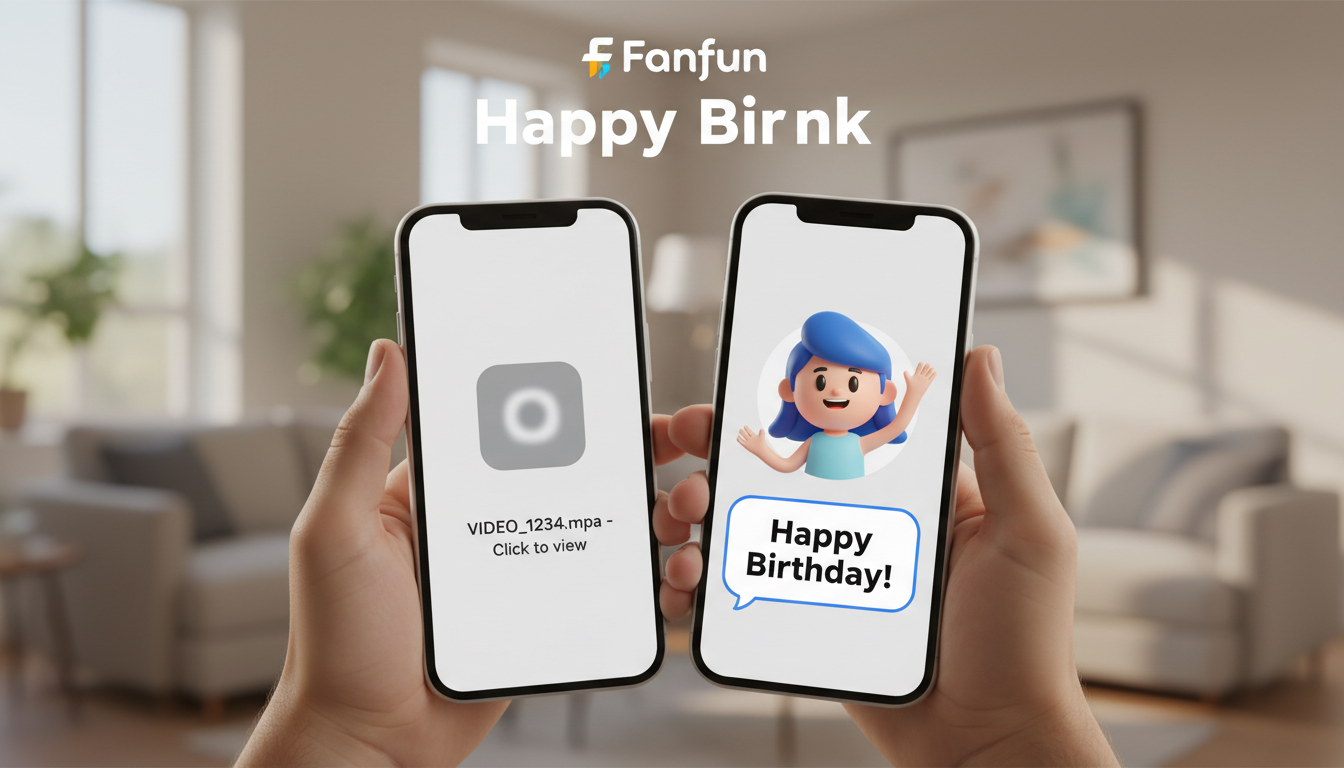
To customize the thumbnail preview of a shared virtual character video, you must either download the video file and set a custom poster frame before sending it natively, or upload the file to a hosting service and use a link-shortening tool with Open Graph (OG) tag support to wrap your shared link. While platforms like Fanfun generate beautiful video files delivered straight to your inbox, messaging apps like WhatsApp, iMessage, and Slack rely on their own algorithms to grab a preview frame. By managing how you upload or wrap your shared link, you can ensure the recipient sees a vibrant, clear image of the character instead of a generic logo or an awkward mid-speech blink.
Why Your Video Thumbnail Matters in Chat Previews
The first click is everything when sending a personalized gift. When you share a virtual character video, you are delivering a fun, surprising experience. However, if the recipient's chat window displays a gray play button, a blurry loading block, or an awkward freeze-frame of the character, the magic of the surprise is slightly diminished.
How a preview renders depends entirely on whether you share a raw video file or a web link. When you share a web link, messaging platforms crawl the URL to pull Open Graph (OG) metadata. If the site hosting the video doesn't have a specific thumbnail declared for that unique link, the chat app will guess, often pulling a default logo. When planning your message, choosing the right presentation style for your video can also influence how these previews render in chat windows.
Method 1: The Direct File Upload (Best for iMessage and WhatsApp)
The most reliable way to control the thumbnail without using third-party web tools is to send the video as a native media file. When you upload a video file directly into a chat, the messaging app reads the embedded metadata or allows your phone's operating system to suggest the cover frame.
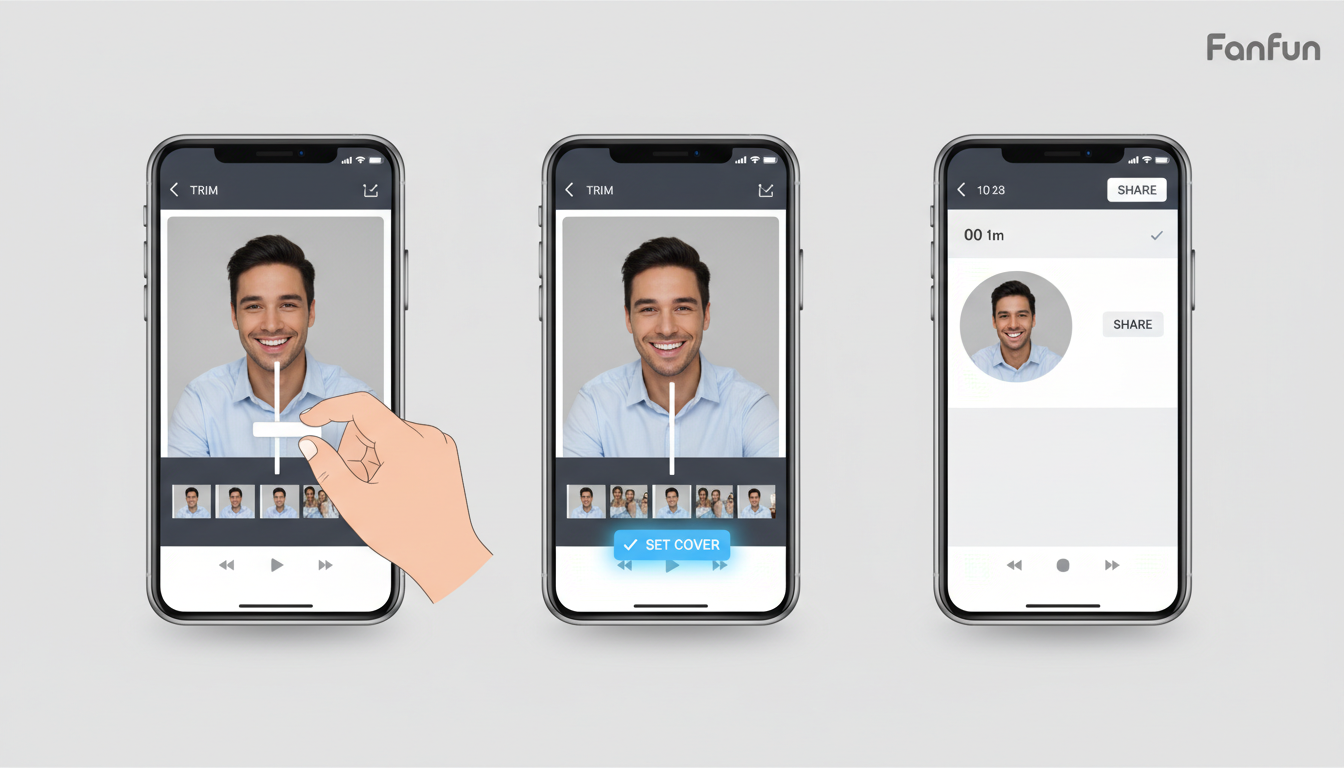
To use this method, follow these steps:
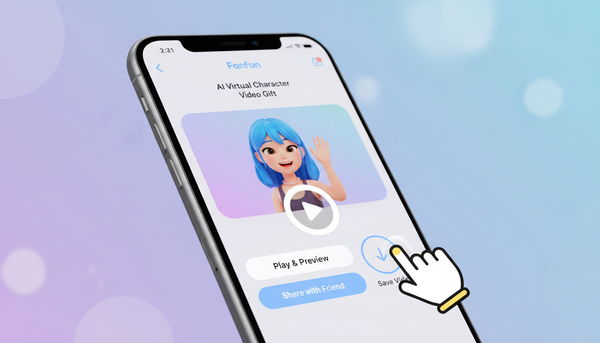
- Download your video: Save the completed video file from your Fanfun email or your My Creations dashboard directly to your phone's camera roll or computer.
- Set a cover frame (iOS): Open the video in the Apple Photos app, tap Edit, and look for the video timeline at the bottom. Tap the keyframe you want to use as your cover, then tap Make Poster Frame.
- Set a cover frame (Android): Open the video in your Gallery app, tap Edit, and navigate to the cover/thumbnail options. Select your preferred frame from the timeline and save.
- Send natively: Open your chat app (like WhatsApp or iMessage), tap the attachment (+) icon, select your saved video, and send. The app will display your chosen poster frame as the preview.
Keep in mind that native files are subject to file size limits on some mobile networks. If you are writing a perfect 30-second script, keeping the video brief can help manage the file size, making it easier to send directly via text message.
Method 2: Customizing Link Previews with Free Tools
If you prefer to share a link instead of a heavy file—especially if you are sending the video to multiple people or posting it publicly—you can upload your downloaded video to a cloud storage or video hosting platform and use free link-management tools to customize the Open Graph metadata.
This method involves wrapping your shared video link inside a custom link that lets you define the title, description, and preview image manually. Here is how to do it:
- Use a custom link shortener: Tools like Bitly (on paid/custom plans) or free alternative wrapper tools allow you to edit the social preview image of any link you shorten.
- Create a simple landing page: Free tools like Linktree, Carrd, or Canva Websites let you embed your video and set a custom social share image in their page settings.
- Format your thumbnail: Ensure your custom image matches standard landscape preview dimensions, which is typically 1200 x 630 pixels.
Before sending your new link to the recipient, always test it first. You can use free developer tools like the Facebook Sharing Debugger or the Telegram Webpage Bot. Simply paste your link into these tools to see exactly how the preview card will look in a chat window before you send the real message.
How to Design a High-Click Thumbnail for Your Character Message
A great thumbnail should build anticipation. When the recipient sees the notification, they should immediately feel intrigued and want to click play. Here is a quick framework to help you choose or design the perfect preview image:
| Thumbnail Element | What to Avoid | What to Do Instead |
|---|---|---|
| Character Expression | Mid-syllable mouth open, closed eyes, or blurry motion. | A clear, smiling frame with direct eye contact. |
| Text Overlay | No text, or tiny, unreadable font. | Large, high-contrast text (e.g., 'A message for you!'). |
| Background | Cluttered, dark, or distracting elements. | A clean, colorful background that makes the character pop. |
If you are creating custom video greetings for kids, visual cues are even more critical. Children respond instantly to bright colors and friendly faces. Using a free design tool like Canva, you can take a screenshot of your Fanfun character, drop it onto a colorful template, and add a bold sticker or text overlay that says 'Happy Birthday, [Name]!' in a fun, playful font. This small touch transforms a simple video link into a personalized digital gift that feels incredibly special from the very first second.
Why does my video link show a generic logo instead of my character's face?
This happens because the platform hosting the video link has a default Open Graph (OG) image set for all generic link shares. To fix this, download the video file and send it natively, or upload it to a hosting service and use a link-customization tool to specify your own custom preview image.
Can I change the thumbnail after I have already sent the link?
Generally, no. Most messaging apps cache the link preview the first time the link is generated in a chat. Even if you update the metadata using a link wrapper, the recipient's app may still display the cached version unless you use a completely new URL.
Does the thumbnail quality affect the actual video playback resolution?
No, the thumbnail is just a separate image file used for the chat preview card. Once the recipient opens the file or link, the video will play in its original quality as generated.