How to Create Custom Video Greetings for Kids' Birthdays Using Virtual Characters
Want to surprise your child with a personalized message from their favorite animated character? Learn how to write punchy scripts, match characters to your kid's personality, and direct a memorable digital greeting using Fanfun.
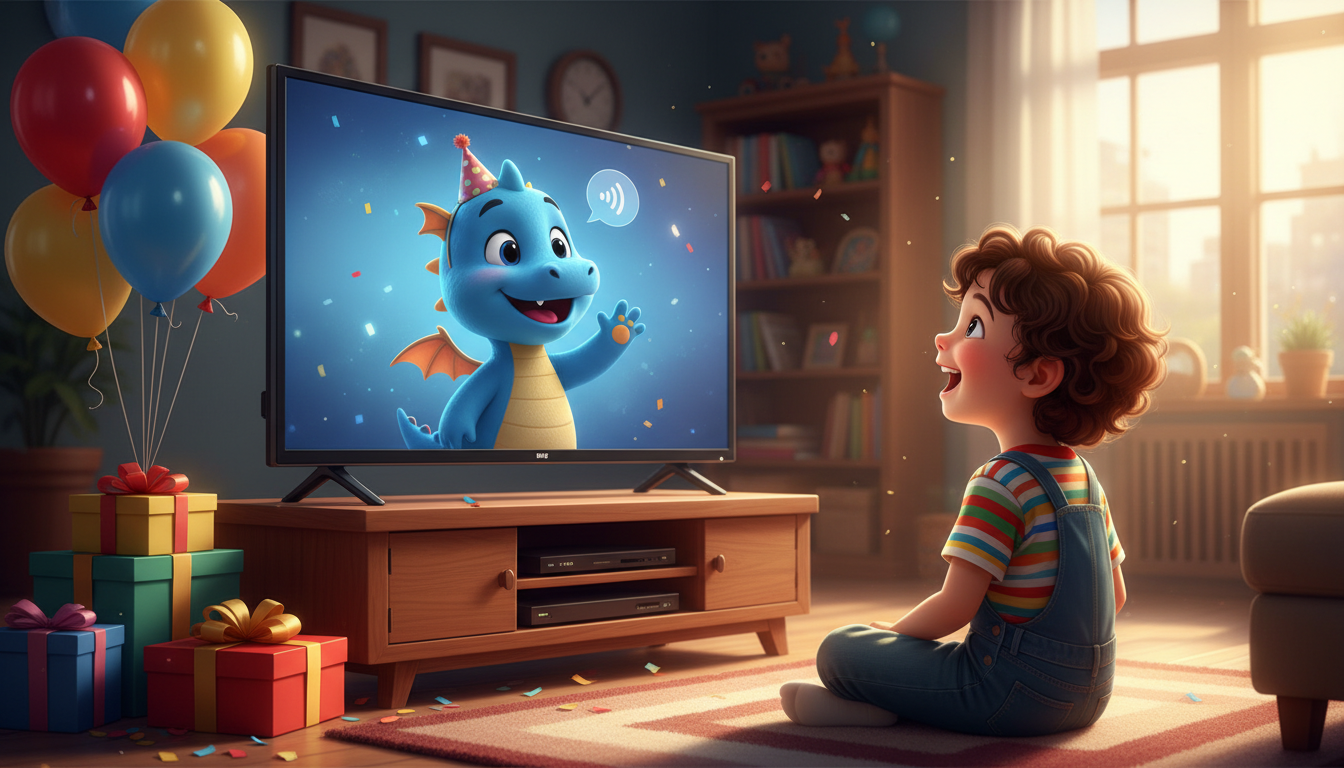
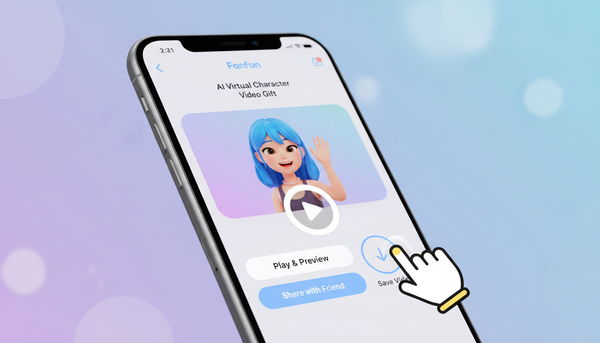
Creating a custom video greeting for your child's birthday using virtual characters is a simple, budget-friendly way to bring their favorite animated personalities to life. By using Fanfun, you can select a virtual character, write a personalized script of up to 30 seconds (around 60 to 75 words), and receive a finished video in your inbox. While these synthetic AI greetings are highly engaging and fully customizable, they are playful AI-generated personas rather than live-action recordings or real voice actors, meaning they have natural limits in emotional range and pronunciation that are easy to manage with the right setup.
The Magic of a Virtual Birthday Message (and How It Works)
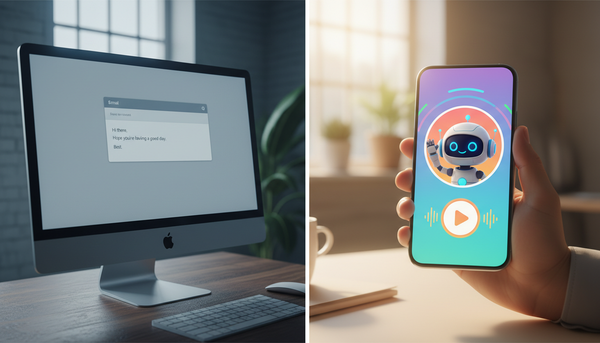
Instead of booking expensive celebrity shout-outs that follow rigid, pre-recorded templates, directing an AI character gives you total creative control over the message. Fanfun uses advanced AI voice synthesis paired with pre-made video templates to read your exact words in the signature style of popular animated personalities. It is important to remember that these are playful digital replicas, not real-person recordings. This distinction is what makes them so flexible: you don't have to wait weeks for a real actor to record a script. You can write, preview, and generate a video. Learn more about creating instant virtual greetings for cartoon lovers to see how simple the setup is.
Step 1: Match the Character to Your Kid's Personality
Selecting the right virtual host is all about matching your child's current obsessions and age group. A toddler will light up at a gentle, welcoming tone, while an older kid might appreciate a high-energy gaming hero or a cheeky animated sidekick. Check out our guide on how to create a custom cartoon voice greeting for kids' parties for more character inspiration. To help you decide, consider how different character styles fit your child's age and interests:
| Character Style | Target Age Group | Best Suited For |
|---|---|---|
| Enthusiastic Sidekick (e.g., Patrick Star) | 4 to 7 years | High-energy, silly humor, and pure fun. |
| Friendly Hero (e.g., Mario) | 5 to 9 years | Encouraging messages, game-themed parties, and active kids. |
| Gentle Companion (e.g., Doraemon) | 3 to 6 years | Sweet, calming birthday wishes and comforting advice. |
Step 2: Write a Script That Feels Personal and Punchy
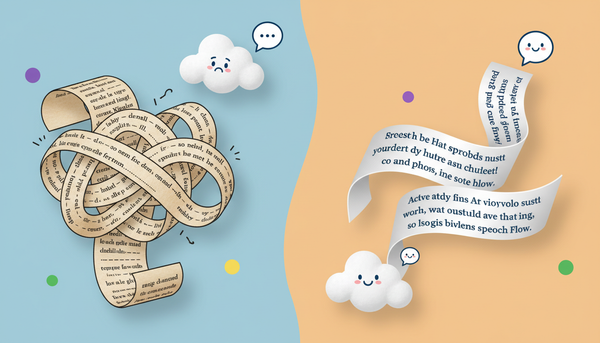
On Fanfun, one video credit covers up to 30 seconds of speech, which translates to roughly 60 to 75 spoken words. Writing a short, punchy script ensures the AI voice maintains its natural pacing without sounding rushed or robotic. To make the greeting feel truly magical, skip generic 'happy birthday' templates and weave in highly specific details that only a real friend would know—like their favorite toy, their best friend's name, or their favorite food.
Here are two customizable templates you can use to get started:
The 5-Year-Old Birthday Template (Focus on Toys and Play)
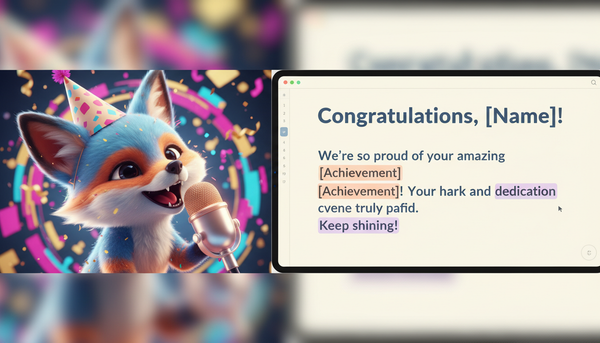
"Oh boy! Is that [Name]? Happy 5th birthday, buddy! I heard you love playing with your blue toy trucks and eating giant slices of cheese pizza. I hope your big day is filled with tons of fun and lots of games. Keep being awesome, and have a super-duper birthday!" (53 words)
The 8-Year-Old Birthday Template (Focus on Sports and Games)
"Hey [Name], what's up? I wanted to pause my game to wish you a massive happy 8th birthday! Word on the street is you're an absolute pro at soccer and you just beat your high score. Have an epic day with [Best Friend's Name], eat some cake, and remember to keep leveling up!" (57 words)
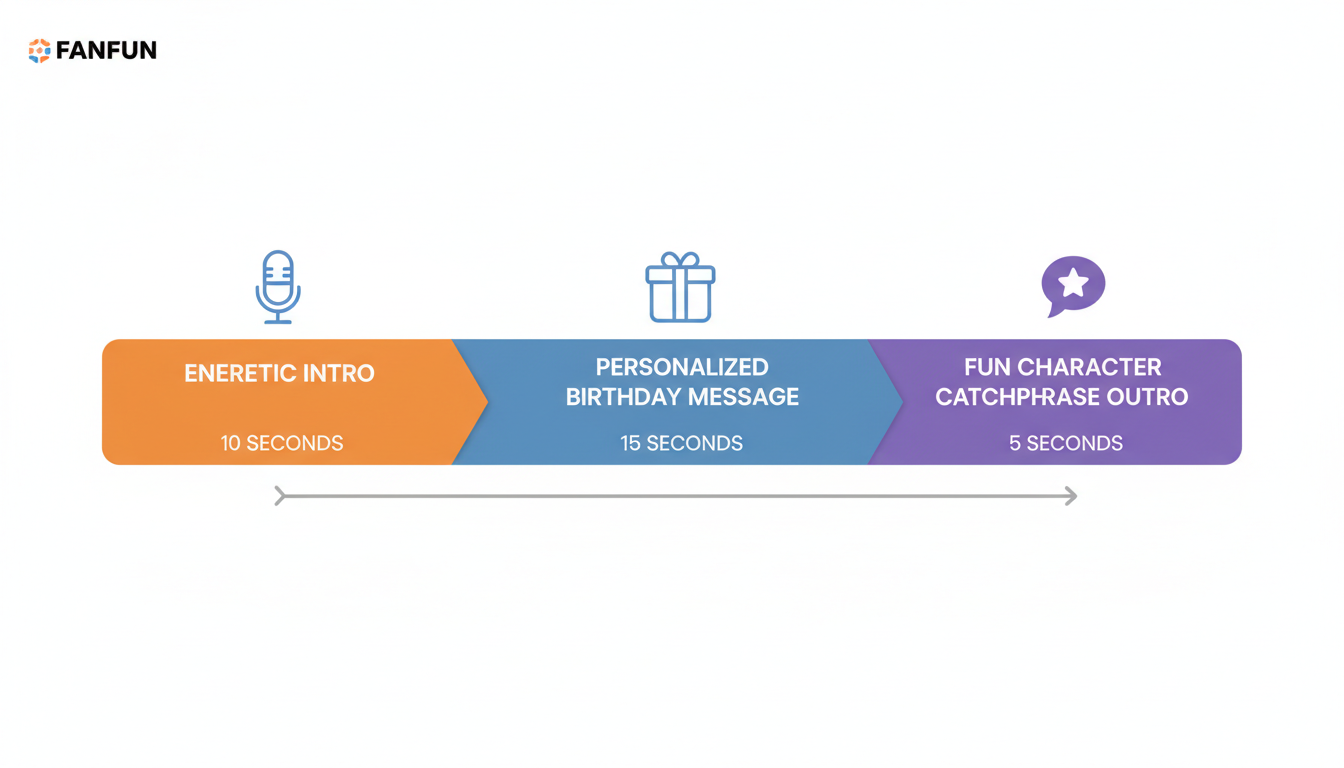
Visual Guide: The Perfect 30-Second Script Blueprint

Keep your script under 75 words to ensure the AI character speaks naturally and maintains high energy throughout the greeting.
Step 3: Handle Pronunciation and Polish the Audio
Synthetic voices are incredibly advanced, but they can occasionally struggle with unique names, slang, or specific inside jokes. To get the best possible result, use phonetic spelling in the Fanfun script editor. For example, if your child's name is Maya, writing it as "My-uh" can help the AI hit the correct pronunciation. Similarly, "Ah-leks" works wonders for Alex.
Before you spend a full video credit, take advantage of Fanfun's chat or voice note features to preview the character's voice style. Type in a few short sentences to see how the name sounds. If a video generation fails, Fanfun automatically refunds the credit to your balance, letting you tweak your script and try again.
Step 4: Choose Your Format and Plan the Big Reveal
Once your video is generated, Fanfun will deliver the finished video straight to your inbox. While streaming it directly from the email link is convenient, we highly recommend downloading the file to your device before the party starts. This prevents any awkward buffering or internet connection drops right when your child is waiting for their surprise. Read our guide on how to choose the best video file format for sharing digital greetings to make sure your video plays flawlessly on any screen.
To make the moment unforgettable, think about how you want to present the video. Here are a few popular options:
- The Morning Surprise: Queue up the downloaded video on a tablet and hand it to them first thing in the morning.
- The Big Screen Reveal: Cast or project the video onto your living room TV right before everyone sings "Happy Birthday."
- The Scavenger Hunt Clue: Use the character to deliver the final clue that leads your child to their main birthday present.
How long does it take for the virtual character video to arrive in my inbox?
Video generation times can vary. We recommend creating your video well ahead of the party to ensure everything is ready for the big reveal.
Can I edit the script after the video has been generated?
No, once a video is generated, the script is locked and the video credit is used. To make changes, you will need to edit your script and generate a new video using a new credit. We highly recommend previewing your script using our free chat or voice-note features before hitting generate.
What should I do if the AI character mispronounces my child's name?
If the AI struggles with a name, try writing it phonetically in your script (for example, "My-uh" for Maya or "Lee-am" for Liam). If a technical error causes the video generation to fail entirely, your Fanfun video credit is automatically refunded to your balance.