
How to Fix Trailing Audio Cutoffs and Fade-Outs in Virtual Video Messages
Prevent awkward cutoffs at the end of your AI character videos. Learn how simple script formatting and timing buffers keep your audio sounding natural.
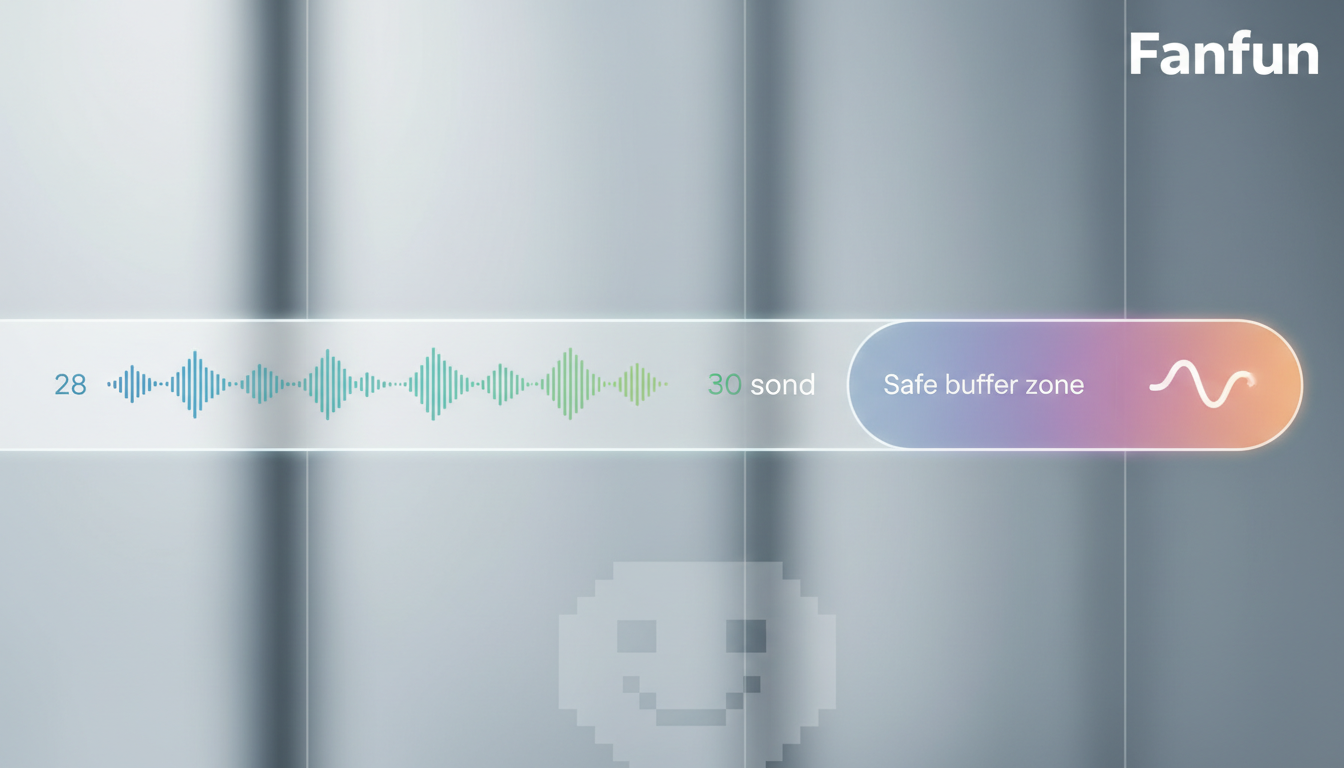
Trailing audio cutoffs and fade-outs in virtual video messages usually happen because the written script runs too close to the technical video limit or because the synthetic voice generator lacks a natural trailing buffer to complete the final syllable. To resolve this, you should keep your script's spoken duration 2 to 3 seconds under the maximum video limit, structure your final sentences to end naturally, and adjust your background music levels to prevent sudden volume drops at the end of the file.
Why Trailing Audio Cuts Off in Virtual Videos
When you create a personalized message on Fanfun, the underlying AI voice models synthesize text in sequential chunks. Unlike a human voice actor who naturally senses when a sentence is ending and slows down, a synthetic voice model requires a fraction of a second of 'pad' time to complete the final phoneme. If the text ends abruptly, the generator may stop rendering before the sound wave has fully decayed, resulting in a clipped syllable.
This issue is amplified when you cram a script to the absolute maximum duration of a single video credit. On Fanfun, one video credit covers up to 30 seconds of speech. If your written script takes exactly 30 seconds to read, the system is forced to cut the rendering process off right at the 30-second boundary. There is simply no room left for the voice to taper off naturally.
Additionally, background music transitions can feel abrupt. If the voice track stops suddenly right at the video file's boundary, the background music may also cut off sharply instead of fading out smoothly. If you are experiencing this, learning how to fix background music drowning out the voice can help you balance your audio tracks for a more polished finish.
The Script-Level Fix: Punctuation and Padding
The easiest way to prevent clipped audio is to change how you write and format your scripts. You do not need complex editing software to give your AI persona breathing room; you just need to apply these simple formatting rules before hitting generate.
Structuring Your Ending
Structuring your final sentence as a complete, natural thought helps ensure the generation finishes cleanly. Avoid ending on an incomplete phrase or a sudden mid-sentence break, which can make any abrupt stop sound more noticeable.
The Silent Buffer Rule
Always aim to write a script that takes roughly 26 to 28 seconds to read aloud. This leaves a safe 2-to-3-second buffer before the 30-second limit. By keeping your spoken content slightly under the limit, you give the generator plenty of room to render the final words and let the background music fade out gracefully.
Avoid High-Energy Endings
Avoid ending your scripts with highly excited phrasing or multiple exclamation points (e.g., 'Happy Birthday!!!') if you want a gentle finish. High-energy endings can make any sudden cutoff sound more jarring. Instead, use a standard period to bring the sentence to a clean, natural close.
If you are looking for inspiration on how to structure your scripts with natural pauses, you can explore our pre-made templates like the Virtual Detective Mystery Birthday Script or the Virtual Retro Astronaut Script, which are designed to fit perfectly within standard timing limits.
| Script Style | What to Avoid | What to Do Instead |
|---|---|---|
| Punctuation | "See you there! Go team!!" | "See you there. Go team." |
| Timing | Writing 90 words (takes ~30-32 seconds) | Writing 75 words (takes ~25-27 seconds) |
| Ending Tone | Screaming or high-energy exclamation | A warm, fading sign-off |
How to Review and Adjust Audio Settings Before Exporting
Before you finalize your video, it is essential to preview the generation to ensure the audio flows smoothly from start to finish. Knowing how to review audio levels for a virtual character video allows you to catch and fix trailing issues before you send the video to your recipient.
When reviewing your draft, always listen closely to the final three seconds of the video. Check if the background music track fades out gracefully or drops abruptly. If the background music is overpowering the final words, adjust the music-to-voice balance ratio in your settings before generating the final video file.
The best part about creating with Fanfun is that testing is risk-free. If a generation fails, your video credits are automatically returned to your balance. This allows you to adjust your script, add a tiny buffer, and try again without losing any credits.
Does adding extra spaces at the end of my script prevent audio clipping?
No, adding extra spaces or blank lines at the end of your text input box does not guarantee a longer pause or prevent clipping. To ensure your audio doesn't cut off, keep your overall script length well under the maximum duration limit instead.
Can I edit the trailing audio myself after downloading the MP4 file?
If the voice has already been clipped during generation, you cannot recover the lost syllables in an external editor. However, if the voice is intact but the background music cuts off too quickly, you can import the MP4 file into a video editor to apply a custom audio fade-out transition.
Why does my video's background music stop before the character finishes speaking?
This typically happens when the spoken script runs right up to the maximum duration of the video generation. Keeping your script around 26 to 28 seconds ensures there is enough remaining time in the video file for both the voice and the background music to fade out together naturally.