How to Fix Background Music Drowning Out the Voice in Virtual Video Previews
Is your AI character's voice getting lost in the background music? We’ll show you how to diagnose the issue and use simple script tweaks to ensure your message stands out clearly.
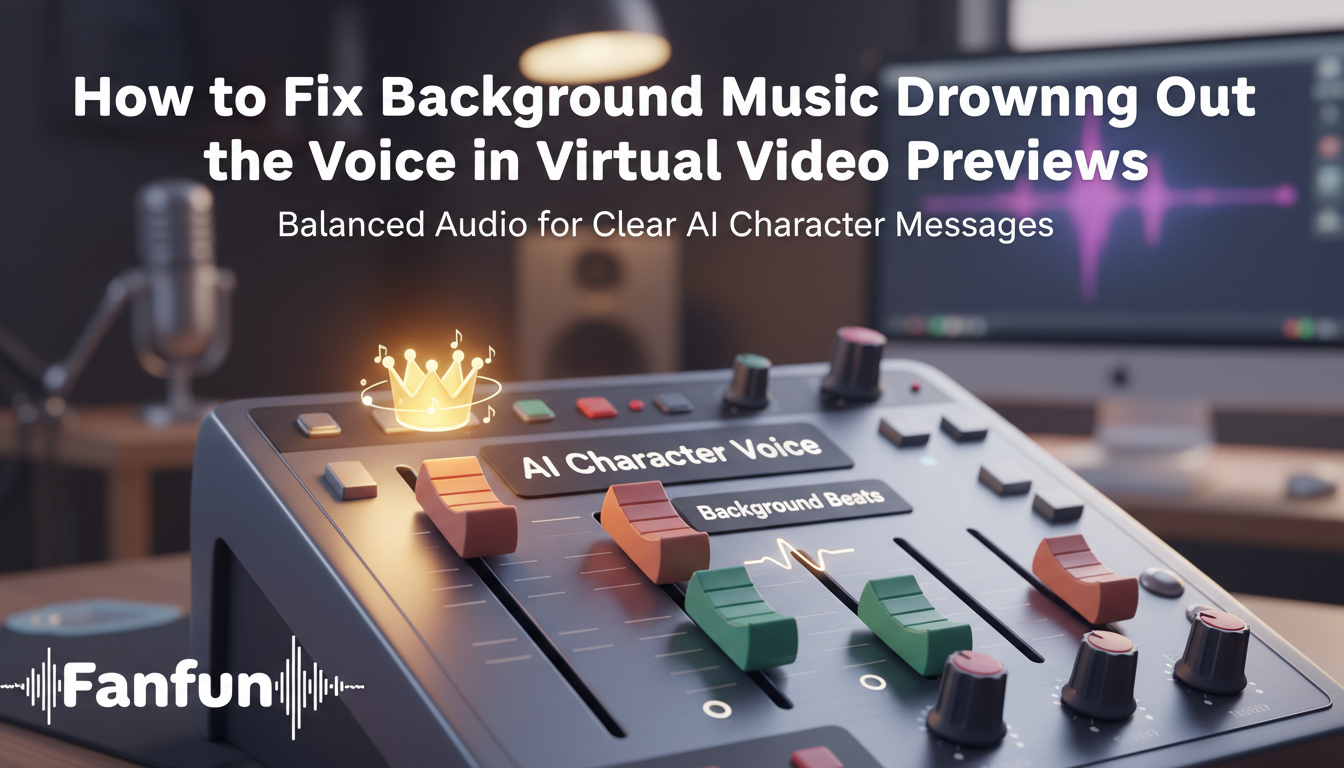
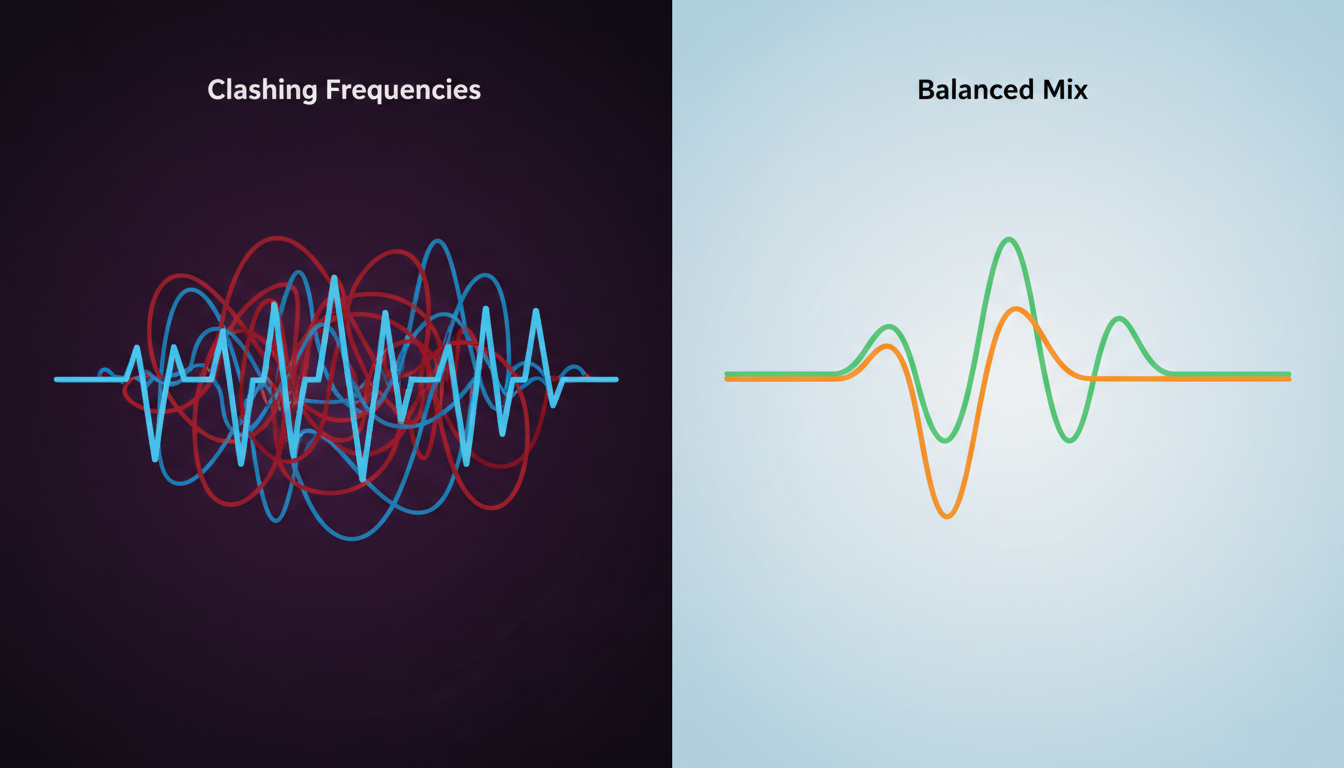
When your virtual character’s voice sounds muffled or buried, it is usually because the background music and the synthetic voice are competing for the same midrange frequencies. In automated video generators like Fanfun, audio is pre-mixed based on the selected template. If you pair a soft-spoken, high-pitched character with a bass-heavy, high-energy track, the music will naturally mask the voice. To fix this, you don't need a sound engineer; you simply need to adjust your script's rhythm, punctuation, or your choice of template to create more sonic space for the dialogue.
The Golden Rule of the Mix: Why Voices Get Lost
Audio clashing is a common side effect of digital synthesis. Think of it like a loud party: if the music is too intense, even the most articulate person in the room will struggle to be heard. This is known as frequency masking. When the background beat occupies the same space as the human voice, the brain struggles to separate the two, resulting in a "muddy" sound. Because you cannot manually adjust individual volume sliders in most automated platforms, the fix happens before the final render.
Step-by-Step Fixes for Clearer Character Audio
If your preview sounds off, try these adjustments in order of impact:
- Swap the template: Not all tracks are created equal. If your script is conversational and gentle, avoid high-tempo or percussion-heavy templates. Opt for acoustic or ambient tracks that leave room in the frequency spectrum.
- Hack your script punctuation: The AI engine reads your punctuation as musical rests. Adding strategic commas and periods forces the voice to pause, allowing the music to dip and giving the listener a clean entry point for your next sentence. You can learn how to hack punctuation and spelling to fix unnatural emphasis and make the voice cut through the mix to ensure clarity.
- Adjust spelling for punchier delivery: If a specific word gets swallowed by a beat, try spelling it phonetically or using capitalization to force the engine to place more weight on the syllable.
- Test your playback device: Small phone speakers often compress audio, making music sound louder and more distorted than it actually is. Always test your preview with headphones or on a computer speaker to get an accurate sense of the mix.
Pacing and Timing Hacks to Beat the Beat
Your script structure dictates how well the voice cuts through. Long, run-on sentences provide the AI with no room to breathe, which often forces the voice to blend into the background track. To master this, explore our comedy director's playbook for timing and scripting your video edits, which details how to use pauses for dramatic effect.
| Muffled Script Habits | Clear Mix Script Habits |
|---|---|
| Long, run-on sentences | Short, punchy phrases with breaks |
| No paragraph spacing | Paragraphs used to force pauses |
| Dense, wordy explanations | Conversational, rhythmic dialogue |
When to Pivot: Knowing Your Audio Limits
It is important to remember that automated tools are designed for efficiency, not professional studio mixing. If you have tried swapping templates and adjusting your punctuation but the voice is still buried, it is time to pivot your creative direction. Switching the character persona or the template entirely is often faster than fighting an audio mix that simply doesn't fit your script. Since a failed generation on Fanfun doesn't waste your video credits, you can experiment with different templates risk-free until you find the perfect balance.
For further reading on refining your digital greetings, you might also want to compare video messages versus text greetings to determine which format best suits your specific message.
Does changing the video template automatically change the background music?
Yes, in most cases, the background music is tied to the specific video template you choose. Changing your template will swap the music track, which can help resolve audio masking issues.
Will a muffled preview sound better in the final high-resolution video download?
Generally, no. If the audio is unbalanced in the preview, it will likely remain the same in the final download. Use the preview stage to perfect your script and template choice.
Can I completely turn off the background music in my Fanfun video?
Currently, our templates include pre-mixed audio tracks. If you need a version without music, look for minimalist templates that feature sparse or ambient audio beds.