How to Review Audio Levels for a Virtual Character Video
Sound quality makes or breaks the magic of a virtual character video. Learn how to evaluate your audio levels on different devices to help your message sound clear before finalizing your video.
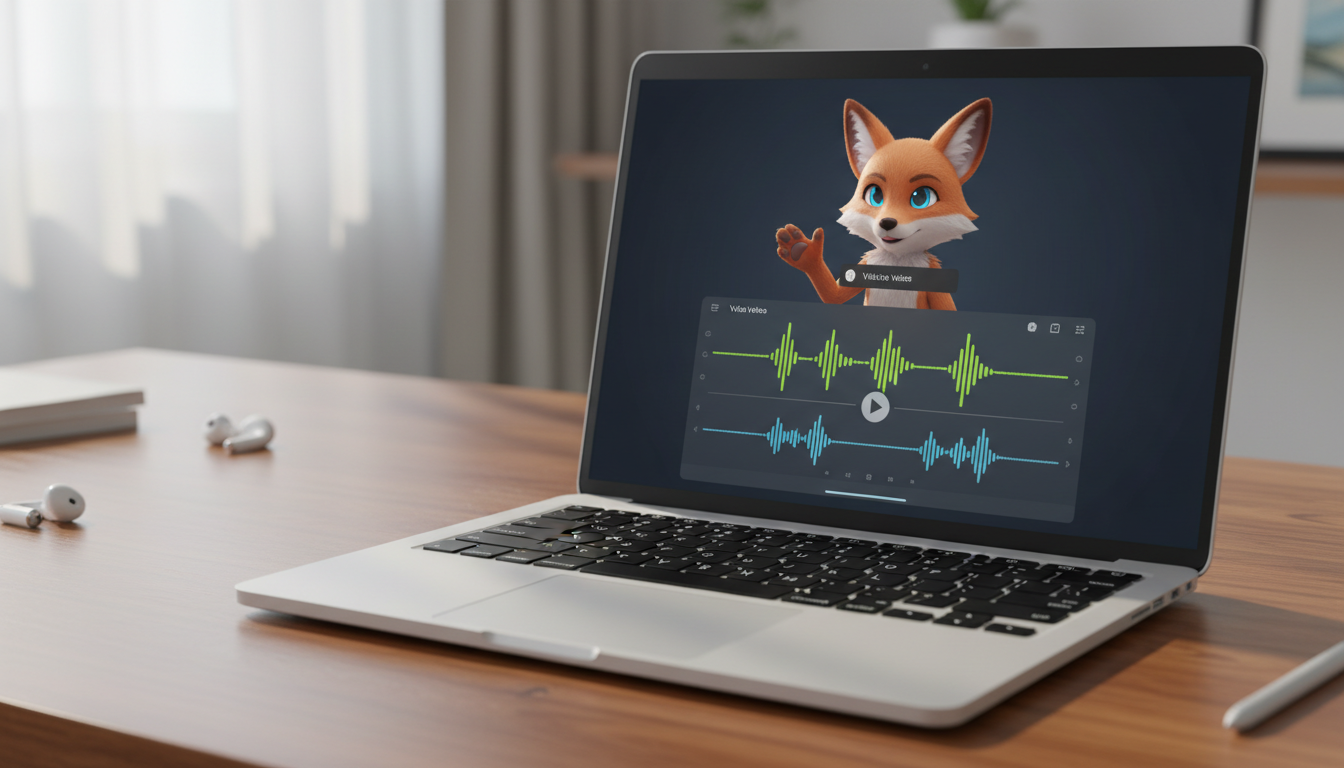
To review audio levels for a virtual character video, listen to the playback on both headphones and mobile speakers to ensure the synthetic voice sits clearly above the background music without digital clipping or muffled frequencies. Check that the vocal track is loud enough to be intelligible on small phone speakers while remaining free of harsh distortion when played at high volumes. Correcting these balances before finalizing your video helps prevent wasted credits and helps ensure your message sounds natural and engaging.
Why Audio Balance Matters in AI Video Creation
Synthetic voices generate sound waves differently than human recordings, often possessing highly consistent dynamic ranges that require careful headroom management to prevent digital clipping. Unlike real human speech, which naturally dips and swells, AI-generated voices maintain a steady output level that can easily collide with background music if the video template isn't balanced correctly. When choosing between virtual character video messages vs. personalized text greetings, the rich audio-visual experience is what makes the video format stand out, but only if the recipient can easily understand what the character is saying.
Background music templates are designed to add energy, but they can easily drown out crucial consonants like "s," "t," and "p" in synthetic speech. When using Fanfun, testing your script's sound using a free voice note can help you catch these frequency collisions before you commit your video credits to a final video gift. A few seconds of careful listening can save you the hassle of rebuilding your script from scratch.
The 4-Step Audio Level Review Framework
Evaluating audio doesn't require a professional recording studio. By following this systematic four-step framework, you can ensure your virtual character sounds polished and clear on any playback device.

Step 1: Perform the Dual-Device Test
Never trust a single playback source. Start by listening to your audio on a pair of decent headphones to catch subtle digital clipping, background hiss, or harsh sibilance. Once it sounds clean there, play the audio on a mobile phone speaker at medium-to-high volume. Mobile speakers lack bass, which means the mid-to-high frequencies of the character's voice must be strong enough to cut through the background music without sounding piercing.
Step 2: Evaluate the Voice-to-Music Ratio
The character's voice should always sit comfortably "on top" of the background track, never fighting with it for space. If you find yourself straining to hear the words over a pounding beat or a sweeping synth line, the audio balance is off. To help you diagnose these issues quickly, use the evaluation matrix below to identify and resolve common balance problems:
| Audio Issue | What It Sounds Like | Quick Fix |
|---|---|---|
| Vocal Drowning | The background music covers up consonants; words sound muddy or indistinct. | Switch to a video template with a quieter, more ambient background track. |
| Digital Clipping | A harsh, crackling sound occurs during loud syllables or high-pitched vowels. | Add commas to break up long sentences and lower the overall vocal intensity. |
| Robotic Rushing | The character speaks without natural pauses, making the audio sound unnatural. | Insert ellipses (...) or periods to force the voice generator to take a breath. |
| Muffled Voice | The character's deep voice blends into the bass frequencies of the music. | Choose a character with a higher vocal pitch or select a lighter acoustic template. |
Step 3: Listen for Punctuation Pauses
Synthetic speech engines rely heavily on punctuation marks to structure their pacing and breathing cycles. As you listen to your audio, pay close attention to the flow of the sentences. If the character transitions too quickly between ideas, the audio will feel rushed and robotic. To optimize your flow, you can learn more about how to preview and test your virtual character video before sending.
Step 4: Check for Frequency Harshness
Listen closely to the overall tone of the voice. Some synthetic voices can produce piercing high frequencies (sibilance) on certain words, while others might sound muddy in the lower register. If the voice makes you want to turn down the volume because of a sharp, metallic ring, the script pacing or the character choice may need a slight adjustment before you finalize your video.
How to Fix Common Audio Issues
If your audio reveals a less-than-perfect mix, you don't have to settle for poor quality. Most audio issues can be resolved by making minor adjustments to your script's formatting or switching your video template.
- If the music is too loud: Try selecting a different video template that features a softer background track. If you want to keep your current template, try using shorter, punchier sentences in your script. Short sentences naturally command more vocal emphasis from many AI voice generators, helping the speech stand out against the music.
- If the voice sounds rushed: Insert strategic punctuation. For example, instead of writing:
"Happy birthday John I hope you have an amazing day and eat lots of cake!"
Try formatting it as:
"Happy birthday, John... I hope you have an amazing day, and eat lots of cake!"
Punctuation like commas and ellipses can help guide many synthetic voice engines to insert natural pauses, giving the background music room to breathe. - If the voice is muffled: Check if the character's natural pitch is too low for the background track's instrumentation. If the character has a deep, resonant voice, a template with heavy bass or low synth pads will muddy the audio. Moving to a template with a lighter, higher-frequency background track will instantly restore clarity.
From Audio Check to Final Share
Once you have verified that the voice-to-music ratio is balanced, that there is no digital clipping on mobile speakers, and that the pacing sounds natural, you can confidently proceed to generate your final video. Taking those extra moments to plan your script and choose the right template helps you get the most out of your Fanfun video credits.
After rendering your polished video, you will want to make sure its visual presentation matches the high-quality audio. To make a great first impression, learn how to customize the thumbnail preview for your shared virtual character video so your recipient is excited to hit play the moment it arrives in their inbox.
Why does the AI character voice sound different on my phone compared to my computer?
Mobile phones have small speakers that emphasize mid-to-high frequencies and cut out low bass frequencies. This can make a voice that sounded perfectly balanced on your laptop's bass-heavy speakers sound thin or drowned out by the music on a phone. Always test your audio on both devices to find a happy medium.
Can I adjust individual track volumes for the video?
Depending on the platform, video templates may have preset audio balances. If you find the music is too loud, the best solution is to switch to a different template with a quieter background mix or adjust your script's punctuation to alter the vocal delivery.
What should I do if a pronunciation error is throwing off the audio flow?
If a name or unique word is pronounced incorrectly, it can disrupt the natural flow and volume consistency of the speech. When working with synthetic voice software, some creators find that spelling the word phonetically in the script (for example, writing "Aw-bree" instead of "Aubrey") can help guide the voice engine toward the desired pronunciation and pacing.