How to Set Up a Virtual Character Video Screen at a Party
Bring your favorite virtual characters to life at your next event. Learn how to choose the right hardware, cast from your phone, and loop videos seamlessly.
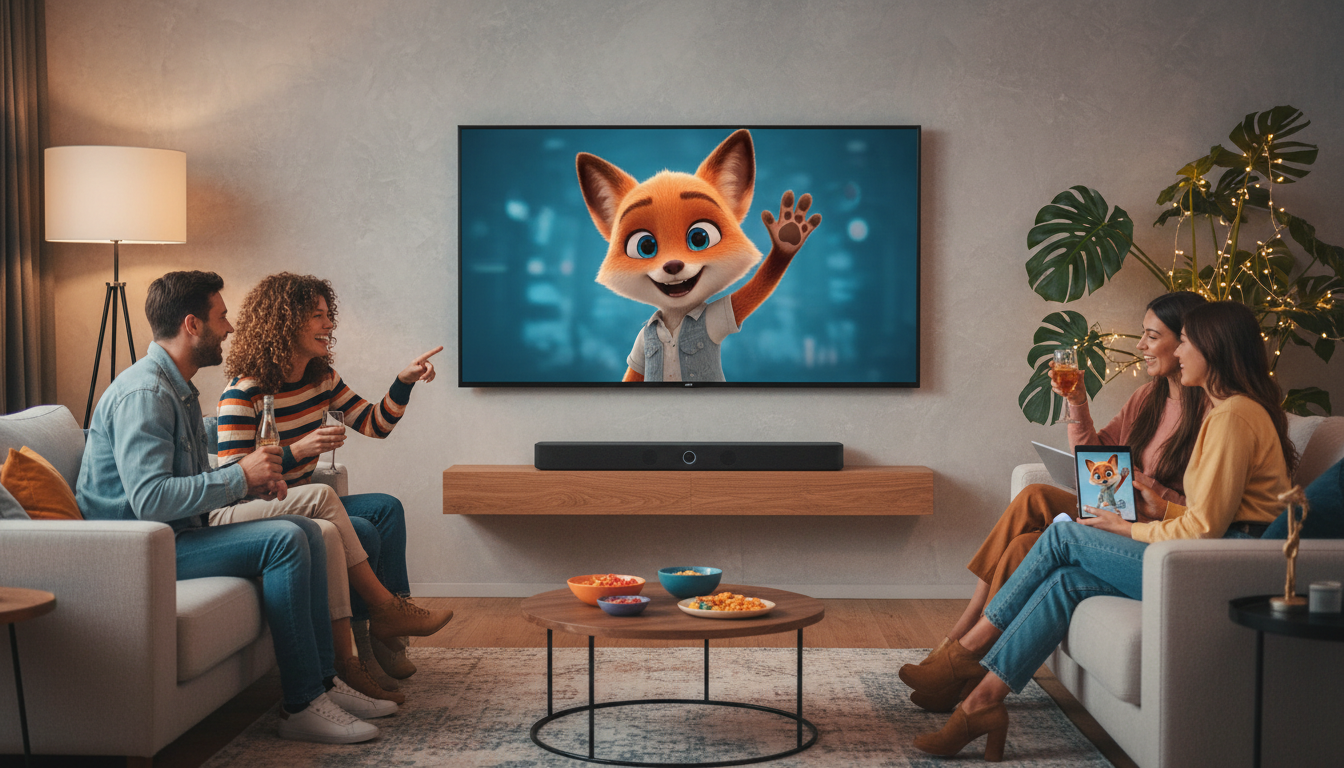
Setting up a virtual character video screen at a party requires three main steps: generating and downloading your custom character video, choosing a bright display (like a modern flat-screen TV or a high-contrast projector), and configuring your playback device to loop the video continuously with external audio. To prevent technical hiccups during your event, always use a dedicated media player or a stable physical HDMI connection rather than relying on active mobile screen mirroring, which can expose private notifications to your guests.
The Quick Answer: How to Get Your Character on the Big Screen
A virtual character video screen serves as a dynamic focal point at any gathering. Whether it is an animated favorite welcoming guests at the door or a custom celebrity roast playing over the bar, these displays instantly break the ice. The general workflow is straightforward: you generate a custom character video using a platform like Fanfun, download the MP4 file, connect your playback device to your screen, and set the video to play. However, making it look and sound professional in a room full of chatting guests requires a bit of planning. You need to balance visual placement with room audio so the character's voice is clear and the video loops seamlessly without human intervention.
Step 1: Choose Your Display Hardware and Placement
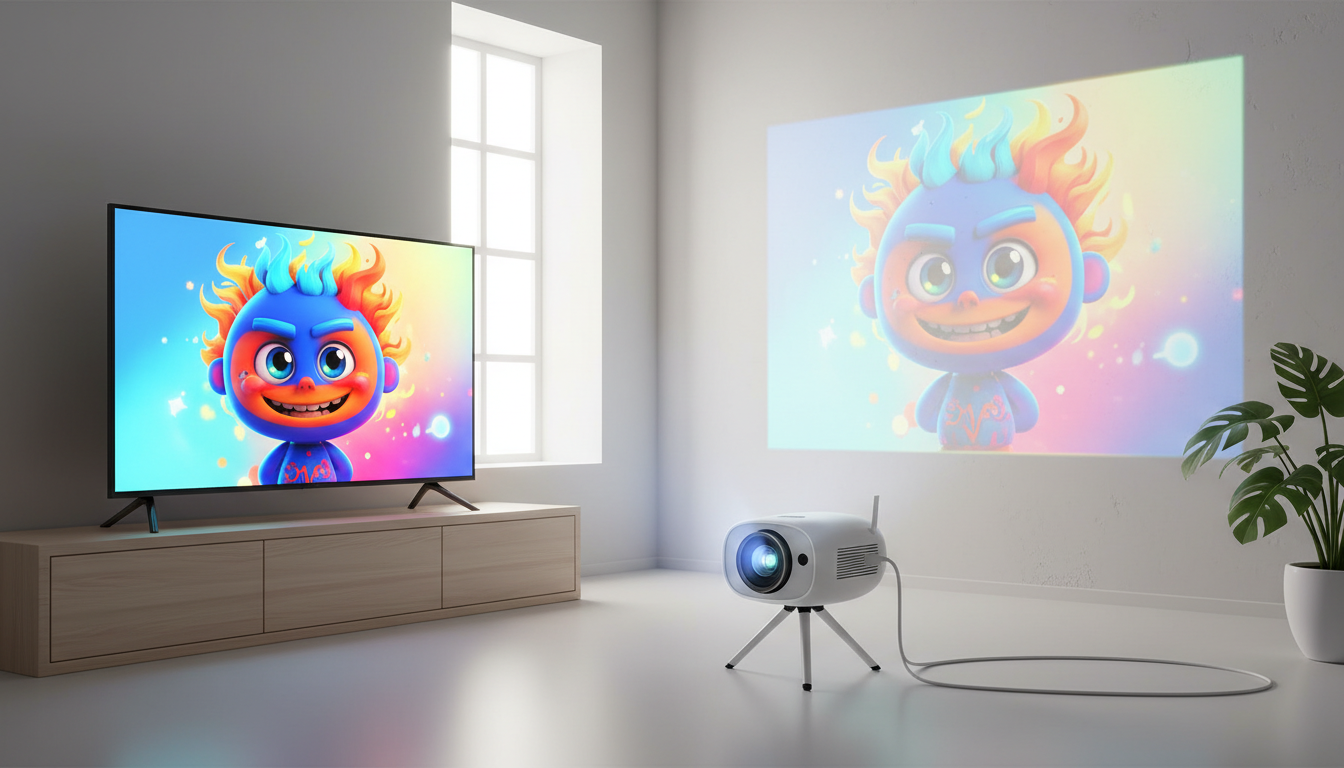
Before you plug anything in, decide which display medium fits your venue. You have two primary options: a flat-screen television or a digital projector.
| Display Type | Best For | Pros | Cons |
|---|---|---|---|
| Flat-Screen TV | Bright rooms, daytime events, high-contrast graphics | Crisp image, easy setup, built-in input ports | Fixed location, screen size is limited |
| Projector | Dim evening settings, outdoor parties, large wall spaces | Huge display size, immersive holographic look | Requires low ambient light, needs flat surface |
Once you choose your hardware, place the screen at eye level in a high-traffic area. Setting up the display near high-traffic areas like the drink station, the main entrance, or the buffet can help increase visibility and make it easier for guests to see and hear the character. To make the setup truly engaging, plan your character script around the specific theme of your event. If you need inspiration on tailoring your message to your guests, you can explore creative scripting tips in our virtual party AI video playbook.
Step 2: Connect Your Source Device and Cast the Video
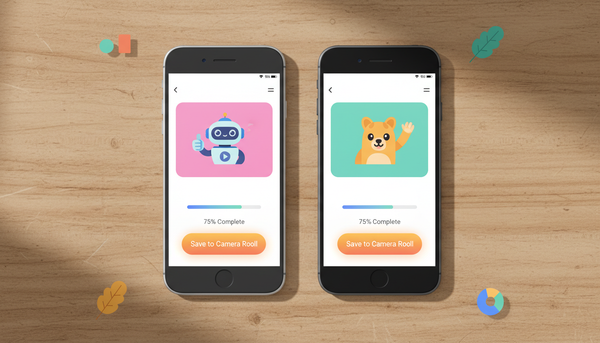
Once your display is positioned, you need a reliable way to send the video file from your playback device to the screen. While using a laptop or a dedicated media player is the most stable method, mobile devices are incredibly convenient for quick setups. If you are using an iOS device, you can learn how to download a virtual character video to your iPhone camera roll first to ensure you have offline access to the file.
You have two main connection paths:
Wireless Casting
If you prefer a cable-free environment, use Apple AirPlay (for Apple TV) or Google Chromecast (for Android-compatible smart displays). Simply open the video on your phone or tablet and tap the cast icon. Keep in mind that wireless casting relies heavily on your local Wi-Fi strength. If your router is far from the party area, you might experience occasional buffering or quality drops.
Physical Wired Connections
For a foolproof, lag-free connection, nothing beats an HDMI cable. Connect your laptop directly to the TV or projector. Alternatively, copy the MP4 file onto a USB flash drive and plug it directly into the USB port on the back of your TV. Most modern smart TVs have a built-in media player that can read files directly from a USB drive, eliminating the need for an external device entirely.
Step 3: Optimize Audio and Playback Settings
A stunning visual means nothing if your guests cannot hear what the character is saying. Standard TV speakers are rarely powerful enough to compete with party chatter, and projector speakers are notoriously weak. To solve this, connect an external Bluetooth speaker or a soundbar and position it directly below or next to the screen. This keeps the sound source aligned with the visual source, making the character feel much more real.
Before the party starts, run a quick soundcheck. You can read our guide on how to review audio levels for a virtual character video to make sure your clip does not suffer from sudden volume spikes or muffled speech. Once your levels are set, configure your media player to repeat. Rather than manually pressing play every 30 seconds, you can follow our detailed instructions on how to loop a virtual character video for a party display using standard media players on Windows, macOS, iOS, or Android.
The Party Screen Setup Checklist
Use this quick checklist 30 minutes before your guests arrive to ensure your virtual character setup runs flawlessly throughout the night:
- Hardware Check: Confirm the TV or projector is securely mounted or placed on a stable surface.
- Cable & Connection Test: Verify that the HDMI cable is plugged in tightly or that your casting connection is stable.
- Audio Check: Turn on your soundbar or Bluetooth speaker and play the video to test volume levels against ambient room noise.
- Loop Test: Let the video play through at least twice to ensure the media player loops back to the beginning automatically without showing black screens or control menus.
- Power Source: Ensure your source device (laptop or tablet) is plugged into a charger so the battery does not die mid-party.
- Notification Block: Turn on Do Not Disturb on your casting device to prevent personal texts or emails from popping up on the big screen.
Can I display live interactive chat on the party screen?
While live chat is great for personal mobile use, displaying live interactive chat on a large party screen can be difficult to manage. Pre-rendered, custom video messages can be a practical option for events because they allow you to prepare the script and timing in advance.
What should I do if the video aspect ratio doesn't match my TV screen?
If your video appears with black bars on the sides, access your TV or media player's picture settings and look for the aspect ratio or zoom options. Set it to Fit to Screen or Fill. For the best native results, ensure your video is generated in a landscape (16:9) format if you plan to display it on a standard television or projector.
How do I prevent my phone's notifications from showing up on the party screen while casting?
To keep your private messages off the big screen, enable Do Not Disturb or Focus Mode on your phone before you start casting. If you want a truly worry-free setup, play the video file from a dedicated USB flash drive or a secondary laptop instead of mirroring your primary personal phone.