How to Set Up a Digital Video Greeting Kiosk on an iPad for Wedding Guests
Want a modern way to entertain wedding guests? Learn how to set up a secure iPad video kiosk with custom loops, interactive greetings, and playful AI character messages.
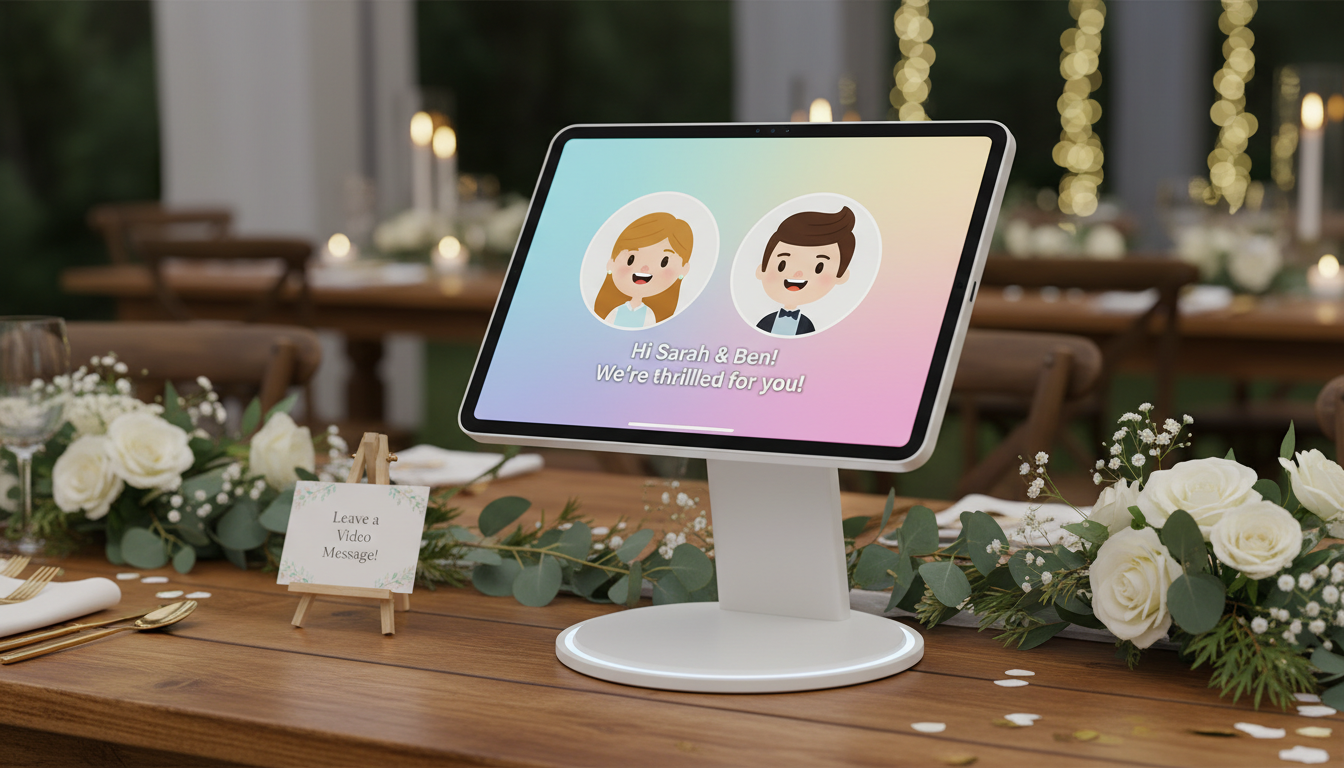
Setting up a digital video greeting kiosk on an iPad is a brilliant way to entertain wedding guests, share your favorite memories, and add a highly personalized touch to your reception. By mounting the tablet in a secure, weighted stand, connecting it to continuous power, and using the built-in iOS Guided Access feature, you can create a seamless, self-running station. To keep the experience dynamic, curate a looping playlist of short videos—such as a warm welcome from the couple and surprising, personalized AI character messages from Fanfun—and download them directly to the device to bypass unstable venue Wi-Fi.
The Core Kiosk Setup: Hardware and Security Essentials
A successful DIY wedding kiosk relies on physical security and reliable power. Wedding receptions are high-energy, high-traffic environments where unattended tablets can easily be tipped over, unplugged, or misplaced. Before configuring any software, secure the necessary hardware to keep your iPad safe and running smoothly all night.
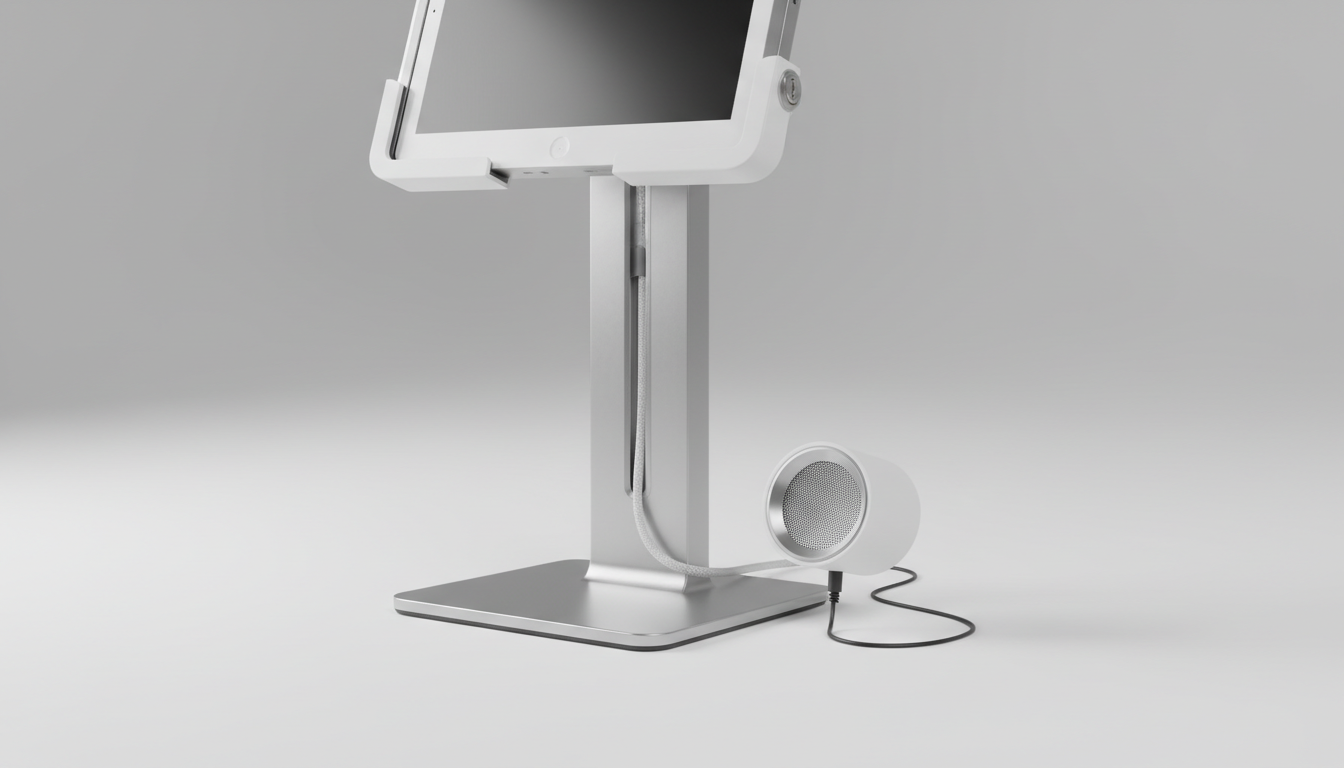
| Hardware Item | Purpose | Recommendation |
|---|---|---|
| Locking Tablet Stand | Prevents theft and accidental tipping. | Select a heavy, locking metal enclosure that bolts to the table or has a weighted base. |
| Continuous Power Supply | Keeps the iPad from dying mid-reception. | Use an extra-long, reinforced charging cable (10+ feet) and plug it into a hidden power strip. |
| Audio Solution | Ensures guests can hear in a noisy room. | Use a directional speaker, corded headphones, or rely on silent videos with large, clear open captions. |
While sound adds a fun element, wedding venues are notoriously loud. If you choose to play audio, position a small directional speaker directly behind the stand pointing toward the guest. Alternatively, adding large, high-contrast open captions to your videos ensures everyone can enjoy the messages even if the music is blasting.
How to Lock Down iOS Using Guided Access
To prevent guests from accidentally closing your video playlist, checking your personal emails, or altering system settings, you must lock down the iPad. Apple’s built-in Guided Access feature is the perfect tool for this, allowing you to restrict the device to a single app and disable specific touch zones.
Follow these steps to configure Guided Access before the big day:
- Open the Settings app on your iPad.
- Navigate to Accessibility and select Guided Access.
- Toggle Guided Access to On, then tap Passcode Settings to set a secure PIN that only you or your wedding coordinator know.
- Open your preferred video player app (such as VLC, Documents by Readdle, or the native Photos app) and start your playlist.
- Triple-click the top button (or Home button, depending on your iPad model) to activate Guided Access.
- Tap Options in the bottom-left corner to disable the volume buttons, sleep/wake button, or motion sensors if desired.
- Use your finger to draw circles around any areas of the screen you want to disable, such as search bars, exit buttons, or progress bars.
- Tap Start in the top-right corner to lock the screen.
Additionally, make sure to configure your iPad's Display Auto-Lock settings to "Never" while Guided Access is active. This prevents the screen from going dark during quiet moments at the reception.
Curating Your Video Playlist: Welcome Clips and AI Character Surprises
The content on your kiosk should be engaging, fast-paced, and easy to consume. Because guests will be standing at the kiosk, keep individual video clips under 30 seconds to prevent bottlenecking or long lines at the station. A great playlist structure mixes personal sentiment with lighthearted entertainment.
Start the loop with a warm, 15-second welcome video from you and your partner thanking guests for coming. From there, introduce playful, unexpected clips to keep them smiling. This is where Fanfun shines. With Fanfun, you can generate custom video messages from popular AI characters—like animated personalities or famous voices—delivering inside jokes, congratulations, or funny advice directly to your guests. To see how this setup differs from traditional group video setups, you can compare group video approaches with virtual character messages to find the right dynamic for your crowd.
You can also use the kiosk to celebrate family milestones. For example, if your parents or grandparents are celebrating a milestone of their own, consider writing a custom anniversary script for a virtual character to play during the reception. When the big day is over and you want to thank everyone for making it special, you can transition your digital strategy and scale your wedding thank-you video messages to send custom, high-substance follow-ups to every guest who attended.
Day-Of Management and Troubleshooting Checklist
Even the most thoroughly tested technology can encounter hiccups on a wedding day. To ensure your digital video kiosk runs flawlessly from the cocktail hour to the last dance, hand this checklist to your wedding coordinator, bridesmaid, or a tech-savvy family member:
- Download Everything Locally: Never rely on the venue's Wi-Fi to stream your videos. Download all clips directly to the iPad's local storage so the loop plays smoothly without buffering.
- Keep a Cleaning Kit Handy: Dozens of fingers will touch the screen throughout the night. Keep a microfiber cloth and screen cleaner behind the bar or near the kiosk to wipe off smudges and fingerprints periodically.
- Brief Your Kiosk Captain: Designate a trusted friend or coordinator to check on the kiosk every couple of hours. Teach them how to triple-click the Home/top button, enter the passcode, and restart the video loop if the iPad freezes or updates.
- Check the Volume: Once the reception gets loud, check if guests can hear the kiosk. Adjust your directional speaker or ensure the open captions are clearly visible from two feet away.
Can I use a standard photo booth app to loop videos on an iPad?
Yes, but standard photo booth apps are designed to capture new content rather than continuously play a curated loop. If you want a passive display that simply entertains guests with pre-recorded clips, using a dedicated video player app like VLC under Guided Access is much simpler and more reliable.
How do I prevent the iPad from overheating during a long reception?
To prevent overheating, avoid placing the kiosk in direct sunlight or right next to high-heat production equipment like stage lights or DJ amplifiers. Ensure the locking enclosure has proper ventilation slots, and use an official Apple charging block to regulate power flow safely.
Is it better to use a kiosk app from the App Store or built-in iOS settings?
For a wedding, built-in iOS settings (specifically Guided Access) are usually best. They are entirely free, highly secure, and do not require setting up a separate third-party subscription or dealing with watermarks. Dedicated kiosk apps are excellent for commercial retail environments but are typically overkill for a one-day wedding reception.