How to Check Sound Balance Before Generating Your Final Video Message
Don't let loud background music drown out your AI character's voice. Learn how to plan your script, test voice notes, and select the right templates before you render your final video.
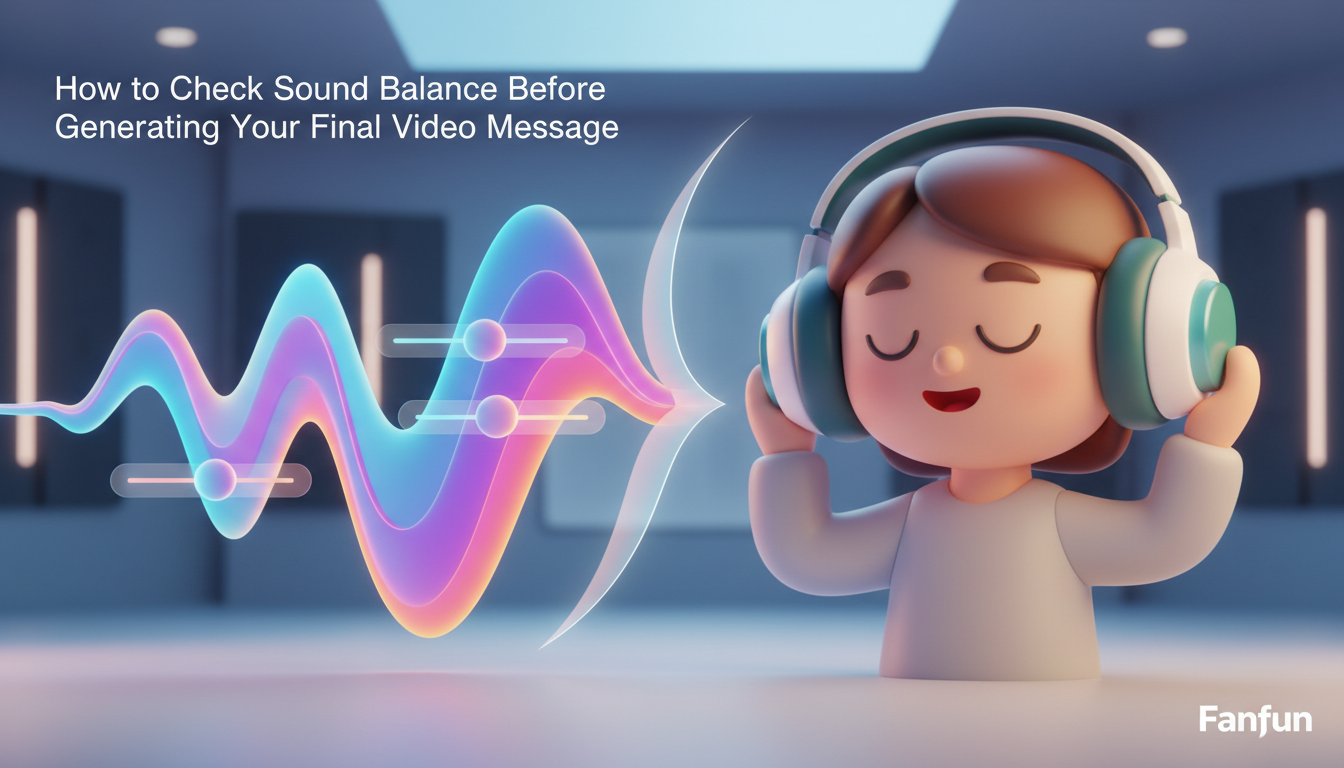
Planning your sound balance before generating your final AI video message can help ensure your character's voice is clearly audible over background music without wasting creation credits. By testing your script's pronunciation with a voice note, listening on headphones, and choosing templates with suitable background tracks, you can avoid muddy or overlapping audio before rendering the final file. While AI character voices offer a fun, personalized touch, they rely on clean audio separation to sound their best, making a quick pre-generation check a helpful step in your creative workflow.
Why Sound Balance is the Secret to Great AI Video Messages
AI character voices have unique frequency footprints and synthetic speech cadences. Unlike real-person recordings, which naturally dynamic-range compress in a studio environment, AI voices can easily get drowned out by dense, energetic background tracks. If a background instrumental has a heavy synth melody or a booming bassline in the exact same frequency range as your chosen character's voice, the message can quickly become hard to understand.
On Fanfun, video credits cover up to 30 seconds of speech per credit. While a failed generation is automatically refunded to your balance, a successfully rendered video with poor audio balance still consumes a credit. Taking a few moments to build smart pre-generation habits can help you get a polished, clear greeting. Learning how to test and adjust audio volume before sending a digital video greeting helps you maintain a professional standard and makes your message much more enjoyable for the recipient.
Your Step-by-Step Pre-Generation Audio Checklist
To avoid a muddy mix, treat yourself like an indie sound designer. Follow this simple checklist to calibrate your audio levels before you hit the final generate button.
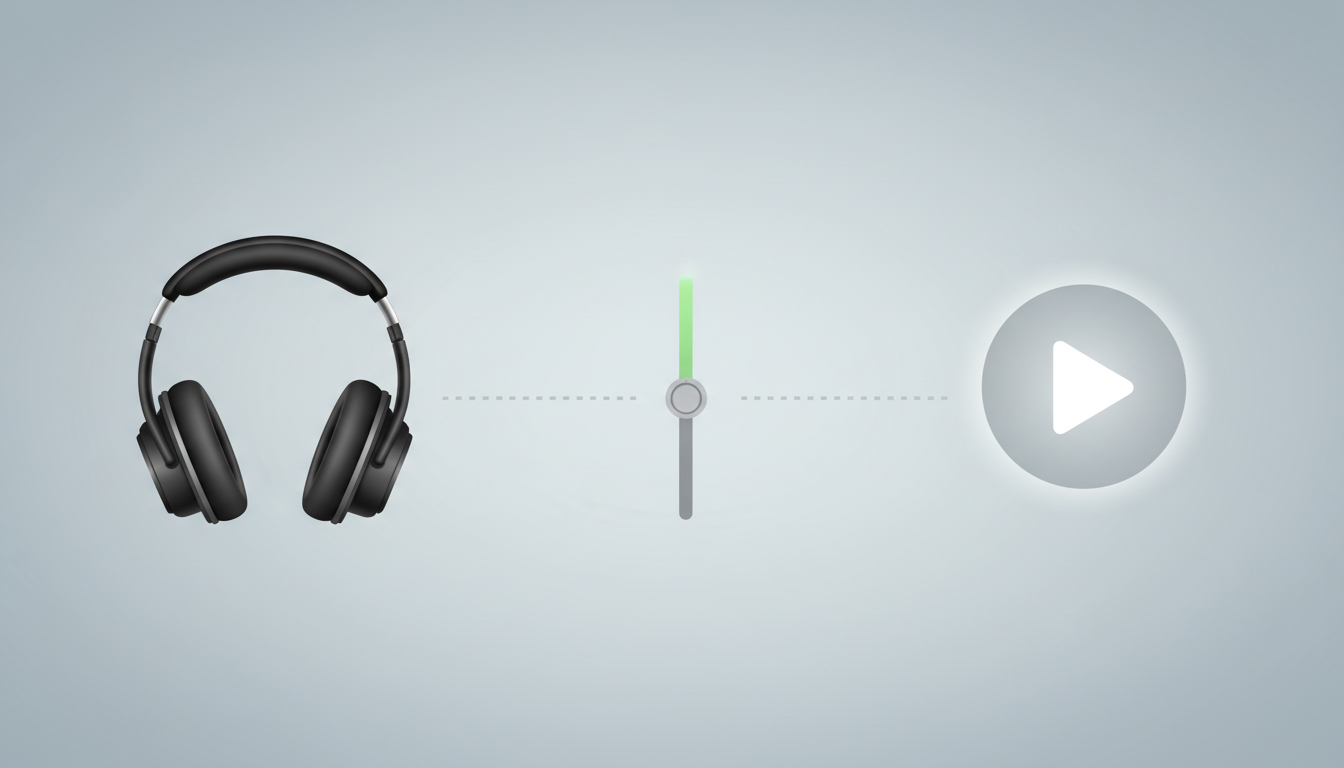
- Step 1: Use headphones for your preview. Phone and laptop speakers often compress audio heavily, masking low-end mud or frequency clashes. Listening through a decent pair of headphones reveals exactly how the voice sits against the background track.
- Step 2: Check the raw vocal track first. Before committing to a complete video render, utilize the option to preview and check the audio of your digital video card script before finalizing. Listening to a short voice note preview of your script lets you evaluate the AI voice's clarity, speed, and pronunciation in isolation.
- Step 3: Compare voice and music tracks. Once you are happy with the voice preview, compare it against your selected background music. As a general rule, background music should sit comfortably below the vocal track—serving as a subtle mood-setter rather than competing for attention.
- Step 4: Check for natural pauses. Listen to the pacing of your script. Ensure that your punctuation gives the AI voice enough natural breathing room so the background music doesn't feel like it is awkwardly interrupting or rushing to fill brief silences.
How to Troubleshoot Common Sound Mix Issues
If your preview doesn't sound quite right, you don't have to settle for a mediocre final render. Use this quick-reference troubleshooting framework to correct common audio balance problems before finalizing your creation.
| Observed Problem | Likely Cause | Practical Solution |
|---|---|---|
| The character's voice sounds muffled or muddy. | The background track has too much bass or heavy mid-range synths clashing with the voice. | Choose a lighter, acoustic, or ambient background track with minimal mid-range instrumentation. |
| The background music drowns out the speech entirely. | The background track has a high volume or dense instrumentation relative to the voice. | Select a different video template with a quieter or more subtle background track, or simplify your script to allow the voice to stand out. |
| The transition between speech and music feels abrupt or rushed. | The script lacks proper punctuation, causing the AI to speak without natural pauses. | Add commas or periods to your script to introduce natural breathing room for the audio track. |
Taking an extra minute to run through these adjustments will save you time, credits, and the headache of a re-render. For a complete quality assurance checklist before you share your creation, review our complete walkthrough on how to preview and test your virtual character video before sending.
What should I do if my final video's audio still sounds unbalanced?
If your final video arrives and the audio balance isn't to your liking, you can create a new video with refined script punctuation or try a different video template that features a quieter background track.
Does Fanfun refund credits if a video generation fails due to an audio error?
Yes. If a video generation fails to deliver due to a system error, your credits are automatically returned to your balance. However, credits are consumed for successfully rendered videos, which is why previewing your audio balance beforehand is highly recommended.
Should I test my audio balance on mobile speakers or headphones?
Always test your audio with headphones first. Mobile speakers often compress the audio, making it hard to detect subtle frequency clashes or muddy bass lines that might ruin the experience for someone listening on a better sound system.