How to Send a Large Digital Video Greeting via Text Without Losing Quality
Directly texting a video file ruins its quality through aggressive carrier compression. Discover three easy methods to share your digital video greetings in stunning high definition using smart link-sharing.
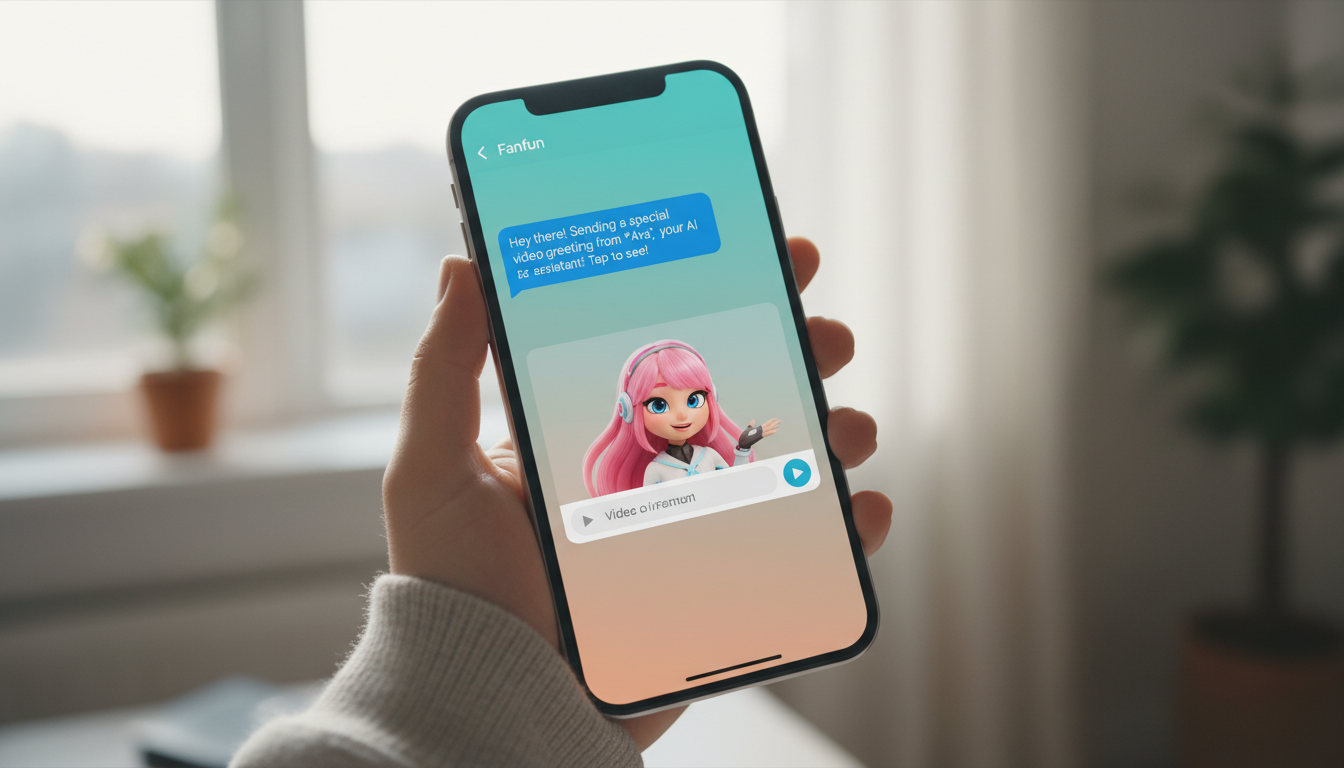
To send a large digital video greeting via text without losing quality, do not attach the raw video file directly to your text message. Standard SMS/MMS networks aggressively compress video files to fit under tight carrier limits (often shrinking files to less than 3MB), which ruins their resolution. Instead, upload your video to a cloud service or hosting platform and text a clean, preview-friendly link. This ensures your recipient views the video in full high definition exactly as it was created.
The MMS Quality Trap: Why Direct Video Texts Look Blurry
When you send a video via standard text messaging (MMS), cellular carriers route the file through legacy systems designed decades ago. To keep their networks running smoothly, carriers enforce strict file size limits, often capping video attachments at 1MB to 3.5MB. If your high-quality video exceeds this limit, the carrier's system automatically compresses it. This process strips out visual data, leaving your recipient with a pixelated, blocky, and muffled mess.
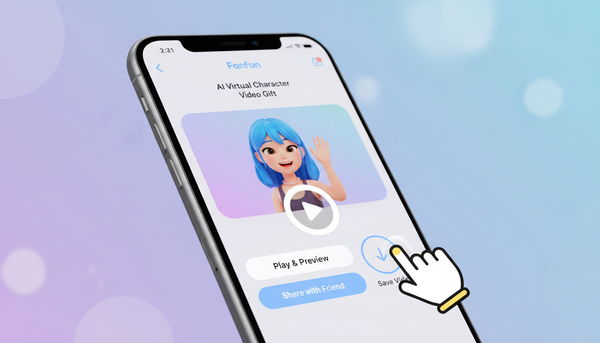
This quality drop is especially disappointing when you have spent time crafting a beautiful, personalized AI character video on Fanfun. Whether you are sending a personalized birthday shout-out or a fun greeting from an animated personality, keeping the original presentation intact is key to making the moment special. Texting the raw MP4 file directly will ruin that experience. Fortunately, avoiding this trap is incredibly simple: host your video online and text a clean link instead of the file itself.
Three Ways to Text a Large Video Greeting in High Definition
By texting a link rather than a heavy video file, you bypass cellular carrier compression entirely. Your recipient simply taps the link to stream or download the video in its original, pristine resolution. Here are the three best ways to do it.
Method 1: Cloud Storage Links
Uploading your video to a cloud drive is the most reliable way to preserve quality. Services like Google Drive, Dropbox, and OneDrive let you upload files of virtually any size and generate a shareable link.
To use this method, upload your completed MP4 to your preferred cloud platform. Adjust the file's sharing permissions to "Anyone with the link can view" so your recipient does not need to log in or request access. If you need help getting started, you can follow our step-by-step guide on saving digital video greetings to Google Drive for easy cloud sharing.
Method 2: Messaging Apps with Native HD Sharing
If you and your recipient both use modern messaging platforms like WhatsApp, Telegram, or Apple’s iMessage, you can often share larger files directly. These platforms bypass standard carrier MMS networks and use internet data instead. WhatsApp, for example, allows files up to 2GB, while iMessage easily handles high-quality video transfers between Apple devices. However, keep in mind that if you send an iMessage to an Android user, the message automatically reverts to standard SMS/MMS, triggering aggressive carrier compression.
Method 3: Private Video Hosting
For a highly polished viewing experience, upload your video to YouTube or Vimeo. On YouTube, you can set the video privacy to "Unlisted." This means the video will not show up in search results or on your public channel, but anyone with the link can watch it. When you text an unlisted YouTube link, most modern smartphones will display a beautiful, playable video preview directly inside the chat thread.
Comparing Your Delivery Options
| Method | Best For | Max File Size Limit | Recipient Experience |
|---|---|---|---|
| Cloud Storage Links | Direct downloads, keeping files private | Virtually unlimited (up to cloud storage cap) | Requires tapping link to view or download |
| Messaging Apps (HD) | Quick, informal chats with fellow app users | Up to 2GB (varies by app) | Plays directly within the chat app |
| Private Video Hosting | Polished presentation with inline video players | Up to 256GB (YouTube) | Rich preview with instant web streaming |
How to Format Your Text So It Does Not Look Like Spam
Sending a web link via text message can sometimes trigger safety instincts. To ensure your recipient actually opens and trusts your video greeting, follow these formatting and etiquette tips:
- Provide Immediate Context: Never send a naked URL without an introductory message. A random link looks like a phishing attempt, even if it comes from a known number.
- Use a Warm, Personalized Greeting: Start your text with their name and a clear explanation of what the link is. For example: "Hey Sarah! I made a special personalized video greeting for your birthday. Tap here to watch it: [Link]"
- Let the Rich Preview Load: When you paste the link into your text app, wait a few seconds before hitting send. Modern smartphones will automatically fetch the video's thumbnail and title, creating an inviting rich preview card that looks professional and trustworthy.
If you plan to share your creation beyond a private text thread, you can also read our guide on how to safely share a digital video card on social media.
Text vs. Email: Choosing the Best Delivery Method
While texting a video link is fast and personal, it is not always the best fit for every occasion. Choosing the right delivery channel depends on your relationship with the recipient and the milestone you are celebrating.
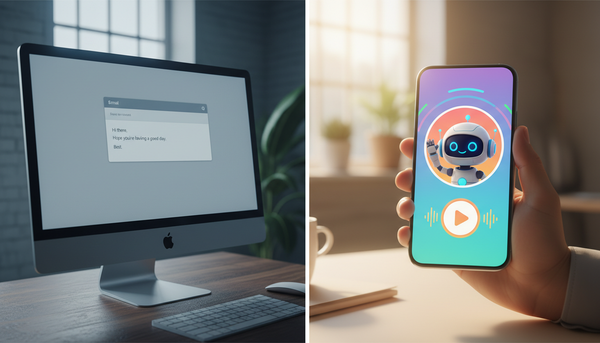
Texting is ideal for casual, immediate, and highly personal reactions. It is perfect for sending a quick birthday laugh, a holiday greeting, or an instant congratulations message directly to a friend’s pocket. On the other hand, email is better suited for professional settings, longer-form messages, or when you want to embed the video directly into a larger, beautifully styled layout.
If you decide that email is a better fit for your specific recipient, you can explore our companion guide on sending large video greetings via email without losing quality. For corporate contexts, you might also be interested in learning how to use digital video greeting cards for remote team building or how to embed a digital video greeting in an email newsletter to keep your communications engaging and sharp.
Why does my video look clear on my phone but blurry when I text it?
When you send a video directly through standard text messaging (SMS/MMS), cellular carriers compress the file size down to a fraction of its original size to save bandwidth. This process dramatically reduces the resolution, making a clear video look blurry. Using a cloud link avoids this compression entirely.
Will sending a cloud link use up my recipient's data plan?
Streaming or downloading a video from a cloud link uses standard internet data, similar to watching a video on YouTube or browsing social media. If your recipient is connected to Wi-Fi, it will not count against their cellular data plan.
Can I password-protect a video link that I send over a text message?
Yes. Most major cloud services like OneDrive and Dropbox, as well as video platforms like Vimeo, allow you to set a password for your shared links. You can text the link first, and then send the password in a follow-up text for added security.