How to Embed a Digital Video Greeting in an Email Newsletter
Want to feature a custom video greeting in your next email newsletter? Discover why direct HTML5 embeds fail and how to use the high-performing thumbnail workaround instead.
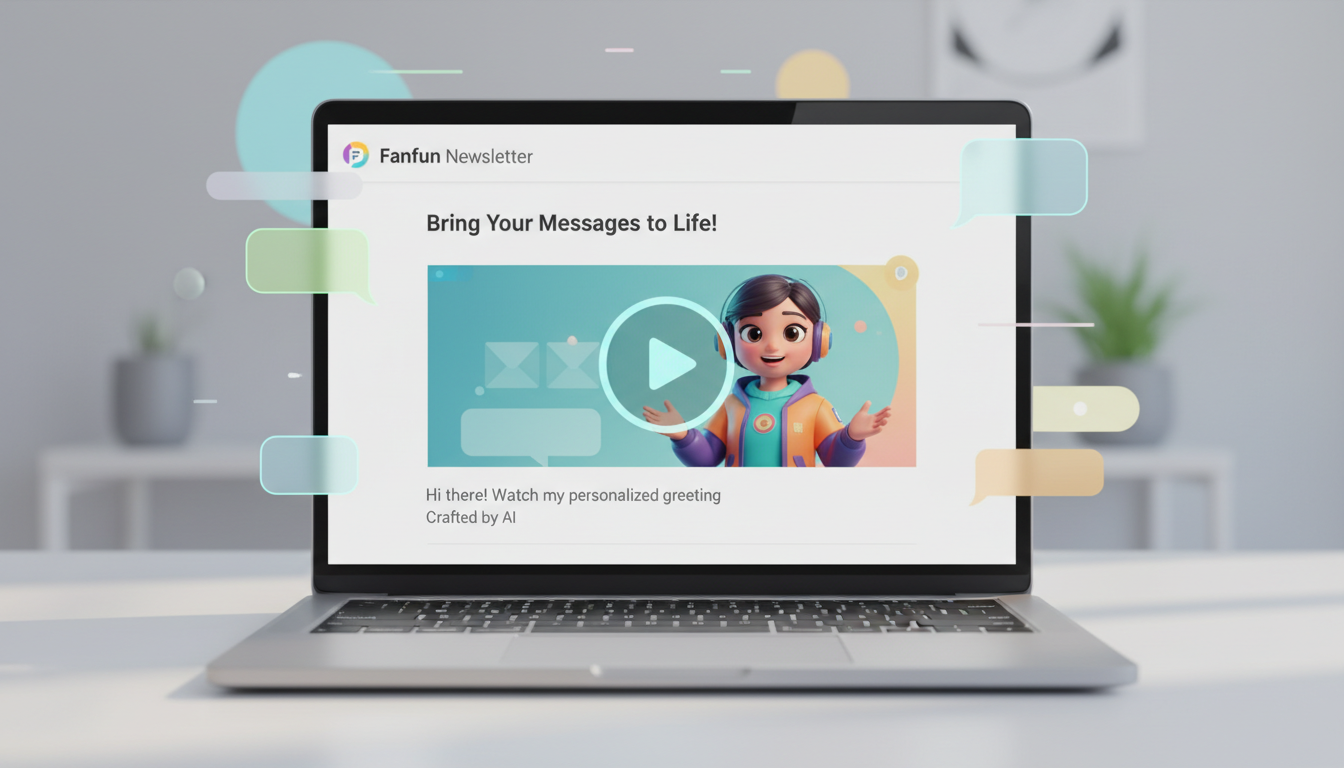
You cannot directly embed a raw video file (like an MP4) to play directly inside most email newsletters because major email clients block HTML5 video for security and performance reasons. Instead, the industry-standard workaround is to insert a high-quality static image or an animated GIF featuring a 'Play' button overlay, then hyperlink that graphic directly to your hosted video page. This creates a seamless, highly visual experience that loads instantly and keeps your email out of the spam folder.
Why Direct Video Embedding Fails (and the Smart Workaround)
When designing an engaging newsletter, it is tempting to try and embed a video directly into the HTML code. However, major email clients like Gmail, Outlook, and Apple Mail often block or strip out direct HTML5 video tags for security, bandwidth, and performance reasons. Attempting to force a raw MP4 embed can cause your newsletter to land straight in the spam folder or display as a broken, empty box for your subscribers.
The industry-standard solution is to create the illusion of an embedded video. By placing a high-quality static image or a short, looping animated GIF with a play-button overlay in your email body, you capture the reader's attention immediately. When they click the image, they are taken directly to a dedicated landing page or video hosting platform where the video plays in full quality.
Step-by-Step: How to 'Embed' Your Video Greeting
Setting up this workflow is straightforward and works across all major email marketing platforms like Mailchimp, Klaviyo, and ConvertKit. Here is how to do it step-by-step:
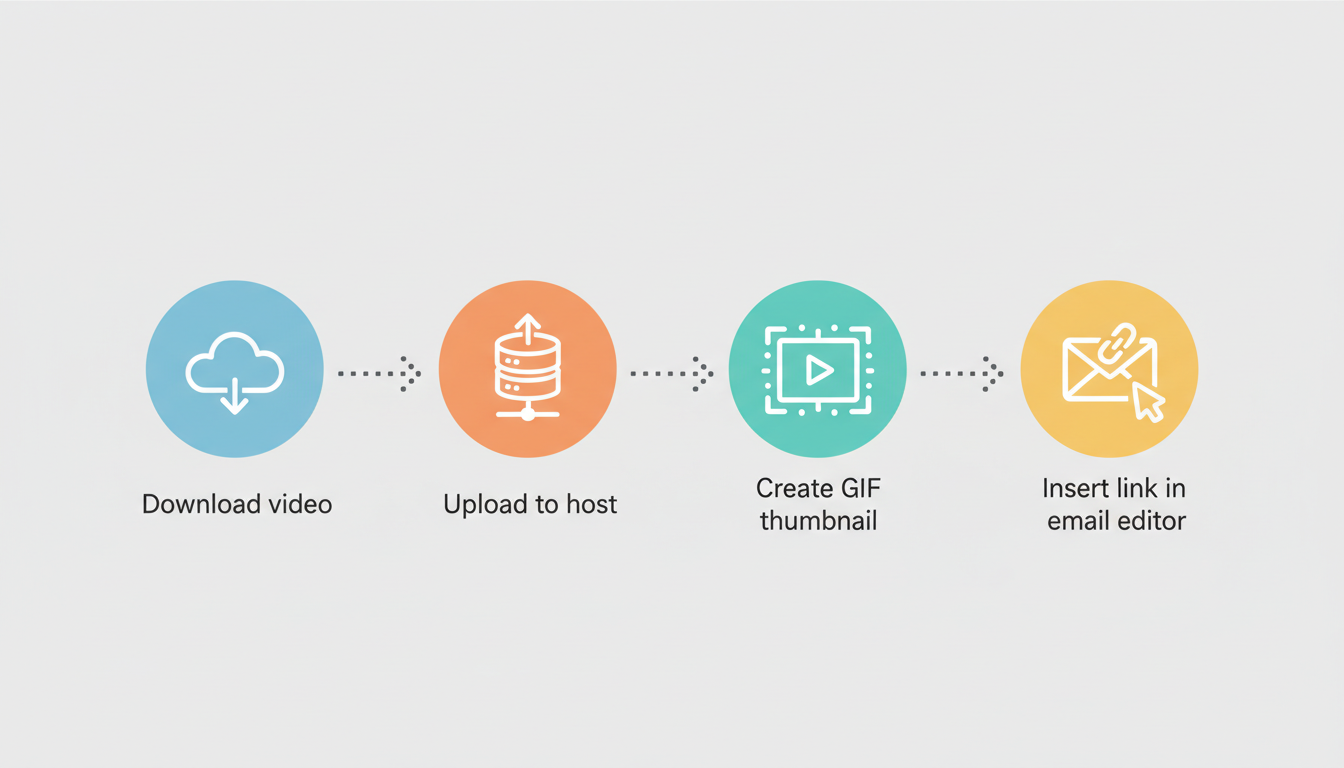
- Export your video message: If you are using Fanfun to create a playful AI character message, start by generating and downloading the final video file to your local device.
- Host your video online: Upload the video to a reliable cloud storage or video hosting platform so your audience can view it in high resolution. If you do not want to use a public platform like YouTube, you can point readers to our step-by-step guide on how to save a digital video greeting to Google Drive for easy sharing.
- Create your newsletter teaser: Generate a 3-to-5 second animated GIF of your video or take a compelling screenshot. Use a free design tool to add a semi-transparent 'Play' icon overlay in the center of the image to signal that it is interactive.
- Insert and link the graphic: Drop the GIF or image into your email marketing platform's editor. Hyperlink the image directly to your hosted video URL.
Optimizing Your Video Email for High Click-Through Rates
Getting the graphic into your email is only half the battle. To ensure your digital greeting performs beautifully across all devices, follow these key deliverability and design practices:
- Keep GIF file sizes small: Aim to keep your animated GIF preview under 2MB. Large image files slow down email load times, especially for users on mobile networks, which can lead to them closing the email before seeing your message.
- Write descriptive alt text: Always write descriptive alt text for your image (such as 'Click to play a special video greeting from our team'). This ensures that screen readers can describe the content, and subscribers who have images blocked by default still see a clear call to action.
- Add a text-based CTA button: Place a clear, high-contrast button directly below the video thumbnail (e.g., 'Watch the Video Greeting'). This captures clicks from readers who might not realize the image itself is hyperlinked.
Choosing Your Thumbnail Format
To help you decide on the best visual format for your newsletter, consider this quick comparison:
| Format | Pros | Cons | Best For |
|---|---|---|---|
| Animated GIF | Eye-catching, shows movement, high click-through rate | Larger file size, limited color palette | Short AI character greetings and dynamic announcements |
| Static JPEG/PNG | Tiny file size, perfect color rendering, highly reliable | Static, requires play button overlay to indicate video | Professional corporate updates and low-bandwidth audiences |
Whether you are learning how to use digital video greeting cards for remote team building or sending out a seasonal campaign where knowing how to direct an AI holiday greeting video helps you stand out, using the linked-image method ensures maximum compatibility. Before sending your newsletter to your entire list, always send a test email to your own inbox to verify that the image renders correctly and the link opens the video as expected. If you are looking to expand your reach beyond email, check out our companion guide on how to safely share a digital video card on social media.
Can I use autoplay for video greetings in email?
No, because email clients do not support inline video playback, autoplay is not possible directly inside an inbox. However, you can configure your video hosting platform (like YouTube or Vimeo) to autoplay once the user clicks your email thumbnail and lands on the video page.
What is the ideal aspect ratio for a newsletter video thumbnail?
A standard landscape aspect ratio of 16:9 works best for most email newsletter layouts. It fits cleanly within standard 600px-wide email templates without taking up too much vertical space, leaving plenty of room for your supporting text and call-to-action buttons.
Will putting 'Video' in my email subject line trigger spam filters?
Using the word '[Video]' in your subject line is generally safe and can actually increase your open rates. However, avoid using all-caps, excessive exclamation points, or spam-trigger words alongside it. Keep the subject line honest and descriptive to maintain high deliverability.