How to Save a Digital Video Greeting to Google Drive
Preserve your favorite digital video greetings forever. Follow this simple, step-by-step guide to download your video files and securely upload them to Google Drive on any device.
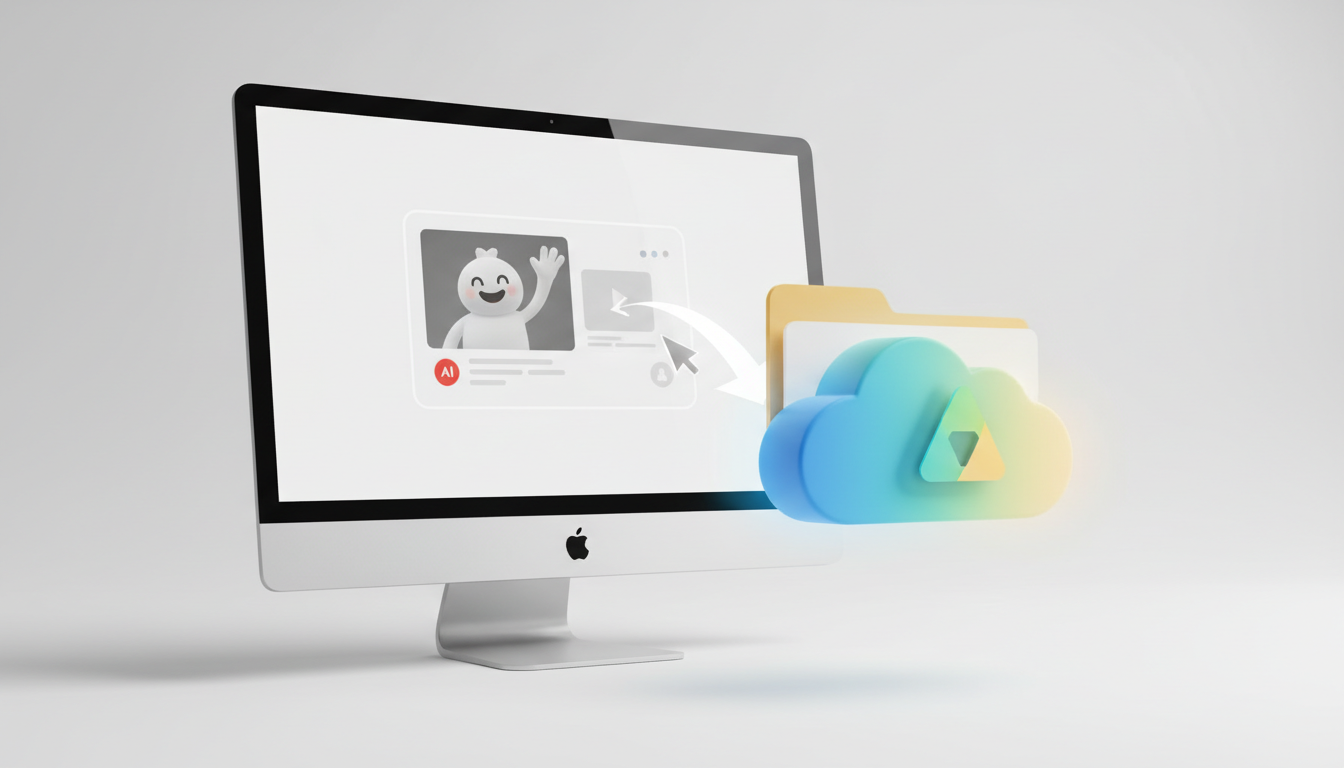
To save a digital video greeting to Google Drive, you first need to download the source video file (typically an MP4) from your delivery page or email to your local device. Once saved, open Google Drive on your desktop browser or mobile app, upload the file using the "+" or "New" button, and adjust your link sharing permissions so your recipients can view it. This straightforward workflow ensures your personalized memories are archived safely and remain accessible forever.
Step 1: Download Your Video File to Your Device
Before you can archive your digital video greeting in the cloud, you need to get the actual file onto your local device. When you receive a digital video greeting, whether it is a collaborative team video or a custom AI character message like those you can create on Fanfun, the delivery platform typically provides a way to download the file.
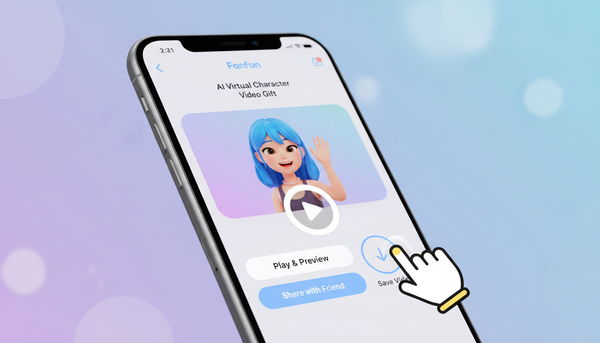
When downloading, look for a download button (often represented by a downward-pointing arrow) on your video delivery page or inside your confirmation email. For the best compatibility across all devices and cloud platforms, you should aim to download the video as an MP4. If you want to dive deeper into why this matters, take a look at our guide on choosing the right video file format for digital greetings.
Quick Troubleshooting Tip: If clicking the download button simply opens the video in a new browser tab and plays it instead of saving, don't worry. Right-click anywhere on the video player (or tap and hold on mobile) and select "Save Video As..." or "Download Video" to manually force the download to your device's hard drive or camera roll.
Step 2: Upload the Video to Google Drive (Desktop and Mobile)
Once the video file is safely on your device, uploading it to Google Drive is a quick process. Depending on whether you are working on a computer or your phone, follow the corresponding method below.
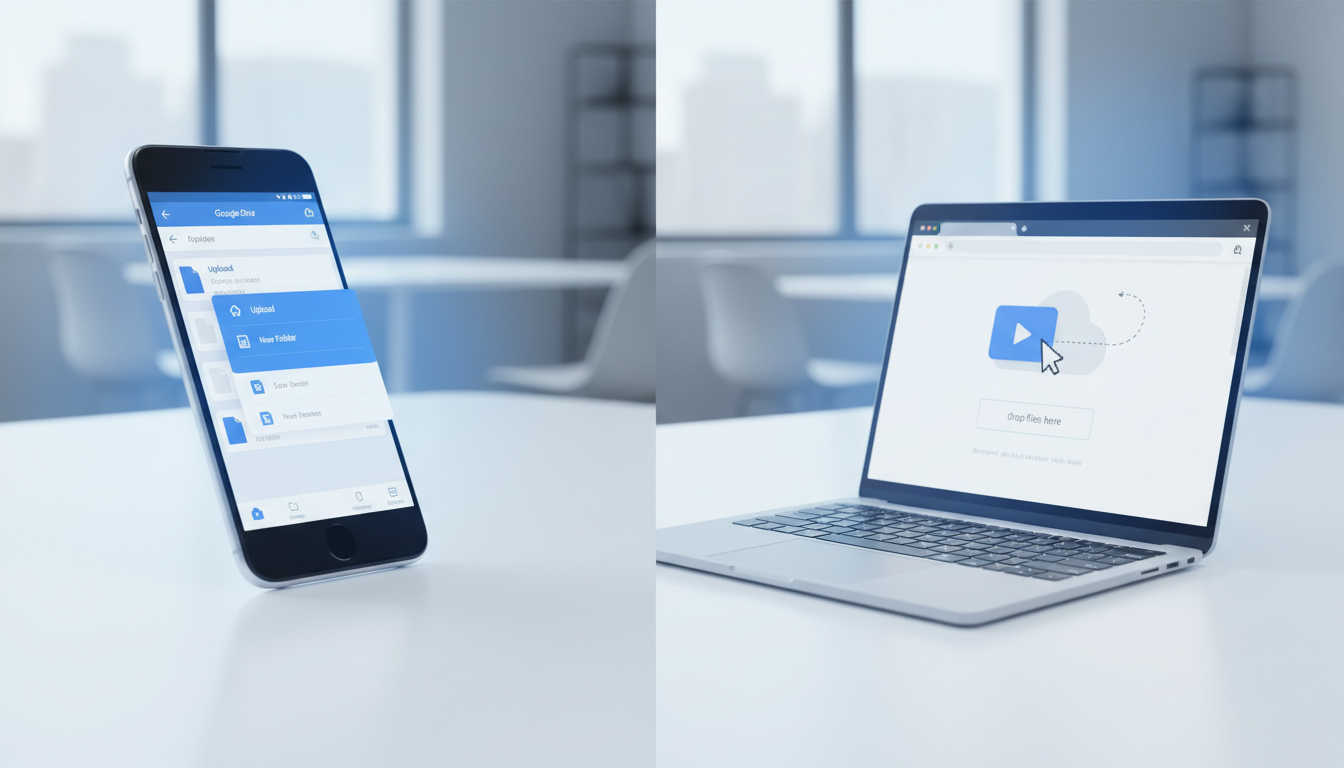
Desktop Method
- Open your web browser and go to Google Drive.
- Log in with your Google account.
- Navigate to the folder where you want to store the video.
- Simply drag the downloaded MP4 file from your computer's desktop or file explorer and drop it directly into the Google Drive window.
- Alternatively, click the "New" button in the top-left corner, select "File upload", locate your video file, and click "Open".
Mobile Method (iOS & Android)
- Open the Google Drive app on your phone.
- Tap the "+" (Plus) icon in the bottom-right corner of the screen.
- Select "Upload" from the menu.
- Tap "Photos and Videos" (on iOS) or browse your local files (on Android) to locate the downloaded greeting card.
- Select the video and wait for the upload to complete. Keep the app open until the progress bar disappears to ensure the upload isn't interrupted.
Upload Verification Checklist
To confirm that your video has uploaded successfully and is ready to store or share, verify these three quick details:
| Checklist Item | What to Look For | Why It Matters |
|---|---|---|
| File Extension | Ends in .mp4 or .mov | Ensures the video plays properly on web browsers and mobile devices. |
| Upload Status | "Upload complete" confirmation popup | Confirms the transfer wasn't interrupted by a network drop. |
| Thumbnail Generation | A preview image replacing the generic file icon | Indicates Google Drive has finished processing the file for online viewing. |
Step 3: Organize and Configure Sharing Permissions
With your video successfully uploaded, the final step is to organize your cloud storage and set up the right permissions so you can share the memory safely. Storing your files in the cloud is one of the key advantages of digital video cards versus traditional paper alternatives, as your keepsakes won't degrade, get lost, or take up physical space over time.
To keep your drive neat, we recommend creating a dedicated folder named "Digital Keepsakes" or "Video Greetings." Once organized, you must configure the privacy settings before sending the link to friends or family. By default, Google Drive uploads files as "Restricted," meaning only you can view them.
To change this, follow these steps:
- Right-click the video file (or tap the three dots on mobile) and select "Share" > "Share".
- Under "General access," change the setting from "Restricted" to "Anyone with the link".
- Ensure the role next to it is set to "Viewer". This prevents recipients from accidentally deleting, renaming, or editing your file.
- Click "Copy link" and share it via email, text, or messaging apps.
For more details on protecting your privacy while distributing personal files, check out our guide on safely sharing your digital video cards online.
Can I play the video directly inside Google Drive?
Yes. Google Drive has a built-in video player that allows you and your recipients to stream the video directly in a web browser or the mobile app without downloading it first. However, the video must be fully processed by Google's servers before it can be streamed.
Why is my video quality lower immediately after uploading to Google Drive?
When you first upload a video, Google Drive processes a lower-resolution version (usually 360p or 720p) first so that it can be previewed quickly. The full high-definition (HD) version is processed in the background and will become available shortly after, depending on the file size and server traffic.
Is there a file size limit for uploading videos to Google Drive?
Google Drive supports large file uploads, provided you have enough available storage space in your Google account. Since most digital video greetings are relatively small files, you can typically store multiple video keepsakes within your account's standard free storage allowance.