How to Send a Large Video Greeting via Email Without Losing Quality
Tired of pixelated video attachments and strict email size limits? Here are the best ways to send crisp, high-definition video greetings directly to any inbox.
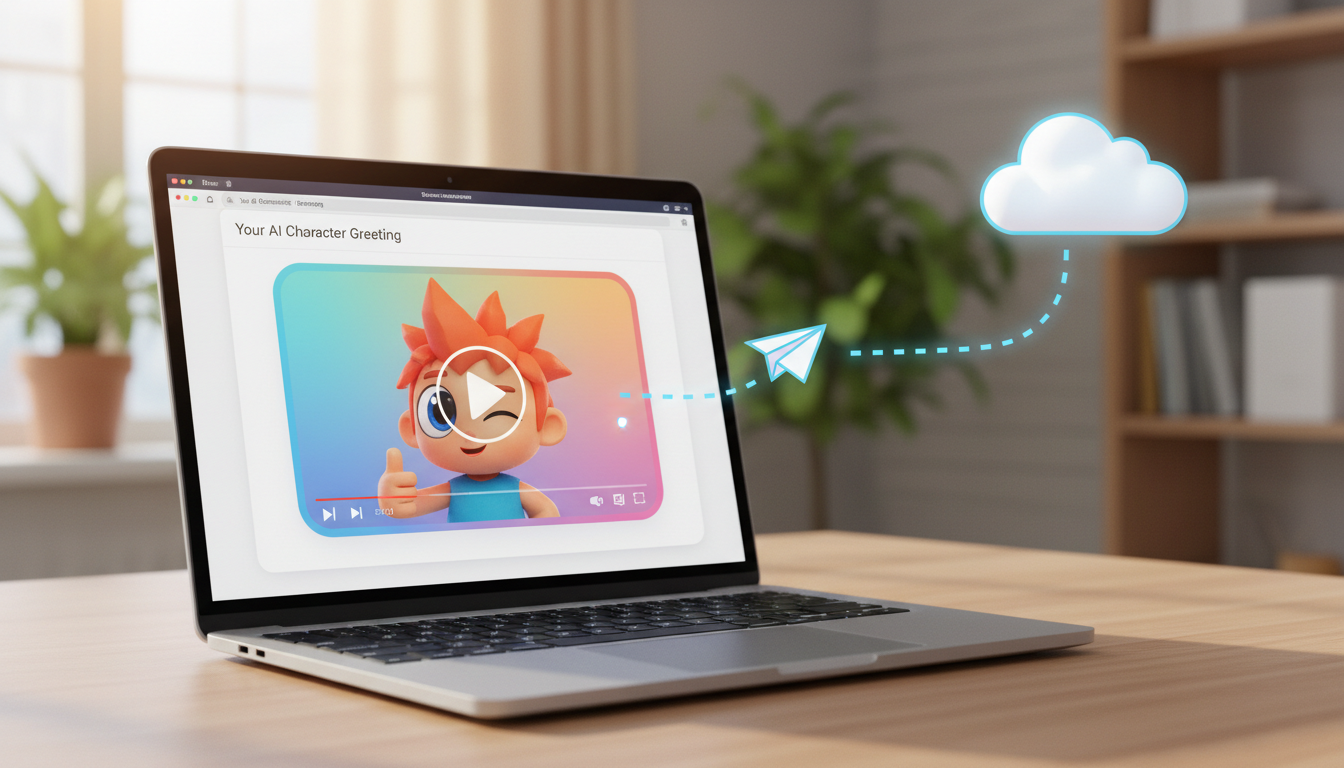
To send a large video greeting via email without losing quality, do not attach the raw video file directly. Instead, upload the high-definition video to a cloud storage service (such as Google Drive or OneDrive) or use a dedicated hosting platform, and then insert a shared link or a clickable image placeholder in your email. This bypasses the typical 20MB to 25MB attachment limits enforced by major email providers while ensuring your recipient views the video in its original crisp resolution.
The 25MB Attachment Limit and How to Bypass It
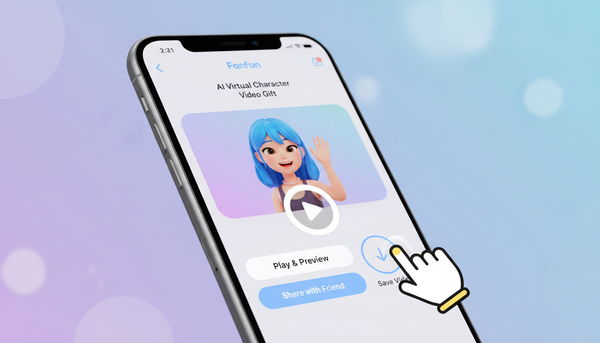
When you create a high-quality video greeting—whether it is a hilarious roast, a heartfelt birthday wish, or a custom AI character message generated on Fanfun—the final file is often too large for traditional email attachments. Most major email providers, including Gmail and Outlook, cap attachments at 20MB to 25MB. A crisp, high-definition MP4 file can easily exceed this limit within just 30 to 60 seconds of footage.
While you might be tempted to compress the video file to shrink its size, standard video compression often ruins the visual and audio quality. Your beautiful, custom-generated video turns into a blurry, pixelated disappointment with muffled sound. To preserve the original high-definition experience, the best workarounds involve cloud hosting, visual thumbnail links, or dedicated sharing platforms rather than sending raw files as attachments.
Method 1: Share via a Google Drive or OneDrive Link
Sharing your video via a cloud link is the most reliable way to maintain maximum quality. This method keeps your email lightweight while giving the recipient direct access to the original, uncompressed video file.
- Upload your video: Upload your high-definition video greeting to a reliable cloud storage service like Google Drive, Dropbox, or Microsoft OneDrive.
- Adjust sharing permissions: Set the link access to "Anyone with the link can view." This is crucial; otherwise, your recipient will be blocked by a permission request screen when they try to watch it.
- Paste the link: Copy the sharing link and paste it directly into your email body. Always accompany the link with an exciting call-to-action like "Click here to watch your custom video greeting!"
For a complete walkthrough on setting up your cloud storage for video sharing, check out our detailed steps on how to save a digital video greeting to Google Drive.
Method 2: Use an Animated GIF or Image Placeholder
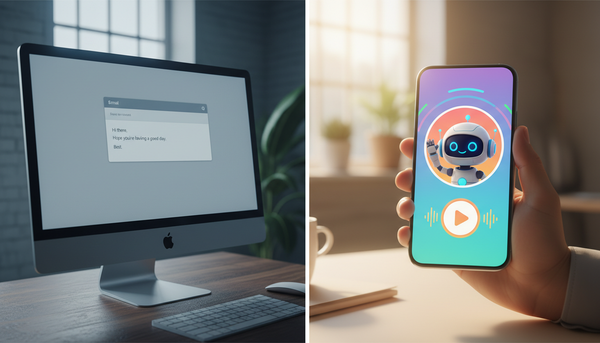
While a text link works perfectly, it does not look very festive. To make your email feel like an interactive video player, you can use a clickable image placeholder. This visual trick encourages your recipient to click and watch immediately.
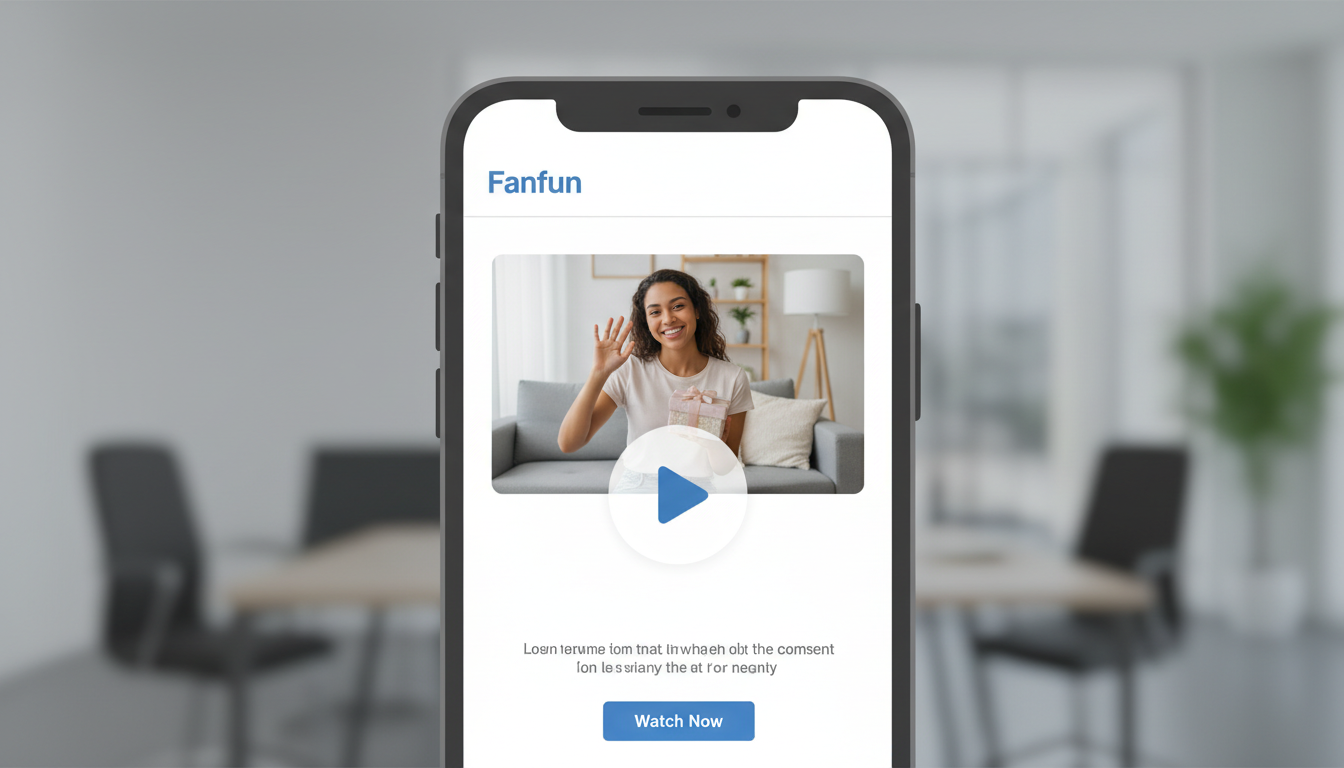
- Capture a preview: Take a high-quality screenshot of a key moment in your video greeting. If you are sending a fun character message, choose a frame where the character looks particularly engaging.
- Add a play button: Use a simple, free image editor to overlay a semi-transparent "Play" button icon over the center of your screenshot. This makes it look like a playable video window.
- Insert and link: Insert this placeholder image directly into the body of your email. Highlight the image and add a hyperlink that points directly to your hosted video URL (on Google Drive, OneDrive, or the Fanfun platform).
When the recipient clicks the image, the video will instantly open and play in their web browser in full high-definition. If you want to refine this layout further, read our guide on how to embed a digital video greeting in an email newsletter.
Best Practices for Virtual Video Deliveries
Sending a digital video is more than just getting the technical link right; it is also about making sure your recipient actually opens and enjoys it. Here is a quick checklist to help you deliver your digital greeting successfully:
- Write a clear subject line: Avoid generic titles like "Check this out!" which look like phishing attempts. Instead, use something personal and clear, such as "A special video message for you from [Your Name]!"
- Keep the body text short: Keep the focus on the video itself. A short, friendly note explaining why you sent the video is all you need. This works exceptionally well for milestones, remote team events, or when sharing tips for how to send a virtual birthday card with a custom video.
If you are coordinating a larger team event, you might also find our guide on How to Use Digital Video Greeting Cards for Remote Team Building highly useful for keeping long-distance colleagues connected.
Comparison of Video Sharing Methods
| Method | Pros | Cons | Best Used For |
|---|---|---|---|
| Direct Attachment | No external links required; plays directly in some email clients. | Strict 25MB limit; forces heavy quality compression. | Very short, low-resolution clips under 10 seconds. |
| Cloud Storage Link | Avoids email attachment compression; supports larger file limits depending on your cloud provider. | Requires setting permissions; plain text link can look plain. | Longer high-definition videos, professional presentations. |
| Image Placeholder | Highly visual; looks like an interactive video player; keeps file size tiny. | Requires a few extra minutes to create the screenshot and play button. | Personal celebrations, Fanfun character greetings, newsletters. |
Can I send a large video greeting directly from my phone's email app?
Yes, but you should still use a cloud link. Most mobile email apps will either block large files entirely or offer to automatically upload the file to iCloud Mail Drop or Google Drive anyway. To keep control over the quality and presentation, it is best to upload the video to your preferred cloud app first, then copy-paste the link into your mobile email draft.
Will my recipient need a Google account to watch a Google Drive video link?
No. As long as you set the link sharing permissions to "Anyone with the link can view," anyone who clicks the link can watch the video directly in their web browser without needing to sign in or have a Google account.
How do I prevent my video email from going straight to the spam folder?
To keep your email out of the spam filter, avoid using spam-trigger words like "FREE," "WIN," or "URGENT" in your subject line. Always write a personalized body message so email servers recognize it as a legitimate personal exchange, and avoid sending emails that contain only a link with no text.