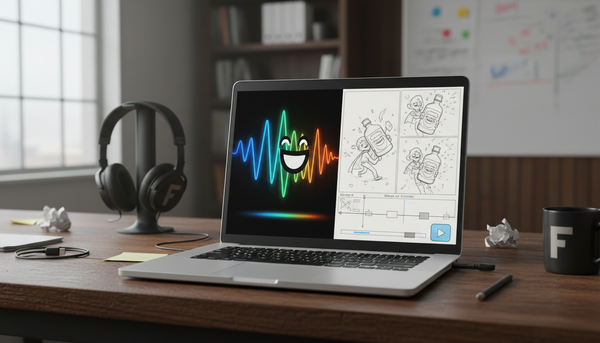
How to Make a Personalized Meme Video with a Custom AI Voice
Want to elevate your social media content? Learn how to write scripts optimized for synthetic speech, generate custom character voiceovers, and edit them into viral-ready meme templates.
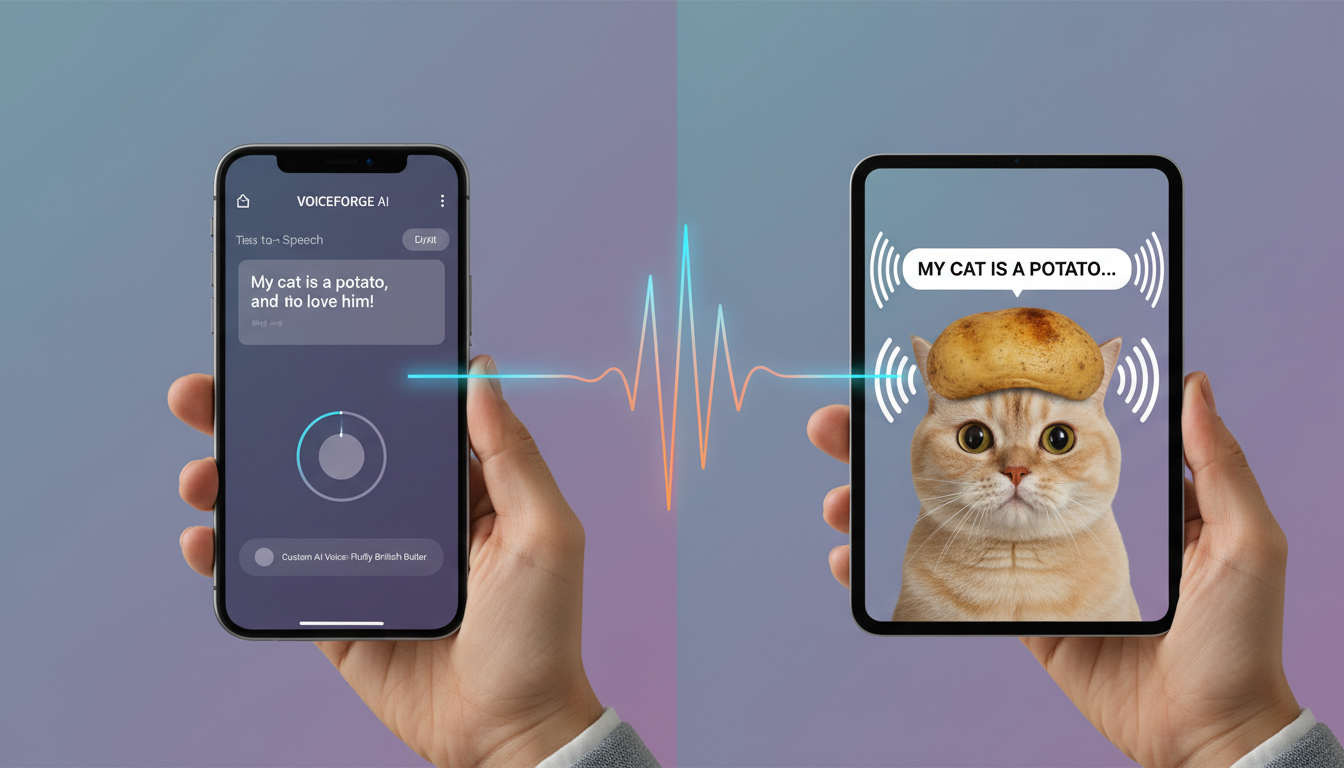
To make a personalized meme video with a custom AI voice, you need to write a script tailored for synthetic speech, generate the voiceover using an instant AI character voice generator, and align the exported audio file with a popular video template in an editor like CapCut or Premiere. Tools like Fanfun allow you to generate custom character-style video messages in minutes to use as your audio foundation. However, note that these AI interpretations are creative parodies and may require phonetic spelling adjustments to get the pronunciation and comedic timing exactly right.
The Anatomy of a Custom Voice Meme
The most viral memes thrive on unexpected contrast. Standard text-to-speech voices often sound flat, robotic, and fail to capture attention on modern feeds because users have heard them thousands of times. To break through the noise, creators are turning to the power of juxtaposition: pairing legendary characters, athletes, or fictional icons with highly specific, mundane, or localized scripts. This contrast catches viewers off guard and drives higher engagement.
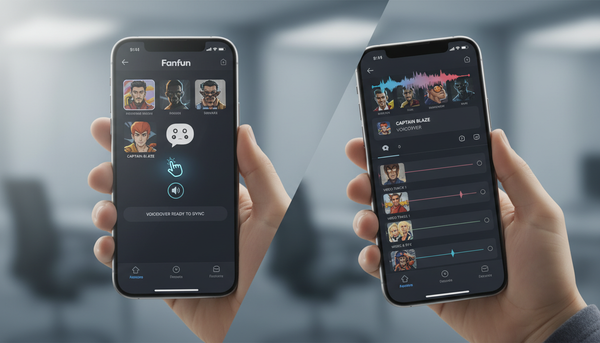
Using Fanfun simplifies this process by letting creators choose an AI persona, input a script, and receive a customized video message in minutes. Explore our complete blueprint for generating scroll-stopping audio assets to take your sound design further. By starting with a high-impact voiceover, you lay the groundwork for a meme that feels genuinely original rather than like a carbon copy of trending templates.
Step 1: Write a Script Tailored for AI Pronunciation
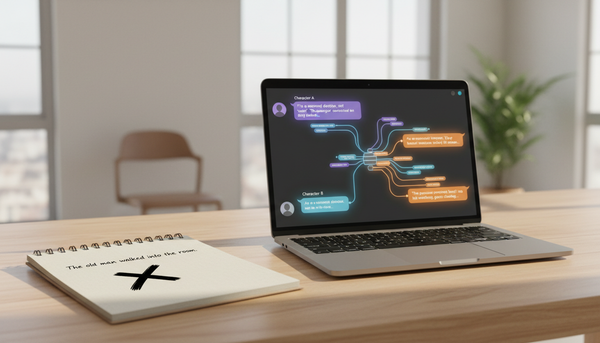
Writing for an AI voice generator requires a different approach than writing for a human actor. To help your custom voiceover sound more natural and hit comedic beats, consider these three script-writing techniques:
- Keep it concise: Long, rambling sentences dilute the comedic punch. Aim for short, punchy statements of 10 to 15 words per line to maintain pacing.
- Use phonetic spelling: AI models sometimes struggle with slang, inside jokes, or non-standard brand names. If a word sounds off in your preview, spell it out phonetically. For example, write "buss-in" instead of "bussin," or "cap-cut" instead of "CapCut."
- Incorporate strategic punctuation: Use ellipses (...) for dramatic pauses, hyphens (-) to connect rapid-fire words, and exclamation points to signal energy shifts.
For advanced tips on managing pacing and tone, read our director's guide to casting and scripting text-to-speech voices. Taking the time to optimize your script before generating saves editing time later.
Step 2: Generate Your Custom Voice Video Using Fanfun
Once your script is ready, you can generate your custom voiceover on Fanfun in just a few clicks:
- Pick your favorite character: Browse the Fanfun library to select an AI persona that matches the comedic tone of your meme. Pairing a dramatic hero with a mundane topic often yields the best comedic results.
- Input your script: Paste your optimized script directly into the generator text box.
- Generate in minutes: Click generate to receive your custom AI video message. Fanfun delivers your personalized video in minutes.
Once generated, download the video file to your device. Even though you only need the audio for your meme, the video file contains the high-quality audio track we will extract in the next step.
Step 3: Syncing the Audio with Meme Templates in Post-Production
With your custom Fanfun video downloaded, you are ready to combine the audio with popular visual meme templates. Follow this practical post-production workflow:
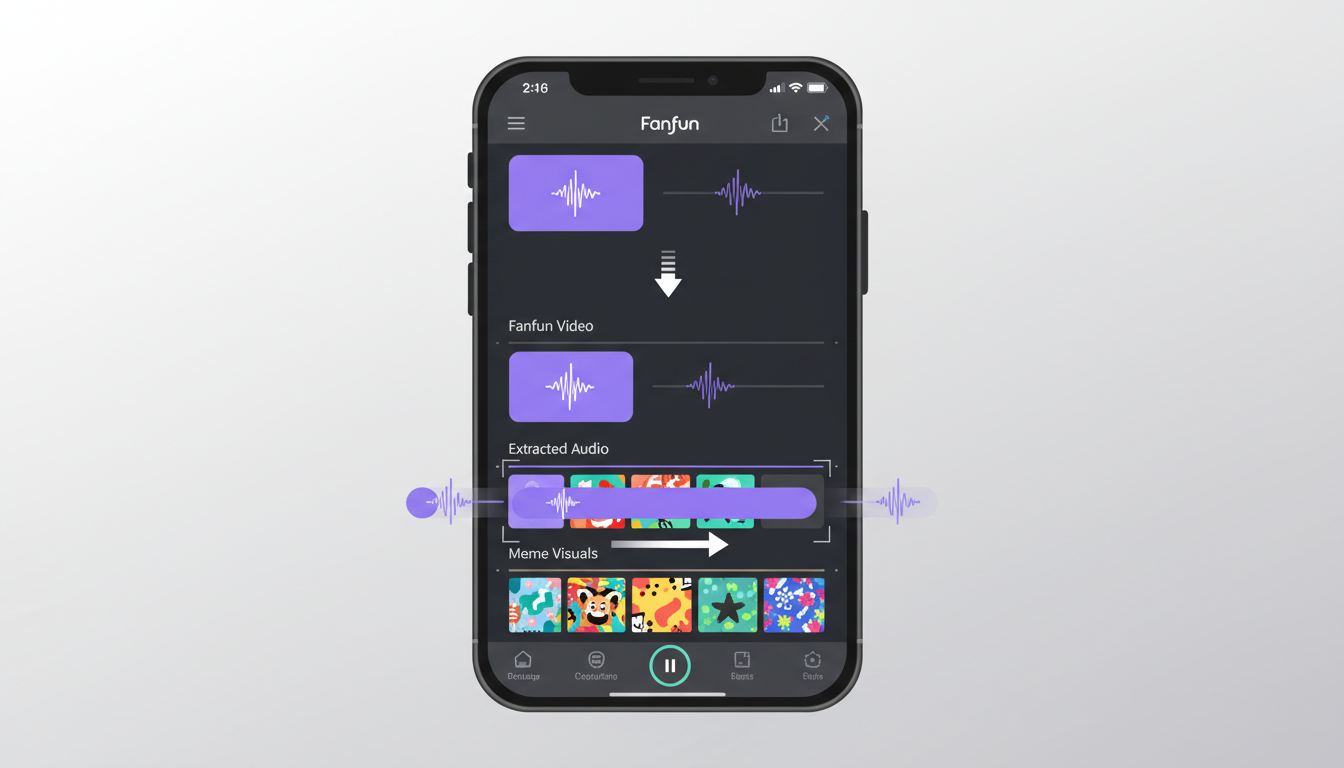
- Import your assets: Open your mobile or desktop video editor (such as CapCut, Premiere, or Canva) and import both your visual meme template (like a green-screen clip or reaction video) and your Fanfun video.
- Extract the audio: In your editor's timeline, right-click (or tap) the Fanfun video file and select "Extract Audio" or "Separate Audio." Delete the video track, leaving only the custom voiceover audio line.
- Align the timing: Drag the extracted audio track so that the key voiceover punchlines align perfectly with the visual transitions or physical reactions in your meme template.
- Add stylized captions: Since many users browse social feeds with sound off, add auto-captions and style them with bold colors and quick animations to keep viewers engaged.
Three Creative Meme Frameworks to Try Today
To help you get started, here are three structured meme frameworks you can adapt with your own custom scripts today. These examples illustrate how to pair specific voices with unexpected scenarios for maximum comedic effect:
| Meme Framework | Voice Concept | Example Script Idea |
|---|---|---|
| The Hyper-Specific Group Chat Roast | An authoritative, legendary figure or sports icon. | "Listen up, group chat. We need to talk about why Dave is always 45 minutes late to every single dinner reservation." |
| The Out-of-Character PSA | An epic, dramatic fantasy hero or cartoon legend. | "Attention everyone. The office microwave is for heating food, not for conducting culinary science experiments with fish. Thank you." |
| The Corporate Satire | A menacing villain or highly chaotic character. | "I have reviewed your request for a mental health day, and I must inform you that the quarterly spreadsheet does not care about your feelings." |
If you are planning to use the group chat roast framework to tease a friend, you can elevate the delivery by sharing it directly with them. Learn how to orchestrate a personalized character video surprise to maximize the reaction from your friends.
Can I use these custom voice videos for commercial advertisements?
Fanfun is designed primarily for personal creative uses, social media memes, and entertainment. For commercial advertisements or brand endorsements, you must ensure you have the appropriate commercial-use rights and licensing for any specific persona or character voice used. Always consult current platform terms before running paid campaigns.
How do I fix an AI voice that mispronounces a specific word or name?
If the generator mispronounces a word, try spelling it phonetically in your script. For example, instead of writing "hyperbole," try "hi-per-bo-lee." Breaking complex words down into syllables or adding hyphens often helps the AI model interpret the correct pronunciation.
What video editing apps work best for layering Fanfun audio over green-screen templates?
Mobile-first video editors like CapCut, InShot, and Canva are excellent for quick edits and offer native "extract audio" features. For more advanced control over timing, pacing, and multi-track audio layering, desktop software like Adobe Premiere Pro or DaVinci Resolve is recommended.