How to Automate Video Greeting Delivery via Email on Specific Calendar Dates
Want to schedule custom video greetings to arrive exactly on birthdays or holidays? Here is a step-by-step workflow to automate video delivery using standard email tools and cloud hosting.
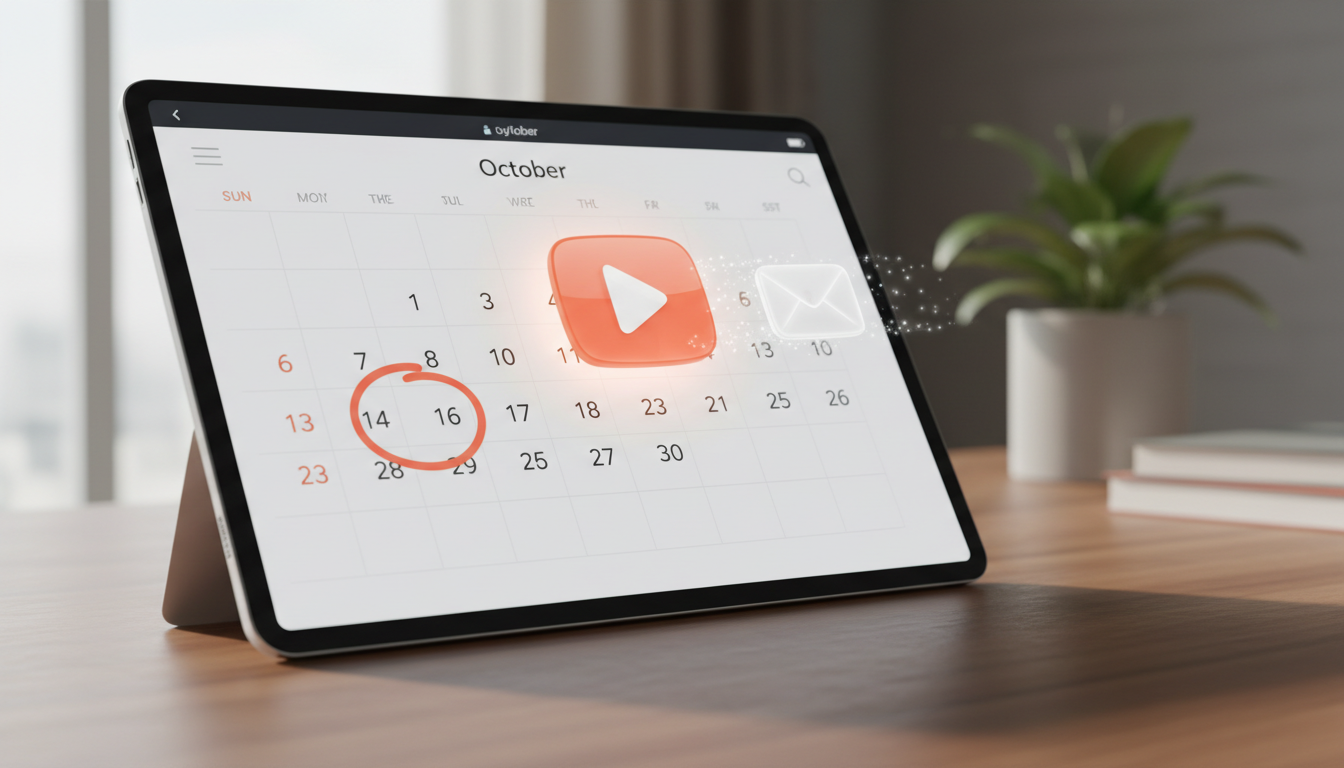
To automate the delivery of video greetings on specific calendar dates, you need to generate your video, upload it to a cloud hosting service, and use an email scheduler—such as Gmail's "Schedule send," an email marketing platform, or an automation tool like Zapier—to dispatch the email on your target date. Because video files are typically too large to attach directly to emails, the most reliable method is to embed a hyperlinked thumbnail image in your scheduled email that links to your hosted video file. This workflow allows you to prepare personalized character greetings on Fanfun well in advance, knowing they will land in your recipient's inbox exactly when the holiday or birthday arrives.
The Core Workflow: Why You Need an Email Scheduler
Most AI video generators, including Fanfun, deliver your completed video file or link to your own inbox immediately after generation. While this is perfect for previewing your creation and checking that the synthetic voice sounds just right, it presents a challenge if you want the message to arrive in your recipient's inbox at a precise moment weeks or months in the future. To send it on a specific future date, you must act as the dispatcher by setting up a scheduled email delivery pipeline. By separating the creation of the video from the delivery mechanism, you gain full control over the presentation. If you are planning a virtual message campaign, you can learn more about how to schedule virtual character video deliveries to master the timing dynamics of automated campaigns. If you are still deciding between formats, compare virtual character video messages vs. personalized text greetings to find the best fit for your recipient.
Three Ways to Schedule Your Video Greetings
Depending on whether you are sending a single birthday greeting to a family member or managing a recurring list of holiday messages for clients, your technical needs will vary. Here are three reliable methods to schedule your video emails, ranging from simple built-in tools to automated software integrations.
Method 1: Built-In Email Schedulers (One-Off Greetings)
For individual greetings like birthdays or anniversaries, you do not need complex software. Standard email clients like Gmail and Outlook include built-in scheduling features. In Gmail, you simply click the arrow next to the "Send" button and select "Schedule send." In Outlook, you can use the "Delay Delivery" option. This method is completely free and takes seconds to set up. When choosing this simple approach, it is helpful to weigh how your email will look compared to other formats; you can read our comparison of digital video greeting cards vs traditional email greetings to choose the best layout for your message.
Method 2: Email Marketing Platforms (Recurring Holiday Lists)
If you need to send a video greeting to a larger group—such as a holiday message to your entire newsletter list or automated birthday wishes to your customers—an email marketing platform like Mailchimp, ConvertKit, or ActiveCampaign is the best choice. These platforms allow you to upload a CSV file of contacts with their birthdates or milestone dates and trigger automated emails to go out automatically on those specific calendar days.
Method 3: Automation Tools (Spreadsheet-to-Email Workflows)
For a highly customized, hands-off system, you can connect a Google Sheet to your email account using an automation platform like Zapier or Make. You record your recipients' names, email addresses, video links, and target dates in the spreadsheet. Zapier monitors the sheet daily, and when a row matches the current date, it automatically drafts and sends the personalized email through your connected Gmail or Outlook account.
Scheduling Methods Comparison
| Method | Setup Complexity | Cost | Best For |
|---|---|---|---|
| Built-In Email Schedulers | Very Low | Free | One-off personal greetings (birthdays, anniversaries) |
| Email Marketing Platforms | Medium | Free to Paid (scales with contacts) | Bulk holiday greetings or customer milestone automations |
| Zapier / Make Integrations | High | Free to Low (depending on volume) | Custom, dynamic delivery from a tracking spreadsheet |
Step-by-Step Guide to Setting Up Your Automated Video Email
Setting up your automated delivery is straightforward once you have your video ready. Follow this step-by-step workflow to prepare, host, and schedule your video greeting.
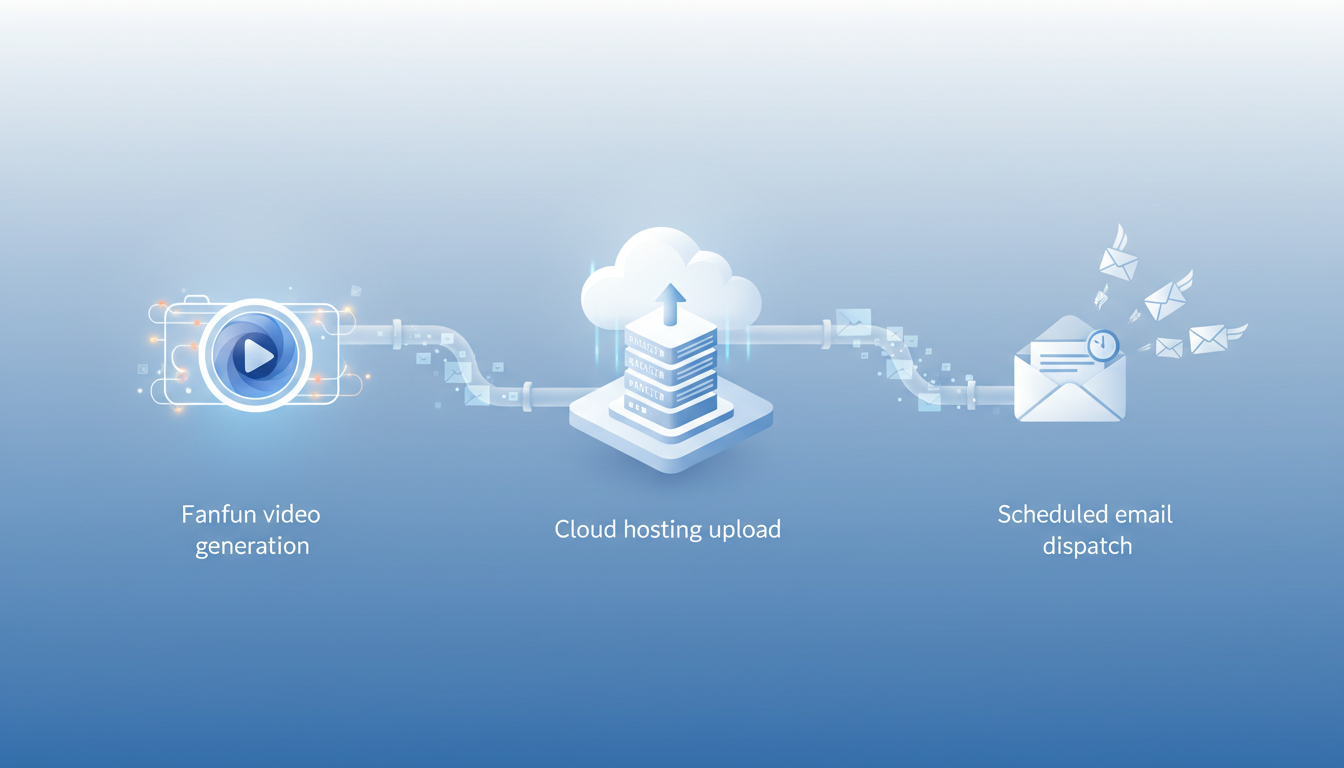
Step 1: Generate Your Custom Video
Start by creating your custom character video. On Fanfun, you can choose from dozens of AI personalities and animated characters, write a custom script (with each video credit covering up to 30 seconds of speech), and receive your completed video in your inbox. Keep in mind that these virtual characters use synthetic voices designed for playful, creative greetings rather than perfect human replication. If you are crafting a message for a child, focusing on hyper-specific details makes a massive difference; learn more about how to direct instant AI video greetings that actually thrill your kids. Once the video is ready, download the MP4 file to your local device.
Step 2: Upload Your Video to a Cloud Host
Email providers limit attachment sizes, so you should never attach a raw video file directly to your scheduled email. Instead, upload your MP4 file to a reliable cloud storage service like Google Drive, Dropbox, or YouTube (set to "Unlisted"). This ensures your recipient can watch the video instantly without download delays. For help choosing the right platform, check out our guide on how to find the best video hosting option for sharing custom virtual greetings.
Step 3: Draft Your Email and Embed a Thumbnail
Open your email client or automation tool and draft your message. To make the email visually engaging, take a screenshot of a frame from your video, overlay a stylized "Play" button icon on top of it, and insert this thumbnail image into the body of your email. Hyperlink the image directly to your hosted video link so that when the recipient clicks the image, the video opens in their browser.
Step 4: Schedule the Dispatch
Once your email draft is complete, select your scheduling option. Choose the exact calendar date and time you want the message to deliver. For birthdays, aiming for mid-morning in the recipient's local timezone is usually ideal.
How to Prevent Common Delivery Failures
An automated email is only successful if it safely reaches the recipient's primary inbox and plays smoothly. Keep these three technical best practices in mind to avoid common delivery pitfalls.
- Avoid Heavy Attachments: Sending large video files can cause your email to be blocked by spam filters or bounce entirely due to inbox size limits. To protect your deliverability, always use a hosted link. For advanced tips on file management, review our guide on how to send a large video greeting via email without losing quality.
- Verify Sharing Permissions: If you host your video on Google Drive or Dropbox, make sure the link sharing setting is set to "Anyone with the link can view." If you leave it restricted, your recipient will receive an annoying "Request Access" screen instead of their video gift.
- Account for Timezones: If you schedule an email to go out at 9:00 AM, make sure it is set to the recipient's local timezone, not yours. A morning greeting scheduled in US Eastern time will arrive at a disruptive 6:00 AM for a friend on the West Coast.
Can I schedule a video email to repeat automatically every year?
Yes, but you will need to use an email marketing platform (like Mailchimp) or an automation tool (like Zapier) connected to a database. Standard email clients like Gmail or Outlook only support one-time scheduled sends. With an automation tool, you can set a recurring annual trigger based on a specific date field in your contact list.
What is the best time of day to schedule a holiday video greeting?
For personal greetings, mid-morning (between 9:00 AM and 11:00 AM) in the recipient's local timezone is ideal, as they are likely awake and checking their devices. For professional or client greetings, Tuesday through Thursday mornings generally yield the highest open rates, while holiday eves or weekends are best avoided if you want to ensure immediate visibility.
Will scheduling an email affect the video quality when it arrives?
No. Because your video is hosted on an external platform (like Google Drive, Dropbox, or YouTube) and only linked within the email, scheduling the message has absolutely no impact on the video quality. The recipient will see the exact high-definition file you uploaded to your host.