How to Schedule a Virtual Character Video Delivery for a Specific Date
Timing a digital gift perfectly shouldn't involve last-minute panic. Discover how to generate your virtual character video ahead of schedule and use standard email, chat, or calendar tools to deliver the surprise exactly when it matters most.
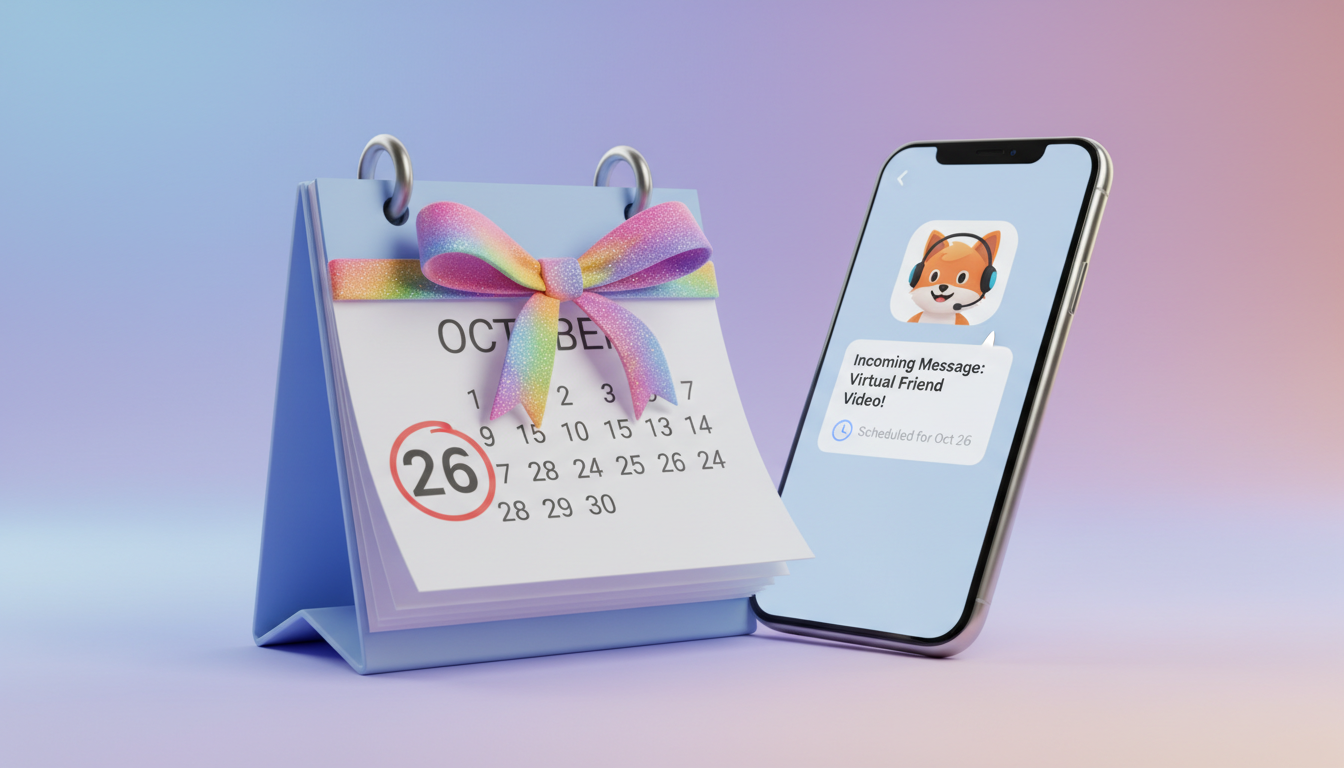
To schedule a virtual character video delivery for an exact date, the best strategy is to generate the video ahead of time and use external scheduling tools—like email "Schedule Send," chat app delayed messages, or calendar invites—to automate the delivery. Because AI video platforms like Fanfun deliver completed video files to your inbox or account dashboard rather than holding them for a future date, scheduling the final send-off using your recipient's favorite communication channel helps you manage the timing of your digital gift.
The Golden Rule of Digital Gifts: Generate Early, Schedule Externally
We have all been there: trying to pull together a last-minute birthday surprise on the morning of the big day, only to run into slow internet, unexpected rendering times, or a typo in the script that requires a complete remake. When you are creating a personalized virtual character video, waiting until the final hour is a recipe for unnecessary panic.
Unlike traditional delivery services that ship physical items, virtual character platforms deliver the digital file once processed. When you create a video on Fanfun, the system processes your script and delivers the completed video to your email inbox and your account dashboard under "My creations." Because the platform does not feature a built-in "delivery calendar" to hold and send your video weeks later, the smartest approach is to separate the creation phase from the delivery phase.
By generating your video ahead of time, you gain total control over when and how the recipient receives it. You can review the finished product and download the video file, keeping it safely tucked away until the exact moment you want to reveal the surprise.
Step 1: Create and Review Your Video Ahead of Time
Give yourself a comfortable window by generating your video well in advance of the event. This time buffer is helpful for reviewing the final output. Keep in mind that synthetic voices read your exact words as written, and they may occasionally require minor adjustments to the script to get the pronunciation or pacing right.
During your review, pay close attention to three specific areas:
- Pronunciation: Check how the AI character pronounces unique names, inside jokes, or slang. If it sounds slightly off, you may want to adjust the spelling phonetically in your script and regenerate.
- Pacing: Listen to where the character pauses. Ensure the comedic timing or emotional beats land naturally.
- Audio Levels: Make sure the background music or sound effects do not overpower the character's voice. For a step-by-step checklist on getting the perfect mix, check out our guide on how to review audio levels for a virtual character video.
Once you are fully satisfied with the video, download the file from your email or dashboard. You are now ready to schedule the delivery.
Step 2: Choose Your Scheduling Method
Because you already have the finalized video file in hand, you can use everyday communication tools to automate the delivery. Below is a comparison of the most reliable scheduling methods depending on how your recipient prefers to chat.
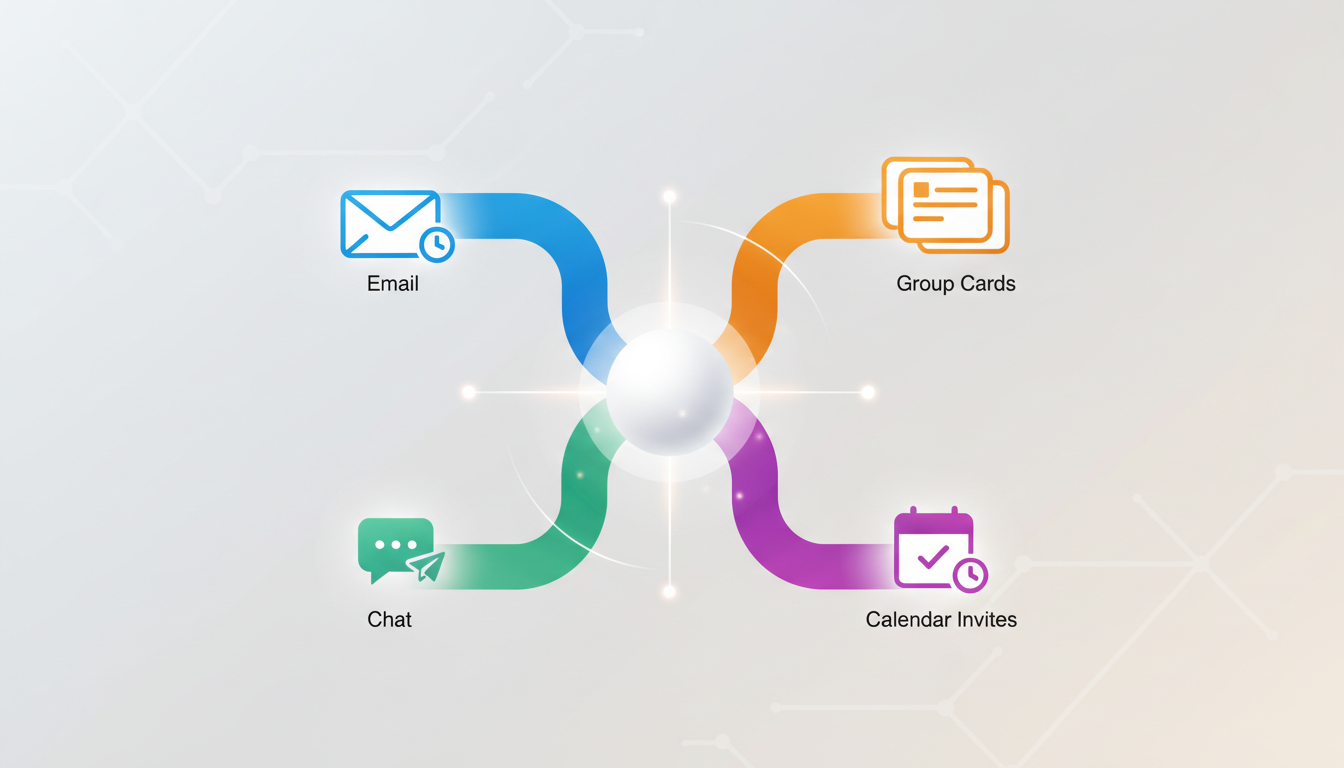
| Method | Best For | How It Works | Key Advantage |
|---|---|---|---|
| Email (Schedule Send) | Family, relatives, and professional contacts | Write an email in Gmail or Outlook, attach the video file, click the dropdown next to "Send," and select "Schedule send." | Highly reliable, supports long messages, and keeps the video private. |
| Chat Apps (Delayed Messages) | Friends, gaming buddies, and close coworkers | Use built-in scheduling features in Telegram, Discord, or Slack by long-pressing the send button to upload the file. | Lands directly where they already spend their time; feels casual and immediate. |
| Calendar Invites | Partners, busy professionals, or family events | Create a calendar event (Google Calendar or Apple Calendar) and attach the video file or paste a cloud storage link in the description. | Triggers an automatic push notification on their phone at the exact minute of the event. |
Method A: Email Scheduling
Email remains one of the cleanest ways to present a digital gift. If you use Gmail, compose your message, attach your downloaded Fanfun video file, and instead of clicking the blue "Send" button, click the small arrow next to it. Select "Schedule send" and pick the exact date and time. In Microsoft Outlook, you can achieve the same result by using the "Delay Delivery" option under the Options tab.
Method B: Chat App Scheduling
If your recipient spends more time on chat apps than in their inbox, scheduling a message directly in their favorite app is a great alternative:
- Telegram: Hold down the "Send" button in your private chat and select "Schedule Message" to choose your time.
- Slack: Click the arrow next to the send icon to schedule a message for a coworker's birthday morning.
- Discord: Use scheduling bots or native slash commands to queue up messages in private channels.
Method C: Collaborative Team Gifts
If you are organizing a group celebration, you might want to combine your virtual character message with contributions from friends or coworkers. When deciding how to coordinate, it helps to compare group video greeting platforms vs. virtual character messages to see which format fits your team's style. For instance, you can upload your completed Fanfun video file directly into a shared digital group card so it plays alongside everyone else's written notes.
Method D: Calendar Invites
For a fun, modern twist, create a calendar event for the recipient's birthday or anniversary. Title it something exciting like "Open Your Surprise!" and attach the video file or paste a cloud storage link directly into the event description.
Step 3: Polish the Presentation for the Big Reveal
The final step is making sure your scheduled message looks irresistible when it arrives. Pair your scheduled video file with a short, playful intro script. Keep the mood aligned with the character you chose. For example, if you generated a message from a popular animated character or a famous personality, write a teaser like: "A very special guest wanted to drop by your inbox to wish you a happy birthday. Click below to see who stopped by!"
If you prefer a physical reveal over a digital one, you don't have to send a file at all. You can play the completed video from your downloaded file or your Fanfun dashboard on a laptop or TV screen at a live party. If you go this route, check out our tips on how to loop a virtual character video for a party display to keep the fun going in the background.
Can I schedule a video delivery directly inside the Fanfun platform?
Currently, Fanfun does not have an internal scheduling system to delay the delivery of videos. Once your video is generated, it is delivered to your registered email and appears in your creations. You can then download the file and use standard tools like Gmail, Outlook, or Slack to schedule the delivery yourself.
How long does it typically take to generate a video on Fanfun?
Rendering times can vary depending on script length and system processing. This is why we recommend creating your video well in advance of your event to ensure you have it ready in time.
Will the recipient need a Fanfun account to watch the video?
No, recipients do not need to sign up or log in to Fanfun to watch their video. Since you can send them the downloaded video file directly, they can play it instantly on any device.