How to Share a Virtual Character Video on WhatsApp with High Quality
Want to share a high-quality virtual character greeting on WhatsApp without the app heavily compressing it? Here are two practical workarounds to avoid standard compression and keep your videos looking sharp.
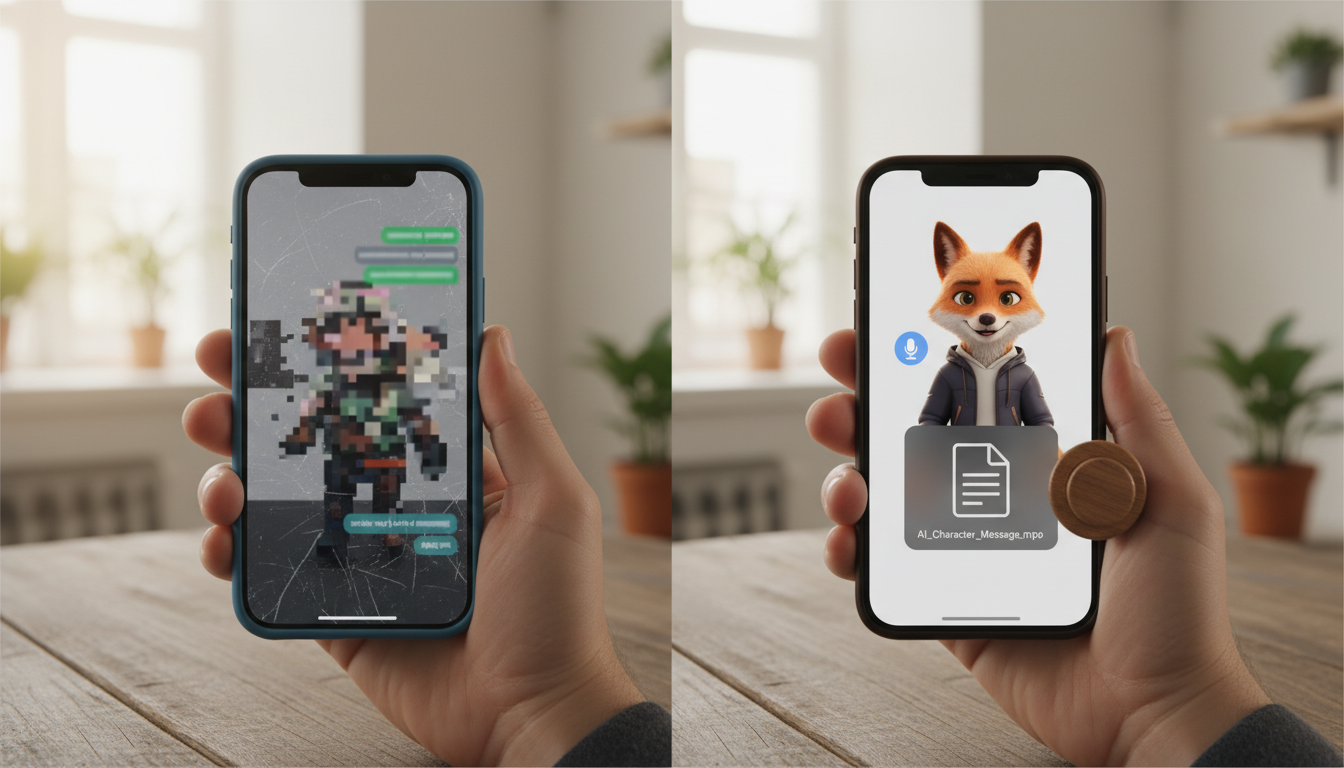
To share a virtual character video on WhatsApp while maintaining high quality, you can avoid WhatsApp's default media compression, which automatically shrinks standard video uploads. The most reliable ways to preserve your video's resolution are either sending the video file as a "Document" (which transfers the file up to the app's limit) or uploading the file to a cloud storage service and sharing a direct link. While sending as a document avoids standard video compression, it replaces the standard inline video player with a file download box; sharing a cloud link keeps the playback experience smooth while streaming the file from your storage provider.
Why WhatsApp Compresses Your Videos (and How to Avoid It)
WhatsApp is designed to save data and speed up delivery times. To achieve this, the app compresses video sent through the standard camera or gallery upload tool. While this is fine for a quick, casual video, it can affect stylized digital media like Fanfun virtual character videos. When you create a custom greeting on Fanfun, the system renders a video designed to keep the AI character's expressions and voice clear. Letting WhatsApp's default compressor touch this file can result in compression artifacts, blurry details, or reduced audio quality.
Because AI-generated voices and character animations rely on clear visual lines and audio frequencies, standard compression can affect the presentation. To protect your video's quality, you can send your MP4 file as a document, or bypass the app's upload system entirely by using a web link.
Method 1: Send Your Video as a Document (Avoid Standard Compression)
When you send a video as a document, WhatsApp treats it like a file attachment. It typically avoids the standard compression applied to media uploads. The recipient will receive the file as downloaded from Fanfun.
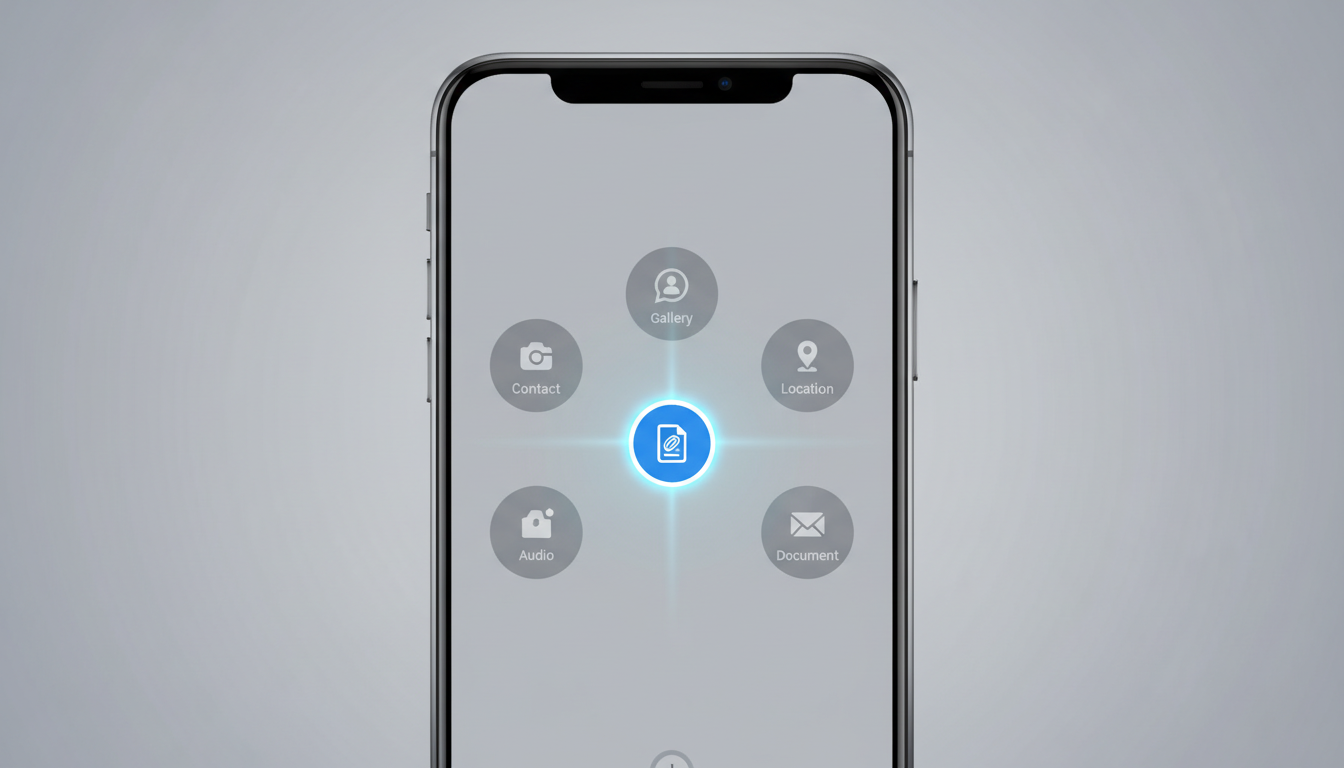
How to Send as a Document on iOS:
- Download your virtual character video from your Fanfun email or creation dashboard, and save it to your iPhone's Files app.
- Open WhatsApp and enter the chat where you want to send the video.
- Tap the + icon next to the text input field.
- Select Document, then tap Choose from Files.
- Navigate to the folder where you saved your video, select the MP4 file, and tap send.
How to Send as a Document on Android:
- Download the video file directly to your device's local storage (usually the Downloads folder).
- Open WhatsApp and open your target chat.
- Tap the paperclip icon in the chat input bar.
- Select Document, then tap Browse other docs.
- Locate your raw MP4 file, select it, and confirm the send.
The main trade-off of this method is the visual presentation in the chat. Instead of a playable video preview with a play button, your recipient will see a file attachment box showing the file name and size. They will need to tap the file to download and open it. However, they will see the virtual character with less compression than standard uploads.
Method 2: Share a High-Quality Link with an Optimized Preview
If you want to maintain a clean presentation in the chat thread without forcing your recipient to download a raw file, uploading your video to a cloud storage service (like Google Drive, Dropbox, or OneDrive) and sharing a link is an alternative. This allows you to share the file without relying on WhatsApp's built-in compression.
When you share the link, the recipient can tap it to open a web player that streams the video. To make sure the link looks like an exciting personal gift, you can prepare your link's metadata by reading our guide on How to Customize the Thumbnail Preview for Your Shared Virtual Character Video before pasting it into the chat window. A customized thumbnail ensures that a preview image of your chosen AI character appears in the WhatsApp message thread.
Comparison: Document Method vs. Link Sharing Method
| Feature | Document Method | Link Sharing Method |
|---|---|---|
| Visual Quality | Avoids standard app compression | Depends on host player and network |
| Chat Playback | No inline preview; opens in external player | Generates a link preview; streams on web page |
| File Size Limit | Up to the app's document limit | No limit (hosted externally) |
| Recipient Storage | Saves directly to recipient's device | Does not consume recipient's storage space |
| Mobile Data Use | High (downloads entire file) | Moderate (adaptive streaming) |
Alternative: Compressing Your Video Smartly Before Uploading
If you absolutely must have an inline, playable video directly inside the WhatsApp chat thread without using the document trick, you can manually compress the file yourself. By compressing the file on your own terms before uploading, you can maintain control over the resolution and audio quality rather than letting WhatsApp make those decisions for you. If you need to prepare your file this way, check out our guide on How to Compress Video Messages for Mobile Text Apps Without Losing Quality to find a balance between file size and clarity.
Another excellent way to keep file sizes manageable is to keep your virtual character scripts concise. If you are still in the planning stages, learning How to Write a Humorous Script for a Virtual Character Video can help you write a punchy, short script. Limiting your script to under 30 seconds (which fits comfortably within a standard Fanfun video credit) keeps the file size naturally small and highly shareable. Remember to pay close attention to the audio bitrate during manual compression; AI-generated voices rely on subtle vocal frequencies to sound natural, and over-compressing the audio track can make the character sound metallic or robotic on mobile speakers. If you find that WhatsApp's constraints are too limiting, you might also consider reading our parallel strategy on How to Send a Large Digital Video Greeting via Text Without Losing Quality to explore standard SMS/MMS options.
What is the maximum file size WhatsApp allows for documents?
WhatsApp generally allows you to send documents up to 2 GB in size, depending on your platform and app version. This is typically enough space to share a high-definition virtual character video without standard compression.
Will sending a video as a document use more of my recipient's mobile data?
Yes. Because the document method avoids standard compression, your recipient will download the full file size. If they are on a limited mobile data plan, sharing a streaming link to your video file via cloud storage is an alternative.
Can I share a Fanfun video directly from my email to WhatsApp?
When your finished Fanfun video is delivered to your email inbox, you can download the video file to your device and then upload it to WhatsApp as a document. Alternatively, you can upload the downloaded file to your own cloud storage service and share that link in your chat thread.