How to Compress Video Messages for Mobile Text Apps Without Losing Quality
Don't let aggressive carrier compression ruin your video greetings. Learn how to compress your files and use smart sharing workarounds to keep your messages crystal clear.
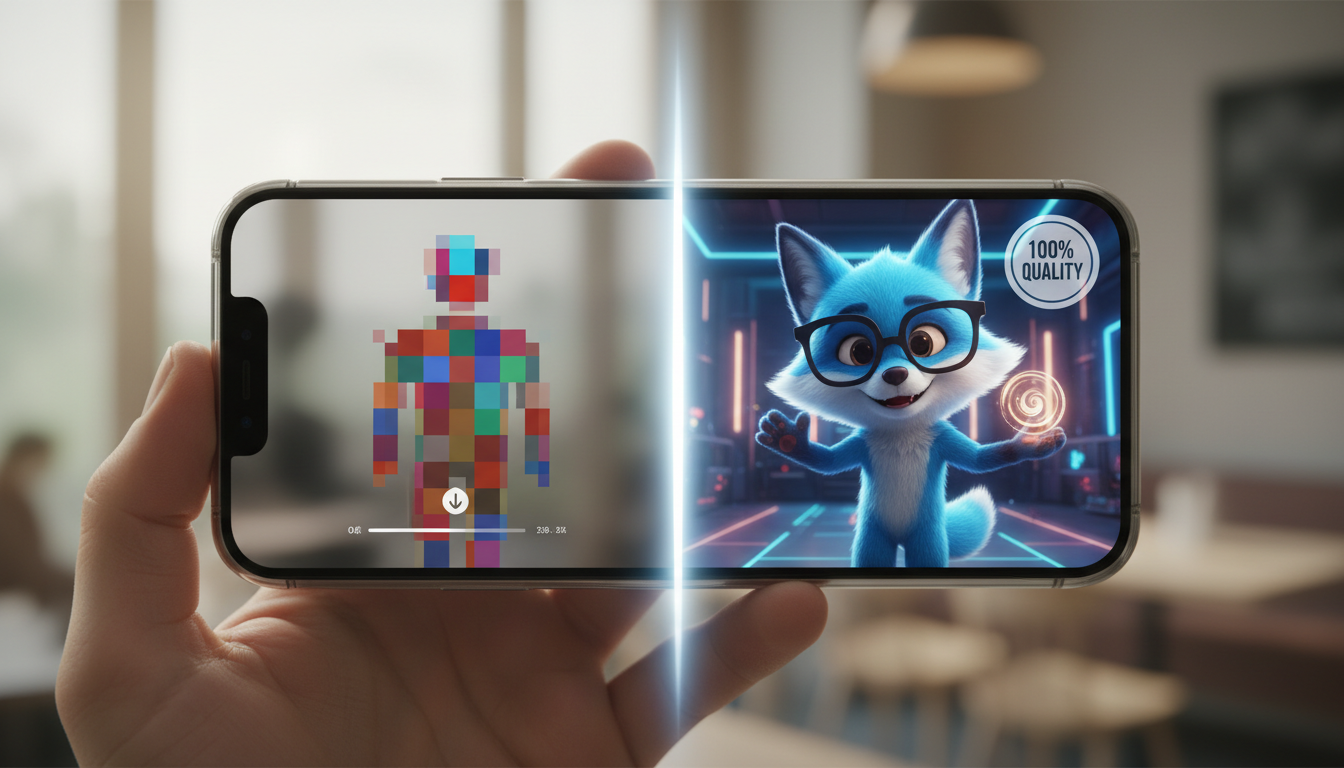
To send high-quality video messages over mobile text apps without them turning into pixelated, blurry messes, you need to compress them to an optimal mobile format (such as 720p or 1080p resolution using the H.264 or HEVC codec) or bypass compression entirely by sharing a hosted web link. Standard cellular networks aggressively shrink video files to under 1MB, while modern messaging apps like WhatsApp and iMessage apply automatic compression to keep bandwidth low. Manually preparing your file or using a dedicated sharing link ensures your video's audio and visuals stay sharp, regardless of your recipient's device.
Why Mobile Text Apps Turn High-Quality Videos Blurry
When you download a beautifully rendered custom video greeting, it looks pristine on your camera roll. But the moment you drop it into a standard text message, the quality often plummets. This visual degradation happens because traditional carrier SMS/MMS networks have tiny file size limits, often capping media transfers at a meager 300KB to 1MB. To force a modern video through these narrow digital pipes, cellular networks aggressively compress the file, throwing away visual data and leaving you with a pixelated, stuttering video reminiscent of a flip-phone recording from 2004.
Over-the-top (OTT) messaging apps like WhatsApp, iMessage, and Telegram are much more generous, allowing larger files and using modern internet protocols instead of legacy cellular networks. However, even these platforms apply automatic compression to optimize loading speeds and save server bandwidth. If you want to preserve the punchy timing and clear visuals of a custom character video, you must either format the file manually to fit within their high-quality thresholds or use a direct sharing link.
The Quick Guide to Messaging App File Size Limits
Understanding the exact boundaries of each platform helps you choose the best delivery method. While a standard text message will almost always ruin your video, alternative platforms offer much larger limits that can easily accommodate a high-definition clip if you know how to use them.
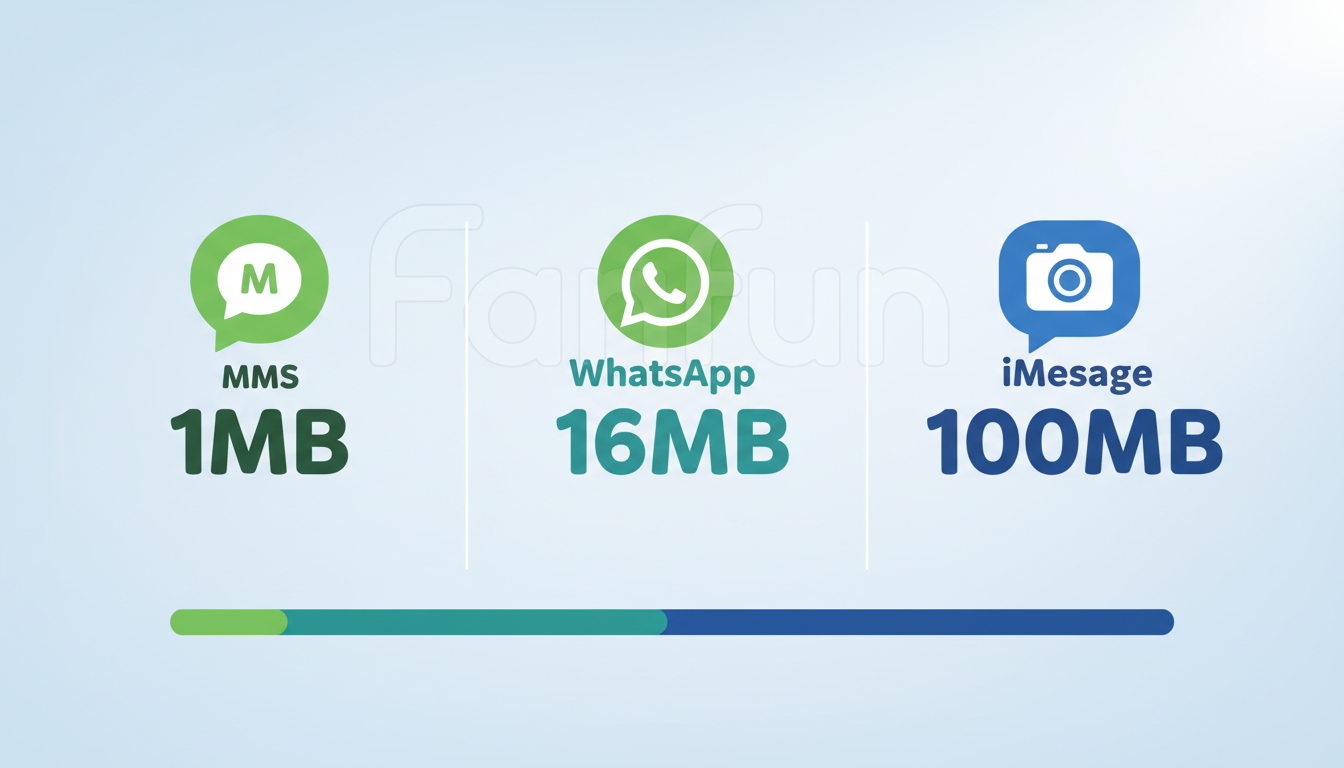
| Platform | Standard Video Limit | High-Quality Workaround | Best Use Case |
|---|---|---|---|
| SMS/MMS (Carrier) | 300KB – 1MB | None (Avoid sending raw files) | Plain text and basic images only |
| 16MB | Send as a "Document" (up to 2GB) | Cross-platform chats with Android and iOS users | |
| iMessage | ~100MB | Built-in high-quality delivery | Apple-to-Apple messaging |
| Telegram | 2GB | Send as an uncompressed file | Sharing very large, uncompressed media |
As shown above, relying on standard carrier MMS is the fastest way to ruin a great video greeting. If you are sending media directly, utilizing iMessage or sending the file as an uncompressed document on WhatsApp or Telegram will yield much better results.
How to Compress Your Video Files on iOS and Android
If you prefer to send a physical video file directly in a chat, a few quick adjustments in a free editing app can dramatically reduce file size while keeping the visual quality perfectly intact for mobile screens.
- Lower your resolution to 720p or 1080p: While 4K video is spectacular on a home television, it is entirely unnecessary for a five-inch smartphone screen. Downscaling your video to 720p still looks incredibly sharp on mobile devices and slashes the file size to a fraction of the original.
- Select the right codec: Use the H.264 or HEVC (H.265) codec. These standard compression formats offer the best balance of high visual fidelity and low bitrates, making them widely compatible across both iOS and Android platforms.
- Use free mobile compression tools: Apps like CapCut, Video Compress, or Handbrake (for desktop users) make it easy to adjust these settings in just a few taps. If you are customized editing before you send, you can easily read the tutorial on how to import and sync character voiceovers in mobile editing apps to keep your audio perfectly aligned during the compression process.
- Keep your videos concise: The easiest way to keep your file size low is to limit the duration of your message. Designing a script that gets straight to the point keeps your file lightweight from the start. We suggest checking out our guide on scripting memorable video messages to make every second count without letting unnecessary filler inflate your file size.
The Smart Workaround: Share Links Instead of Raw Files
If you want to bypass carrier compression, complicated codec settings, and file size limits entirely, the most reliable method is to share a web link rather than the raw video file. By uploading your video to a cloud service like Google Drive, Dropbox, or iCloud, you can simply text the link to your recipient. When they tap it, they will view the video in its original, uncompressed glory.
This is where platforms like Fanfun make creating custom content simple. When you generate a custom AI character message on Fanfun, you get a custom video in minutes that is ready to share. To ensure your recipient hears the clear voiceover and sees the custom animation exactly as intended without carrier buffering or pixelation, you can download the generated video and upload it to your preferred cloud storage service to share as a link, or send it directly through high-capacity group chat apps.
This approach is an ideal solution when you need to send a thoughtful, high-impact greeting without technical friction. For more tips on streamlined delivery, read our guide on choosing instant video message apps for last-minute gifting to make sure your surprises always land on time and in high definition.
Does compressing a video ruin the audio quality of an AI voiceover?
It can if you use extreme compression settings. However, when using standard mobile compression apps (like CapCut or Video Compress) set to 720p or 1080p with a standard audio bitrate of 128 kbps or 192 kbps, the voiceover will remain clear and highly intelligible.
Can I send high-quality videos between iPhone and Android users without links?
Directly texting a video file between iOS and Android via standard SMS/MMS will almost always result in heavy carrier compression and a blurry video. To maintain high quality without using links, use cross-platform messaging apps like WhatsApp (sending the video as a "Document") or Telegram.
What is the best video format for universal compatibility on mobile devices?
An MP4 container file using the H.264 video codec and AAC audio codec is the most universally compatible format. It will play seamlessly on almost any modern iPhone, Android, tablet, or desktop computer without requiring special software.