How to Send Large Video Greetings on Messaging Apps Without Losing Quality
Tired of messaging apps turning your video greetings into blurry, pixelated messes? Here is a simple step-by-step guide to sending videos on WhatsApp, iMessage, and Telegram without losing quality.
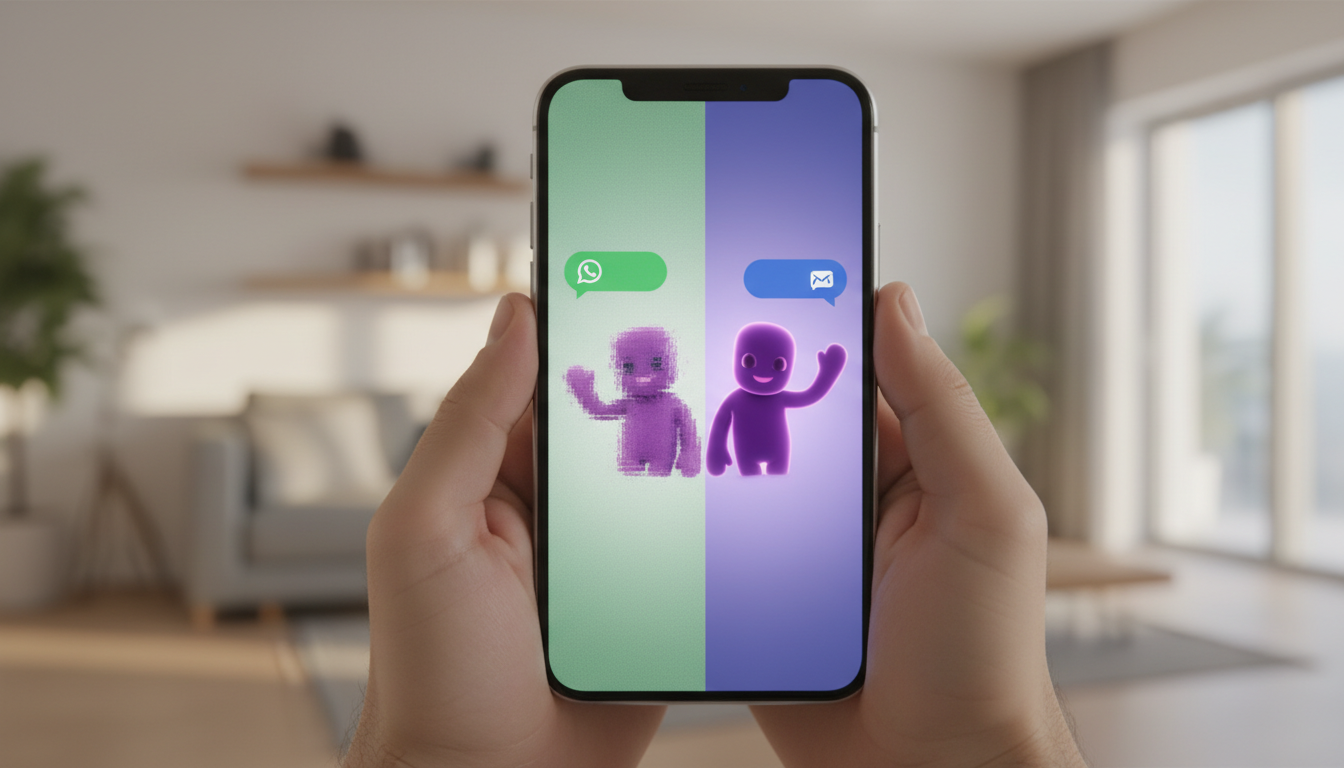
To send large video greetings on messaging apps without losing quality, you must bypass their default video compression algorithms by sending the video as an uncompressed file or document rather than a standard media attachment. This simple trick helps you share the original video file you downloaded, preserving the details of your custom animated character.
Why Messaging Apps Compress Your Video Greetings (and How to Stop It)
When you create a personalized AI character message on Fanfun, you want the characters and voices to come through as clearly as possible. However, when you upload a video directly into a standard chat window, the app's compression engine aggressively downsizes the resolution and bit rate. Messaging apps automatically compress video files to save bandwidth and speed up delivery, which often ruins the look of custom animated characters.
To preserve the original resolution, you must prevent the app from recognizing the video as a standard media file. By sending the video as a raw file or document, you tell the app to transmit the data exactly as it is. Before sharing, start by downloading your digital video greeting directly to your camera roll first so you have the source file ready to go.
How to Send Uncompressed Videos on WhatsApp, iMessage, and Telegram
Each major messaging app has a built-in feature that lets you send files without putting them through the compression grinder. Here is how to use these native settings to keep your video greetings looking pristine:
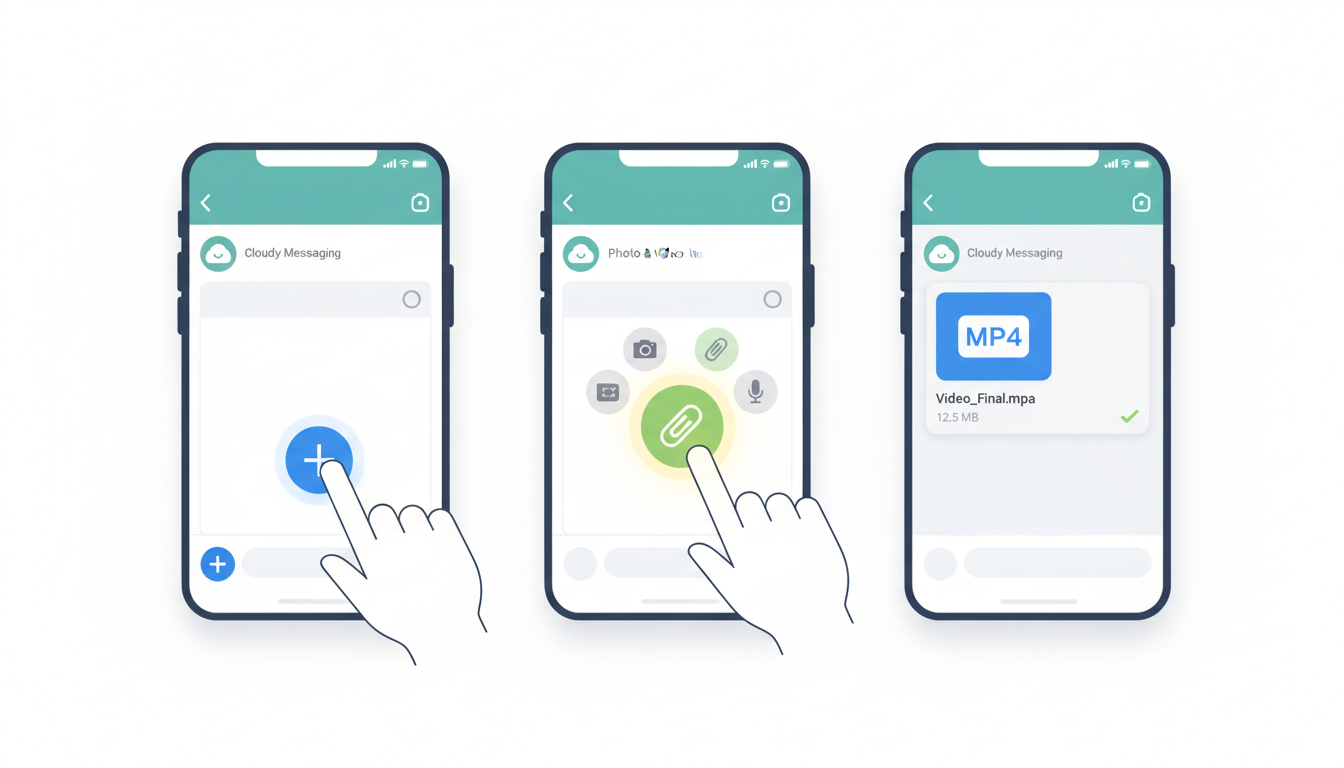
- On WhatsApp: Tap the '+' icon next to the chat input box, select 'Document' instead of 'Photo and Video Library', and browse for your video. This sends the file in its raw, uncompressed state up to 2GB. The recipient will see the file name and size, and they can tap it to view or save the video in its original glory.
- On iMessage: Ensure 'Low Quality Image Mode' is disabled in your iOS Messages settings. To check this, go to your iPhone's main Settings app, tap Messages, scroll to the very bottom, and toggle off Low Quality Image Mode. For exceptionally large files, iMessage will automatically prompt you to use an iCloud link sharing method, which is highly recommended.
- On Telegram: Tap the paperclip icon in the chat, select 'File', and choose your video from your device storage to bypass the default media compressor. Telegram will send the video as a fully uncompressed file, preserving the original resolution and audio fidelity.
To help you decide which method is best for your specific situation, let's compare these messaging app workarounds to sending large video greetings via standard SMS or MMS text messages, which have much stricter size limits and will almost always ruin your video's resolution.
| Platform / Method | Max File Size Limit | Compression Applied? | Recipient Experience |
|---|---|---|---|
| WhatsApp (as Document) | 2 GB | No compression | Shows as a file attachment; recipient taps to download and play. |
| Telegram (as File) | 2 GB | No compression | Shows as an uncompressed file; plays directly in the chat window. |
| iMessage (Standard) | Varies by connection | Minimal to none | Autoplays inline with clear resolution. |
| SMS / MMS Text Message | ~1 MB to 3.5 MB | Extremely high | Highly pixelated, blurry, or fails to deliver entirely. |
The Link-Sharing Alternative: Bypassing File Limits Entirely
If your video greeting is too large for messaging app limits, or if your recipient has a slow internet connection where downloading a large file is inconvenient, sharing a link is the ultimate workaround. Instead of sending the actual file, you send a direct gateway to where the video is hosted in the cloud.
If you created your video message on Fanfun, you can download the file and upload it to a cloud service like Google Drive or Dropbox, then share that link via your favorite chat app. This method ensures the recipient views the video without eating up their phone's local storage.
Once shared, remind your recipient about archiving your video greetings for long-term storage so they don't lose the file when cleaning out their chat history or switching to a new phone. This ensures their personalized character greeting remains safe and clear for years to come.
What is the maximum file size limit for videos on WhatsApp and Telegram?
Both WhatsApp and Telegram support sending files up to 2GB when sent as "Documents" or "Files." This limit is more than generous for video greetings, which typically range between 10MB and 100MB depending on their length.
Will sending a video as a document prevent it from autoplaying in the chat window?
Yes. When you send a video as a document or raw file, the messaging app treats it as a data file rather than a standard media file. The recipient will see the file name and file size and will need to tap it to download and play it, rather than seeing it autoplay inline.
Can I use these same file-sharing methods on desktop versions of messaging apps?
Absolutely! Both WhatsApp Web/Desktop and Telegram Desktop support the exact same file-sharing capabilities. Simply drag and drop your video file into the chat window and select the option to send it as a file or document instead of a compressed media clip.