How to Reduce Digital Character Video File Sizes for Email
Struggling with email attachment limits when sending virtual greetings? Discover how to compress your digital character videos to a manageable 10-15MB while keeping the animation and AI voice crisp and clear.
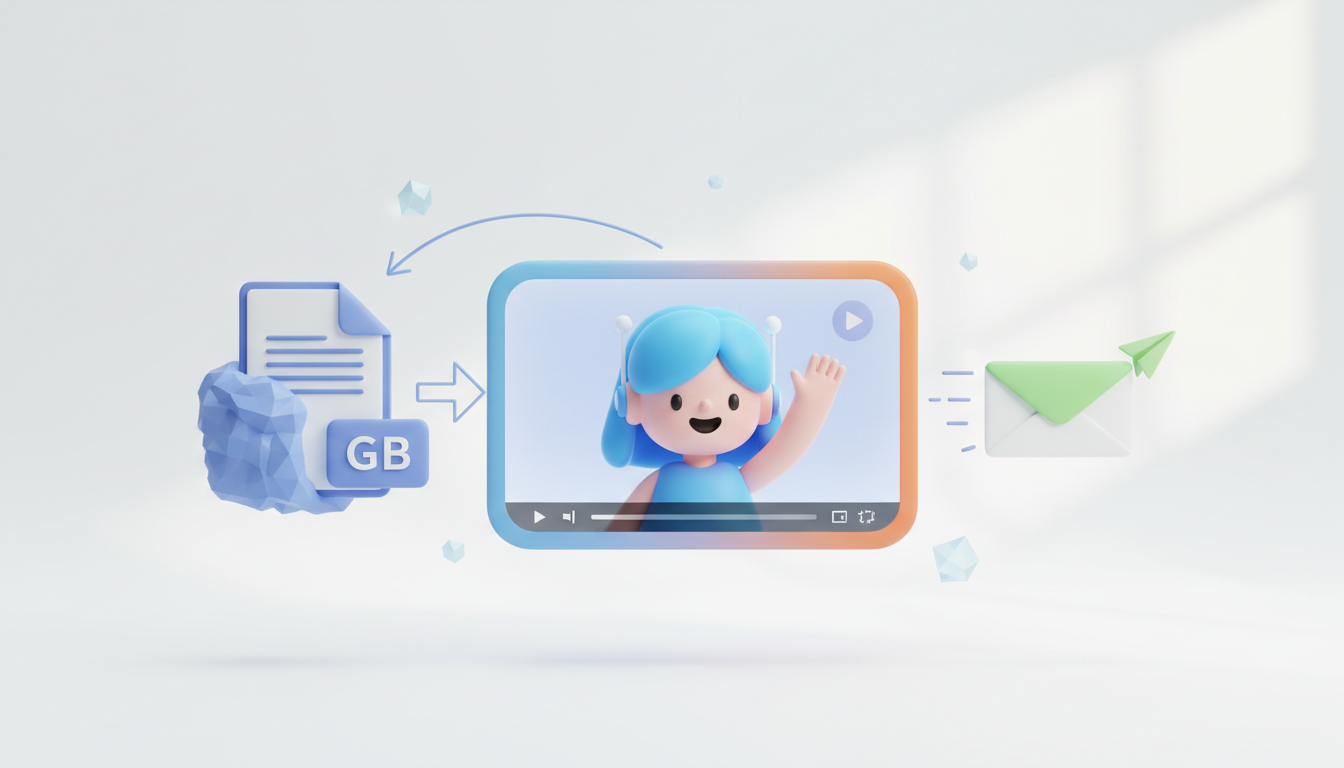
To send a digital character video through email without hitting attachment limits, you should compress the file to a target size of 10MB to 15MB using an MP4 container and the H.264 codec. While most major email clients allow up to 25MB, staying well below this threshold ensures your message avoids spam filters and loads quickly on mobile devices. Because digital characters feature clean, synthetic animations and focused audio tracks rather than noisy live-action backgrounds, they can be compressed significantly further without losing visual or vocal clarity.
The Email Attachment Bottleneck for Digital Greetings
Whether you are sending a birthday greeting from an AI personality or sharing a custom animated video message, email remains one of the most personal ways to deliver digital gifts. However, major email providers like Gmail, Yahoo, and Outlook enforce strict file size limits—typically capping attachments at 25MB. If your file exceeds this limit, your email client will either reject the message or force you to upload it to a cloud drive, which disrupts the seamless, surprising experience of receiving a personal video.
To ensure smooth delivery directly to your recipient's inbox, you should aim for a target file size of 10MB to 15MB. Fortunately, digital character videos are uniquely suited for high-efficiency compression. Unlike live-action footage, which is filled with complex visual noise, digital characters are rendered with clean, distinct vector lines and focused synthetic audio. This simplicity allows compression algorithms to shrink the file size dramatically without sacrificing the character's charm. If you are dealing with specific corporate environments, you can also explore our detailed guide on how to reduce video message file sizes for Outlook email attachments.
Three Practical Steps to Shrink Your Character Video
Reducing your video file size does not require professional editing skills. By making a few deliberate choices during generation or post-production, you can optimize your digital greetings for fast email delivery.
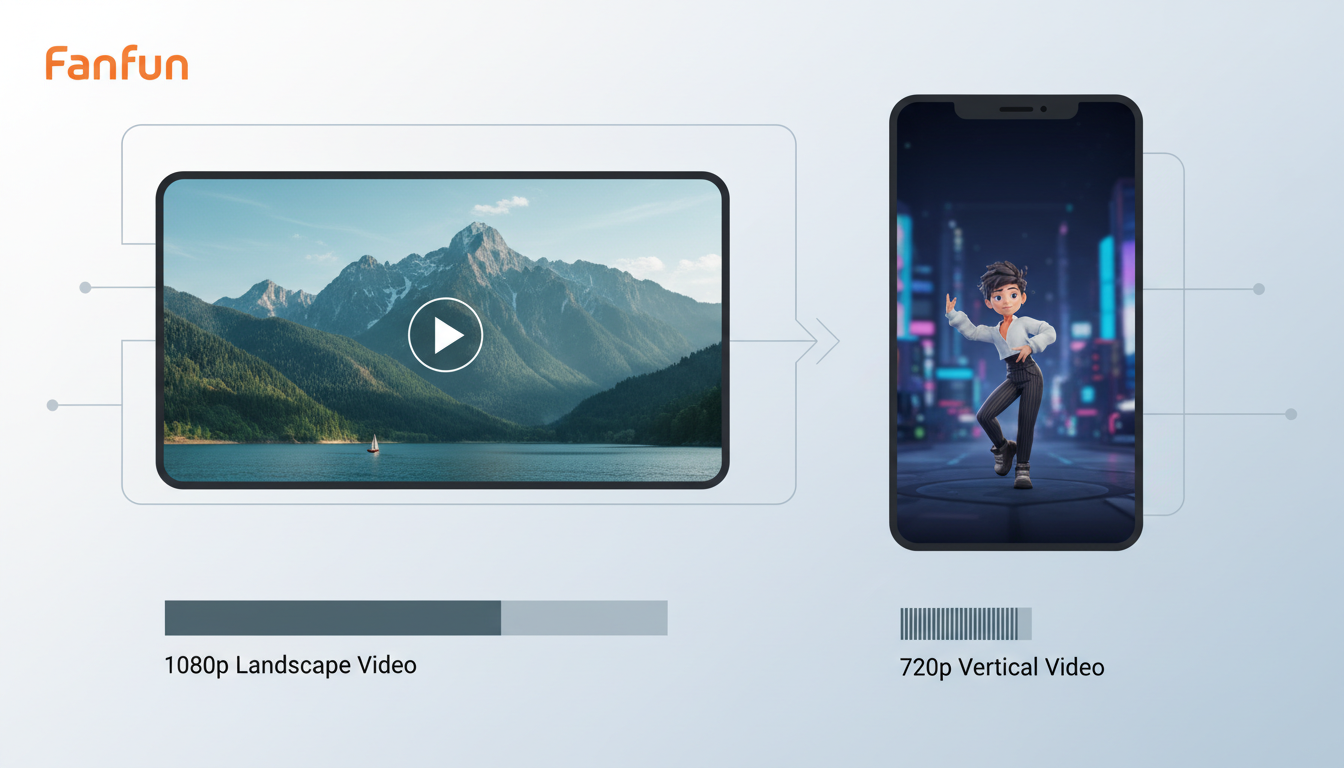
Step 1: Adjust the Resolution and Aspect Ratio
High-definition 1080p video looks great on a desktop monitor, but it is often overkill for personal virtual messages, which are primarily viewed on smartphones. Dropping your export resolution from 1080p to 720p can significantly reduce your file size, making the video much lighter while remaining highly legible on smaller mobile screens. Additionally, matching your aspect ratio to the viewing device is highly effective. You can learn more about choosing the best video aspect ratio for mobile virtual character messages to maximize visual impact while saving precious megabytes.
Step 2: Use the Right Container and Codec
The container and codec you choose dictate how efficiently your video is packed. For almost every email scenario, you should export your file as an MP4 using the H.264 codec. This combination is universally supported across Windows, macOS, iOS, and Android, meaning your recipient will not need to install special software to watch it. For deeper formatting insights, review our guide on how to choose the best video file format for sharing digital greetings.
Step 3: Keep Your Scripts Concise
The easiest way to keep file sizes low is to keep your video short. A 30-second character message—which is the standard length covered by a single Fanfun video credit—is naturally easier to email than a multi-minute clip. Keeping your script tight and impactful ensures the AI character's voice remains engaging and the file size stays well within the safe zone for email attachments.
Compression Settings: Digital Character vs. Live Action
Digital character videos handle compression much better than traditional live-action footage. Live-action video contains "visual noise" such as camera sensor grain, moving leaves, and shifting natural light. Compression algorithms struggle with this noise, often creating ugly pixelated artifacts when forced into low bitrates. Digital character animations, by contrast, use clean colors and predictable motion vectors, allowing for highly efficient file reduction.
| Setting | Digital Character Video | Live-Action Video |
|---|---|---|
| Target Bitrate | 2 to 4 Mbps (Highly efficient) | 8+ Mbps (Required for detail) |
| Frame Rate | 24 to 30 fps (Smooth motion) | 24 to 60 fps (Variable) |
| Audio Format | 128 kbps Mono/Stereo (Voice-focused) | 192 to 320 kbps (Complex audio) |
| Visual Noise Tolerance | High (Handles low bitrates beautifully) | Low (Prone to pixelation and artifacts) |
Using Cloud Links to Bypass Attachment Limits
Even with careful compression, attaching raw video files directly to an email is not always the best approach. Large attachments can trigger aggressive corporate spam filters, consume your recipient's mobile data without their permission, or fail to download entirely on slow connections. Furthermore, compression always involves some level of compromise between size and visual fidelity.
The most reliable way to preserve visual and audio quality is to bypass email attachment limits entirely by sharing a hosted link. When you generate a digital character video on Fanfun, the finished video is emailed directly to the address you provide, and it also appears in your 'My creations' dashboard. Once you receive the file, you can upload it to a cloud storage service of your choice to generate a shareable link. This approach allows your recipient to stream the video directly from the cloud, which can help preserve the original animation and voice quality without clogging their inbox or requiring a large file download.
Will compressing my video ruin the quality of the AI character's voice?
No, as long as you do not drop the audio bitrate below 96 kbps. Since digital character greetings are voice-centric rather than music-centric, a mono or stereo track encoded at 128 kbps will sound crisp and clear while keeping the overall file size minimal.
What is the absolute maximum file size I should attempt to attach to an email?
While Gmail and Yahoo officially support up to 25MB, you should aim for a maximum of 15MB. Many corporate email gateways and smaller providers reject attachments over 10MB or 15MB, so staying conservative ensures your message actually reaches the inbox.
Can I use ZIP files to send digital character videos over email?
You can, but it is rarely recommended. ZIP files do not compress already-compressed MP4 video files any further. Additionally, many email filters flag ZIP attachments as potential security risks, and mobile users often find it inconvenient to unzip files on their phones.