How to Reduce Video Message File Sizes for Outlook Email Attachments
Struggling with Outlook's strict 20MB attachment limit? Discover how to optimize your video messages using free tools, export settings, and elegant sharing fallbacks that keep your greetings clear.
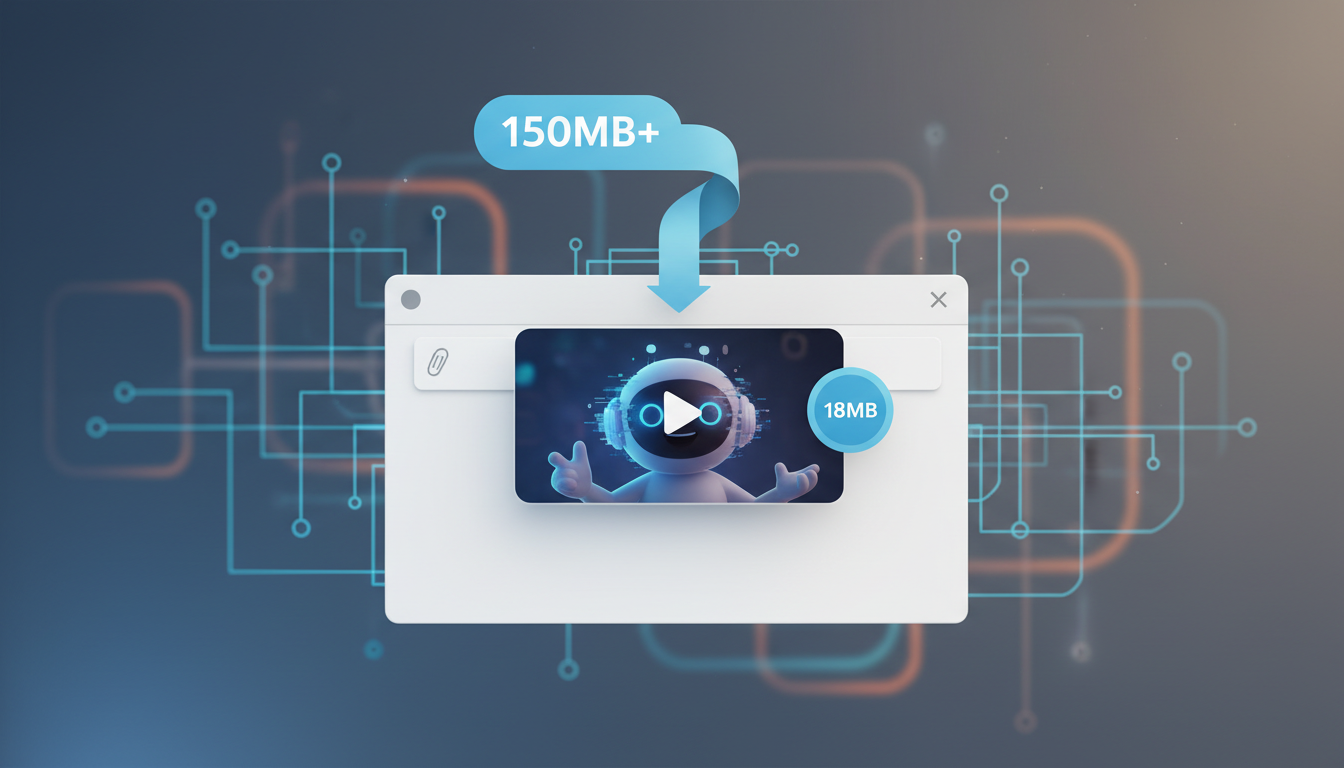
To send a video message through Outlook without it bouncing, you must keep the file size under Outlook's strict 20MB attachment limit. The most reliable way to achieve this is by compressing the file to 720p resolution using the H.264 codec in an MP4 container, with a target bitrate of 2 to 3 Mbps. This optimization can help keep a standard 30-second video greeting under 12MB while preserving clear visual quality on both desktop and mobile screens. If your video is longer or you want to maintain maximum resolution, uploading the file to a cloud drive and emailing a shared link is the best alternative.
The Outlook Envelope: Understanding the 20MB Attachment Limit
Most Outlook and Exchange accounts enforce a strict 20MB limit on email attachments. If your file is even a fraction of a megabyte over this threshold, the email server will reject it, and you will receive a delivery failure notification. When you generate a custom video message, the resulting file size depends on the duration of the message and the chosen export settings. A standard video clip may need a small amount of optimization to slide safely under the limit.
Beyond simply avoiding a bounced email, compressing your attachments is a matter of inbox etiquette. Sending massive files can clog your recipient's inbox and consume their limited mail storage. Taking a few moments to optimize your video helps ensure a smooth viewing experience that does not disrupt their workflow.
How to Compress Video Messages: Three Settings That Matter
You do not need to be a professional video editor to shrink your files. By adjusting three core settings, you can reduce file size while keeping the video clear and readable:
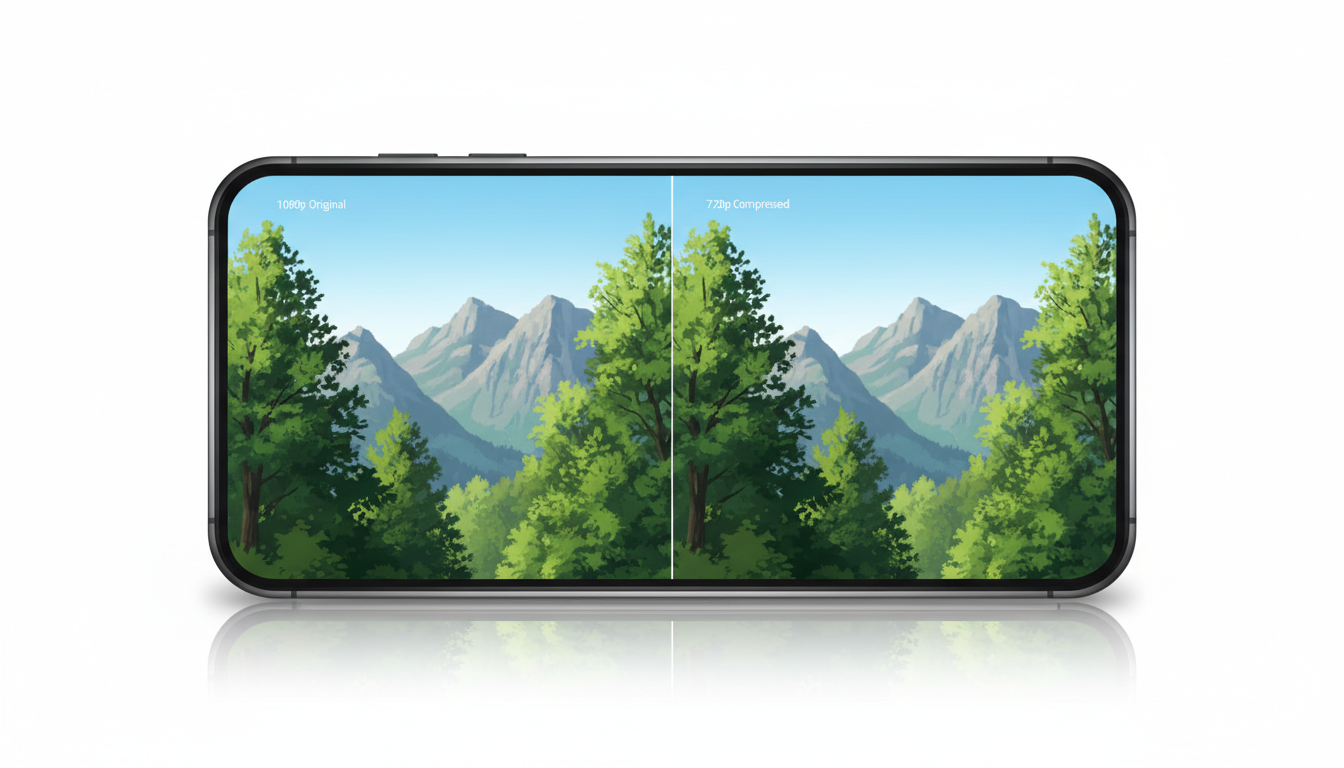
- Format and Codec: Always use the MP4 container paired with the H.264 codec. This combination offers an excellent balance of compression and universal playability across Windows, macOS, iOS, and Android. For a deeper dive into choosing the right container for your files, check out our guide on how to choose the best video file format for sharing digital greetings.
- Resolution: While 1080p (Full HD) is standard for modern displays, dropping the resolution to 720p (HD) can significantly lower the overall file size. On a laptop screen or smartphone, a 720p video still looks clear.
- Target Bitrate: Bitrate is the amount of data processed per second. Restricting your video's target bitrate to 2 Mbps or 3 Mbps keeps a 30-second video well under 15MB, preventing blocky artifacts while shedding unnecessary megabytes.
| Resolution | Target Bitrate | Estimated Size (30s Video) | Outlook Compatibility |
|---|---|---|---|
| 1080p (Uncompressed) | 15–20 Mbps | 60–80 MB | Rejected (Too Large) |
| 1080p (Optimized) | 5 Mbps | 20–25 MB | Risky (Borderline) |
| 720p (Recommended) | 2.5 Mbps | 9–12 MB | Recommended (Safe) |
| 480p (Low Res) | 1 Mbps | 4–5 MB | Safe (Lower Quality) |
Step-by-Step Compression Workflows for Windows and Mac
Option A: Using Handbrake (Windows & Mac)
Handbrake is a free, open-source video transcoder that works beautifully for shrinking video greetings. Here is how to use it:
- Download and open Handbrake, then drag your video file into the window.
- In the "Summary" tab, ensure the format is set to MP4 and check the Web Optimized box.
- Go to the "Dimensions" tab and set the Resolution Limit to 720p.
- Go to the "Video" tab. Set the Video Codec to H.264. Under "Quality," choose an average bitrate of 2500 kbps (2.5 Mbps) or set the Constant Quality slider to around 22.
- Click "Start Encode" at the top of the screen to save your new, lightweight file.
Option B: Using QuickTime Player (Mac Native)
If you are on a Mac, you can compress your video in seconds without installing any extra software:
- Open your video file in QuickTime Player.
- Click File in the top menu bar, then hover over Export As.
- Select 720p from the list.
- Choose your destination, name the file, and click Save. QuickTime will automatically compress the file into an optimized, email-friendly format.
A quick safety note: While there are many free online video compression websites, we advise against uploading personal, custom video greetings to unverified web tools. These platforms often retain copies of your media on their servers. Sticking to native or local open-source tools like Handbrake protects your privacy and keeps your custom creations secure.
The Smart Alternative: Inline Previews and Cloud Links
If your video message is longer than 30 seconds or you simply refuse to compromise on 1080p quality, attaching the raw file is not your only option. You can deliver a polished, professional email by pairing a cloud link with a visual preview.
First, upload your high-quality video to a secure cloud drive such as OneDrive, Google Drive, or Dropbox. Copy the shareable link and set the permissions so that anyone with the link can view it.
Instead of pasting a plain, boring URL, create an animated GIF preview of your Fanfun video. You can insert this GIF directly into the body of your Outlook email and hyperlink the image to your cloud link. When your recipient opens the email, they will see a lively, moving preview of the character. Clicking the preview takes them instantly to the full-resolution video. This approach keeps your email looking professional, whether you are sending a formal update or sharing a digital video roast for your coworkers.
Using clean links rather than bulky attachments also ensures your custom AI video messages for business promotions arrive safely in the inbox instead of the junk folder. It bypasses email filters entirely, giving you a sleek, modern presentation that respects your recipient's inbox space while delivering your message in clear quality.
Why does a compressed video sometimes look blurry in the Outlook preview pane?
Outlook's built-in previewer often compresses videos to save rendering power, which can affect playback quality. Typically, if you compressed the file to 720p, it will display with standard clarity once the recipient downloads and plays it in their device's native media player.
Can I send a zipped video file through Outlook to bypass the file size limit?
Zipping a video file rarely reduces its size significantly because video formats like MP4 are already highly compressed. If your unzipped video is 25MB, zipping it might only bring it down to 24.5MB, which will still be blocked by Outlook's 20MB limit. Standard compression or cloud sharing remains the best solution.
How long can a video message be before it exceeds the 20MB limit?
The file size of a video message depends on its duration, resolution, and bitrate. By applying the 720p compression settings outlined in this guide, a standard 30-second to 1-minute video message can typically fit under the 20MB Outlook threshold.