Beyond the Robotic Read: How to Layer Distinctive Character Narrations onto Your Video Clips
Monotone social media voices are driving viewers away. Discover how to use distinctive character and celebrity-inspired AI narrations to inject humor, drama, or nostalgia into your next video edit.
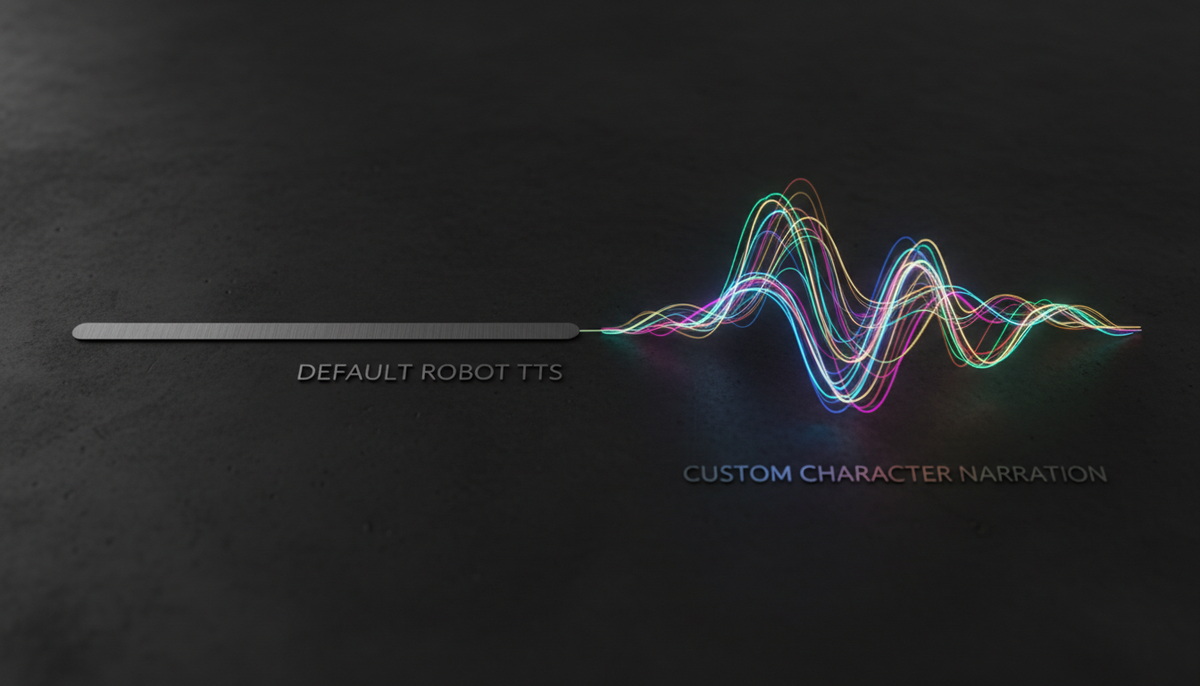
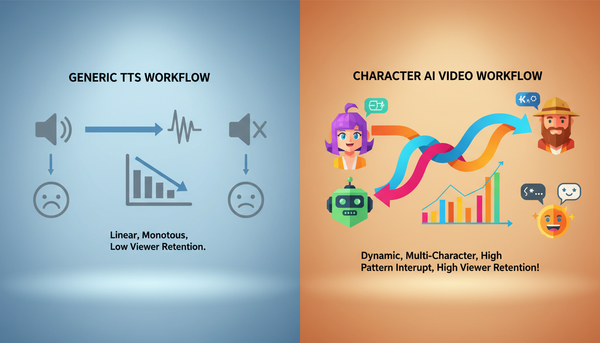
We have all heard it: the flat, overly cheerful, slightly metallic robotic voice that reads captions aloud on TikTok, Instagram Reels, and YouTube Shorts. What began as an accessible utility has quickly mutated into an auditory trigger for immediate scrolling. Audiences have developed deep "monotone fatigue," unconsciously associating these default text-to-speech (TTS) voices with low-effort, mass-produced content that isn't worth their attention.
To keep viewers watching, modern creators must treat narration not just as a tool to read text, but as a deliberate casting choice. By replacing generic robotic reads with distinctive, character-driven AI narrations, you can instantly transform a mundane clip into a highly engaging cinematic or comedic experience. Elevating your production value doesn't require booking expensive voice actors; it requires strategic selection, smart scripting, and clean technical execution.
The Death of the Default TTS: Why Custom Narrators Drive Retention
The standard "TikTok voice" has officially crossed the threshold from a novel feature to a creative crutch. When every third video on a user's feed features the exact same synthetic voice reading a caption, the brain automatically tunes out. It is the digital equivalent of elevator music. To capture attention in the first three seconds, you need a pattern interrupt—an auditory cue that signals to the viewer that this content is high-effort, unique, and tailored specifically for them.
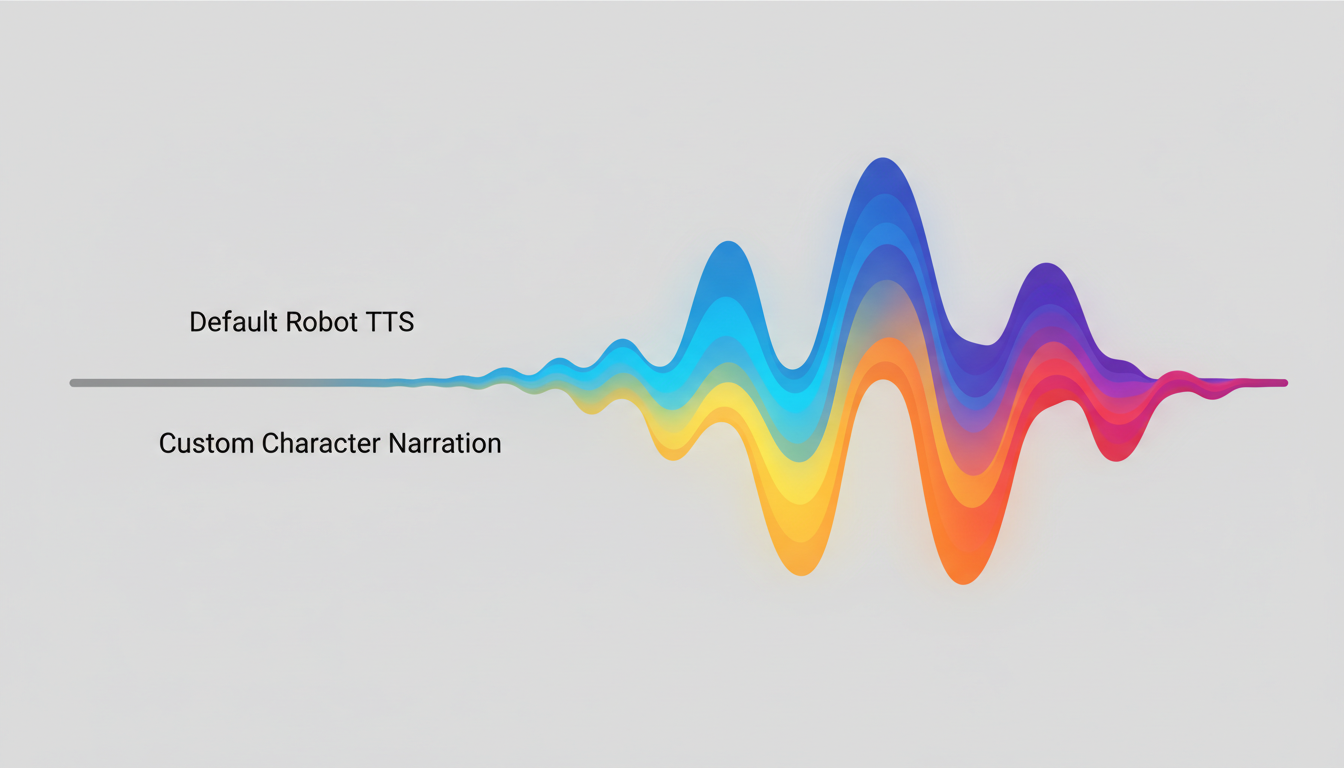
A customized narrator voice acts as this immediate pattern interrupt. Think of the difference between a default robot voice reading a fitness tutorial and a booming, authoritative sports commentator analyzing a workout clip. The latter immediately establishes a high-stakes, high-energy environment. By moving beyond standard text-to-speech, creators can use voice to establish immediate emotional context, whether it's a dramatic sports voiceover, a nostalgic cartoon style, or a gritty movie-trailer baritone.
When you use Fanfun's library of character and celebrity-inspired AI voices, you are not just selecting a voice; you are selecting an archetype. This choice dictates how the audience perceives your visuals. A simple travel vlog of a rainy afternoon in London feels completely different when narrated by a moody, noir-style detective versus a high-energy anime hero. You have the power to completely shift the emotional resonance of your visual edit by matching or contrasting your imagery with the perfect custom narrator.
This level of intentionality is essential when designing custom character audio tracks that match the specific emotional tone of your visual edit. The right voice builds a bridge of familiarity and emotional connection that generic systems simply cannot replicate.
Matching Voice to Visuals: The Creative Alignment Framework
Before you generate a single line of audio, you must decide how your narrator's voice will interact with your visual footage. Treating voiceover as an afterthought is a surefire way to create a disjointed video. Instead, use a structured framework to align your creative direction.
| Voice Archetype | Visual Context | Emotional Effect | Example Scenario |
|---|---|---|---|
| Direct Harmony | Authoritative, high-action, or instructional footage (e.g., gym lifts, cooking, sports). | Intensifies the existing energy; builds credibility and focus. | An intense, gruff trainer voice narrating a heavy deadlift attempt. |
| Satirical Contrast | Mundane, low-stakes, or highly relatable everyday tasks (e.g., making coffee, folding laundry). | Generates immediate comedy through irony and hyperbole. | An epic, cinematic movie-trailer voice narrating the struggle of waking up at 6:00 AM. |
| The Nostalgic Guide | Whimsical, educational, or highly creative content (e.g., DIY, art, gaming). | Establishes comfort, curiosity, and warmth. | A classic childhood cartoon character explaining how to paint a miniature figure. |
The Power of Satirical Contrast
Of these three relationships, Satirical Contrast is often the most powerful tool for viral social media content. When you pair highly dramatic, high-status voice archetypes with low-status, mundane activities, you create immediate comedic tension. For example, using a legendary sports coach persona to aggressively critique someone's terrible attempts at parallel parking turns a simple, frustrating moment into an epic, hilarious piece of micro-entertainment. The humor doesn't come from the video itself; it comes entirely from the gap between the grandeur of the voice and the simplicity of the visual.
Additionally, you should select a voice that aligns with your target demographic's cultural touchpoints. If your audience consists of gamers and anime fans, utilizing an anime-inspired voice to narrate your setup tour or gaming clips will instantly build rapport. If you are targeting sports fans, an energetic athletic commentator is your best bet. Aligning the voice profile with your audience's existing cultural preferences ensures they feel seen and understood within the first few seconds of playback.
Step-by-Step: How to Generate and Sync Custom Narrator Tracks
Creating high-impact character narrations is a straightforward process when you break it down into scripting, generation, and editing. Here is how to execute this workflow seamlessly using Fanfun.
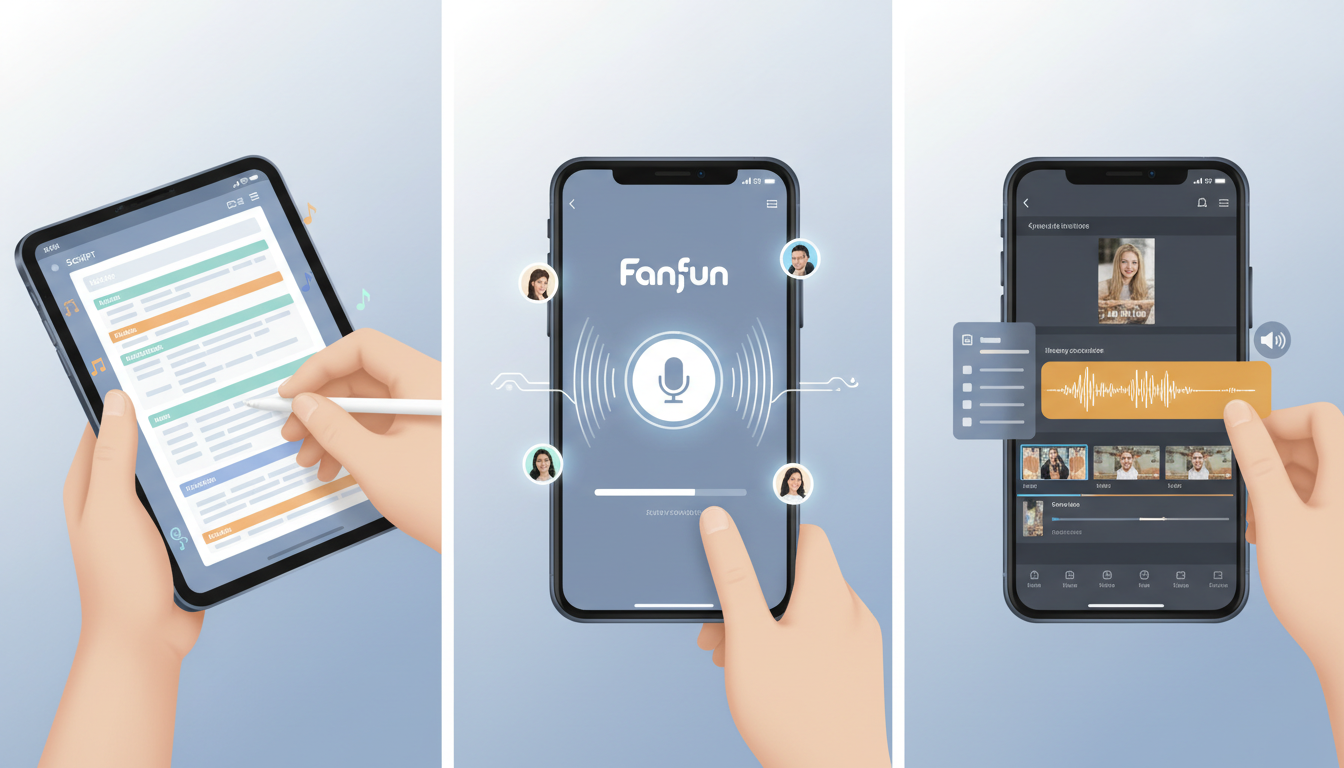
Step 1: Write for the Voice's Cadence. Do not write your script as if it is a standard blog post or an academic essay. Write it the way people actually speak, paying close attention to the specific cadence, slang, and rhythm of your chosen character archetype. Use punctuation strategically to guide the AI's delivery. Commas create brief pauses, ellipses (...) build suspense, and exclamation points add energy. If a word needs to be pronounced in a specific way, spell it phonetically in your script.
Step 2: Generate the Audio on Fanfun. Head over to Fanfun's AI Voice Generator. Select the character or celebrity persona that best fits your creative alignment strategy. Paste your highly formatted script into the generator. Listen to the preview to ensure the pacing and emphasis feel natural. If a certain line sounds flat, adjust the punctuation or try a slightly different phrasing before exporting the final high-quality audio file.
Step 3: Import and Align in Your Editor. Bring your exported audio file into your video editing software of choice (such as CapCut, Premiere Pro, or DaVinci Resolve). Drop the narration track onto your timeline directly beneath your video clips. To make the process of syncing your video cuts to the voiceover seamless, refer to this quick alignment checklist:
- Cut on the Beat: Align major visual transitions with natural pauses or high-energy words in the narration.
- Match Action to Mention: If the narrator mentions a specific object or action, ensure that exact visual appears on screen within 0.2 seconds of the word being spoken.
- Preserve the Setup-Punchline Rhythm: When utilizing Satirical Contrast, leave a fraction of a second of silence right before the comedic punchline to let the anticipation build, then cut to the funny visual exactly as the punchline is delivered.
Editing Mechanics: Pacing, Ducking, and Sound Design
Even the most incredible character narration will fall flat if the technical mix is poor. If the background music is too loud, your voiceover gets lost; if the pacing is too rushed, the viewer's brain cannot process the joke or the message. Professional sound design separates amateur edits from high-retention videos.
The most important technical tool in your mixing arsenal is audio "ducking." Ducking is the process of automatically lowering the volume of your background music whenever the narrator speaks. Most modern video editors, including CapCut and Premiere Pro, have automated ducking features. If you are doing it manually, a good rule of thumb is to keep your background music around -18dB to -24dB while the voice is active, and raise it back up to -12dB during pauses in the narration. This keeps the voice crystal clear and front-and-center without losing the energy of the music track.
Pacing is equally critical. Beginners often cram as much narration as possible into a 30-second clip, resulting in a wall of sound. You must leave "breathing room" between narrated sentences. These pauses allow the visual elements to land and give the viewer time to digest the information or appreciate the humor. You can learn more about managing this flow by ensuring your custom voice tracks align perfectly with your video's visual pacing.
Finally, ground your character voice in the physical space of the video using subtle environmental sound effects (SFX). If your narrator is a gritty detective speaking over a rainy scene, add a low, textured rain loop and a subtle room reverb to the voice track. If your narrator is an energetic sports announcer, mix in a faint, muffled crowd murmur in the background. These tiny details make the voice feel like it belongs in the world of the video rather than just sitting awkwardly on top of it.
Creative Scenarios: From Viral Memes to Personalized Video Gifts
To help you visualize how to apply these techniques to your own content, let's explore three practical scenarios where custom character narrations completely transform the format.
Meme Edits
Memes rely on rapid-fire relatable humor. Instead of using a standard text caption over a reaction GIF, you can generate a highly specific, unexpected character voiceover to narrate the inner thoughts of the person or animal in the clip. For example, take a video of a cat staring intensely at a red laser pointer and layer a dramatic, deep-voiced military general's monologue over it, treating the laser dot like an incoming threat. You can elevate your meme creations by following a structured custom meme audio blueprint to maximize your video's shareability.
Personalized Gifting
Digital greetings often feel incredibly temporary—usually viewed once and quickly forgotten in a messaging thread. You can change this by upgrading a standard birthday video card with a custom-narrated story that feels incredibly thoughtful. Imagine gathering a collection of funny family photos and videos of your best friend, then using a beloved childhood cartoon character voice to narrate the compilation as if it were a high-budget documentary of their life. This turns a simple gift into a highly memorable, emotional keepsake that they will want to share with everyone they know.
Promotional Content
If you are a marketer or small business owner, you know how difficult it is to make promotional videos that people actually want to watch. Traditional corporate voiceovers feel stiff and instantly trigger a viewer's "ad-blocker" brain. By using a high-energy, recognizable character voice to enthusiastically narrate your product features or event announcements, you bypass this defense mechanism. The content feels less like a pushy sales pitch and more like an entertaining, culturally relevant piece of media that happens to feature your brand.
How do I make my AI narrator voice sound natural in a video?
To make an AI narrator sound natural, write your script using conversational language, short sentences, and natural pauses. Use punctuation like commas, ellipses (...), and exclamation marks to guide the AI's inflection. If a word sounds awkward, spell it phonetically in the text generator until the pronunciation is correct.
What is the best way to sync voiceover audio with video clips?
Import your custom voice track into your video editor first, then edit your video clips to match the audio. Make visual cuts on the natural pauses, transitions, or high-energy words of the voiceover. This ensures the visuals and audio feel unified and snappy.
How do I lower background music automatically when the narrator speaks?
You can use a technical editing feature called "audio ducking." Most modern video editing software (like CapCut, Premiere Pro, or DaVinci Resolve) has an automatic ducking tool that analyzes your voice track and instantly lowers the volume of your music track by a set amount (usually 15-20% lower) whenever speaking occurs.
Can I use custom character voices for commercial video promos?
Yes! Using distinctive character voices from Fanfun is an excellent way to create engaging, scroll-stopping promotional content. It makes your brand promos feel creative, culturally relevant, and highly entertaining instead of sounding like a dry corporate advertisement.