Beyond the Voiceover: How to Design Custom Character Audio Tracks for High-Impact Video Edits
Stop relying on flat, robotic text-to-speech defaults. Learn how to script, direct, and mix custom cinematic character voice tracks that sync perfectly with your video timelines and keep viewers locked in.
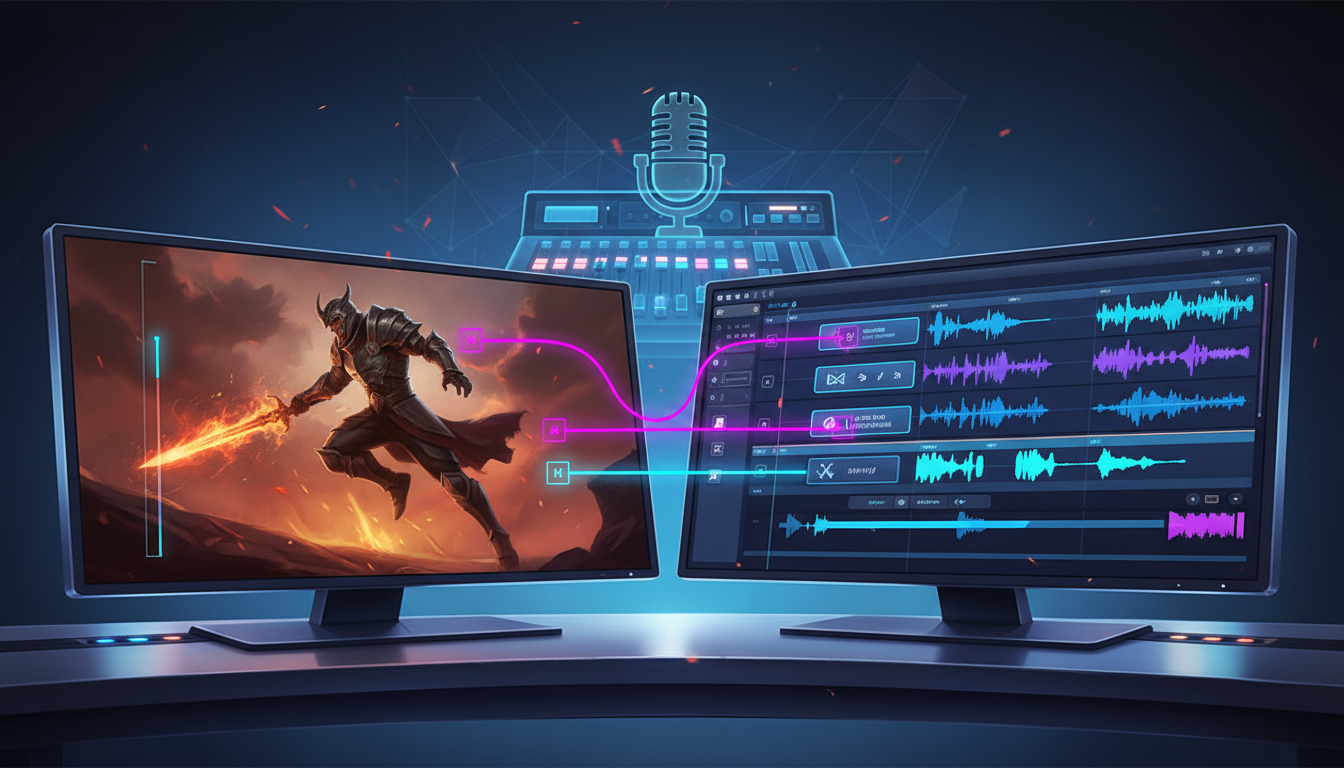
Great video editors know that while visuals capture the initial scroll, it is the sound design that keeps viewers locked in. A cinematic cut loses its emotional weight when paired with a flat, robotic text-to-speech voiceover that sounds identical to every other video on the social feed. To truly command attention, your audio must be designed with the same intentionality, rhythm, and style as your color grade.
To elevate your montages, fan edits, and social promos, you must design your audio from the ground up. Using Fanfun’s AI Voice Generator, creators can craft custom, character-driven dialogue that fits the precise pacing of their timelines, transforming passive viewers into highly engaged fans. This guide will walk you through the process of scripting, directing, and mixing custom character tracks that feel like a deliberate creative choice rather than an afterthought.
The Sonic Blueprint: Why Generic Voiceovers Ruin Great Video Edits
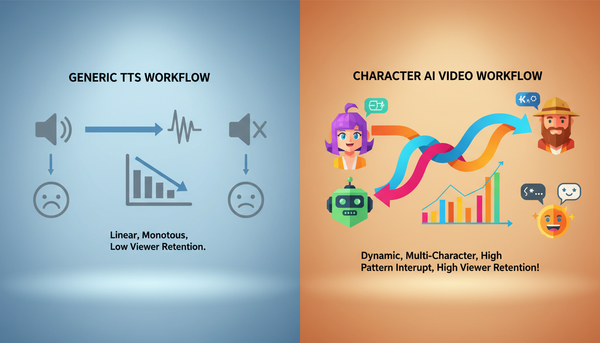
Visuals get the click, but sound design is the invisible hand that drives retention and emotional payoff. When a highly stylized montage features a stunning color grade and seamless match cuts, nothing breaks the illusion faster than a generic, robotic voiceover. Standard text-to-speech engines are built for utility, not drama; they lack the breath, the micro-pauses, and the emotional weight of a real character. If you want to dive deeper into why default voices fail, check out our guide on directing custom AI voiceovers for TikTok retention.
When you rely on overused, built-in platform voices, your edit immediately feels cheapened. Viewers instantly recognize these default voices, associating them with low-effort, mass-produced content. To stand out, your video needs a unique sonic identity. The voice should feel like a physical presence in the scene, carrying the mood, grit, or humor of your visual concept.
With Fanfun's AI Voice Generator, editors can break away from sterile narration. Instead of relying on the same monotone voices that flood social media, you can generate character-driven dialogue that matches the exact mood of your edit. This allows you to treat the voiceover as a core creative element, letting you craft custom dialogue for iconic character archetypes, sports legends, or stylized narrators that perfectly fit your creative vision.
Scripting for Pacing: How to Write Dialogue That Matches Visual Cuts
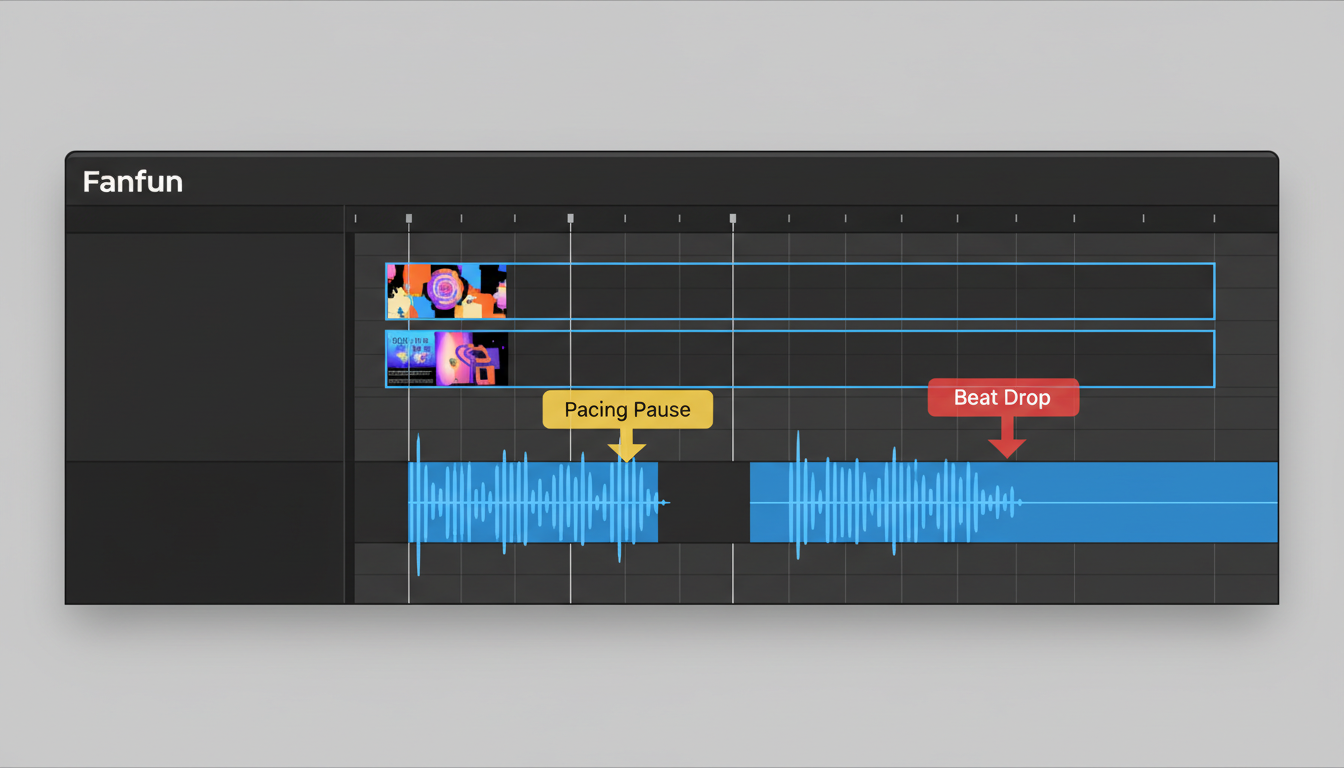
Scripting for video editing requires you to visualize your timeline before you ever generate a single line of audio. Every word must correspond to a visual transition, a camera movement, or a beat drop. If your script is too wordy, it will crowd the mix; if it is too sparse, your edit will lose momentum.
Designing Dialogue for Dynamic Timelines
For fast-paced montages, write short, punchy phrases with sharp consonants. If your edit cuts every 10 to 15 frames, your character's dialogue should match that urgency. Conversely, for slow-motion cinematic sequences, design longer, flowing sentences with soft vowels that allow the voice to drift over the visuals. To truly master this, it helps to learn how to sync voice generation with dynamic visual animation.
One of the most powerful tools in an editor's arsenal is the dramatic pause. Do not write continuous walls of text. Leave gaps in your script where the music bed or sound effects can take center stage. When using Fanfun, you can generate multiple alternative takes of a single line. By varying punctuation, adding ellipses, or adjusting the phrasing in your script prompts, you can find the exact cadence and spacing required to lock onto your timeline's keyframes.
Directing the Performance: Getting True Emotional Range from AI Voices
Directing an AI voice is an active creative process, not a passive one. To make a character voice sound authentic, you must align the performance with the visual energy of your edit. An intense anime battle edit needs a voice filled with grit, strain, and high energy, whereas a moody film-noir style montage requires a low, whispered, close-mic delivery.
Once you have generated your character voice on Fanfun, don't treat it as a finished, unchangeable product. You can warp, pitch-shift, and stretch the audio in post-production to match your visual aesthetic. For instance, lowering the pitch slightly can add a sense of weight and authority to a villain's dialogue, while speeding up the track can create a sense of manic urgency.
To elevate your social edits, integrate this into your broader strategy by building a dedicated audio toolkit for TikTok edits. Having a pre-built library of custom character lines, stylized transitions, and signature ambient sounds ensures that every video you produce maintains a distinct, high-retention audio identity that keeps viewers hooked from the very first frame.
Layering the Soundscape: A 3-Step Framework for Audio Mixing
A great voice track only works if it sits perfectly in the mix. If your dialogue is fighting your music bed or sounding too clean for a gritty environment, the illusion is shattered. Here is a professional 3-step framework for mixing custom character audio into your timeline.
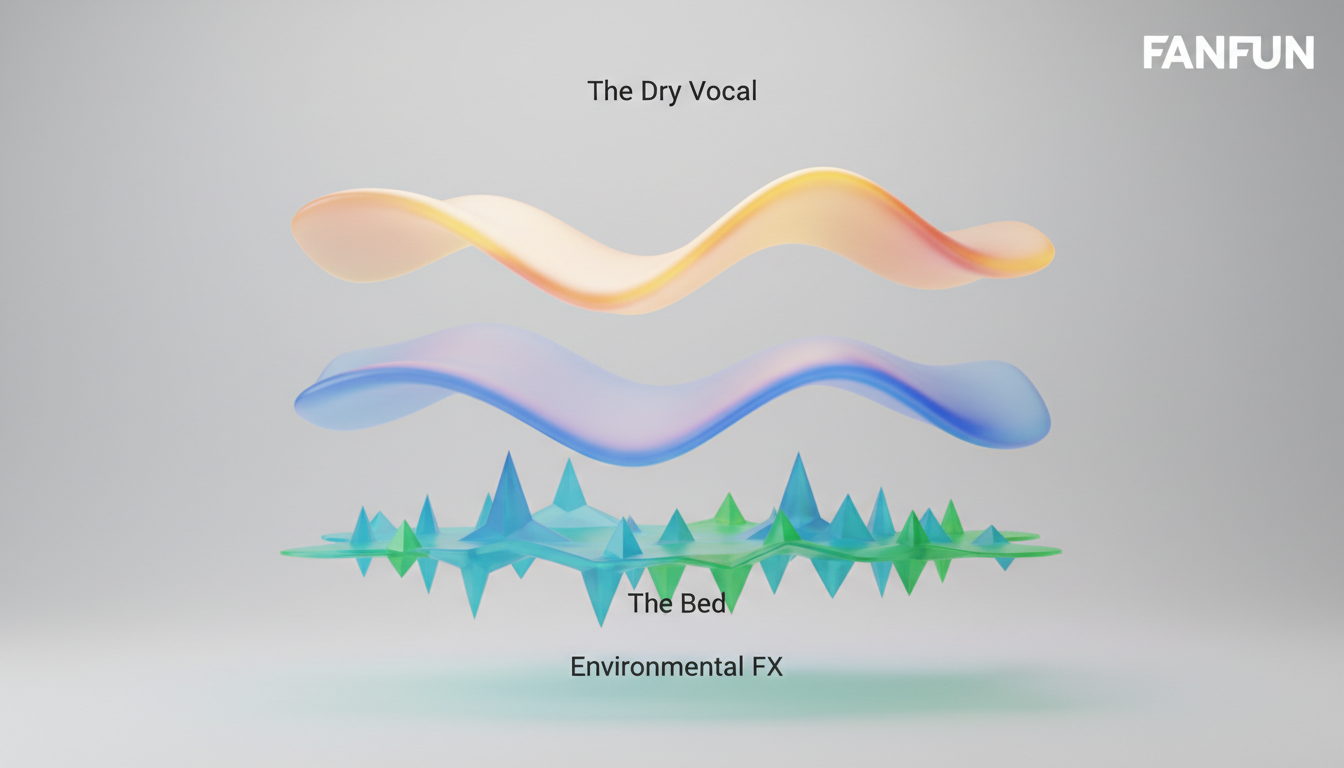
Step 1: The Dry Vocal. Start by cleaning up the raw AI output. Apply a high-pass filter (low-cut) around 80Hz to 100Hz to remove muddy low-end rumble and mic pops. Next, apply gentle compression with a fast attack and medium release to even out the dynamic range. Finally, boost the presence range slightly around 2kHz to 5kHz to ensure that every word remains crisp and clear.
Step 2: The Bed. Your background music should never compete with your character's voice. Implement sidechain compression (often called auto-ducking) on your music track. Set the vocal track as the trigger, so that every time the character speaks, the music level automatically dips by 2dB to 4dB, carving out a clean sonic pocket for the dialogue without making the music disappear entirely.
Step 3: Environmental FX. To make the voice sound like it genuinely exists within the world of your video, you must apply spatial effects. If your character is standing in a cavernous hall, apply a plate or hall reverb. If they are speaking through a radio or helmet, use a bandpass filter to cut the highs and lows, leaving only the metallic mid-frequencies. Adding a subtle layer of room tone or outdoor ambient noise beneath the dialogue will seamlessly blend the voice into the scene.
The Video Editor's Audio Mix Checklist
To help you streamline your audio post-production, use this reference guide to balance your mix and ensure it sounds professional on everything from high-end studio monitors to smartphone speakers.
| Audio Element | Target Level (dB) | Key Effects to Apply | Mixing Goal |
|---|---|---|---|
| Dialogue / Voiceover | -6dB to -12dB | High-pass filter, Compressor, Presence EQ | Keep words sharp, intelligible, and front-and-center. |
| Music Bed (Active Dialogue) | -18dB to -24dB | Sidechain Compression (Ducking), Stereo Widener | Support the mood without competing with the voice. |
| Music Bed (No Dialogue) | -12dB to -15dB | None (Let the music drive) | Fill the sonic space during dramatic visual sequences. |
| Sound Effects (SFX / Impacts) | -10dB to -18dB | Reverb, Delay, Low-pass filter (for distance) | Add impact and physical weight to visual actions. |
Pre-Export Audio Checklist:
- Check Mono Compatibility: Switch your master output to mono to ensure your voice track doesn't disappear due to phase cancellation.
- Test on Mobile Speakers: Export a quick test draft and listen to it on a smartphone. If the dialogue gets drowned out by the bass of the music, back off the music's mid-range frequencies.
- Scan for Digital Clipping: Ensure your master output meter never hits 0dB. Keep your overall master output peaking between -1dB and -2dB to avoid digital distortion on social platforms.
- Verify Environmental Consistency: Make sure any spatial reverb or radio filters applied to the voice track remain consistent across visual cuts within the same scene.
How do I make an AI voiceover sound natural in a video edit?
To make an AI voiceover sound natural, focus on pacing and post-production. Avoid writing continuous blocks of text; use punctuation like ellipses and dashes to force natural pauses. In your video editor, apply a high-pass filter to remove low-end mud, use light compression to even out the volume, and add a subtle layer of background room tone or ambient noise to blend the voice into the scene.
What is the best way to sync AI voice tracks to fast video cuts?
The best method is to write short, punchy sentences and generate multiple alternative takes on Fanfun. Once you import the audio into your timeline, slice the voice track manually. Align key consonants and dramatic words directly with your visual cuts, and use sidechain compression to dip the music track whenever a voice line hits.
How can I add reverb or radio effects to an AI voice generator track?
You can add these effects using any standard video editor or DAW (like Premiere Pro, DaVinci Resolve, or Audacity). For a radio effect, apply a bandpass filter or EQ that cuts out all frequencies below 400Hz and above 4kHz. For reverb, apply a studio or hall reverb plugin, setting the wet/dry mix to a low percentage (around 10-20%) so the voice remains clear and intelligible.
Can I use custom AI character voices for commercial video promos?
Yes, but licensing depends on the platform and the specific voice avatar you choose. When creating promotional content, it is best to use original, licensed, or royalty-free character voices available in Fanfun's character library to ensure your content is fully compliant with commercial guidelines.