How to Fix Audio Sync Lag in Generated Character Videos
Tired of your virtual character's mouth moving after the voice has stopped? Discover the easy step-by-step way to realign your audio and write scripts that help maintain alignment.
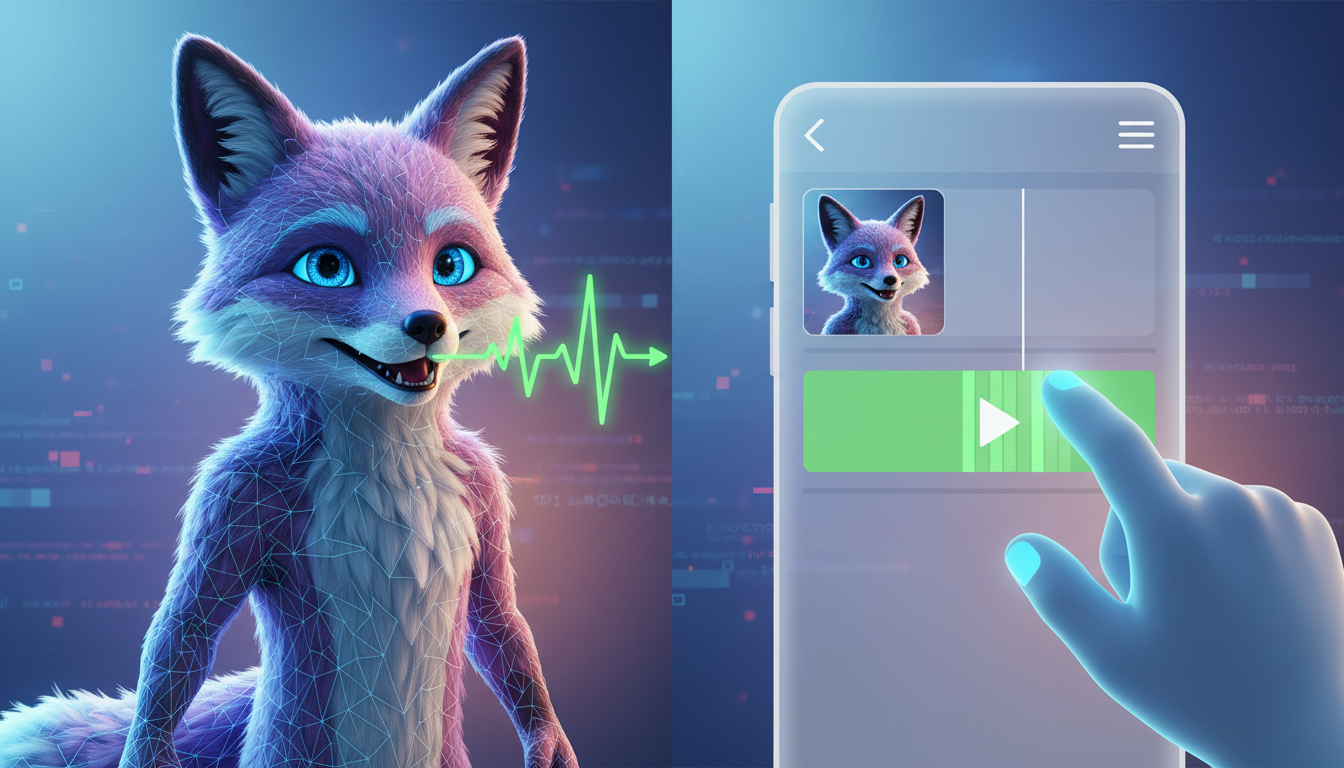
Audio sync lag in generated character videos is usually caused by temporary processing delays during video rendering, script pacing issues that confuse the lip-sync engine, or compression issues on social platforms. Whether you are creating a fun shoutout on Fanfun or editing a longer virtual presentation, you can quickly fix this by importing the video into a mobile editor, detaching the audio, and nudging the track forward or backward by 2 to 5 frames to align with visual mouth movements.
Why Do Generated Character Videos Lose Audio Sync?
While AI video tools strive for perfection, a slight delay between what a character says and how their mouth moves is a common hiccup. Understanding why this happens helps you choose the quickest fix.
| Symptom | Likely Cause | How to Identify |
|---|---|---|
| The lag starts halfway through the video | Variable frame rate (VFR) drift | The beginning is perfectly synced, but the delay grows worse over time. |
| The character's mouth is still moving after the sound stops | Script pacing or lack of punctuation | The character is trying to catch up to rapid-fire text. |
| The downloaded file is fine, but the uploaded video is laggy | Social media platform compression | The video plays perfectly in your camera roll but lags on TikTok or Instagram. |
Processing lag during the initial file export can also cause a slight static offset throughout the entire video. When generating custom clips with AI video tools, the audio and video tracks can occasionally render slightly out of alignment due to temporary server load or rendering delays.
How to Troubleshoot and Align Your Video in Post-Production
If your generated video has a consistent lag, you don't need to regenerate it from scratch. A quick manual adjustment in a video editor will usually solve the problem. Here is the step-by-step workflow to realign your track:
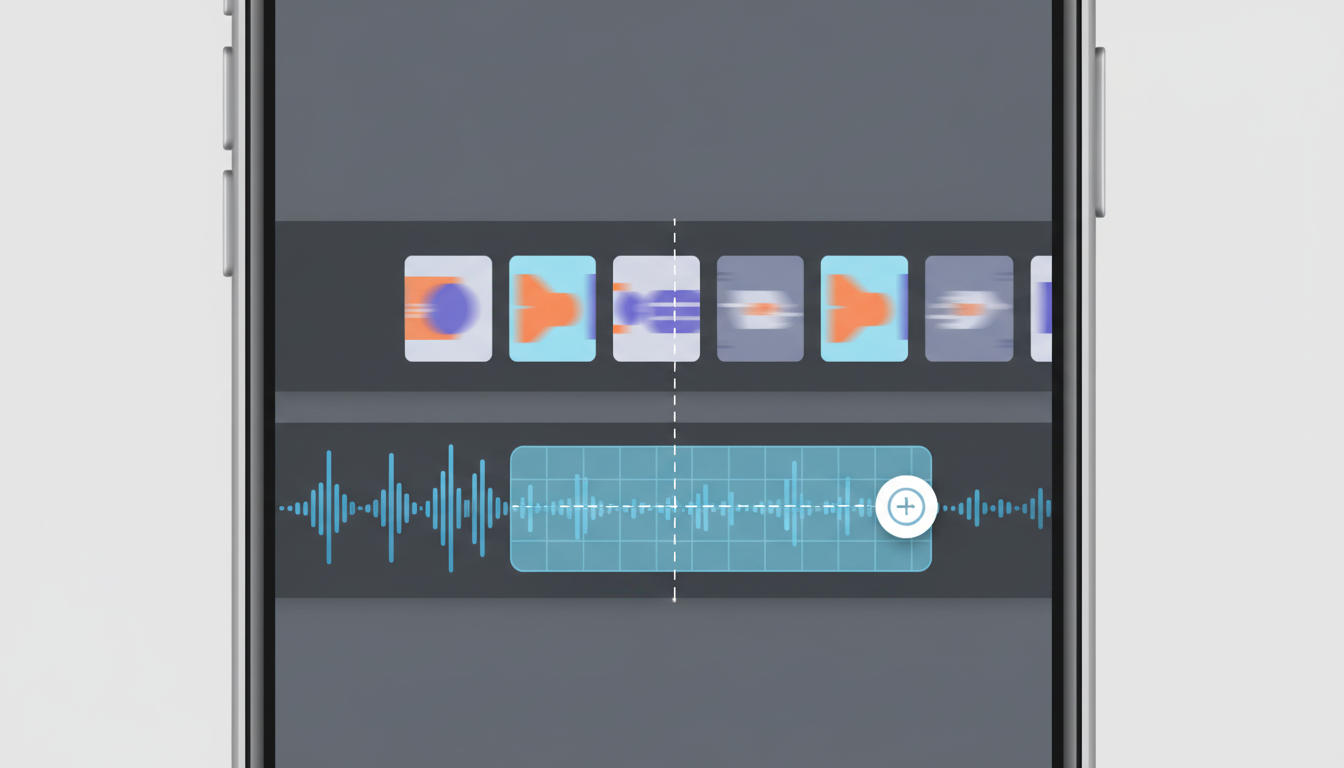
- Isolate the offset: Play the video and look for sharp consonant sounds (known as plosives) like 'B', 'P', or 'M'. These sounds require the character's lips to close completely. Mark the exact frame where the lips close and the frame where the sound actually plays.
- Detach the audio: Import your video into a mobile video editor like CapCut, InShot, or Premiere Rush. Use the 'Detach Audio' or 'Extract Audio' tool to separate the sound track from the video track.
- Nudge the audio track: If the audio is ahead of the video, drag the audio track slightly to the right (delayed). If the audio is behind, slide it to the left. Usually, a tiny adjustment of 2 to 5 frames (about 0.1 to 0.2 seconds) is all it takes. To make this easier, you can learn how to import and sync character voiceovers in mobile video editors.
- Check and export: Play back the video at normal speed. If the plosive sounds line up with the closed lips, your video is ready. Export the final file using a standard format like MP4 with a constant frame rate (CFR) of 30fps to prevent future drift. If you notice other sound issues during this step, you can also troubleshoot muffled audio in your generated videos to ensure crisp playback.
Preventative Scripting Tips for Flawless Lip-Syncing
The easiest way to fix audio sync issues is to prevent them during the creation stage. The way you write your script directly impacts how accurately the character's mouth moves. Use these tips when drafting your next video:
- Use punctuation strategically: Commas, periods, and ellipses act as natural cues for the AI engine to pause and reset the mouth positioning. Without them, the character's mouth may run continuously without matching the voice.
- Avoid phonetic spelling traps: Spell words normally. Writing 'wazzup' instead of 'what's up' might sound fun, but it can confuse the visual phoneme mapping, leading to unnatural lip movements.
- Keep script segments digestible: If you have a long monologue, break it into shorter paragraphs. Shorter segments allow the processing engine to sync the audio and video in highly accurate blocks.
For example, when you want to add custom fictional character voices to TikTok videos, look at the difference in script formatting:
Avoid this layout (unstructured):
hey guys what is up today we are going to talk about something super cool that happened to me last night you wont believe it
Use this layout instead (structured):
Hey guys! What is up? Today, we are going to talk about something super cool that happened to me last night... You won't believe it!
When to Stop Retrying
If you have manually aligned the audio and it still drifts wildly by the end of a long video, the file likely has a variable frame rate issue. If a video is longer than two minutes and continues to drift despite multiple regeneration attempts, stop retrying. Instead, split your script into shorter 30-second scenes, generate them individually, and stitch them together in your editing app. This helps keep the file segments manageable and makes it much easier to maintain alignment across each clip.
Why does my character video look perfectly synced in the preview but laggy on TikTok?
This is usually caused by TikTok's aggressive video compression during the upload process. To bypass this, try exporting your video from your editing app at 1080p and 30 frames per second (fps) using a constant frame rate, then upload it directly from your device's gallery rather than recording or editing inside the TikTok app.
Can I fix a lip-sync issue without downloading a separate video editing app?
If the lag is caused by script pacing, adjusting your script's punctuation and generating a new clip can help the AI engine map the pauses more naturally. However, if there is a rendering offset in the exported file, using a free mobile editor to nudge the audio track is the fastest and most reliable fix.
Does the length of the script increase the chances of audio drift?
Yes. Longer scripts require more continuous processing, which increases the likelihood of minor frame rate variations causing the audio and video tracks to drift apart over time. Breaking your script into shorter paragraphs or separate scenes keeps the sync tight and accurate.