How to Fix Muffled Audio in Generated Video Messages
Muffled audio in generated video messages is usually caused by formatting conflicts in your script. Learn how simple adjustments to punctuation and spelling can instantly clean up synthetic speech.
Muffled or distorted audio in generated AI video messages is usually caused by formatting conflicts in your script text—such as excessive emojis, run-on sentences, or missing punctuation—which confuse the text-to-speech engine. To fix it immediately, simplify your script's punctuation, use phonetic spelling for complex names, and re-render the generation. While synthetic voices cannot always achieve studio-grade perfection, these quick formatting adjustments usually resolve the "underwater" effect instantly.
Why Your AI Character Sounds Muffled (And How to Tell)
When an AI voice clone sounds muddy, slurred, or as if it is speaking underwater, it is rarely a permanent technical bug. More often, it is a miscommunication between your written text and the voice generator's synthesis engine. Synthetic voices do not read text the way humans do; they translate characters and punctuation into acoustic patterns. When the engine encounters unusual formatting, it can stutter, drop frequencies, or distort the output.
Before spending time troubleshooting, it is important to isolate the cause. Ask yourself these diagnostic questions:
- Is it the render or the playback? Disconnect your Bluetooth headphones or external speakers and play the video directly from your device's built-in speaker. Bluetooth codecs can sometimes compress audio, making a perfectly clean render sound muffled.
- Is the voice naturally stylized? Some synthetic voices are designed with intentional stylistic filters or deeper tones. This built-in style can sometimes be mistaken for low-quality audio on certain playback devices.
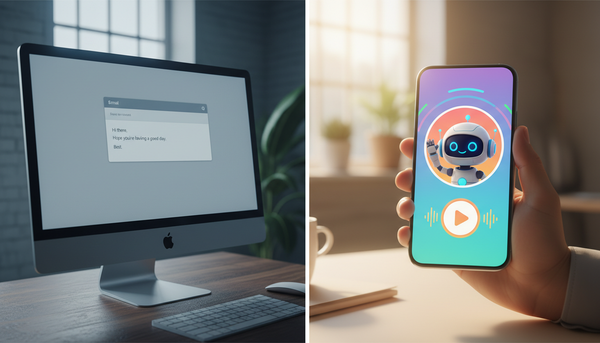
- Is it the format? If you are comparing video greetings and personalized audio formats, remember that video rendering bundles audio and video tracks together, which can occasionally impact perceived audio quality on older mobile devices compared to standalone audio files.
Step-by-Step Fixes for Clearer Synthetic Speech
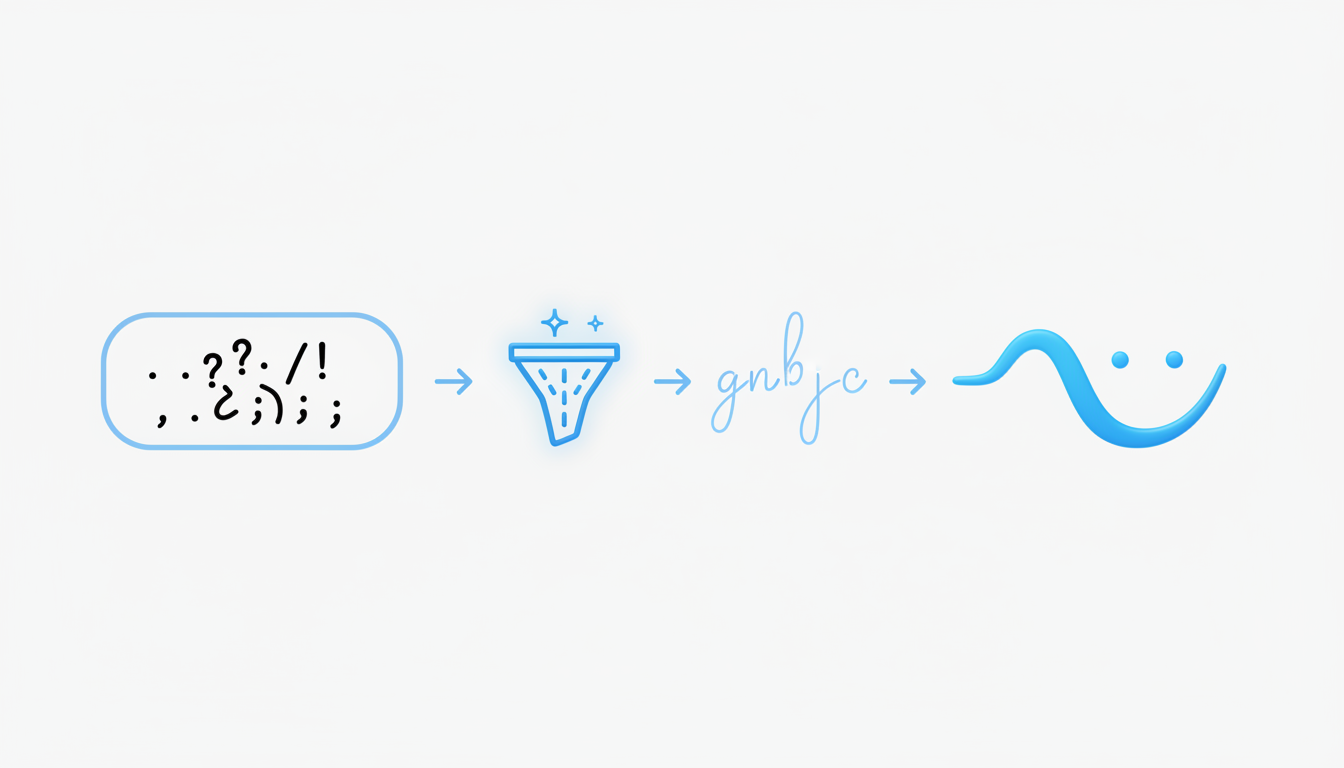
If you have confirmed that the audio file itself is distorted, follow this step-by-step troubleshooting workflow to clean up the sound. To illustrate, we have outlined the most common script formatting issues and their simple fixes below.
Step 1: Clean Up Your Script Formatting
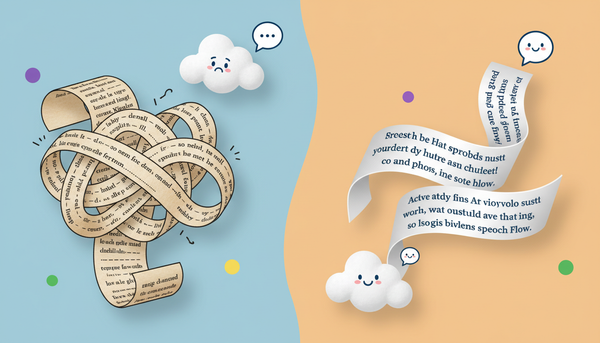
Remove emojis, excessive exclamation marks, and bracketed notes like [laughs] or [sighs]. AI voice generators try to pronounce or interpret these symbols, which can result in weird pauses, static, or muffled gaps in the voice track.
Step 2: Use Phonetic Spelling for Tricky Words
If the AI is slurring a specific name, brand, or slang term, spell it out phonetically. For example, write "Fanfun" as "Fan-fun" or "chiffon" as "shee-fon" to help the generator pronounce each syllable clearly. Knowing how to script and structure memorable video messages means keeping the text easy for the AI engine to digest.
Step 3: Re-Render with Minor Tweaks
Sometimes, a voice synthesis engine simply needs a slight adjustment to process the text differently. If the audio sounds off, try adding a comma, a period, or changing a word spelling slightly before re-rendering the message.
Step 4: Adjust Your Device's Audio Settings
Check if your playback device is set to mono audio, which can flatten the dynamic range of synthetic voices. Switching to stereo or disabling audio enhancements in your system settings can instantly restore clarity.
Script Formatting Comparison
| Muffled or Glitchy Script (Avoid) | Clear and Crisp Script (Recommended) |
|---|---|
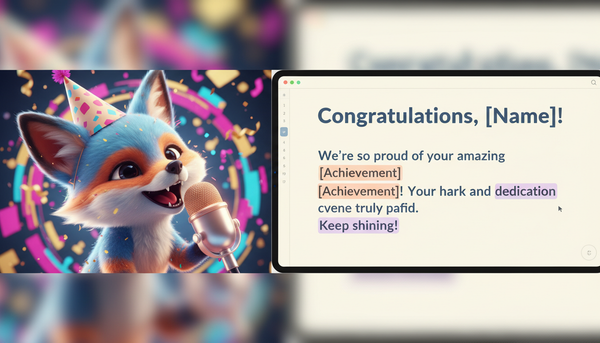
| Hey Jesse!!! OMG, can't believe you're 30! [cheers] Let's party tonight!!! | Hey Jesse. Oh my god, I cannot believe you are thirty. Let us party tonight. |
| Congrats on the promotion at SpaceX... u rock!! | Congratulations on the promotion at Space-Ex. You rock. |
When to Tweak Your Workflow or Accept Voice Limitations
While AI voice technology has come a long way, synthetic personas still have natural physical limitations. Unlike a real-person recording, a generated character voice may occasionally struggle with rapid-fire speech or highly emotional tones. If you are aiming for a highly polished, professional presentation, you can learn how to integrate AI audio into your video editing workflow by exporting the clean audio track and applying a light high-pass filter or equalizer in external software.
However, if you are creating a playful roast or a fun birthday shout-out on Fanfun, don't get stuck in an endless loop of re-rendering. Often, a tiny bit of voice texture or quirkiness actually makes the video feel more authentic, humorous, and memorable to the recipient. Limit yourself to two or three re-renders; if the message is legible and fun, it is ready to share!
Why does my generated video sound fine on my phone but muffled on my computer?
This is usually due to differing audio hardware, sound profiles, or Bluetooth codecs. Computers often use different default audio drivers or speaker configurations (like spatial audio or virtual surround sound) that can artificially boost low frequencies, making synthetic voices sound muddy. Try listening with standard stereo headphones to compare.
Can I edit the audio track of my video after downloading it?
Yes. If you need professional-grade sound, you can import the downloaded video into any standard video editing software, detach the audio track, and apply basic audio filters like an equalizer (EQ) to boost the treble and reduce muddy bass frequencies.
Do some synthetic voices naturally sound deeper or more textured?
Yes. Depending on how a voice model is designed, some synthetic voices may feature deeper tones or stylized filters. These characteristics can sometimes sound less clear on low-quality mobile speakers compared to higher-pitched voices.