How to Embed a Virtual Character Video in an Email Greeting
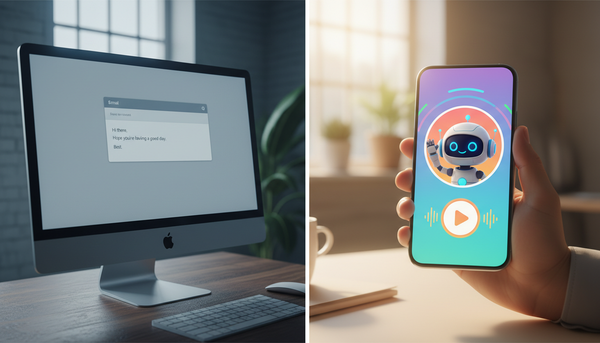
Want to send a personalized AI character video greeting directly to someone's inbox? While standard email clients don't support direct MP4 playback, a simple, visually engaging workaround ensures your message gets opened, clicked, and enjoyed.
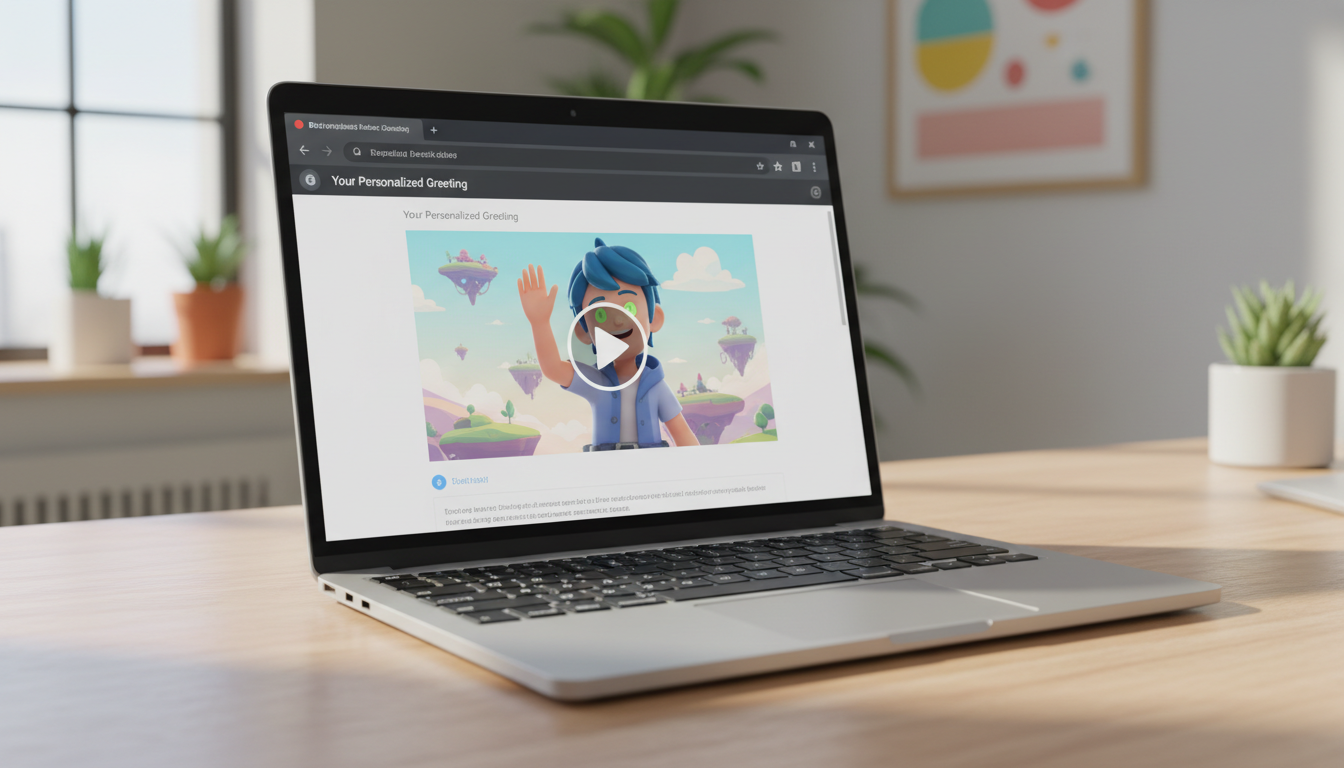
Direct MP4 video playback is not supported inside standard email clients like Gmail, Outlook, or Apple Mail due to security and performance limitations. To "embed" a virtual character video in an email greeting, the industry-standard workaround is to insert a hyperlinked thumbnail image or a short animated GIF of your character with a visual "Play" button overlay. When your recipient clicks the image, they can be directed to a cloud storage link or video hosting page where you have uploaded your downloaded Fanfun video.
The Reality of Email Video: Why the 'Workaround' is Your Best Friend
We all want our email greetings to feel seamless. However, attempting to force a raw MP4 or WebM video embed into an email body using HTML5 video tags is a recipe for delivery failure. Major email clients aggressively block inline video playback to protect users from potential malware and to save bandwidth. If you try to force it, your email will likely suffer from broken layouts, stripped code, or wind up flagged by spam filters.
The most reliable, visually appealing solution is to use a hyperlinked preview image or animated GIF. This approach gives the recipient the visual excitement of a video right in their inbox while keeping the actual delivery lightweight and secure. If you are looking to scale this approach for marketing campaigns or newsletter layouts, feel free to read our guide on how to embed a digital video greeting in an email newsletter.
Step-by-Step: How to Package and Link Your Virtual Character Video
Whether you are sending a customized birthday wish or want to discover how to send a virtual character pep talk video message, packaging the video correctly ensures a high click-through rate. Here is the step-by-step workflow to get your virtual character video ready for the inbox:
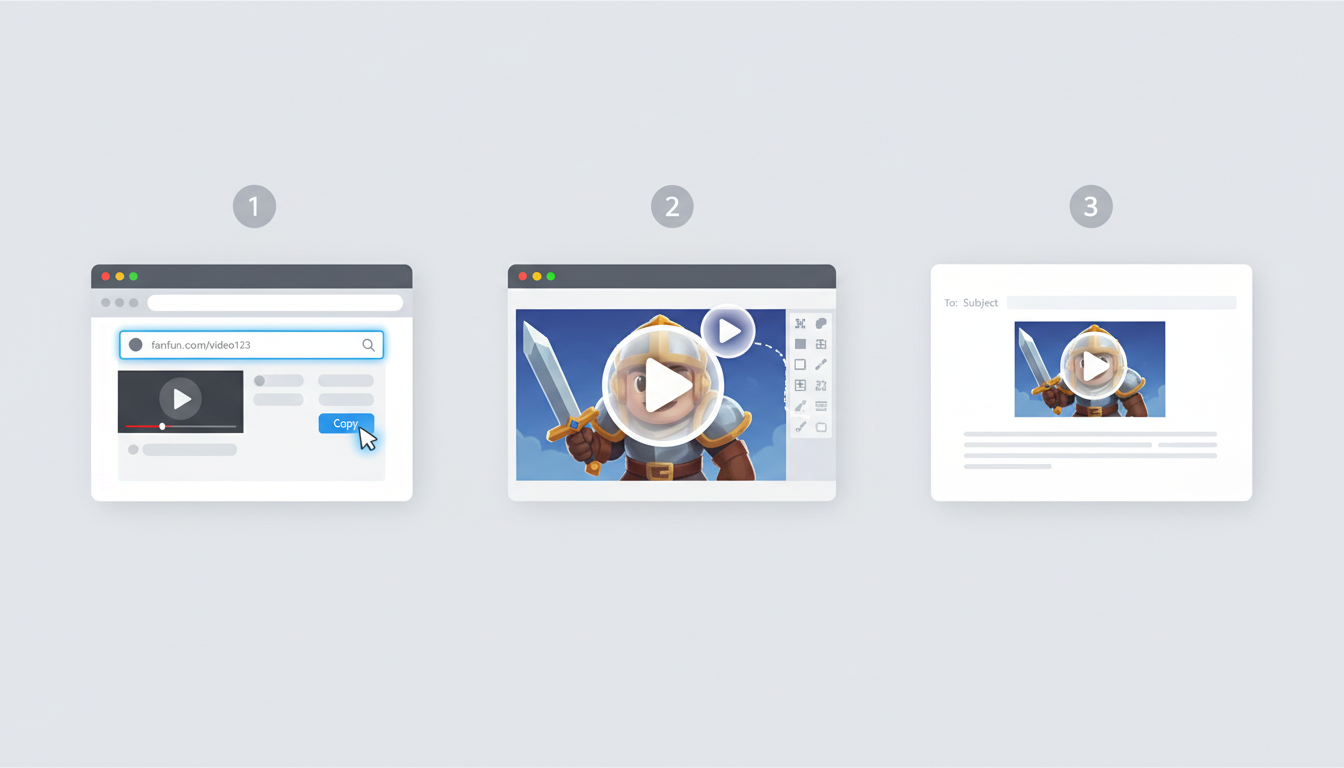
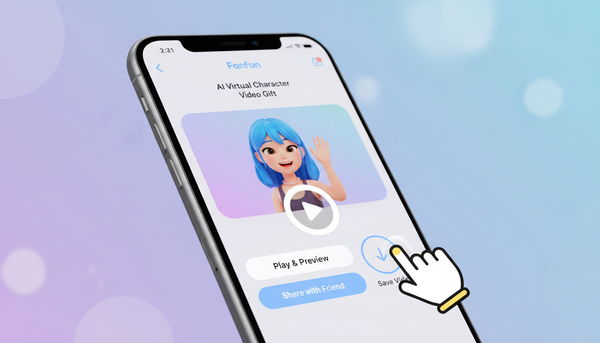
- Step 1: Upload your video and copy the link. When you generate a personal video gift on Fanfun, the finished video is emailed to your inbox and saved in your "My creations" area. Download the video file, upload it to a cloud storage or video sharing platform (such as Google Drive, Dropbox, or YouTube), and copy the shareable link to your clipboard.
- Step 2: Create your visual hook. Capture a static screenshot of your virtual character from the video, or convert a short 2-second snippet into an animated GIF. This snippet should capture the character's movement to tease the greeting.
- Step 3: Add a visual 'Play' button overlay. Open your image in a basic editing tool and place a semi-transparent white "Play" triangle in the center. This visual cue is universally understood and prompts the recipient to click.
- Step 4: Insert the image and hyperlink it. In your email composer, insert the image directly into the body. Highlight the image, click the hyperlink icon, and paste your shareable video URL.
- Step 5: Add a clean, text-based fallback link. Directly below the image, add a simple text link (e.g., "Click here if the video preview doesn't load") to ensure accessibility for recipients who block images.

Design and Deliverability Tips for Virtual Greetings
Getting your virtual greeting into the inbox requires balancing visual appeal with technical deliverability. Here is a quick breakdown of best practices to keep your email out of the promotions or spam tabs:
- Keep GIF file sizes under 1MB: Large image files slow down email loading times, especially on mobile networks. Compress your animated GIF to ensure it loads instantly.
- Avoid spam-trigger words: Keep your subject line personal and warm. Avoid terms like "FREE," "WIN," or excessive exclamation marks. Try something friendly like, "A special message from [Character Name] just for you!"
- Balance image and text: Spam filters dislike emails that consist of a single large image with no text. Write a brief, warm introductory sentence before your video thumbnail.
Before hitting send to your recipient, always send a test message to yourself. This allows you to learn how to preview and test your virtual character video before sending so you can verify that the image scales nicely on mobile screens and the link redirects perfectly.
Choosing Your Preview Style: Static vs. Animated
Depending on your recipient's email client and connection, you may want to choose between a static JPEG/PNG thumbnail or an animated GIF. Use the decision table below to choose the right format for your greeting:
| Feature | Static Image (PNG/JPEG) | Animated GIF Preview |
|---|---|---|
| File Size | Very low (typically under 100KB) | Moderate (ideally 500KB to 1MB) |
| Visual Engagement | Standard (relies on play button overlay) | High (shows character movement/gestures) |
| Deliverability | Excellent across all clients | Very good, though some older Outlook versions show only the first frame |
| Best For | Formal greetings or slow connections | Playful, highly dynamic character greetings |
Will my virtual character video play automatically inside the recipient's inbox?
No, standard email clients do not support automatic inline video playback for security and performance reasons. By using a hyperlinked thumbnail or GIF that leads to your uploaded video link (hosted on a cloud storage or video sharing platform), you provide a smooth, secure, and highly engaging viewing experience that works across all devices.
What is the ideal file size for an email preview GIF?
You should keep your preview GIF under 1MB (ideally under 500KB). This ensures that the image loads instantly even if your recipient is opening the email on a mobile data network.
Can I use this method to send virtual character greetings for special occasions like anniversaries or retirements?
Absolutely! This hyperlinked thumbnail method is perfect for any occasion. Whether you are using a customized script for a milestone celebration or sending a heartfelt message, you can easily pair your video link with a matching graphic. For creative ideas, you can explore our resources on writing a wedding anniversary virtual character script or drafting a tailored retirement greeting virtual character script.