How to Embed a Digital Video Message in an Email Invitation
Direct video playback inside email is restricted by major inbox providers. Discover the reliable, high-engagement workaround to deliver custom video invitations directly to your guests.
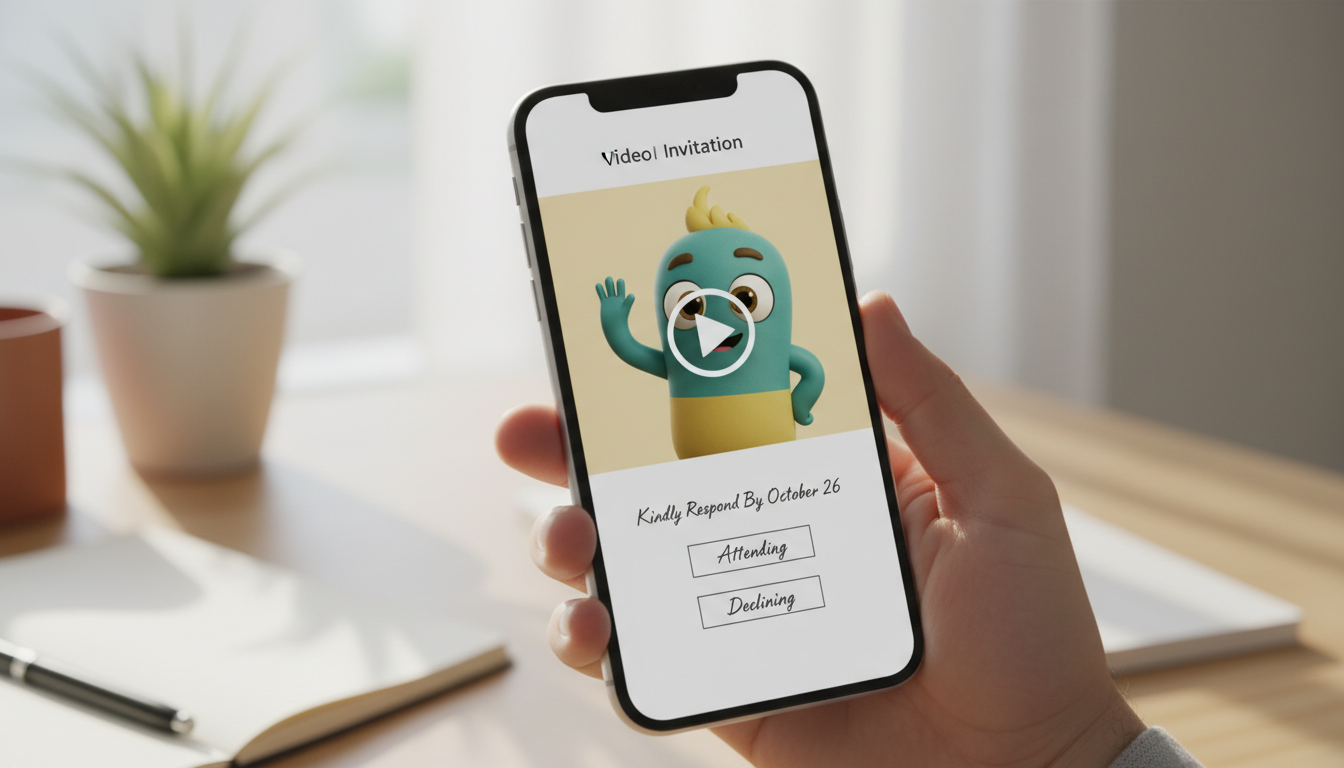
Directly embedding an MP4 video file inside an email invitation does not work because major email clients like Gmail, Outlook, and Apple Mail block inline video playback for security and performance reasons. The most reliable, industry-standard workaround is to place a visually striking placeholder image or animated GIF with a stylized play button in your email, then link that image directly to a dedicated web landing page where your video plays. This approach helps avoid common playback issues across different devices and keeps your email size manageable.
Why Direct Video Embedding Fails in Email (and the Smart Workaround)
When planning a special event, adding a custom video greeting feels like a premium touch. However, attempting to force-embed raw HTML5 video files directly into an email body often results in broken layouts, missing playback controls, or your email being flagged as spam. Inbox providers guard their users against massive file downloads and malicious scripts, meaning direct video tags are stripped out almost instantly.
To understand the technical limits of different platforms, you can read our detailed guide on how to embed a virtual character video in an email greeting. Rather than fighting these inbox restrictions, the smart workaround relies on a visual cue. By displaying a high-quality thumbnail image or a short, looping animated GIF that features a play button, you mimic the appearance of an embedded player. When guests click the image, they are instantly taken to a clean web page where the video plays in their browser.
If you are using Fanfun to create custom AI character messages—such as a playful birthday greeting or a themed event announcement—you can easily download your finished video from your email or the 'My creations' tab, then upload it to your preferred hosting platform to share with your guests.
Step-by-Step: How to 'Embed' Your Video in an Email Invite
Setting up this workflow takes only a few minutes. Follow these five steps to create a high-engagement, clickable invitation preview:
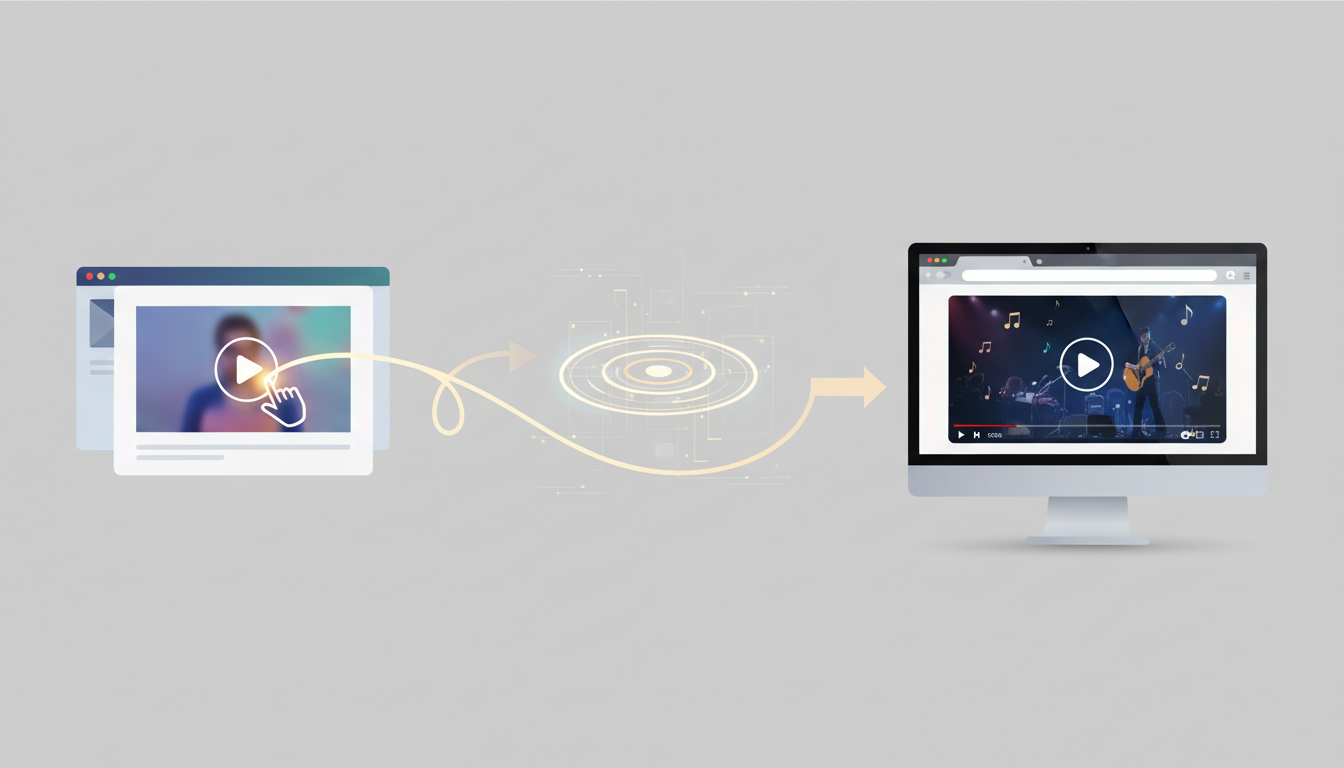
Step 1: Retrieve Your Hosted Video URL
First, make sure your video is hosted online. If you generated a custom character greeting on Fanfun, download the video file from your email or the 'My creations' tab, and upload it to a video hosting service or cloud drive. Copy that hosted link to serve as the destination for your email click.
Step 2: Create a Visual Teaser
You need an image that captures attention. You can capture a high-quality static screenshot of your video, or record a 2-to-3 second looping GIF of the character speaking. A moving GIF adds instant energy to an inbox.
Step 3: Overlay a Play Button
An image without a play button looks like a standard graphic. Overlaying a semi-transparent white play symbol in the center of your image or GIF signals to guests that the content is interactive, which can help encourage clicks.
Step 4: Insert the Image and Link It
In your email marketing tool or personal email client, insert your optimized image directly into the message body. Highlight the image and add a hyperlink pointing to your hosted video URL.
Step 5: Add Descriptive ALT Text
Always add alternative text (ALT text) to your image, such as "Click to play your special video invitation!" This ensures that guests who have image-loading turned off in their email settings still know there is an exciting video waiting for them.
If you are using specialized invitation software rather than standard email, you can explore our guide on embedding virtual character videos in digital invitation platforms for platform-specific instructions.
Design and Deliverability Best Practices
To ensure your invitation looks professional and actually reaches your guests' primary inboxes, you must balance visual appeal with technical optimization. The table below outlines the key trade-offs between using a static image and an animated GIF for your email teaser:
| Teaser Format | Pros | Cons | Best Use Case |
|---|---|---|---|
| Static Image (JPEG/PNG) | Tiny file size, reliable rendering on devices, zero impact on email load times. | No movement; relies entirely on the play button overlay to encourage clicks. | Formal invitations or when sending to guests with slow internet connections. |
| Animated GIF | High visual movement, instantly captures attention, showcases the character's personality. | Can quickly become too large, potentially causing email clipping or slow loading. | Casual parties, holiday greetings, and high-energy AI character announcements. |
To maintain excellent deliverability, aim to keep your total email size under 100KB. If your email is larger, Gmail may clip the message, hiding your RSVP details. For tips on managing files, check out our guide on how to optimize and reduce character video file sizes for email delivery.
Finally, never rely solely on the video to communicate critical event logistics. Always print the essential details—such as the date, time, location, and RSVP link—in plain text directly below your video preview. This ensures that even if a guest cannot watch the video immediately, they still have all the vital information at a glance.
Can I use HTML5 to force inline video playback in email?
While HTML5 video tags are technically valid code, almost all major email clients (including Gmail, Yahoo, and Outlook) block them for security reasons. Attempting to force inline playback usually results in a broken, blank box for your recipients. Using a linked image or GIF is the only universally supported method.
What is the ideal file size for an invitation GIF preview?
Keep your preview GIF under 1MB, and ideally under 500KB. Large GIFs slow down email loading times and can cause email clients like Gmail to clip your message, hiding your RSVP details and event info.
Will my email go to spam if it contains a video link?
No, standard links to trusted video hosting pages will not trigger spam filters. However, using spam-trigger words in your subject line or sending an email that contains only a massive image with no accompanying text can hurt your deliverability. Always include clean, written event details alongside your visual preview.