How to Embed a Virtual Character Video in a Digital Invitation
Want to make your next party invitation stand out? Learn how to integrate a personalized virtual character video greeting into digital RSVP platforms.
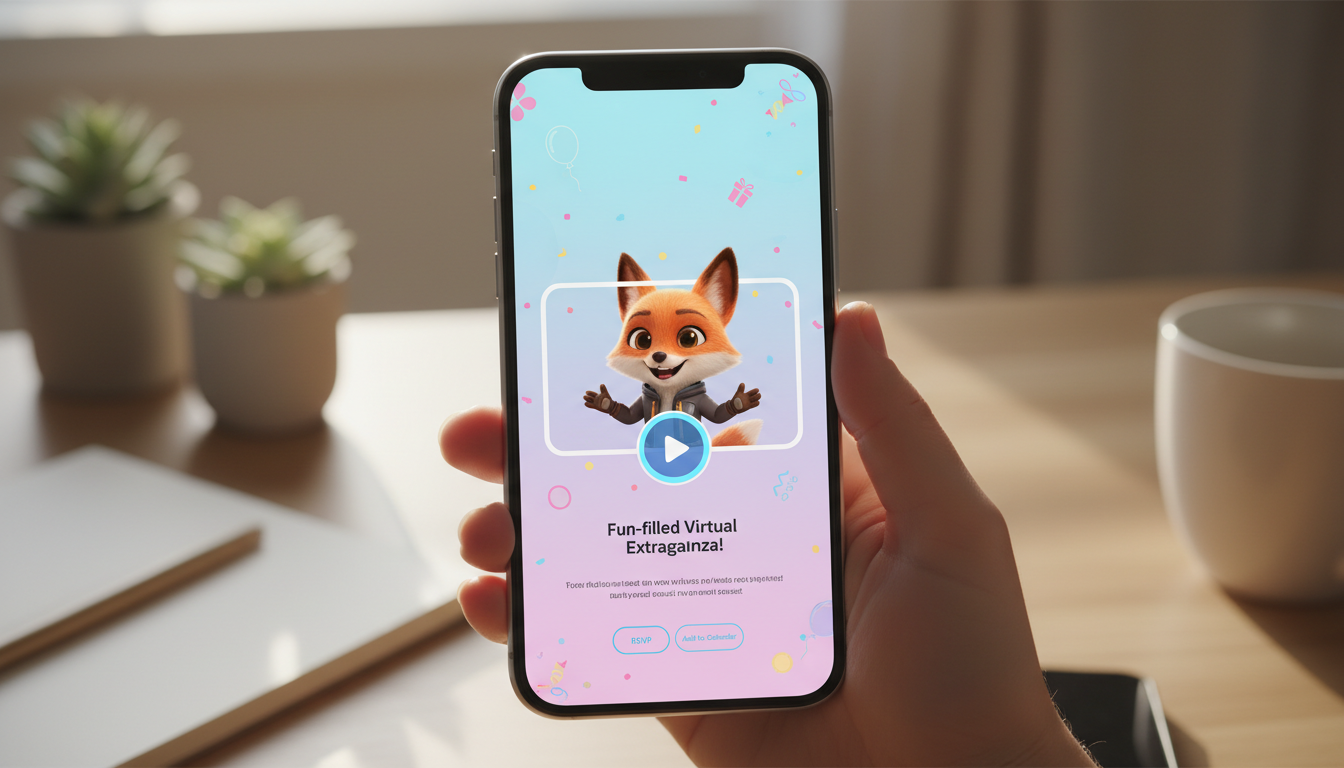
You can embed a virtual character video in a digital invitation by using a hosted video link or a custom image-link workaround, as many RSVP platforms do not support direct raw video uploads due to file size limits. By uploading your custom video to a hosting service, you can insert your virtual character greeting link into dedicated video blocks or clickable button fields on your chosen invitation platform. If you are sending your invitations via email instead of an RSVP platform, you can check out our guide on embedding virtual character videos in email greetings for tailored steps.
Common Integration Methods for Digital Invitations
Different digital invitation platforms handle external media in various ways. Depending on the platform you choose, you may be able to paste a video link directly, add a custom button, or use an image-link workaround. Checking your platform's specific media options helps you plan the best guest experience.
Here is a look at common integration methods you can use depending on your platform's features:
| Integration Method | How It Works | Best For | Guest Experience |
|---|---|---|---|
| Direct Link Sharing | Paste your hosted video link (from a video hosting service) into a text field, host note, or description box. | Platforms that support plain text links or automatic link previews. | Guests click the link to watch the video on the hosting platform's page. |
| Custom Link Buttons | Create a button on your invitation page and set the destination to your video URL. | Platforms that allow custom call-to-action (CTA) buttons. | Guests click the button to open the video in a new tab. |
| Image Hyperlinks | Upload a custom thumbnail image and link it directly to your video URL. | Platforms that support clickable images but not direct video embeds. | Guests click the image preview to watch the video. |
Step-by-Step: From Fanfun Creation to Invitation Screen
Integrating a virtual character video into your invitation workflow is straightforward. Follow these steps to generate your video and place it directly into your RSVP page.
Step 1: Create your video on Fanfun
Log into Fanfun and select your desired character, pick an appropriate background scene, and write your invitation script. Keep the details clear, and check out our tips on writing a perfect 30-second script for your video to ensure your message is engaging and fits within standard video limits.
Step 2: Retrieve your finished video
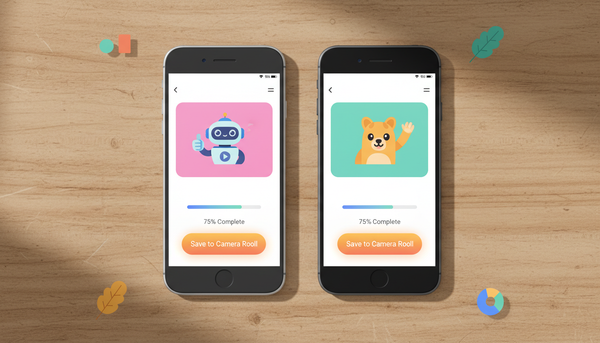
Once your video is generated, Fanfun will deliver it directly to your email inbox, and it will also appear in your "My Creations" tab. You can save the video file to your device.
Step 3: Choose your hosting method
Since most invitation platforms require an external video link, you can upload your saved video file to your preferred video hosting service (such as setting it to unlisted so only your guests can view it) and use that generated link for your invitation.
Step 4: Paste and test the preview
Insert your link into the designated field on your RSVP builder. Always send a test invitation to your own email or phone number first to ensure the video loads correctly and the thumbnail looks appealing before blasting it to your guest list.
Designing a Clickable Preview Thumbnail
An invitation relies heavily on visual cues. A raw URL link pasted into a text box can look messy and is easily overlooked by busy guests. To maximize views, you want to make the video invitation look as enticing and clickable as possible.
If your invitation platform allows you to upload custom images with links, consider creating a custom thumbnail image. You can take a screenshot of your Fanfun virtual character, overlay a stylized "Play" button in the center using a free design tool, and link that entire image to your video. To make sure your visual looks polished and enticing on any RSVP page, learn how to customize the thumbnail preview for your shared virtual character video.
Can I upload the raw video file directly to digital invitation platforms?
Many digital invitation platforms do not support direct raw video uploads for the card itself due to file size limits. Instead, you can upload your video to a third-party video hosting service and paste that link into the invitation's designated link or button field.
Will my guests need a Fanfun account to watch the video greeting?
Not at all. Since you will host the video on a third-party platform (like YouTube, Vimeo, or Google Drive) and share that link, your guests can watch the video directly on that hosting platform without needing a Fanfun account.
How long should an invitation video greeting be?
Keep it short and punchy! A video greeting between 15 and 30 seconds is ideal for keeping your guests' attention while delivering the key event details with a fun character twist.