How to Download Virtual Character Videos Directly to a Mac
Save your virtual character video creations directly to your macOS desktop. This step-by-step guide covers downloading from emails, using Finder shortcuts, and troubleshooting Safari.
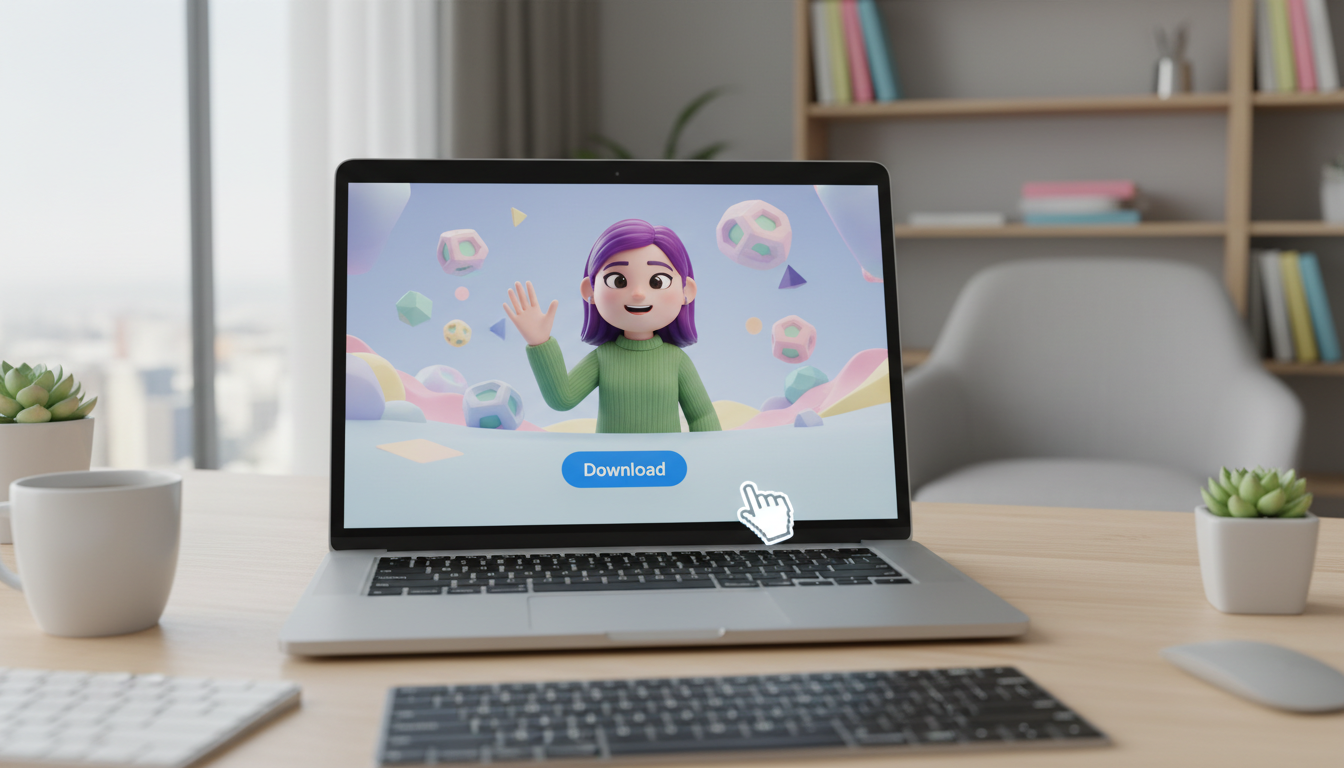
To download a virtual character video directly to your Mac, open the delivery email sent by Fanfun (or navigate to the "My creations" tab in your account dashboard), open the video player in Safari or Chrome, right-click (or Control-click) the player, and select "Save Video As..." to choose your destination folder in Finder. While the process is usually instant once the video is generated, keep in mind that download options depend on your browser settings and that AI-generated video voices and animations are digital representations, not real-person recordings.
The Direct Way to Save Virtual Character Videos on macOS
When you create a personalized virtual video gift on Fanfun, the completed project is delivered to your email inbox and also saved directly to the "My creations" tab of your dashboard. Having a desktop copy makes it easy to archive, edit, or share your video messages whenever you want.
Here is how to download your files using the two primary methods available on macOS:
Method 1: Downloading from Your Delivery Email
- Open your preferred mail client (such as Apple Mail) on your Mac and open the Fanfun delivery email.
- Click the video link in the email to open the video landing page in your web browser (Safari, Chrome, or Firefox).
- On the video player, locate the download button (usually represented by a downward-pointing arrow) and click it.
- Choose your preferred folder in the Finder dialog box and click "Save."
Method 2: Downloading from the "My creations" Dashboard
- Log into your account on the Fanfun website using Safari or Chrome.
- Navigate to the "My creations" tab on your user dashboard.
- Click on the virtual character video you want to download to open the player.
- Right-click (or hold the Control key and click) anywhere on the active video player.
- Select "Save Video As..." or "Download Video" from the context menu.
- Select your destination folder (such as Desktop or Downloads) and confirm the save.
Locating, Previewing, and Organizing Your Video in Finder
Once your download completes, the file is saved locally to your Mac. Managing your files on macOS is straightforward thanks to built-in tools like Finder and Quick Look.
Follow these steps to locate and preview your new video file:
- Open Finder: Click the Finder icon in your Dock and navigate to your default "Downloads" folder.
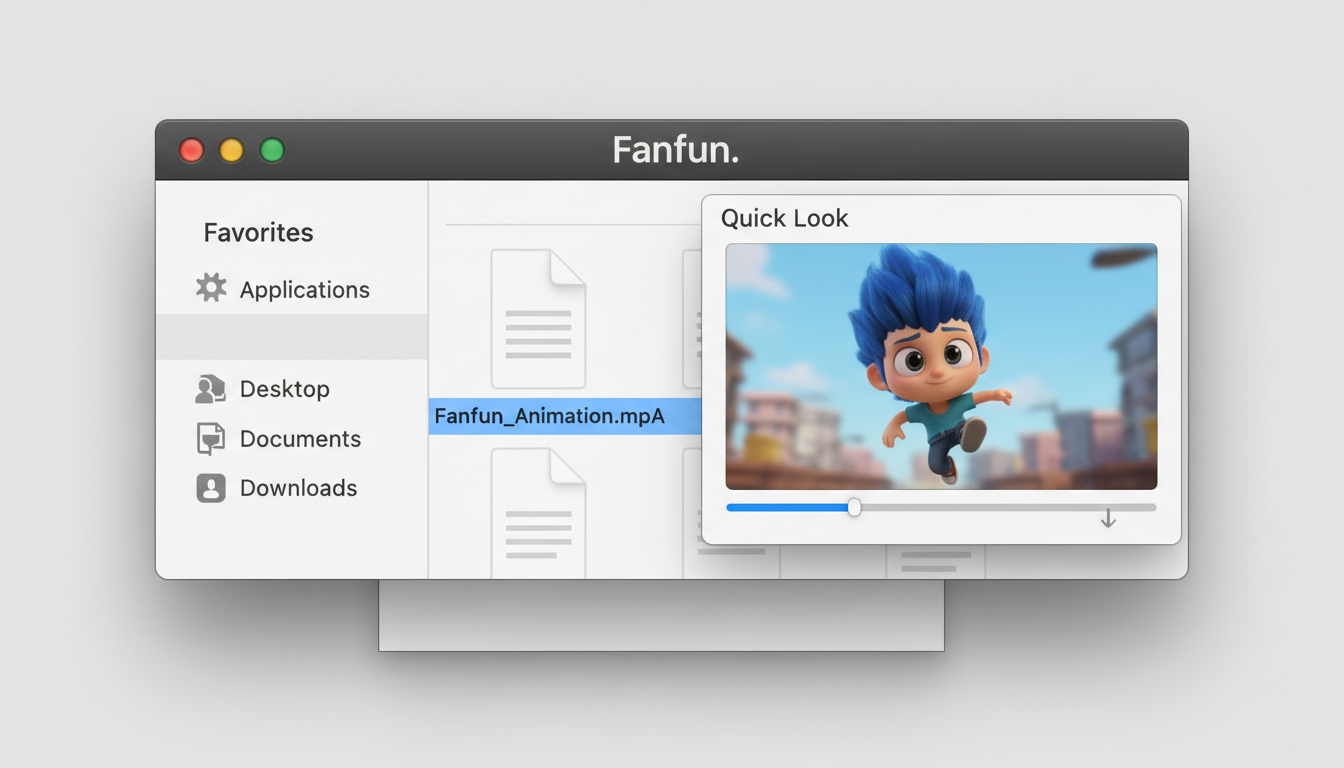
- Use Quick Look: Highlight the video file and press the Spacebar. This launches macOS Quick Look, allowing you to instantly play and preview the video without opening a heavy media player like QuickTime. Press the Spacebar again to close the preview.
- Rename Your File: AI-generated files often download with generic alphanumeric names. Right-click the file, select "Rename," and give it a descriptive name (e.g.,
knight-birthday-message.mp4) so you can easily identify it later.
If you prefer to manage your content on the go, you can compare this desktop workflow with saving directly to an iPhone camera roll to see which option fits your sharing style best.
Comparison: Mac Desktop vs. iPhone Mobile Downloads
| Feature / Action | macOS Desktop Workflow | iOS Mobile Workflow |
|---|---|---|
| Primary Storage Location | Downloads folder or designated Finder folder | Photos App (Camera Roll) or Files App |
| Instant Preview Tool | Quick Look (Spacebar shortcut) | Built-in iOS Photos player |
| File Renaming | Easy via Finder (Right-click > Rename) | Requires Files app or third-party tools |
| Best For | Archiving, local presentations, and editing projects | Quick social media sharing and texting |
Troubleshooting Mac Downloads and File Formats
Sometimes, macOS security settings or browser behaviors can interfere with direct downloads. If you run into any snags, use these quick troubleshooting tips to get back on track:
- Safari opens the video in a new tab instead of downloading: If Safari plays the video in a new window rather than saving the file, hold down the Option (⌥) key and press Return in the address bar, or hold Option while clicking the download link. This forces Safari to download the file directly to your drive.
- Playback issues on older Apple devices: If you are transferring the video file to an older Mac or iPad and find that it will not play, you may need to adjust the file type to a highly compatible format like standard MP4 (H.264/AAC).
- Using your downloaded files: Once saved successfully, your virtual character videos are ready to be shared on social media, sent to friends, or imported into local presentation software for educational settings to surprise and delight your audience.
Where do Safari downloads go by default on a Mac?
By default, Safari saves all downloaded files directly to the "Downloads" folder, which you can access by opening Finder and selecting "Downloads" from the sidebar, or by pressing Option + Command + L while inside Finder.
Why does my downloaded virtual character video play but have no sound on my Mac?
This is usually caused by your Mac's system volume being muted, the video player itself being muted, or a temporary audio output routing issue (such as audio playing through connected Bluetooth headphones). Check your Mac's Control Center audio settings to ensure the correct output device is selected.
Can I download my Fanfun chat replies directly to my Mac as video files?
No, chat replies are designed to play directly on the web page and cannot be downloaded as video files. If you want a permanent file to keep, you can use the Voice Note feature to generate a downloadable MP3 or create a Video Gift to receive a downloadable video file.