How to Convert Virtual Character Videos to MP4 Format for Mobile Compatibility
Learn how to convert virtual character videos to MP4 format. Follow our easy guide to help maintain audio sync and visual clarity across mobile devices.
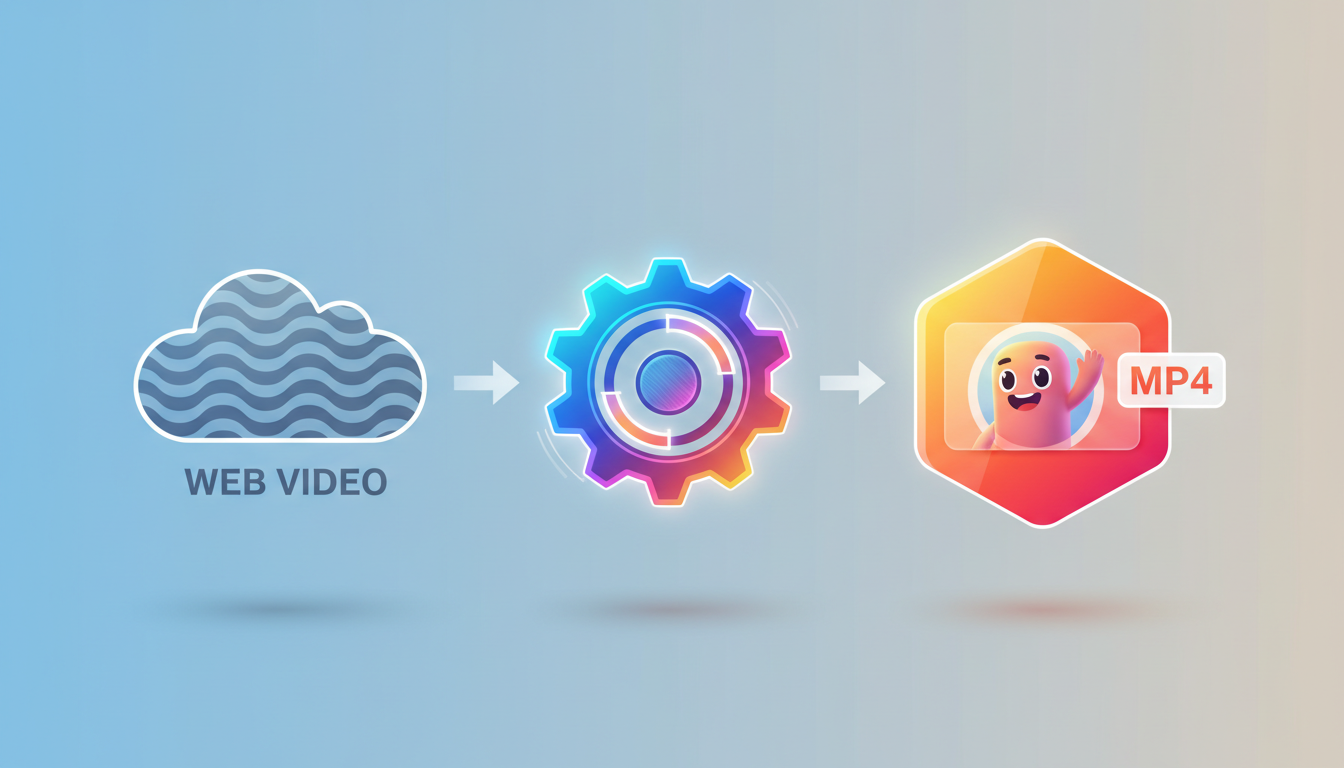
To convert a virtual character video to MP4 format for universal mobile compatibility, the most reliable method is to use a free desktop transcoder like HandBrake or an online tool like CloudConvert, ensuring you export using the H.264 video codec and AAC audio codec set to a constant frame rate (CFR). While web-native formats like WebM are highly efficient for desktop browser playback, converting them to standard MP4 is essential for older mobile operating systems, offline storage, or native messaging apps. However, keep in mind that conversion cannot restore visual clarity or audio fidelity lost in the original file; it simply packages the existing data into a widely readable container.
Why MP4 is the Universal Choice for Sharing Virtual Character Videos
When you create custom AI character video gifts on Fanfun, they are delivered via email and also appear in your 'My creations' dashboard. While web-hosted formats play beautifully in browsers, you might want to download and save them forever as a local file. WebM and other modern web formats are fantastic for high-efficiency streaming, but they often stumble when shared directly through standard text messages, older mobile devices, or offline media players.
Converting your video to an MP4 file with H.264 video encoding and AAC audio encoding is a common way to address these compatibility hurdles. This combination is widely supported across iOS, Android, and desktop operating systems. For instance, if you plan to embed virtual character videos in digital invitations, using a highly compatible MP4 format helps make it easier for recipients to view your custom greeting without needing specialized browser plugins.
Three Easy Ways to Convert Your Video to MP4
Depending on your technical comfort level and where you are accessing your files, you have three primary paths to convert your virtual greetings into MP4 format. Here is how to execute each method:
1. The Desktop Method: HandBrake (Best for Quality and Privacy)
If you have sensitive or private video greetings, using a local, open-source desktop app like HandBrake is a reliable option because your files never leave your computer.
- Download and install HandBrake.
- Drag your downloaded virtual character video into the HandBrake window.
- In the "Summary" tab, select MP4 as the format.
- Under the "Video" tab, choose H.264 (x264) as the video encoder and ensure Constant Framerate is selected.
- Click "Start Encode" at the top of the window to export your new MP4 file.
2. The Online Method: CloudConvert (Best for Speed and Convenience)
If you are on a public computer or do not want to install any software, web-based converters can handle the job in seconds.
- Go to an online conversion tool like CloudConvert.
- Upload your source video file.
- Select MP4 as the target output format.
- Click the wrench icon to verify that the video codec is set to H.264 and the audio codec is set to AAC.
- Click "Convert" and download your finished MP4 once processing is complete.
3. The Mobile Method: Video Converter Apps (Best for On-the-Go Adjustments)
If you are sending a greeting directly from your phone, you can use mobile apps like "The Video Converter" on iOS or "Video Converter, Compressor" on Android.
- Download your virtual character video to your phone's camera roll or files app.
- Open your chosen mobile converter app and import the video.
- Select MP4 as the output profile.
- Tap "Convert" and save the newly generated MP4 file directly to your photo library for easy sharing.
Conversion Method Comparison
| Method | Processing Speed | Privacy Level | Ease of Use | Best For |
|---|---|---|---|---|
| Desktop (HandBrake) | Varies (hardware dependent) | Local processing (offline) | Requires installation | High-quality archives, private videos |
| Online (CloudConvert) | Very Fast (cloud-based) | Moderate (files uploaded to cloud) | Very Easy | Quick, one-off conversions |
| Mobile App | Moderate (depends on mobile processor) | Good (processed locally on device) | Easy | On-the-go sharing directly from your phone |
Critical Settings to Keep Your Character's Voice in Sync
Synthetic character videos rely on precise timing to keep the character's lip movements aligned with the generated voice track. Standard video conversion can sometimes disrupt this delicate timing if the wrong settings are applied.
- Use Constant Frame Rate (CFR): Many modern web videos use Variable Frame Rate (VFR) to save bandwidth. When converting to MP4, always force a Constant Frame Rate (such as 30 fps). VFR can cause the audio track to drift, making the AI voice play slightly ahead of or behind the lip movements.
- Match the Original Resolution: Do not upscale your video. If you created a video targeting a specific virtual character pep talk archetype, keeping the output resolution identical to the source file ensures the character's features remain crisp and unpixelated.
- Choose the Right Codecs: Set the video codec to H.264 and the audio codec to AAC. Other codecs, like HEVC (H.265) or Ogg, might offer slightly smaller file sizes but lack the universal, worry-free compatibility of standard H.264/AAC.
How to Test and Share Your Converted MP4
Once your conversion is complete, it is crucial to perform a quick quality check before sending the video to your recipient.
The Pre-Flight Test Checklist
- Check Audio Playback: Play the MP4 on multiple devices. Some automated converters accidentally strip audio tracks or fail to map the audio channel correctly, resulting in a silent video.
- Verify Sync: Skip to the middle and end of the video. Check that the AI character's voice aligns well with the mouth movements from start to finish.
- Inspect Visual Quality: Look for blocky artifacts or blurred text, which can occur if the conversion software's bitrate is set too low.
Once you are confident the file is ready, you can prepare it for sharing. Before sending the file over email or uploading it to a platform, you might want to customize the thumbnail preview for your shared virtual character video. A personalized thumbnail helps your custom MP4 look polished and inviting the second it arrives in your recipient's feed.
Will converting my virtual character video reduce the audio quality of the AI voice?
If you use the standard AAC audio codec at a bitrate of 128 kbps or higher, the difference in audio quality will be virtually imperceptible to the human ear. Avoid heavy compression settings to preserve the natural clarity of the character's voice.
Why does my converted MP4 video have no sound on my iPhone?
This usually happens if the converter used an incompatible audio codec like AC3 or Vorbis. To fix this, re-convert the file and explicitly select the AAC audio codec, which is natively supported by iOS.
Can I convert a video directly from a shared link without downloading it first?
While some online converters support importing files via direct video URLs, downloading the original video file to your device first is the most reliable way to ensure a complete, high-quality conversion without authentication or access issues.