How to Share Virtual Video Greetings on Signal Without Losing Resolution
Signal's privacy settings are top-notch, but its standard media compression can turn your crisp virtual video greetings blurry. Here is how to tweak your settings or send videos as raw files to preserve high visual quality.
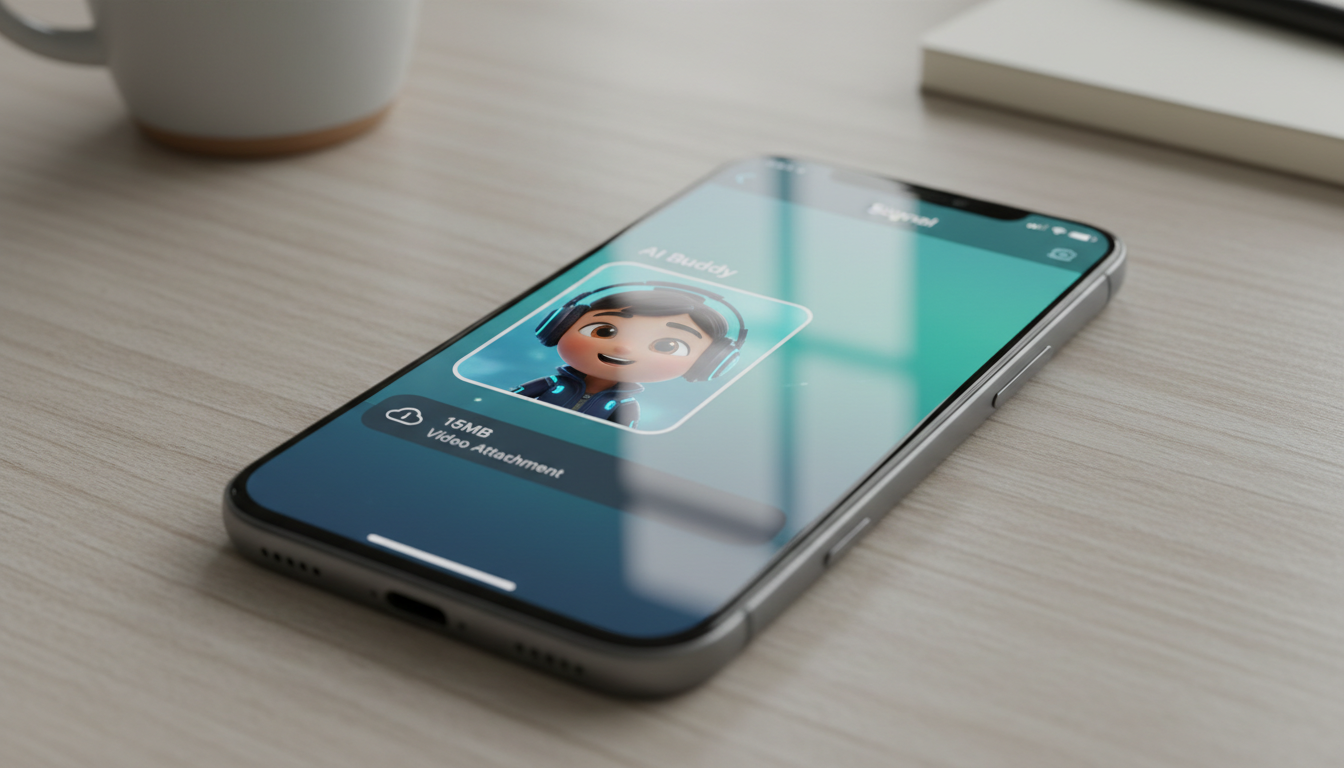
To share high-resolution virtual video greetings on Signal without losing quality, you can either change your Signal media settings to 'High' or send the video file directly as an uncompressed document. While the 'High' setting reduces compression, sending the video as a raw file (using the 'File' attachment option instead of 'Gallery') helps avoid standard media compression, allowing your recipient to receive the file in its original resolution. Keep in mind that Signal has a file size limit for attachments, which is typically more than enough for a standard 30-to-60-second virtual video.
Why Signal Compresses Your Videos (and Why It Matters for Virtual Greetings)
Signal is widely praised for its industry-leading privacy features, but like most messaging platforms, its default settings prioritize speed and data savings over raw media quality. When you send a standard video, Signal automatically compresses the file, stripping away fine details to make the upload and download as fast as possible. While a slightly blurry video is perfectly fine for a casual pet clip, it can ruin the charm of a custom virtual greeting.
When you create a personalized video gift on Fanfun—whether it is a playful birthday message from an AI persona or a fun, animated character delivering your custom script—the magic is in the details. Fine visual details and clear audio can easily become pixelated and muddy under aggressive compression. To make sure your digital gift feels as polished and premium as intended, you can learn more about how to send large video greetings on messaging apps without losing quality.
Method 1: Change Signal's Sent Media Quality to 'High'
If you want a quick and easy way to improve all the videos you send on Signal, you can adjust your in-app settings. By default, Signal is set to 'Standard' quality, but switching to 'High' allows the app to preserve more detail.
To adjust this setting on your device:
- Open the Signal app and tap your profile icon in the top-left corner.
- Select Settings (on Android) or go straight to Data and Storage.
- Under the 'Media Quality' section, tap on Sent Media Quality.
- Switch the setting from Standard to High.
While this method is incredibly convenient and allows your recipient to play the video inline with a single tap, it is important to note that Signal still applies a light amount of compression to keep file sizes manageable. If you want to maximize quality and avoid standard media compression, you can read our guide on how to share a virtual character video on WhatsApp with high quality or proceed to Method 2 below.
Method 2: Send the Video as an Uncompressed File Attachment
A highly effective way to avoid standard media compression is to send your video as a document rather than a media file. This allows the file to be delivered in its original format without the typical compression applied to chat videos.
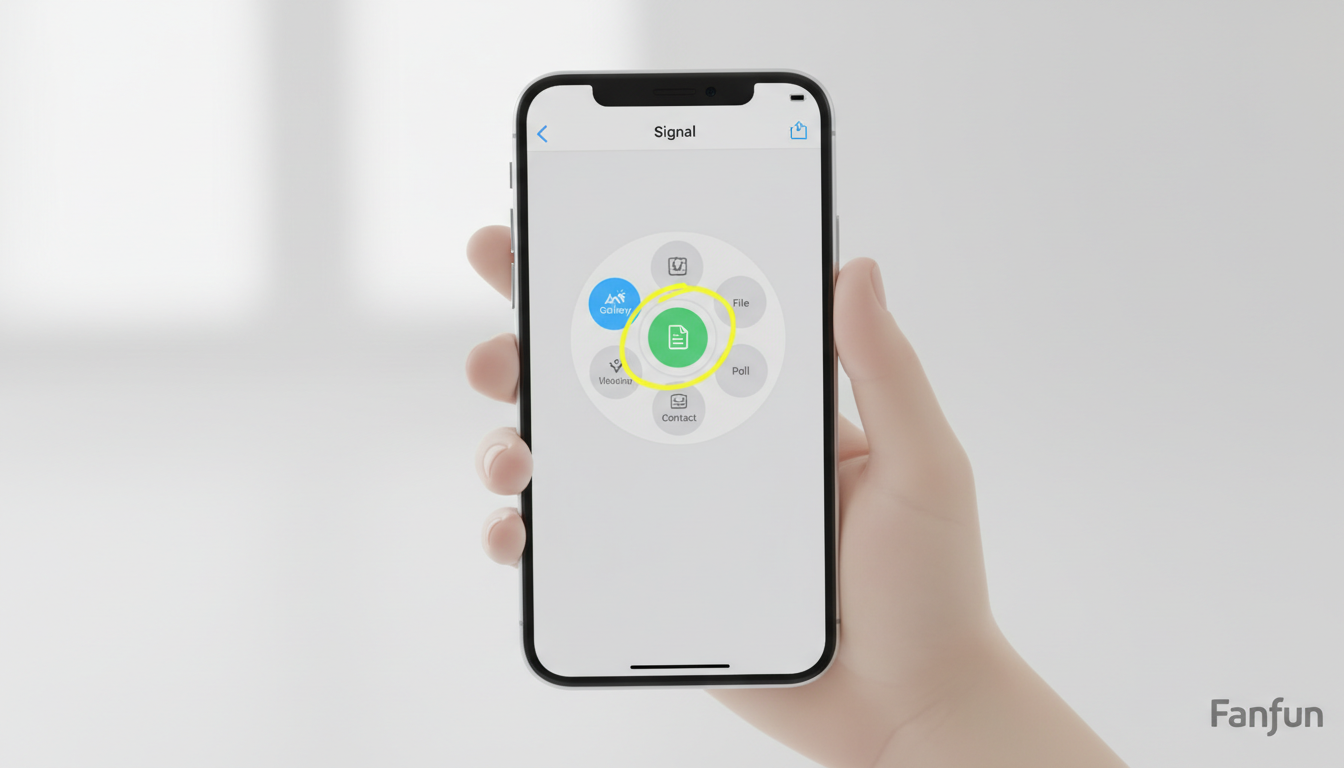
Here is how to send your Fanfun video as an uncompressed file:
- First, download your completed Fanfun video gift from your email or the 'My Creations' tab and save it directly to your phone's local storage (such as the Files app on iOS or the Downloads folder on Android).
- Open your Signal chat with the recipient.
- Tap the + (plus) icon next to the message input box.
- Instead of tapping 'Gallery' or 'Photos', select 'File'.
- Browse your device's files, select your saved MP4 video, and tap send.
Because you sent it as a file, Signal transfers the document directly, preserving the original resolution and audio quality. The only trade-off is that the video will appear in the chat as a downloadable document rather than an auto-playing video preview.
Comparing Your Signal Sharing Options
| Feature/Metric | Standard Sending (Default) | Sent Media Quality: 'High' | Send as 'File' Attachment |
|---|---|---|---|
| Resolution Loss | High (noticeable pixelation) | Minimal (slight compression) | None (retains original file quality) |
| In-Chat Playback | Yes (instant play) | Yes (instant play) | No (requires recipient to tap & download) |
| File Size Limit | None (auto-compressed) | None (auto-compressed) | Platform file size limit |
| Best For | Quick, casual messages | Good-quality, everyday videos | Premium, high-detail virtual gifts |
Alternative: Use Secure Cloud Links for Larger Video Files
If your virtual video greeting is exceptionally long or if you want to keep your recipient's local chat storage light, hosting the video online is an excellent alternative. Instead of sending the video file itself over Signal, you can upload it to a secure cloud drive and share the link.
Simply upload your MP4 file to a service like Microsoft OneDrive or Google Drive, generate a shareable link, and paste it directly into your Signal chat. Your recipient can then stream the video in full high-definition or download it directly to their device. For a step-by-step walkthrough on setting this up, check out our tutorial on how to save and archive custom virtual video greetings to OneDrive.
Will sending a video as a file on Signal use more cellular data?
Yes. Because sending a video as a raw file avoids standard media compression, the file size will be larger than a standard compressed video. If you are on a limited mobile data plan, we recommend uploading or downloading these files while connected to Wi-Fi.
Can the recipient still play the video directly inside the Signal chat if I send it as a file?
No. When you send a video as a file, it appears in the chat window as a document attachment. The recipient will need to tap the file to download it to their device before they can open and play it in full resolution.
What is the maximum duration of a Fanfun video greeting, and will it fit within Signal's file limit?
A single Fanfun video credit covers up to 30 seconds of speech, though you can use more credits for longer scripts. A typical 30-to-60-second Fanfun video is well under Signal's attachment size limit, making the 'File' method a perfect fit for almost all your custom creations.