How to Play a Personalized Birthday Video on a TV: The Party Playback Checklist
Playing a custom video at a party requires more than just hitting play. Learn how to handle aspect ratios, boost audio over crowd noise, and choose the most reliable connection method for a seamless birthday surprise.
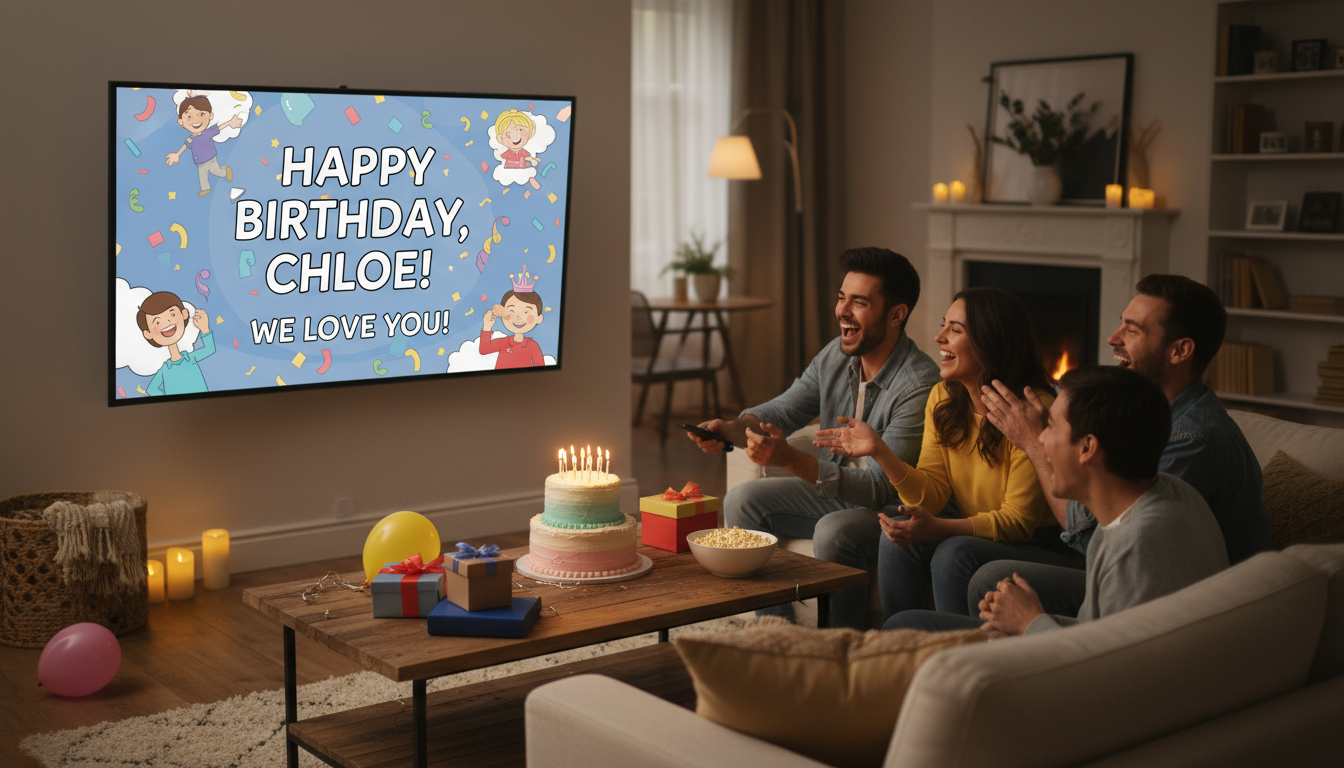
To play a personalized birthday video on a TV reliably during a party, download the video file directly to a local device (like a laptop or tablet) rather than streaming it over live Wi-Fi. Connecting your device to the TV using a physical HDMI cable, setting your playback device to "Do Not Disturb" mode, and routing the audio through an external soundbar or dedicated speaker helps overcome ambient party noise. Running a quick audio-visual rehearsal before the guests arrive helps prevent common technical issues like buffering, low volume, or unexpected notification pop-ups.
Why TV Playback Can Make or Break Your Birthday Surprise
A personalized birthday video creates a shared emotional climax at a party. Unlike a passive photo slideshow that runs silently in the background, a custom video demands the room's full attention for a few key minutes. When you are deciding between a dynamic video tribute and a traditional photo slideshow, the dynamic video wins on engagement—but only if the technical execution is clean.
Ambient noise, weak venue Wi-Fi, and mismatched aspect ratios are the primary reasons surprise video playbacks struggle. If a custom character greeting from Fanfun is queued up to deliver a hilarious, personalized roast, the humor will fall flat if the audience is straining to hear the punchlines over the hum of party chatter. Treating the playback as a mini-production event ensures that your digital gift lands with the high energy it deserves.
The Three Best Ways to Connect Your Video to the TV
How you connect your playback device to the television dictates your technical reliability. While wireless casting is convenient, physical connections remain a highly reliable option for live events. Below are the three most common connection methods evaluated for a party environment.
| Connection Method | Reliability Rating | Setup Complexity | Best For |
|---|---|---|---|
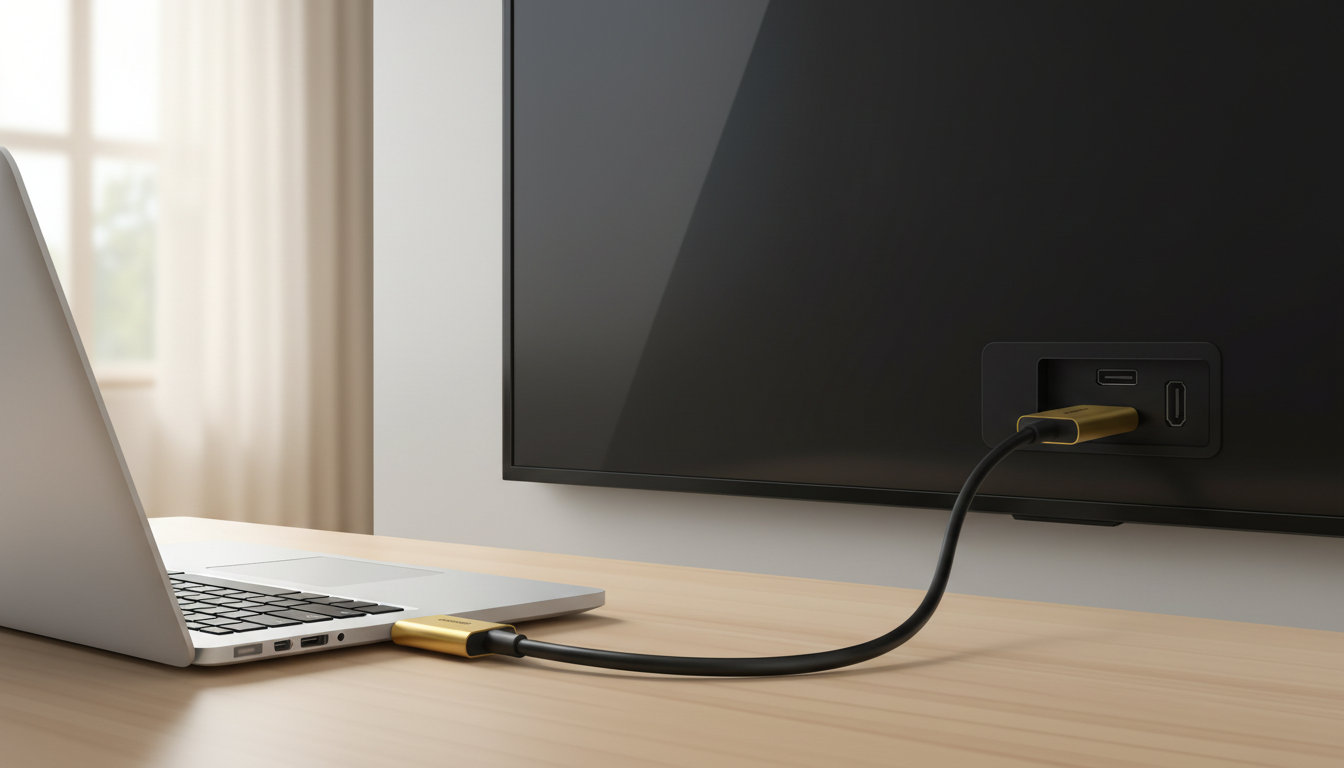
| HDMI Cable (Laptop to TV) | High (Recommended) | Low (Plug and Play) | Minimizing playback delay and playing files offline without relying on Wi-Fi. |
| USB Flash Drive | Moderate-High | Moderate (Requires file checking) | Clean setups where cables are unsightly or unavailable. |
| Wireless Casting (AirPlay/Chromecast) | Moderate (Wi-Fi Dependent) | Low (No physical wires) | Quick setups on strong, private home networks. |
Method 1: Direct HDMI Connection
A physical HDMI cable connecting a laptop directly to the TV is a highly reliable option. This physical link bypasses local network congestion, helps prevent audio syncing issues, and allows you to play local files directly from your hard drive. If you are short on preparation time, generating and downloading high-quality custom character videos in minutes and saving them directly to your desktop helps ensure you have a local copy ready to play without buffering delays.
Method 2: USB Flash Drive Playback
If you prefer a clean, cable-free look around the TV stand, you can load the video file onto a USB flash drive. Before the party, consult your TV's manual to verify supported drive formats (such as FAT32 or exFAT) and compatible video codecs. Insert the drive into the TV's USB port and use the TV's built-in media player app to locate and play the MP4 file. Because smart TV media players vary widely, always test the file on the specific TV ahead of time to verify it plays smoothly.
Method 3: Wireless Casting (AirPlay, Chromecast, or Smart View)
Casting from a phone or tablet is highly convenient but relies heavily on the quality of the local Wi-Fi network. If you choose this route, connect both the casting device and the TV to the same Wi-Fi band (preferably 5GHz for better bandwidth). Most importantly, enable "Do Not Disturb" or "Focus Mode" on your phone before casting. This prevents personal text messages, incoming calls, or app notifications from popping up on the big screen in front of all your guests.

The Party Playback Rehearsal Checklist
Perform this rehearsal checklist before the party to identify and fix technical bottlenecks before the room fills with guests.
- Aspect Ratio & Framing: Most TVs use a horizontal 16:9 aspect ratio. If your custom video was recorded vertically (9:16) on a smartphone, it will display with large black bars on the sides (pillarboxing). To make it look more polished, you can use editing tools to add a blurred background version of the video behind the main clip, or simply accept the pillarboxing and ensure the subject is centered. Avoid stretching a vertical video horizontally, as this distorts the image.
- Sound & Volume Calibration: An empty room sounds very different from a room packed with talking guests. Test the volume at a level that easily carries across the space, keeping in mind that ambient chatter will absorb sound. If the built-in TV speakers sound tinny or struggle to project, consider connecting a soundbar or an external speaker placed near the screen. Ensure the audio output settings on your laptop or phone are routed to the correct external speaker rather than the default internal ones.
- The Offline Copy Rule: Avoid relying on live streaming from email, cloud storage, or messaging apps during the actual party. Local networks can slow down when multiple guests connect their phones to the host's Wi-Fi. Downloading the video file directly to your local storage helps protect against unexpected buffering or quality drops.
- Readability & Subtitles: If the venue is loud, guests at the back of the room may miss spoken jokes. Hardcoding styled subtitles into the bottom third of the video helps ensure that everyone can follow the narrative, even if they are standing far from the speakers.
Timing the Reveal and Managing Guest Reactions
The success of the surprise depends heavily on how you transition the party's energy. Do not simply start playing the video unannounced. Instead, lower the background music, dim the lights slightly to draw eyes toward the screen, and make a brief announcement to gather everyone around the TV.
If you are coordinating a group effort, you can use our guide on orchestrating a virtual group birthday card with custom video to collect messages from friends and family before compiling the final playback file. For larger events like wedding receptions, a similar structured approach works wonders—our guide on the wedding toast video upgrade covers how to command attention with a custom screen setup.
Position the guest of honor where they have an unobstructed view of the screen, but also position yourself or a co-host to watch the guest of honor’s face. The real joy of a personalized video—whether it is a heartfelt message or a custom character roast generated on Fanfun—comes from watching their immediate reaction.
Keep in mind the recipient's personality. For recipients who might feel self-conscious, structuring the surprise for guests who dislike being the center of attention can save them from unnecessary anxiety. For introverted friends, consider playing the video in a smaller, more intimate group setting rather than projecting it to a loud room of fifty people. Tailoring the presentation style to their comfort level ensures the moment feels celebratory, thoughtful, and genuinely fun.
What should I do if my video is vertical but the TV is horizontal?
If your video is vertical (9:16), it will naturally display with black bars on the left and right sides (pillarboxing) when played on a horizontal (16:9) TV screen. To make this look more professional, you can use a video editor to place a blurred, scaled-up copy of the same video in the background, or simply keep the black bars as they are. Avoid stretching the vertical video to fit the horizontal screen, as this will heavily distort the proportions of the video.
How do I prevent my phone's text messages from popping up on the TV screen while casting?
Before you begin casting or mirroring your screen, enable "Do Not Disturb," "Focus Mode," or "Silent Mode" on your mobile device. On iOS and Android, this temporarily silences and hides incoming notifications, calls, and text previews, ensuring your personal messages stay private during the presentation.
Can I play the video directly from a cloud drive like Google Drive or Dropbox on a smart TV?
While some smart TVs have web browsers or apps that let you access cloud storage, streaming directly from the cloud carries risk during a party. Network congestion from guests using the Wi-Fi can cause buffering or quality drops. It is safer to download the video file directly to a local laptop, tablet, or USB drive and play it offline.