How to Fix Cut-Off Words in Automated Speech Generation
Ever had an AI voice clip the final syllable of your message? This troubleshooting guide covers the simple punctuation and spelling tweaks you can use to give your synthetic characters room to breathe.

To fix cut-off words or clipped final syllables in automated speech generation, you need to extend the audio buffer by adding trailing punctuation—such as an ellipsis (...) or an em-dash (—)—to the end of your script, or by using phonetic spellings for tricky terminal words. This gives the text-to-speech engine a visual cue to keep the audio recording window open for a fraction of a second longer, preventing it from clipping the last word. Keep in mind that while these formatting adjustments work for most synthetic speech models, highly complex names or heavily compressed audio formats may still require minor manual script adjustments or re-generation.
Why Automated Voices Clip and Cut Off Words
The main reason an AI character's voice abruptly clips at the end of a sentence is a technical phenomenon known as the "early gate" issue. In digital audio processing, the system must decide exactly when to stop recording the generated speech. Sometimes, the audio buffer closes a fraction of a second before the final phoneme (the smallest unit of sound) is fully rendered by the model.
Synthetic speech models process text in blocks or tokens. If there is no trailing punctuation at the end of your text, the generator assumes the message is complete and shuts down the audio stream immediately. This can cause the final word of a sentence to sound rushed, truncated, or completely cut off. This is a common quirk of automated speech generation platforms, not a permanent defect in the character voice model itself, and it can almost always be bypassed with a few layout tweaks.
Four Simple Script Hacks to Stop Word Clipping
Instead of fighting the algorithm, you can guide the AI's pacing using subtle formatting changes. Here are four practical techniques to try on your next script:
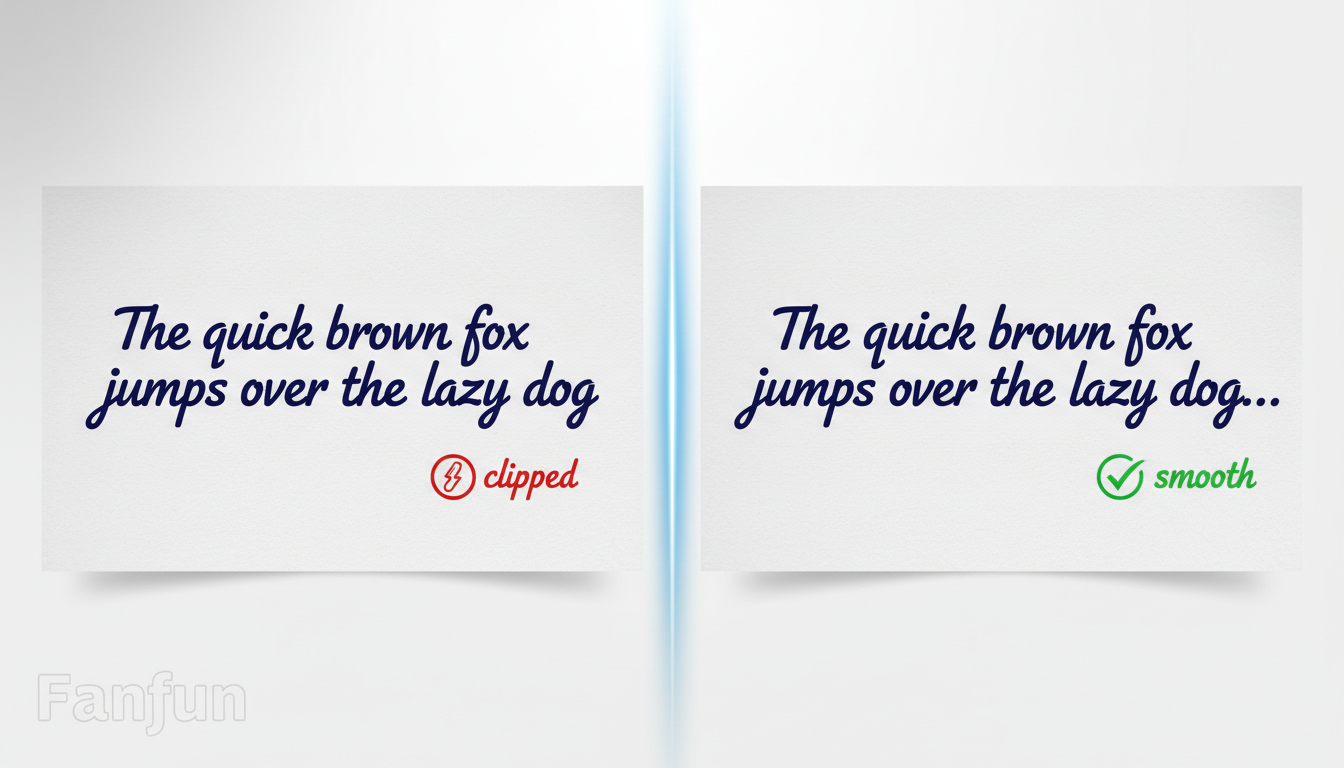
- Use trailing punctuation: The easiest fix is to append an ellipsis (...), a period, or an em-dash (—) to the very end of your script. This forces the voice generator to process a brief pause, extending the audio buffer and keeping the recording active long enough to capture the final syllable.
- Insert silent placeholders: If trailing punctuation doesn't work, try adding a harmless filler word at the end of your script that you can easily trim out later, or add extra spaces if the platform allows.
- Adjust spelling for tricky terminal words: If a specific last name or complex word at the end of your script is getting clipped, try using phonetic spelling to soften the ending. For example, if you are struggling with a tricky ending, check out our phonetic spelling tips for complex last names to guide the AI model's pronunciation.
- Manage the pacing: When an AI model rushes through the final sentence, it is much more likely to clip the final word. If the overall rhythm of your character's voice feels rushed, consult our guide on fixing unnatural pauses in synthetic speech to master overall speech rhythm.
Formatting Your Script for Fanfun Video Messages
When creating a personalized video gift or voice note on Fanfun, keeping your script clean and structured is key to getting a great render. On Fanfun, one video credit covers up to 30 seconds of speech (or 500 characters for a free voice note). Budgeting your script length ensures the system doesn't cut off text that exceeds the limit.
If a generation does experience clipping or fails to render properly, you don't need to worry about wasted credits. Fanfun automatically returns video credits to your balance if a generation fails, allowing you to experiment with script adjustments completely risk-free. If you are building a larger project with multiple voices, check out our guide on casting and scripting custom voice text-to-speech for tips on keeping your timing tight and clean.
Quick Troubleshooting Checklist
Before you hit generate on your next project, use this quick reference table to diagnose and resolve speech rendering issues:
| Symptom | Likely Cause | Quick Fix |
|---|---|---|
| Final consonant is clipped (e.g., "gift" sounds like "gif") | Audio buffer closed too early | Add an ellipsis (...) or a trailing period at the end of the script. |
| The last sentence sounds rushed | The AI is rushing to finish the token block | Add a comma or em-dash before the final phrase to slow down the pacing. |
| Complex last name gets garbled or truncated | Phoneme recognition error on the final word | Use phonetic spelling to break down the word into simple syllables. |
| Script abruptly stops mid-sentence | Script exceeded the character or credit limit | Shorten the script or split it across two video credits. |
Always preview your script as a voice note first to check the pronunciation. If a word continues to clip after three or four attempts with different punctuation, try changing the final word entirely to a synonym that ends in a softer vowel sound.
Why does the voice cut off only on certain characters?
Different character voice models have different underlying training data and tokenization behaviors. Some models have a slightly faster natural decay rate, meaning the "early gate" closes faster on them than on others.
Will adding extra punctuation make the AI voice actually say the punctuation marks?
No, standard punctuation marks like periods, commas, ellipses, and em-dashes are interpreted as pauses or breath cues by the generator, not as spoken words.
What should I do if my script is under the 30-second limit but still getting clipped?
If your script is well within the limits but still clipping, try inserting a trailing ellipsis (...) or adding a simple trailing filler word that you can easily trim out. If the issue persists after 3 or 4 attempts, try slightly altering the phrasing of the final sentence.