How to Export High Definition Digital Greetings Without Quality Loss
Stop sending pixelated videos to your friends. Discover the exact resolution, codec, and sharing settings needed to deliver crystal-clear digital greetings on any screen.
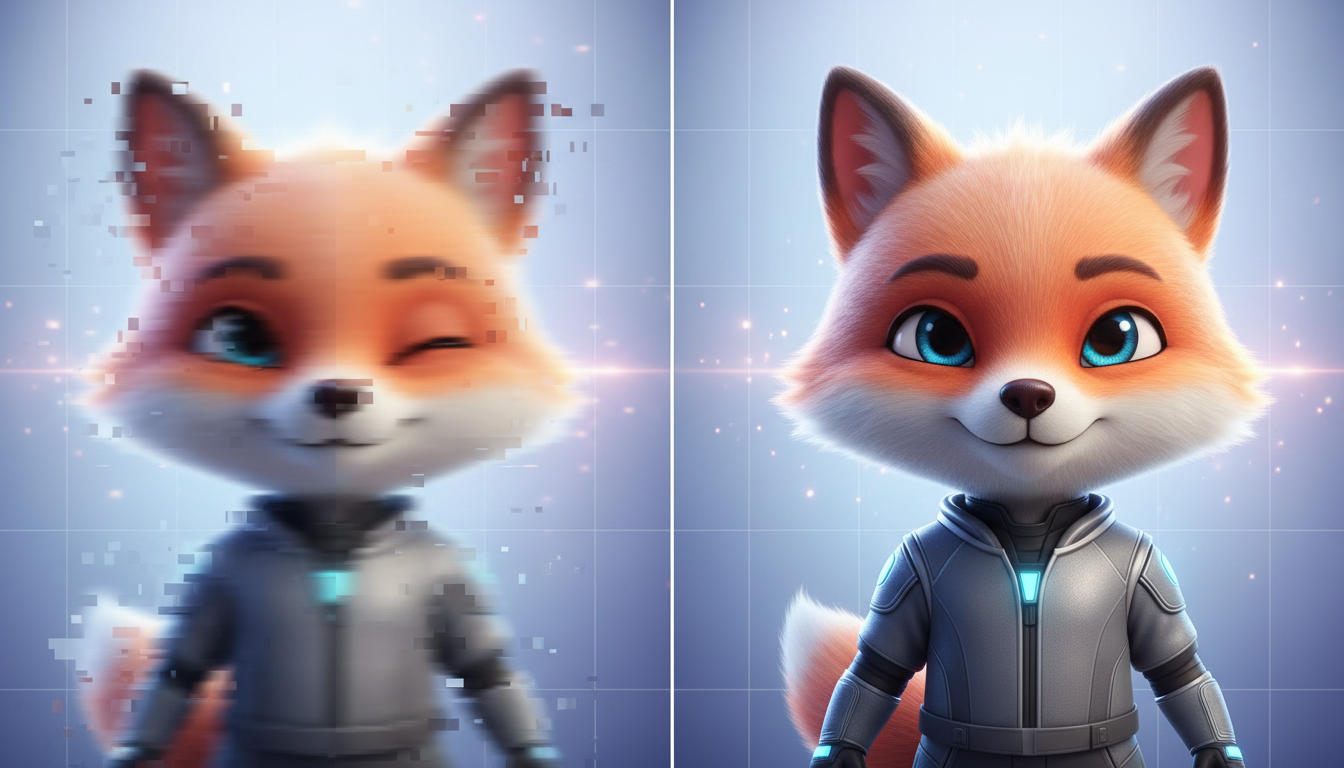
To export high-definition digital greetings without quality loss, you must export your video using the H.264 codec in an MP4 container at a resolution of 1080p (1920x1080 for landscape or 1080x1920 for portrait) with a target bitrate of 8 to 12 Mbps. However, even a perfectly exported file will look pixelated if sent directly via standard SMS or heavily compressed chat apps. To preserve pristine quality, you must bypass automatic platform compression by sharing your video as a file attachment or using a secure cloud storage link.
Why Digital Greetings Lose Quality (and How to Stop It)
We have all been there: you spend time crafting the perfect digital greeting, only for it to look like a pixelated block of moving Lego bricks when your recipient opens it. When you use tools like Fanfun to select a character, write a custom script, and generate a personalized video message, the file is ready for export. However, the moment you send that file through standard messaging channels, quality issues creep in.
The primary culprit is aggressive platform compression. Messaging apps and mobile carriers are designed to save bandwidth. When you send a video file directly through standard SMS or standard chat attachments, their algorithms instantly downscale the resolution, strip out data, and compress the file to make it transfer faster. This "double-compression" happens when an already compressed file gets squeezed again by the receiving platform, resulting in a blurry, disappointing playback experience.
To prevent this, you need to establish a baseline target for high-definition digital greetings. For modern mobile screens, tablets, and smart TVs, the gold standard is 1080p resolution (1920x1080 pixels for horizontal/landscape layouts, or 1080x1920 pixels for vertical/portrait layouts). Exporting at this resolution ensures your video remains sharp across all screens, provided you use the right sharing workflows to bypass platform degradation.
The HD Export Settings Checklist
Before you hit the export button on your video editor, you need to configure your settings to balance visual clarity with file size. If your file is too large, platforms will reject it or force-compress it; if it is too small, it will look fuzzy. Before you finalize your project, learning how to script virtual cartoon video greetings ensures your visual framing is optimized for these dimensions from the start.
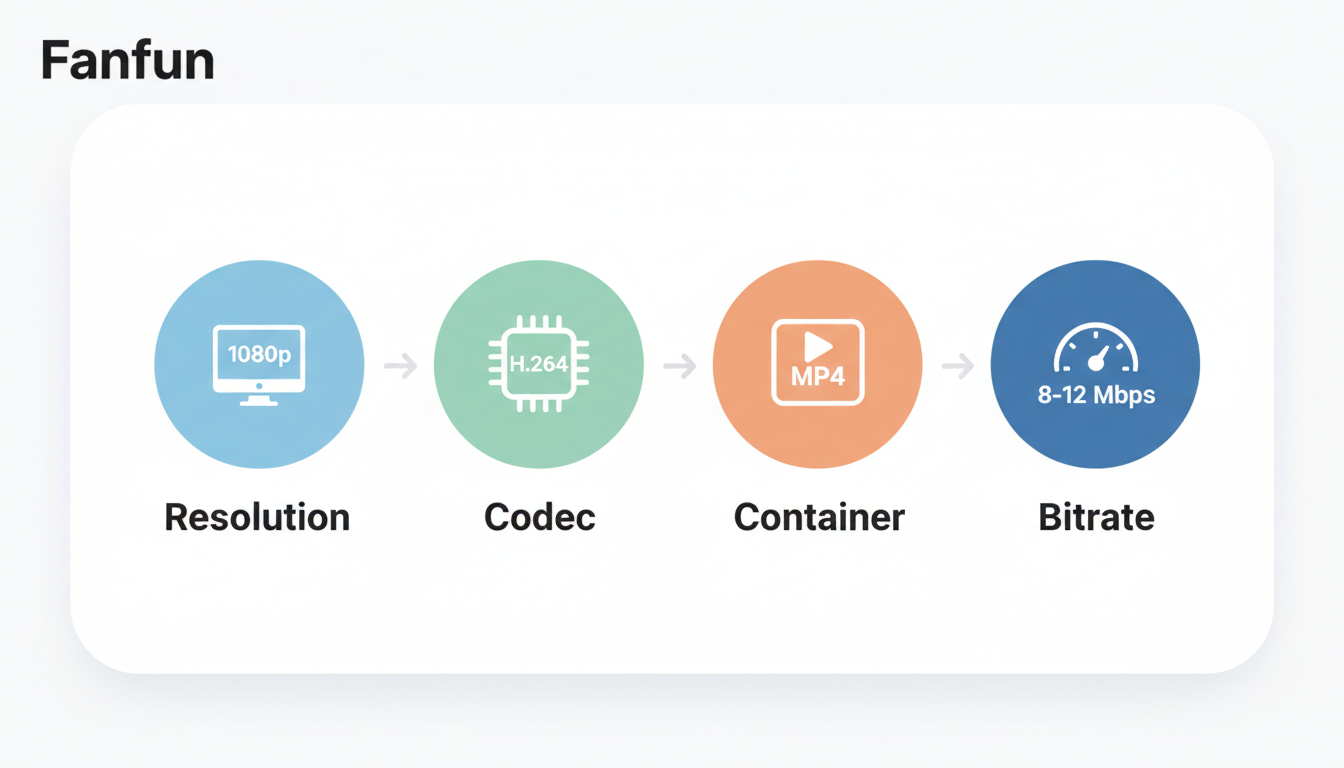
Use this recommended technical framework for your digital greeting exports:
- Video Codec: H.264. This is the absolute standard for web and mobile playback. It offers the best balance of high visual quality and broad compatibility.
- Container Format: MP4. Paired with H.264, an MP4 container is widely supported across most modern devices (including iOS, Android, Windows, and macOS) without requiring specialized external players. For a deeper dive into alternative containers, consider choosing the best video file format for sharing digital greetings.
Quick Reference: Export Settings Matrix
| Setting | Landscape (Horizontal) | Portrait (Vertical) |
|---|---|---|
| Resolution | 1920 x 1080 pixels | 1080 x 1920 pixels |
| Aspect Ratio | 16:9 | 9:16 |
| Target Bitrate | 10-12 Mbps | 8-10 Mbps |
| File Container | MP4 (.mp4) | MP4 (.mp4) |
How to Share HD Videos Without Platform Compression
Even with the perfect export settings, your delivery method can make or break your video's quality. If you use an AI video generator like Fanfun, you want your recipient to appreciate every detail of the character's expression and voice. When directing an AI character video generator, maintaining high production value from script to export is only half the battle; the final step is ensuring those pixels arrive untouched.
To bypass automatic compression, use these platform-specific workarounds:
1. Send as a "File" Instead of Media
When using apps like WhatsApp or iMessage, do not tap the standard "Photo & Video Library" option. Instead, choose to send the video as a Document or File. This forces the application to treat your digital greeting as a raw data file, delivering it bit-for-bit without applying any background compression algorithms.
2. Use Secure Cloud Storage Links
If you plan to play the digital greeting on a large projector or a smart TV at an event (like a birthday party or retirement dinner), any compression will be highly visible. Upload your exported MP4 file to Google Drive, Dropbox, or iCloud, and share the direct download link with the recipient or event coordinator. This helps ensure they receive the file in its original exported quality, bypassing automatic platform compression.
Platform Compression & Sharing Workarounds
| Platform | Standard Sharing Behavior | Best HD Workaround |
|---|---|---|
| iMessage | May compress video files over cellular networks. | Send as a File or share via an iCloud Link. |
| Often compresses standard media attachments to reduce data usage. | Send as a Document or File. | |
| Often has strict attachment size limits and may reject large files. | Upload to a cloud storage service and share the link. | |
| Discord | May compress video previews or limit upload sizes for standard accounts. | Upload as a raw file or host on an external link. |
Why does my HD video look blurry when I send it via text message?
Standard SMS/MMS messaging relies on cellular carrier protocols that have extremely low file size limits. To make your video fit, your phone or carrier aggressively compresses the file, significantly reducing its resolution and visual quality. To prevent this, send the video using a modern messaging app as a "File" attachment, or share a direct cloud storage link.
What is the best aspect ratio for digital greetings meant for mobile phones?
The best aspect ratio for mobile viewing is 9:16 (portrait mode), which translates to a resolution of 1080x1920 pixels. This allows the recipient to view your digital greeting full-screen without needing to rotate their device.
Can I export a 4K digital greeting, or is 1080p sufficient?
While 4K offers incredible detail, it is generally unnecessary for digital greetings and results in massive file sizes that are difficult to share. A clean, properly compressed 1080p video provides crystal-clear quality on both mobile screens and large displays without the sharing headaches of 4K files.