How to Embed a Virtual Video Greeting in a Squarespace RSVP Page
Make your event invitations unforgettable. This guide shows you how to generate a custom virtual video greeting and embed it seamlessly next to your Squarespace RSVP form.
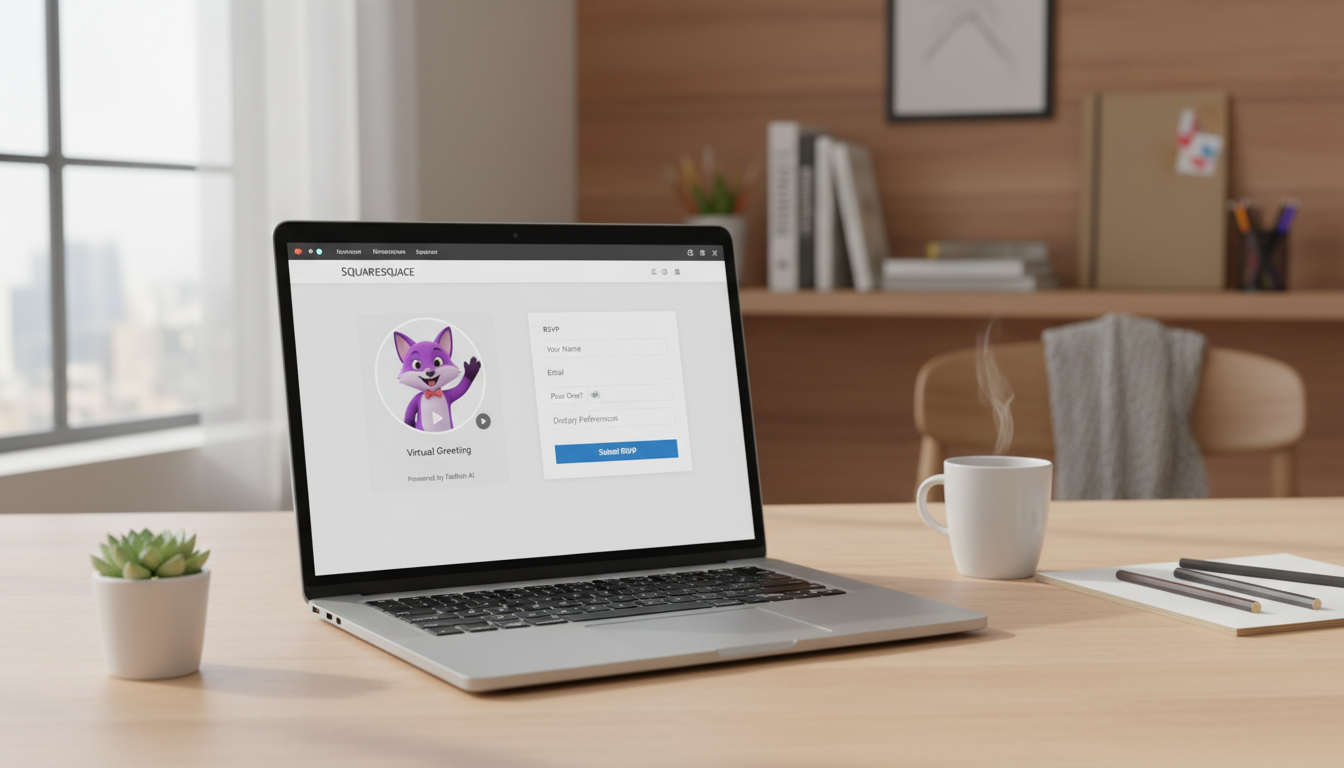
To embed a virtual video greeting on a Squarespace RSVP page, you can either upload your MP4 file directly to Squarespace's Asset Library and display it with a native Video Block, or host the video on an external platform like YouTube or Vimeo and paste the share link. Placing this engaging video directly above or beside your RSVP Form Block is an excellent way to delight your guests as they confirm their attendance. However, keep in mind that custom AI character video messages, like those created on Fanfun, are stylized AI personas designed for lighthearted entertainment rather than photorealistic, real-person recordings.
The Short Answer: Embedding Video on Squarespace RSVP Pages
Squarespace offers two primary ways to display video on a page: the native Video Block and the Code Block. For most event hosts, the native Video Block is the easiest and most reliable option. It integrates perfectly with Squarespace's Fluid Engine editor, allowing you to drag, drop, and resize the video player right next to your RSVP form.
To help you decide which approach fits your technical comfort level and design goals, here is a quick comparison of the two embedding workflows:
| Feature | Native Video Block | Code Block (HTML Embed) |
|---|---|---|
| Ease of Setup | Very High (Drag-and-drop) | Medium (Requires copying iframe code) |
| Hosting Options | Direct upload (up to 30 mins) or link URL | Third-party hosts only (Vimeo, YouTube, Wistia) |
| Mobile Responsiveness | Automatic resizing | Requires custom CSS or platform-specific settings |
| Player Customization | Basic controls, custom thumbnail fallback | Advanced (Hide player controls, custom skins via host) |
Step 1: Generate and Host Your Virtual Video Greeting
Before editing your website, you need to create your custom video. Using Fanfun, you can select a playful character, write a custom script, and generate an MP4 video file that is delivered straight to your inbox. Each video credit covers up to 30 seconds of speech, which is the perfect length for a quick, engaging event welcome.
Once you have your MP4 file, you must decide where to host it. If you want a quick setup, you can upload the file directly to your Squarespace Asset Library. This self-hosting method is convenient but can count against your Squarespace storage limits depending on your plan. Alternatively, uploading your video to a third-party platform like YouTube (set to "Unlisted") or Vimeo keeps your RSVP page loading fast and offers advanced playback controls.
If you are exploring other distribution channels for your event, you might want to compare this to the process of embedding a virtual character video in a digital invitation. You can also learn how to embed a virtual character video in an email greeting to reach your guests directly in their inboxes before they even visit your website.
Step 2: Add the Video Block to Your RSVP Page
Now that your video file is ready and hosted, it is time to add it to your Squarespace RSVP page. Squarespace's Fluid Engine makes this process straightforward:
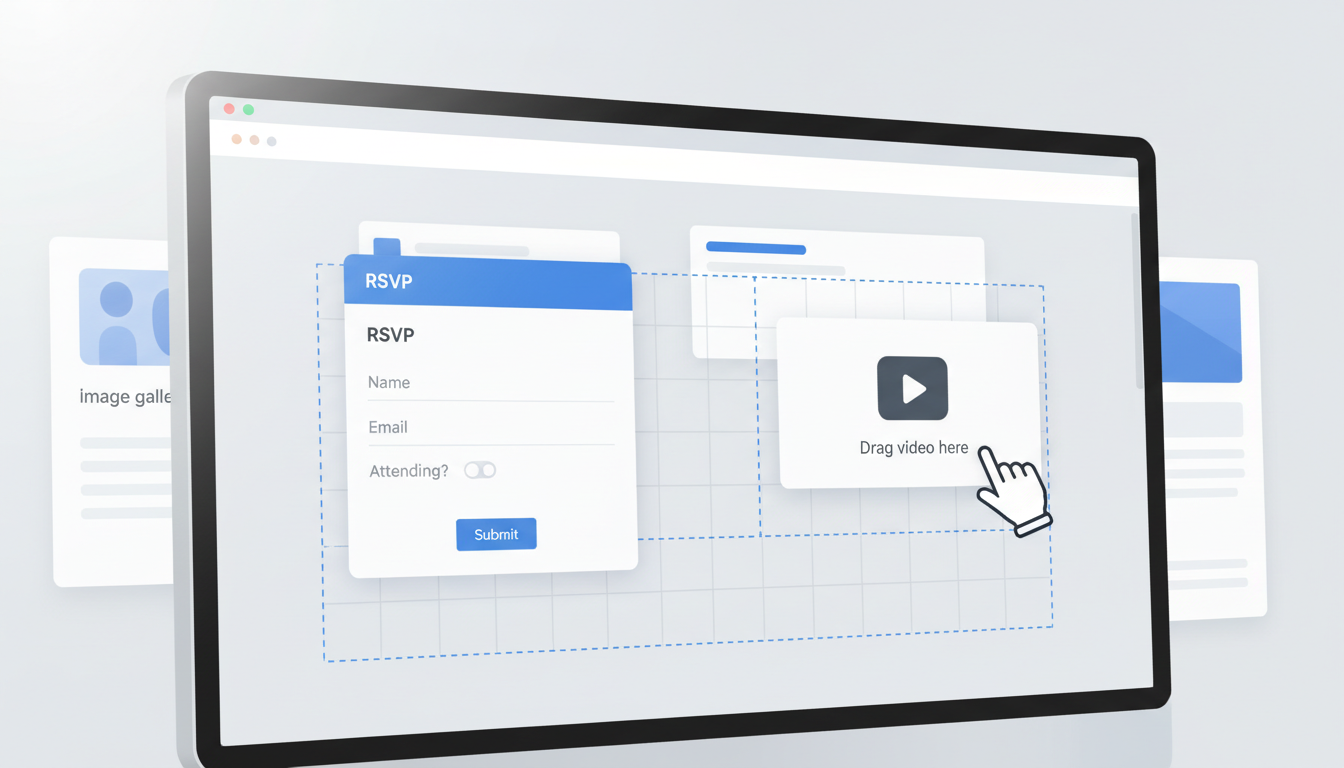
- Log into your Squarespace account, navigate to your event page, and click Edit in the top-left corner.
- Click Add Block in the section where your RSVP form is located, and select Video from the dropdown menu.
- Drag the new Video Block to your preferred location next to or above your RSVP Form Block.
- Click the pencil icon on the Video Block to open its settings. Under the "Video Link" tab, choose to upload your MP4 file directly or paste the URL from your YouTube or Vimeo upload.
- Switch to the "Design" tab to add a custom mobile fallback image or thumbnail, which can help manage the initial player appearance before guests click play.
Step 3: Position Your Video and RSVP Form for Maximum Impact
For the best user experience, your page layout should guide guests naturally from watching the video to filling out the form. How you arrange these blocks depends entirely on the devices your guests are using.
The Side-by-Side Layout (Desktop)
On desktop screens, place your video block on the left and your RSVP form block on the right. This side-by-side arrangement keeps both elements "above the fold" (visible without scrolling) and creates a balanced, professional look.
The Stacked Layout (Mobile)
Because mobile screens are narrow, your blocks will automatically stack. Make sure your video block sits directly above the RSVP form block. This layout ensures guests see and play the greeting first, building excitement before they type in their details.
To make the experience even more memorable, you can use themed scripts that match your event's style. For instance, if you are planning a themed party, you might consider writing a virtual pirate birthday script for an AI video message to set a playful tone right on the RSVP page. Always test your layout in Squarespace's mobile preview mode to ensure the "Submit" button on your RSVP form is easy to find and click on smaller screens.
Best Practices for RSVP Video Greetings
To ensure your video greeting delights your guests rather than frustrating them, keep these simple design and etiquette guidelines in mind:
- Avoid Autoplay with Sound: Most modern mobile browsers block video autoplay when audio is enabled. Unexpected loud sound can also startle guests. Keep autoplay turned off and let guests choose when to play the message.
- Keep It Under 30 Seconds: A short, punchy greeting maintains high engagement. A 15-to-30-second video is ideal for welcoming guests and prompting them to fill out the form.
- Add a Clear Text Caption: Place a small text block directly below the video player with a friendly call-to-action, such as "Watch a special message from our party captain!" to encourage clicks.
Can I track who watched the video greeting on my Squarespace RSVP page?
Squarespace's native analytics do not track individual video views. However, if you host your video on Vimeo or YouTube, you can log into those platforms to view aggregate metrics like play counts, average watch time, and viewer drop-off rates.
Will embedding a video on my RSVP page slow down my website?
Directly uploading too many large video files to Squarespace can sometimes impact load times. To keep your RSVP page running fast on all devices, we recommend hosting the video on YouTube or Vimeo and using the share link inside the Squarespace Video Block.
Can I use a custom player skin to match my wedding or event color scheme?
Squarespace's native Video Block uses a clean, minimalist player that cannot be heavily customized. If you want a player skin with custom colors or hidden playback controls, you can host your video on a premium Vimeo account, customize the player appearance there, and embed it using a Squarespace Code Block.