How to Display Digital Character Videos at Live Events
Want to feature a virtual character greeting at your next live event? Learn how to choose the right screen layout, manage venue acoustics, and set up offline playback loops so your message runs flawlessly.
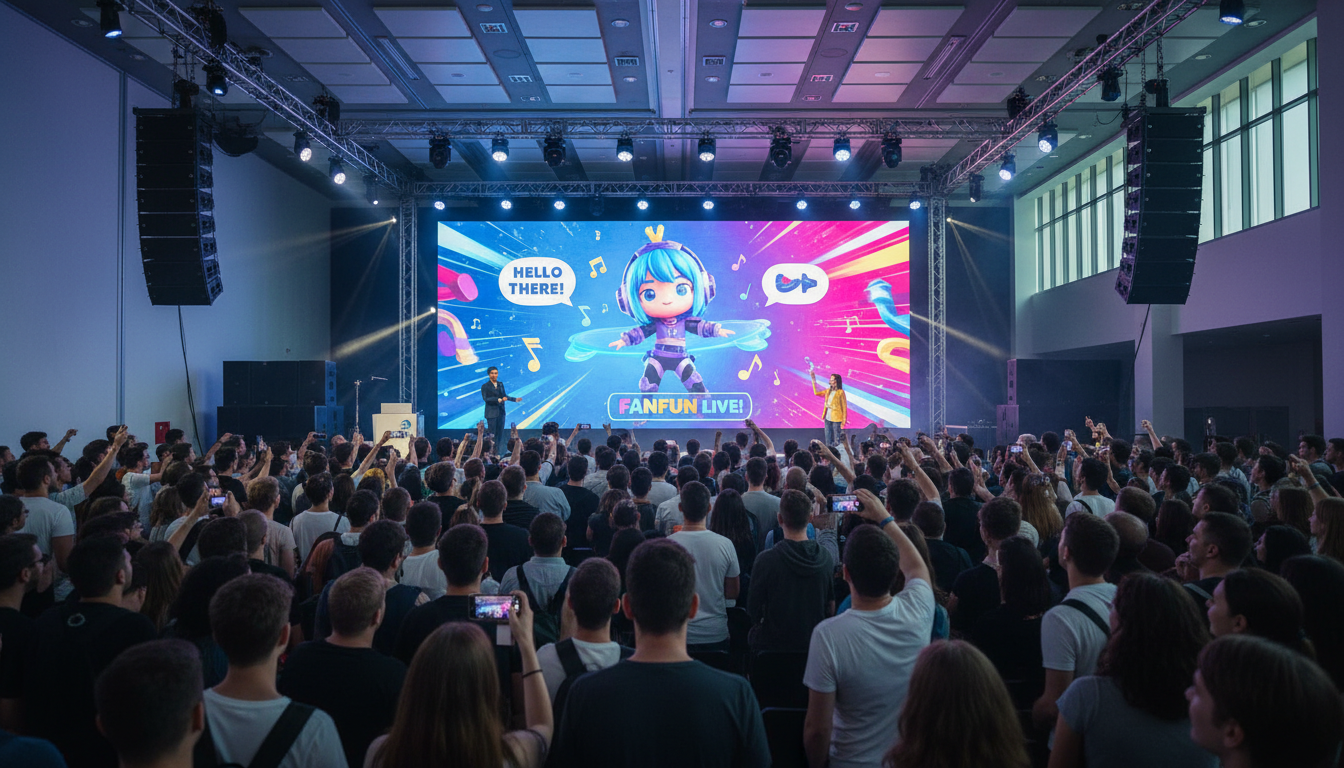
To display a digital character video at a live event successfully, you must download the video file locally to a reliable presentation device, match its aspect ratio to the venue's physical screens (typically 16:9 widescreen or 9:16 vertical displays), and route the audio directly into the venue's PA system. While streaming online is tempting, unstable event Wi-Fi makes local playback the only reliable choice. Keep in mind that AI-generated character messages, like those created on Fanfun, are pre-rendered synthetic creations rather than live, interactive actor feeds. Planning your technical setup in advance ensures your virtual guest of honor makes a flawless impression.
Aligning Your Video Aspect Ratio with Venue Displays
Before you render your custom video, you must assess the physical screens at your venue. Event spaces generally use one of two setups: traditional horizontal screens (projectors, wall-mounted TVs, or LED stage walls) or vertical displays (like digital poster boards or mobile kiosks). If you display a vertical video on a widescreen projector, you will end up with thick black bars on the sides (letterboxing), which diminishes the visual impact of your character.
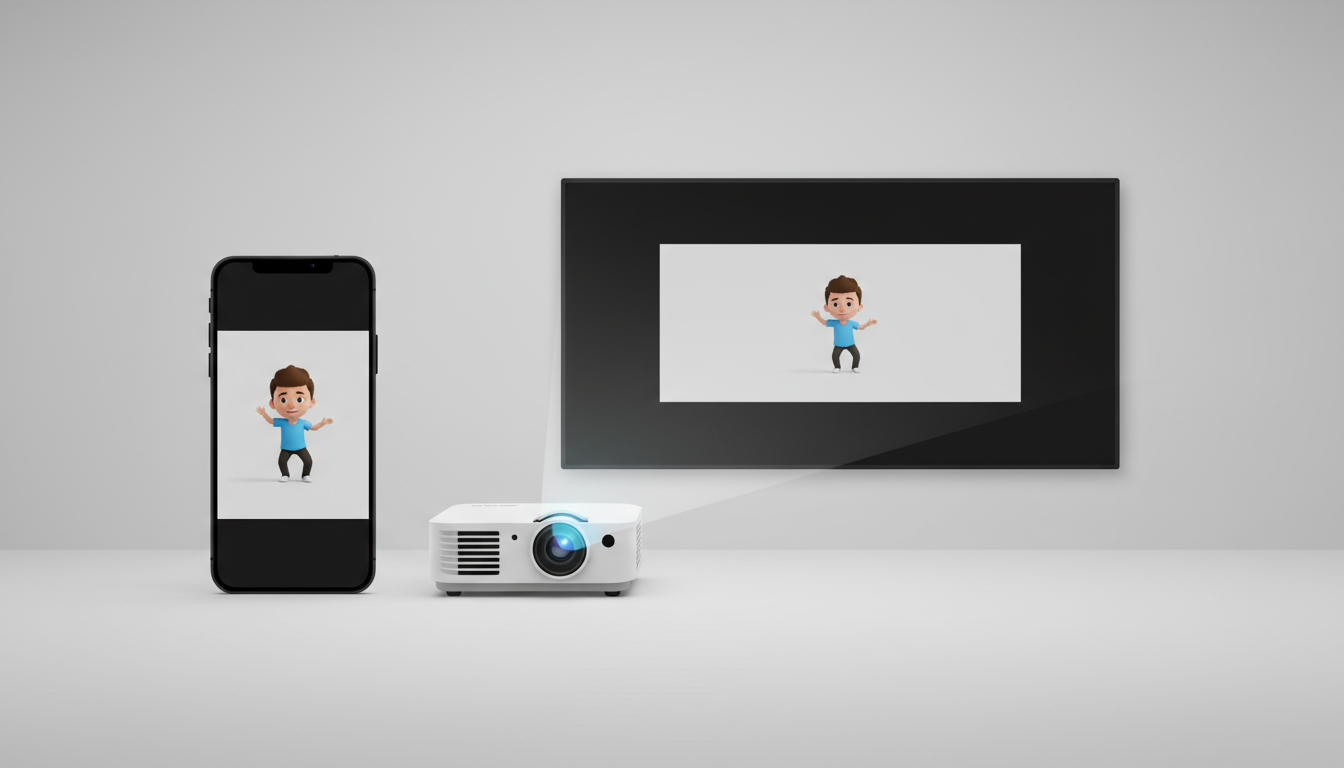
For stage presentations, a standard 16:9 widescreen aspect ratio is almost always the best fit. If your venue uses vertical kiosk stands for ambient guest greeting, format your video in 9:16. Additionally, match your script length to the event context. For a live crowd, shorter is always better. A concise message of under 30 seconds keeps the audience engaged without slowing down the event's momentum. This aligns perfectly with Fanfun video templates, which are optimized for high-impact, short-form delivery.
| Display Type | Best Aspect Ratio | Optimal Use Case |
|---|---|---|
| Stage Projector / LED Wall | 16:9 (Widescreen) | Main stage announcements, milestone toasts, or opening remarks. |
| Lobby TV / Flat Panel | 16:9 (Widescreen) | Informal viewing areas, bar backdrops, or transition screens. |
| Digital Poster / Kiosk | 9:16 (Vertical) | Welcome signage, photo booths, and interactive entryways. |
Managing Audio and Acoustics in Loud Event Spaces
The biggest point of failure for digital displays at live events is audio. Relying on the built-in speakers of a television or a portable projector in a room full of chatting guests can make it difficult for your audience to hear the audio clearly. To help ensure your message is heard, consider routing your playback device's audio directly into the venue's house PA system or a dedicated external soundbar using high-quality auxiliary or XLR connections.
Because synthetic voices carry differently than live human speech, writing a clear script is vital. You want to use bold, punchy phrasing and avoid complex sentences that might get garbled in a reverberant room. If you are preparing a message to pump up your guests, learning how to write an encouraging motivational script will help you craft dialogue that cuts through the noise. As an absolute fail-safe, always enable open captions or burn subtitles directly into your video file so guests can read along even if the room gets exceptionally loud.
Playback Strategies: Local Downloads vs. Live Streaming
Never rely on a live internet connection to stream your character video during an event. Venue Wi-Fi is notoriously unpredictable once a room fills up with guests and their mobile devices. A buffering icon in the middle of your digital character's speech will instantly break the magic of the moment.
Instead, generate your message in advance and secure the file on your local hardware. If you are presenting from a laptop, make sure you know how to download virtual character videos directly to a Mac or PC to ensure you have an offline MP4 file ready to go. Use a robust, offline media player like VLC to handle the playback rather than a web browser.
Your playback strategy will depend on how the video fits into your program:
- Single-Play Triggers: For milestone moments—like a birthday toast or a surprise guest introduction—keep the media player window minimized until the exact cue. Play it once, then transition back to your presentation slides or live camera feed.
- Continuous Looping: For ambient displays in lobby areas or photo booths, configure your media player to loop endlessly. Setting up a loop is straightforward, but you should review the technical steps on how to loop a virtual character video for a party display to keep the playback seamless without manual intervention.
The Live Event AV Checklist
Before your guests arrive and the doors open, run through this quick AV checklist to ensure your digital character display runs smoothly:
- Verify Aspect Ratio: Test the video on the actual venue screen to confirm there is no awkward stretching, cropping, or letterboxing.
- Perform a Soundcheck: Play the video at the venue's peak volume. If possible, simulate ambient crowd noise to ensure the character's voice remains clear and audible from the back of the room.
- Check Physical Connections: Ensure you have all necessary hardware dongles (such as USB-C to HDMI or HDMI to VGA adapters) and that cables are taped down securely to prevent accidental unplugging.
- Disable Sleep Settings: Turn off all screensavers, sleep timers, and automatic system updates on your playback device so the screen does not go dark mid-event.
- Secure Offline Access: Confirm that the video file is saved locally to the desktop and does not require an active internet connection to play.
Can I stream the video directly from the Fanfun platform during my event?
We highly recommend against streaming live from the platform. Venue Wi-Fi networks can be unstable and slow down significantly when crowded. To avoid buffering or quality drops, always download your finished Fanfun video as an MP4 file beforehand and play it locally from your laptop or media player.
What should I do if the venue's projector only supports VGA instead of HDMI?
If the venue uses an older VGA projector, you will need an active HDMI-to-VGA or USB-C-to-VGA converter dongle. Keep in mind that VGA cables do not transmit audio signals. You must run a separate 3.5mm auxiliary audio cable from your laptop's headphone jack directly into the venue's sound system or external speakers.
How do I prevent my laptop from going to sleep during a long looped display?
Before the event starts, open your computer's system settings and temporarily set the display sleep and system sleep timers to "Never." Additionally, disable screensavers and close any background applications that might trigger system notifications or pop-ups during playback.