Beyond the Robotic Siri: How to Direct Character-Driven AI Voiceovers for High-Engagement Reels
Ditch the monotonous robotic narrator. Discover how to direct character-driven AI voiceovers on Fanfun to hook viewers, structure comedic timing, and elevate your short-form video edits.
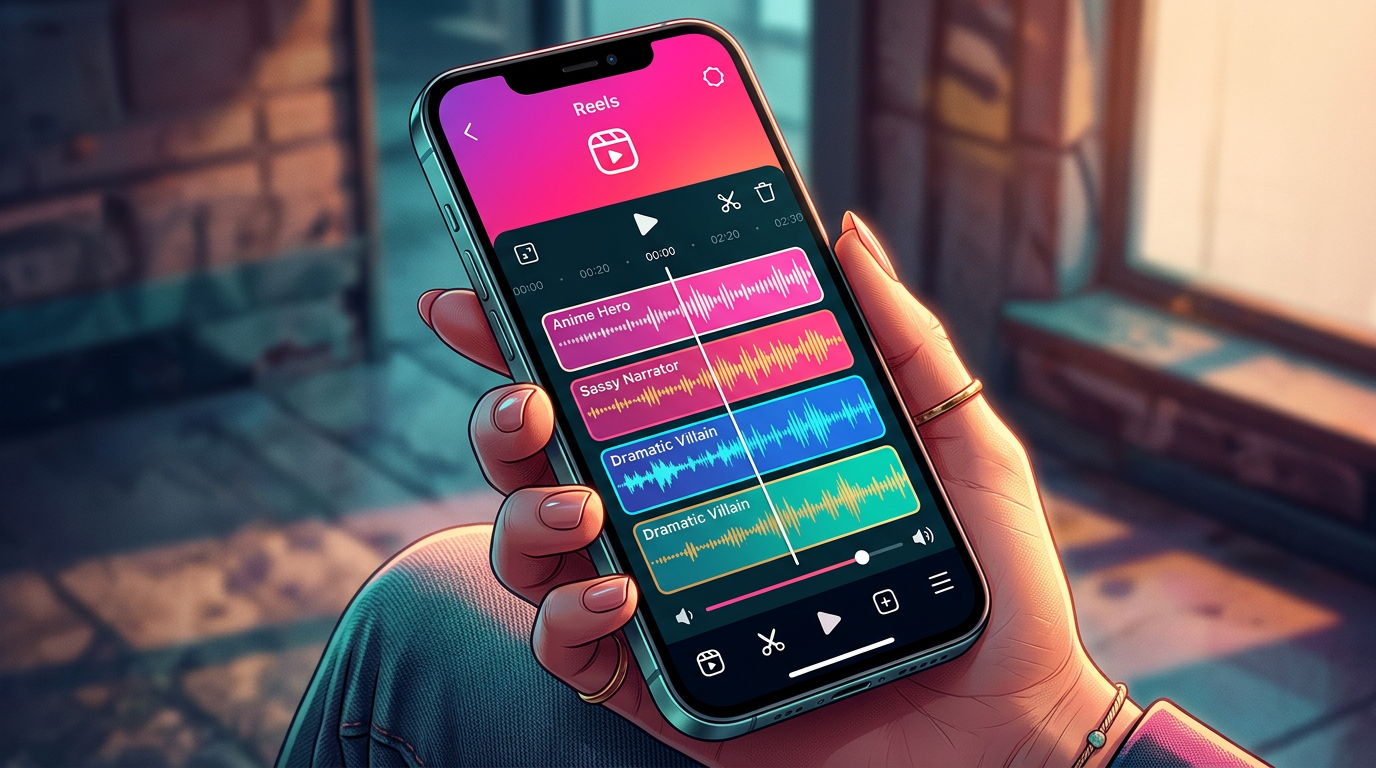
Scroll through Instagram Reels for five minutes, and you will hear the same three text-to-speech voices narrating everything from baking tutorials to daily vlogs. This auditory monotony has triggered collective scroll fatigue; audiences have learned to instantly tune out those flat, robotic tones before the first frame even finishes loading.
To capture attention in today's hyper-saturated feeds, creators must stop treating AI voice generators as mere reading utilities and start treating them as voice actors. By directing highly expressive, character-driven AI voiceovers with Fanfun, you can inject instant humor, drama, or surrealism into your short-form videos to break the scroll and hold viewers' attention from start to finish.
The Death of the Monotone: Why Standard TTS Fails on Reels
Standard text-to-speech (TTS) engines were designed for accessibility, not entertainment. They read text with clinical precision, stripping away the cadence, breathing patterns, and emotional micro-inflections that make human speech compelling. When millions of creators use the exact same default voices, your content immediately blends into the background noise of the feed. Audiences do not just ignore the voice; they actively associate it with low-effort, repetitive content and swipe away within milliseconds.
The secret to bypassing this filter is vocal incongruity. This psychological trigger occurs when there is a stark, unexpected contrast between what the viewer sees and what they hear. Imagine a mundane video of someone organizing a spice rack, but instead of a bubbly lifestyle narrator, the voiceover is a booming, overly dramatic movie trailer narrator or a high-energy anime hero. This unexpected pairing creates immediate curiosity, forcing the viewer to pause and figure out the joke.
This is where Fanfun transforms your production workflow. Instead of settled, generic robotic voices, Fanfun provides an instant, affordable library of highly expressive, culturally relevant character and celebrity-style voices. It allows you to cast the perfect virtual personality for your video’s specific tone, giving you the creative freedom of a professional voice studio without the steep costs or long turnaround times of traditional voice talent.
The Reels Pacing Blueprint: Scripting for the 3-Second Hook
Writing a script for an AI voice generator requires a fundamentally different approach than writing for a human voice actor. Humans naturally scan ahead, adjust their breathing, and apply intuitive emphasis to key words. An AI reads literally, meaning you must write visually and structurally to guide the synthetic narrator's pacing.
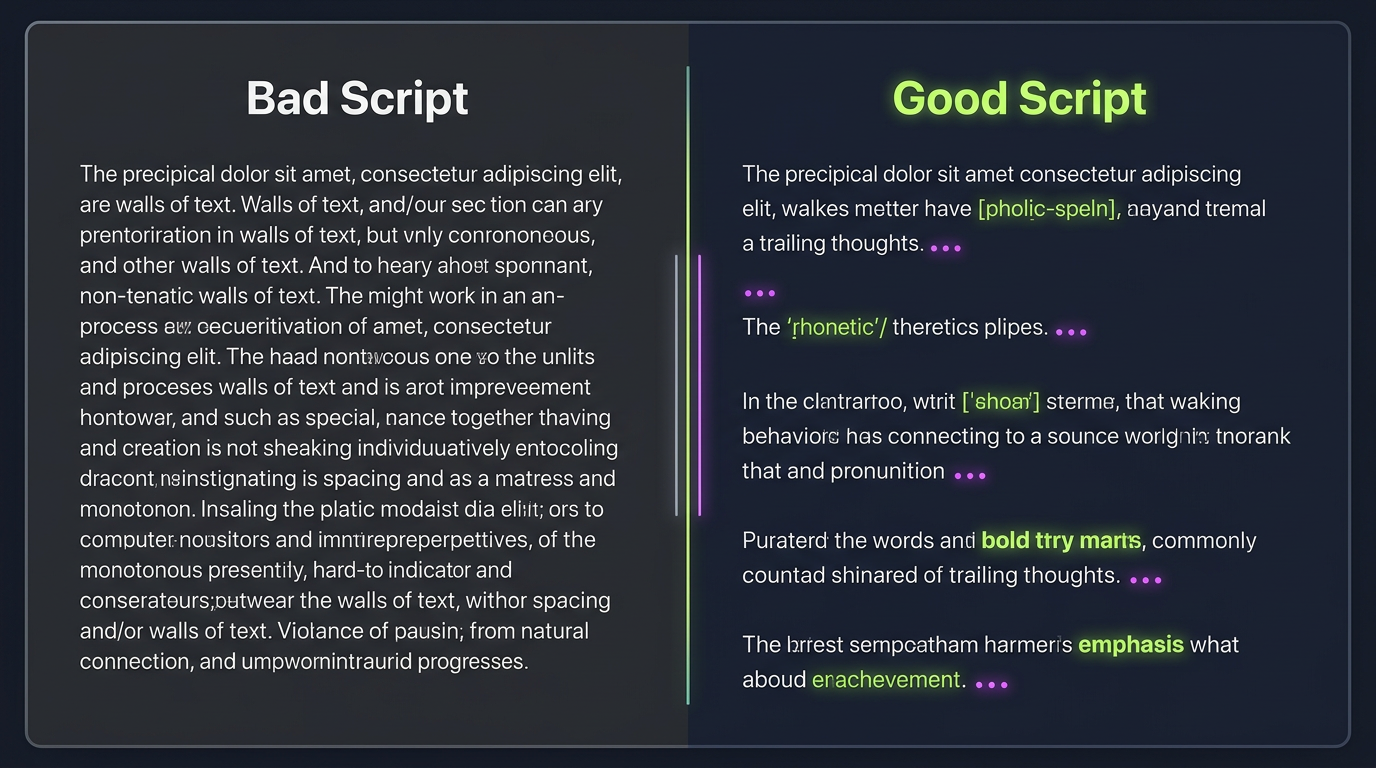
To master the 3-second hook on short-form platforms like Reels, you should employ the Immediate Incongruity technique. Start your script with a highly specific, provocative statement delivered by a voice that has no business saying it. For example, rather than starting with "Today I am showing you my morning routine," use an anime-style warrior voice to declare, "The dark forces of morning exhaustion have returned, and only this double-shot espresso can save my soul."
While short-form Reels demand rapid-fire hooks, long-form creators can explore more expansive pacing strategies in our guide to directing synthetic narrators for YouTube essays. For short-form, keep your sentences brief, punchy, and highly rhythmic.
Mastering the Punctuation Hacks for AI Pacing
To get the best performance out of an AI voice generator, you must learn to "code" your script using creative punctuation. Here is a quick reference checklist to format your scripts for maximum expressive impact:
- The Dramatic Pause (...): Use ellipses to force the AI to pause and build tension before a punchline or transition.
- Phonetic Spellings: If the AI mispronounces a brand name, slang, or a specific word, spell it phonetically. Write "kay-os" instead of "chaos" or "pro-teen" instead of "protein" to get the exact inflection you need.
- Capitalization for Punch: While some engines ignore caps, many interpret capitalized words or exclamation marks as cues to raise their pitch or add energy.
- Line Breaks for Breathing: Break your sentences into short, isolated lines to give the AI engine natural "breathing room" between thoughts.
Match the Voice to the Vibe: A Creator’s Casting Framework
Choosing the right voice is just as important as writing a great script. If the voice archetype does not align with your content niche—or contrast with it in an intentional, funny way—the video will feel jarring for the wrong reasons. A stylized cartoon character brings instant nostalgia, while a smooth, authoritative cultural icon adds immediate weight and credibility.
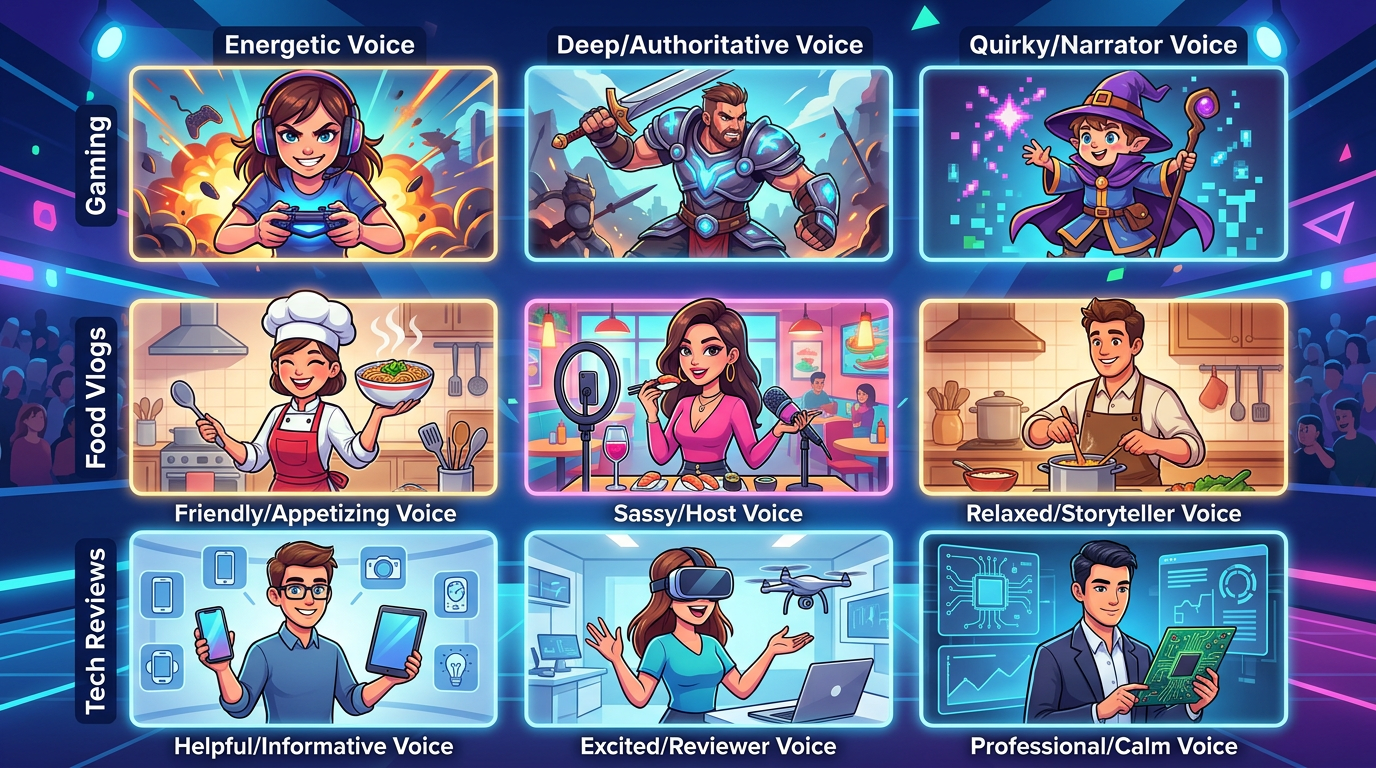
To help you navigate your casting choices, use this strategic framework to match your content niche with the perfect AI voice archetype on Fanfun:
| Content Niche | Voice Archetype | Ideal Pacing Style | Visual Contrast Example | Retention Goal |
|---|---|---|---|---|
| Daily Vlogs / GRWM | Sassy, deadpan narrator | Slow, sarcastic, rhythmic | Applying makeup while the voice roasts your blending technique | Humor & relatability |
| Gaming & Tech Reviews | Over-the-top Anime Hero | Rapid-fire, high-energy | Unboxing a standard mechanical keyboard like it is a legendary weapon | Hype & shareability |
| Food & Cooking | Booming Movie Trailer Voice | Slow, dramatic, deep | Flipping a grilled cheese sandwich with cinematic gravity | Irony & theatrical scale |
| Educational / Finance | Calm, authoritative mentor | Steady, clear, reassuring | Explaining complex market trends with simplified, animated visual aids | Trust & clarity |
By utilizing these distinct archetypes, you are not just delivering information; you are building an auditory brand identity. Over time, your followers will begin to recognize specific character voices as a recurring theme in your content, transforming standard videos into highly engaging community memes.
Directing Comedy and Commentary: Timing the Punchline
Comedy on short-form video relies entirely on timing. While human comedians use physical pauses and vocal inflections to land jokes, directing comedy with an AI voice generator requires strategic scripting and precise editing. One of the most effective techniques is the "self-aware" voiceover, where the character narrator reacts in real-time to what is happening on screen, even correcting itself or showing exasperation.
For creators looking to leverage these voices for trending cultural commentary, mastering the art of the reaction video is a highly effective way to drive engagement. You can set up a split-screen layout where a stylized character voice provides witty, real-time commentary on a trending clip. This format works incredibly well because the voice acts as a surrogate for the audience's internal thoughts, delivering punchy observations with comedic timing that keeps viewers glued to the screen.
If your goal is pure, high-retention comedy, understanding how to structure comedic beats with synthetic voices is essential, as detailed in our guide to directing comedy voiceovers. Try experimenting with sudden shifts in vocal tone. For example, have a character start a sentence in a highly professional, polite tone, only to abruptly switch to a deadpan, sarcastic remark after a well-timed visual cut. This sudden shift breaks the viewer's expectations and almost always guarantees a laugh—and a comment.
Technical Workflow: Integrating Fanfun Audio into Your Reels Edit
Once you have generated your character-driven voiceover on Fanfun, the final step is seamlessly blending it into your video editing workflow. A poorly mixed voiceover can ruin even the best script, so paying attention to audio levels and captions is critical for high retention.
Follow this step-by-step workflow to integrate your Fanfun audio files into popular mobile and desktop editing suites like CapCut, Premiere Pro, or VN Editor:
- Generate and Export: Input your customized, punctuated script into the Fanfun AI Voice Generator. Choose your desired character voice, generate the audio, and download the high-quality MP3 or WAV file directly to your device.
- Import and Align: Import the audio track into your editing timeline. Align the voiceover beats with your visual cuts. For maximum comedic or dramatic impact, ensure that major visual transitions occur precisely at the start of a new voiceover sentence or immediately after a dramatic pause.
- Apply Audio Ducking: To keep your dialogue crystal clear, never let your background music compete with the voiceover. Lower your background music track by 3 to 6 decibels (dB) whenever the AI voice speaks. If your editor has an "auto-ducking" feature, enable it to automatically lower the music volume during speech.
- Generate Kinetic Captions: Over 70% of social media users watch videos on mute. Use your editor's auto-caption tool to transcribe the AI voiceover. Once generated, style the captions to match the energy of the character. Use bold, contrasting colors, high-visibility outlines, and active "pop" or "bounce" animations to make the text jump off the screen in sync with the audio.
By combining Fanfun's expressive, character-driven voices with professional audio mixing and dynamic captions, your Reels will stand out as polished, high-production content that commands attention in a sea of monotone clips.
How do I make an AI voiceover sound more natural on Instagram Reels?
To make an AI voiceover sound natural, avoid long blocks of uninterrupted text. Use punctuation strategically: insert ellipses (...) for pauses, commas for natural breathing breaks, and spell difficult or slang words phonetically. Additionally, layering a subtle background music track and applying soft sound effects (like swooshes or keyboard clicks) helps blend the voice naturally into the video's audio landscape.
Can I use AI voiceovers on Reels for commercial or sponsored content?
Yes, you can use AI voiceovers for sponsored content, but you must ensure you are using a platform like Fanfun that respects creative ethics and licensing. Always check the terms of service of the specific voice generator you are using, and ensure any celebrity-style or character voices are presented in a clearly creative, parody, or transformative context rather than misleading audiences into thinking a real celebrity is endorsing a product.
What is the best way to sync AI voiceovers with my video clips in CapCut?
First, import your exported Fanfun audio file into CapCut. Use the "Split" tool to cut the audio track at natural pauses or sentence breaks. This allows you to drag and position individual phrases directly underneath the exact video frames you want to highlight. If you need a clip to match the audio perfectly, use CapCut's speed adjustment tool on the video track rather than stretching the audio, which can distort the voice pitch.
Why does my AI voiceover sound robotic, and how do I fix it?
An AI voiceover usually sounds robotic because the script lacks natural speech cues or the engine is reading too quickly. To fix this, break up long compound sentences into shorter, conversational fragments. Use exclamation points to inject energy, question marks to raise the pitch at the end of a sentence, and dash symbols (-) to represent abrupt stops or transitions in thought.