How to Cast Custom Video Greetings to a Roku Device
Want to play a custom video greeting on the big screen? Here is a step-by-step guide to casting video files and web-hosted videos directly to your Roku device.
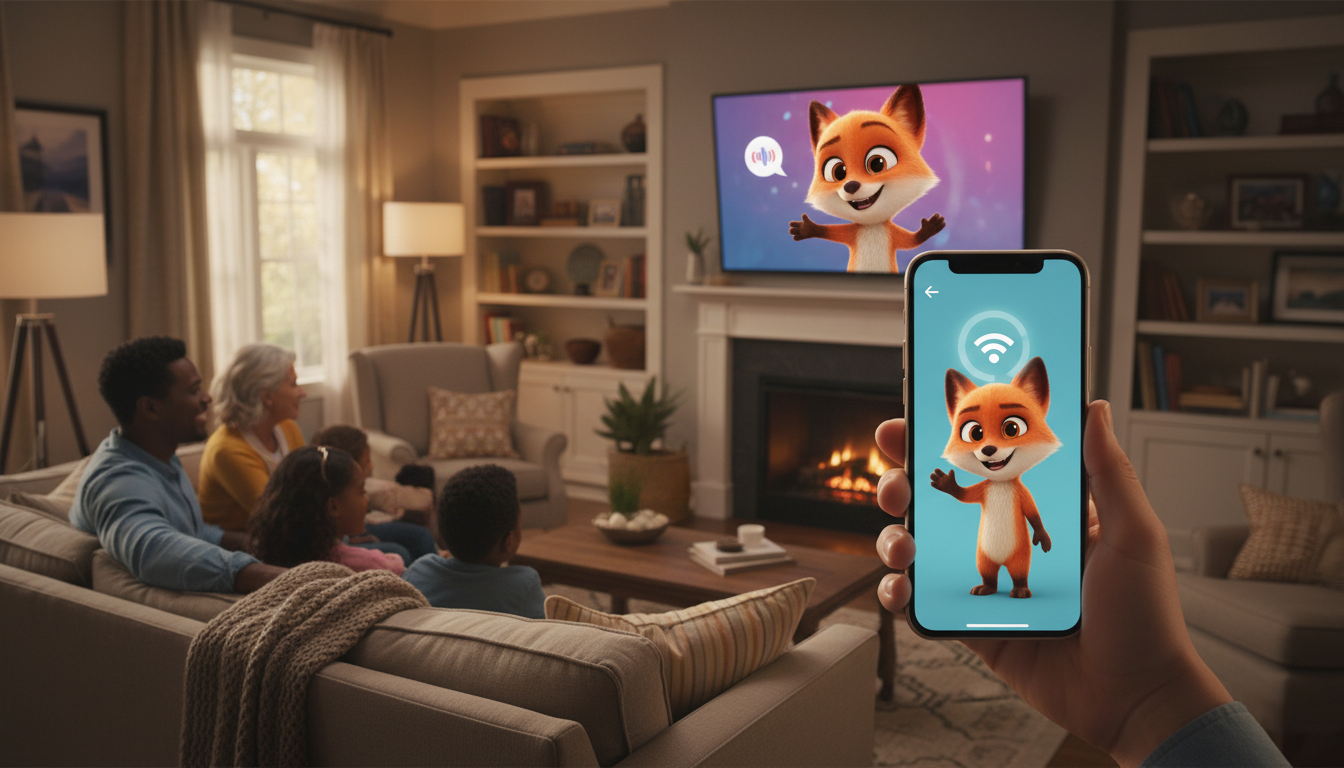
To cast a custom video greeting to a Roku device, both your sending device (such as a smartphone, tablet, or computer) and your Roku must be connected to the exact same Wi-Fi network. Because Roku devices do not have a native web browser to open video links directly from your email, you must bridge the gap by using mobile screen mirroring, casting through a third-party app, or playing the physical video file via the Roku Media Player. While custom video greetings, such as those created with Fanfun's AI characters, are delivered directly to your inbox, casting them is the key to turning a personal digital message into a shared living room celebration.
Method 1: Casting Directly from Your Mobile Device
The most direct way to get your video greeting onto the TV is by mirroring your smartphone or tablet screen. This method works well if you have already downloaded the video file directly to your device. Downloading the file completely before playing prevents wireless buffering or stuttering during the big reveal.
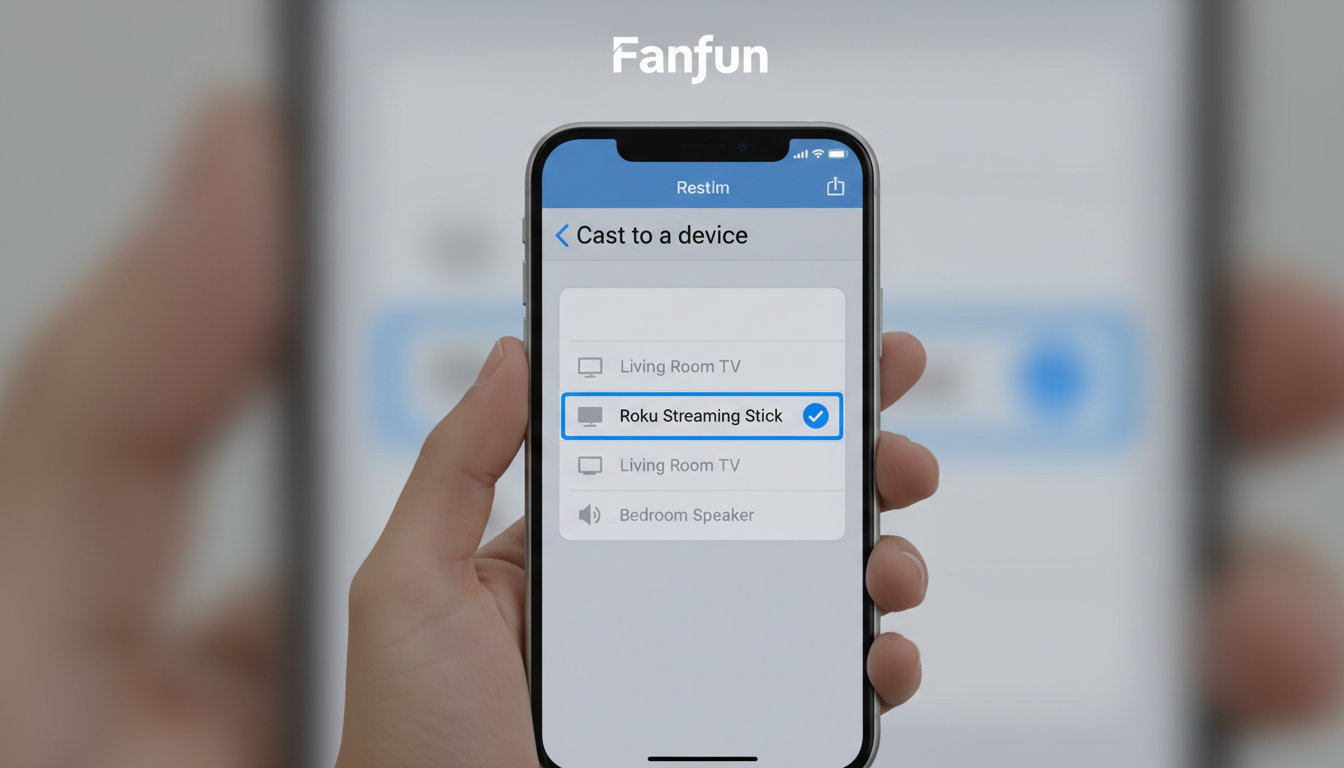
For iPhone and iPad Users (Apple AirPlay)
Roku supports Apple AirPlay on most modern 4K streaming players and Roku TVs. First, ensure AirPlay is enabled on your Roku by navigating to Settings > Apple AirPlay and HomeKit and turning it on. Next, open the downloaded video file in your Photos or Files app on your iOS device. Tap the Share icon, select AirPlay from the options, and choose your Roku device from the list. The video will instantly launch on your TV screen in full-screen resolution.
For Android Users (Screen Mirroring)
Android devices use screen mirroring protocols often labeled as Smart View, Quick Share, or Screen Cast depending on your phone manufacturer. Swipe down from the top of your Android screen to open the Quick Settings panel, tap your casting icon (such as Smart View on Samsung devices), and select your Roku player. Once your entire mobile screen is mirrored onto the television, open your video player app, rotate your phone to landscape mode, and play the greeting in full screen.
Method 2: Casting via Private Video Hosting Apps
If you experience local screen-mirroring lag or want to avoid local wireless interference, uploading the video to a cloud platform can be a helpful alternative. Roku has a native YouTube app that handles video playback without taxing your phone's processor.
To do this, upload your custom greeting to YouTube as an "Unlisted" video. This privacy setting ensures that the video will not appear in public search results or on your channel page; only people with the direct link can view it. If you want to compare other cloud-sharing platforms first, you can explore the best video hosting options for sharing custom virtual greetings to find a platform that matches your privacy needs.
Once uploaded, open the YouTube app on your mobile device, start playing your unlisted video, and tap the Cast icon at the top of the video player. Select your Roku device, and the native Roku YouTube channel will launch automatically, playing your video greeting in crisp, uncompressed quality.
Method 3: Playing Locally via Roku Media Player
If your home Wi-Fi is spotty or you prefer to play the video offline, you can bypass wireless casting entirely by using local storage. This is particularly useful if you keep a structured folder of your family's media files. For example, you can learn how to save and archive custom virtual video greetings to OneDrive for easy access across all your devices before transferring them to local storage.
Using a USB Drive
If you own a Roku TV or a Roku Ultra streaming box, your device features a physical USB port. Transfer your downloaded video greeting to a USB flash drive formatted to FAT32 or NTFS. Insert the flash drive into the Roku's USB port. Your Roku should automatically prompt you to launch the free Roku Media Player app (if it is not installed, you can download it quickly from the Roku Channel Store). Navigate to your video file and press play.
Using a DLNA Local Server
If you do not have a physical USB port but run a local media server (like Plex or a DLNA-enabled network drive), you can access your archived video greetings over your local network. Open the Roku Media Player app, select the DLNA server option, locate your media folder, and stream the file directly to your TV.
Tips for a Flawless Big-Screen Surprise
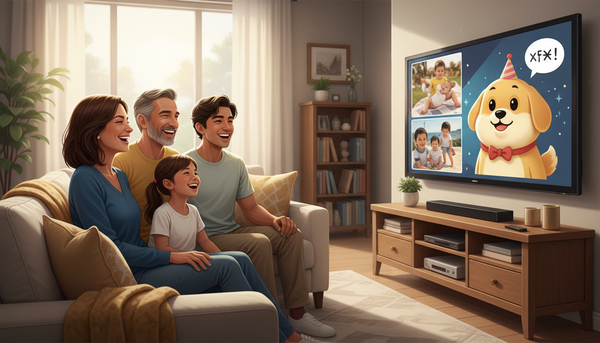
A living room watch party is a fantastic way to deliver a message, especially when creating custom video greetings for kids' birthdays using virtual characters to make the living room reveal even more magical. To make sure the surprise goes off without a hitch, keep this preparation checklist in mind:
| Method | Setup Effort | Best For | Potential Limitation |
|---|---|---|---|
| Mobile Casting (AirPlay/Smart View) | Low | Quick, spontaneous playback | Requires strong local Wi-Fi signal |
| Private YouTube Upload | Medium | Bypassing local mirroring lag | Requires uploading video beforehand |
| Roku Media Player (USB) | High | Offline playback with zero buffering | Requires compatible Roku hardware with USB ports |
- Test 15 minutes early: Turn on your TV, test the casting connection, and verify the volume levels before gathering your audience in the living room.
- Adjust the audio: Make sure your TV's soundbar or internal speakers are adjusted so the character's voice is crisp and easily understood over any background party chatter.
- Queue the video: Keep the video paused on the very first frame so the recipient does not see playback controls or loading bars when you switch the TV input.
Why is my Roku device not showing up on my phone's casting list?
This is almost always caused by your phone and Roku being on different Wi-Fi bands (such as one on 2.4 GHz and the other on 5 GHz) or different networks entirely. Ensure both devices are connected to the exact same SSID. Additionally, check your Roku settings to confirm that AirPlay or screen mirroring is enabled.
Can I cast a video greeting to Roku if I don't have a smart TV?
Yes. As long as you have a Roku streaming stick or box plugged into one of your TV's HDMI ports, the Roku device handles the wireless connection. Your TV does not need built-in smart features to receive the casted video.
Will casting a video greeting compress the audio or video quality?
Direct screen mirroring can sometimes introduce slight compression or lag depending on your local Wi-Fi strength. To help maintain playback quality, uploading the video to a private YouTube link and casting it via the native Roku YouTube app, or playing it via a USB drive, can help preserve the original resolution and audio clarity.