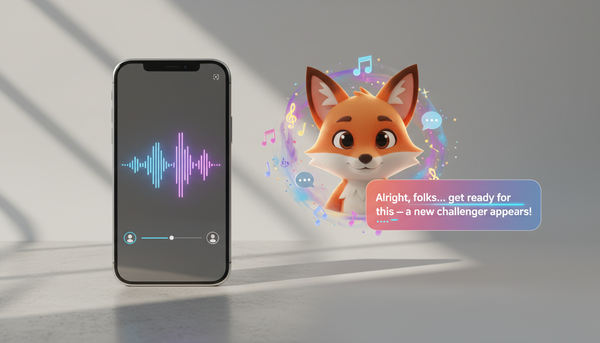
How to Create a Virtual Group Card with a Custom Video Message
Ditch the boring text-only group cards. Learn how to combine heartfelt video clips from remote team members with a custom AI character video centerpiece to create an unforgettable milestone greeting.
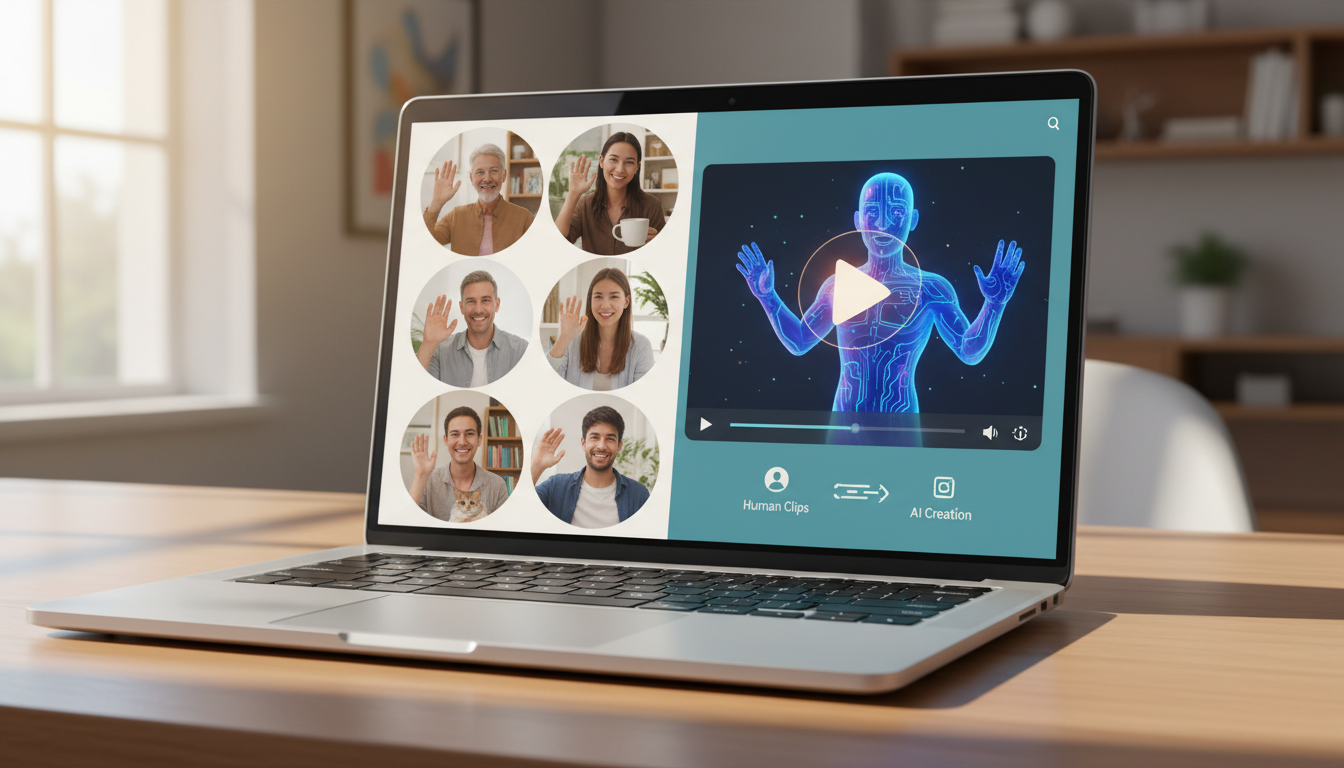
Creating a virtual group card with video involves choosing a collaborative digital card platform, collecting short video clips from your team, and adding a high-impact, custom video centerpiece to grab the recipient's attention. To make the card truly memorable and avoid digital signature fatigue, you can combine raw, personal clips from coworkers with a polished, AI-generated character video from Fanfun to anchor the card. This hybrid approach ensures the card feels both deeply personal and exceptionally entertaining.
The Anatomy of a High-Impact Virtual Group Card
Standard virtual cards often suffer from a common issue: "digital signature fatigue." When remote coworkers are asked to sign a digital card, they frequently resort to generic, repetitive text messages. The result is a flat, uninspiring wall of text that feels like a chore to read. Transitioning to video changes the dynamic entirely. A hybrid virtual card combines the best of both worlds: raw, heartfelt video messages from the team alongside a professional-grade, humorous AI character video centerpiece. By using Fanfun, organizers can instantly generate a custom video message from an AI interpretation of a beloved fictional icon or celebrity. This high-energy centerpiece acts as the headliner at the top of the card, while individual team clips provide the warm, personal support act below.
Step 1: Choose Your Group Card Platform
To host your collaborative video card, you need a platform that makes it easy for multiple people to upload video files without requiring login accounts. Consider these general criteria when choosing your hosting platform:
- Video File Size and Format Support: Check if the platform supports direct video uploads or recordings, and verify if there are any file size limits for contributors.
- Customization and Layout Options: Look for platforms that allow you to pin a centerpiece video at the top and arrange contributor clips in an engaging grid or timeline.
- Ease of Use: Ensure the platform allows remote team members to contribute easily from both mobile devices and desktops without needing to create an account.
Once you select a platform, set up your card's theme and write a clear prompt for your contributors. For a deeper dive into setting up your initial card, check out our step-by-step guide on sending a virtual birthday card with a custom video.
Step 2: Generate an AI Character Video Centerpiece
The secret to elevating your virtual group card is the centerpiece. Instead of a standard greeting, you can use Fanfun to create a custom AI character video that matches the recipient's personality, favorite show, or team inside jokes. To create your video on Fanfun, pick your favorite character, write a custom script, and generate your custom AI video in just minutes. When writing the script, focus on a lighthearted roast, a shared team joke, or a specific milestone, and use phonetic spelling for unique names to ensure the AI pronounces them correctly.
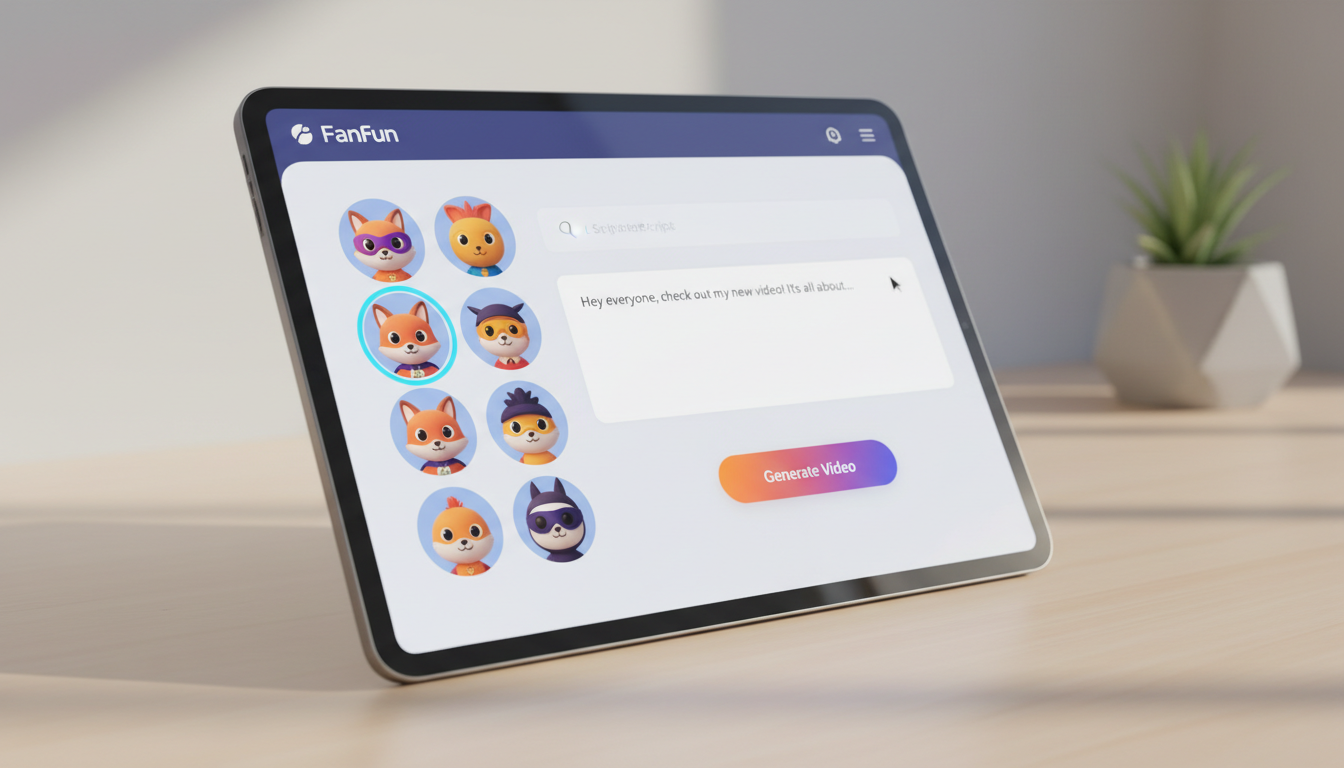
Here is an illustrative script template you can customize:
"Hey [Name]! Word around the virtual watercooler is that you are celebrating [Milestone]. The team tells me you are still trying to master the mute button on Zoom. Keep shining, and have an amazing day!"
For a comprehensive strategy on structuring a group celebration video, refer to our complete blueprint for orchestrating a virtual birthday card with custom video.
Step 3: Coordinate Team Contributions and Assemble the Card
Getting busy, remote team members to submit their videos on time can feel like herding cats. To ensure high participation rates, use the Three-Day Rule and provide clear, simple guidelines. Here is a practical framework to keep your campaign on track:
- Day 1 (The Launch): Send a Slack message and an email with the card link. State the deadline clearly, giving them exactly three days to submit.
- Day 2 (The Gentle Nudge): Send a quick reminder in your team channel, highlighting how easy it is to record directly from a phone.
- Day 3 (The Final Call): Send a direct message to key team members who haven't contributed yet.
Keep the recording instructions simple: ask contributors to keep clips between 15 and 30 seconds, record in a quiet room, and face a window or bright light source. Once the clips are in, arrange the layout. Place your polished Fanfun AI character video at the very top of the board to set an energetic tone, followed by the casual, personal clips from the team below.
Step 4: Deliver the Card for Maximum Impact
How you present the final card determines how well it lands. Depending on your team's workflow, choose one of these delivery methods:
- Synchronous Delivery (The Live Watch): Share your screen during a team Zoom call or virtual happy hour. Play the Fanfun centerpiece video first to get everyone laughing, then scroll through the team's individual video messages.
- Asynchronous Delivery (The Scheduled Surprise): Schedule the card to arrive in the recipient's inbox at a precise time (e.g., 9:00 AM on their birthday). Pair this with a celebratory announcement in your team's primary Slack channel.
If you want more creative delivery ideas, read our guide on creating surprise announcement videos with AI characters. Finally, ensure you download a copy of the completed card. Many platforms allow you to export the board as a video montage or a high-quality PDF, giving the recipient a lasting keepsake they can look back on for years to come.
What is the ideal length for a virtual group card video?
Keep individual team clips between 15 to 30 seconds. The centerpiece video (like an AI character message from Fanfun) should be kept concise and engaging. This keeps the overall card easy to watch in one sitting.
Can I add background music to a collaborative video card?
Yes, many virtual card platforms allow you to upload a background audio track or select one from their library. If you use a custom Fanfun video, it will already have high-quality audio, so make sure any background music on the card platform doesn't overpower the spoken messages.
How do I handle team members who are camera-shy but still want to contribute?
Offer them alternatives. They can record an audio-only message, upload a fun GIF with a text note, or contribute a photo of a shared memory accompanied by a written message. A great virtual card accommodates everyone's comfort levels.