How to Upload Virtual Character Videos to Instagram: A Step-by-Step Guide
Want to share your custom character greetings on social media? Follow this step-by-step guide to upload virtual character videos to Instagram Reels, Stories, and posts while maintaining clear audio and visual quality.
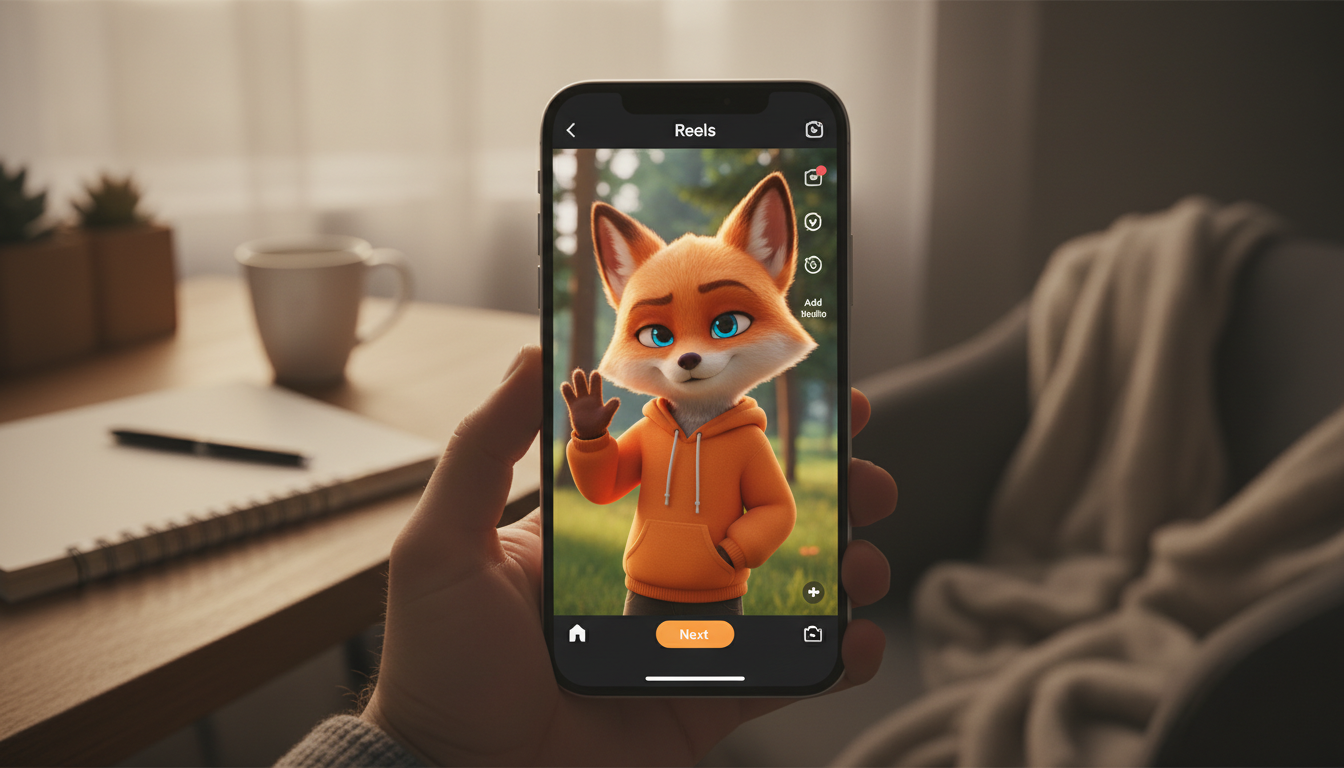
To upload a virtual character video to Instagram, you must first download the video file (ideally in MP4 format) to your mobile device's camera roll and upload it directly through the Instagram app as a Reel, Story, or Feed post. Unlike real-person recordings captured directly within the app, digital creations from platforms like Fanfun are processed externally and delivered to your inbox, requiring a manual save before uploading. To maintain high visual and audio quality, always toggle on Instagram's "Upload at Highest Quality" setting and keep your video to the standard 9:16 aspect ratio.
The Direct Answer: How to Get Your Character Video Ready for Instagram
When you create a personalized video gift, the process is slightly different from filming a quick video on your phone. Because platforms like Fanfun generate your custom character video on external servers, the finished file is sent directly to your email or saved in your account dashboard. To get this file onto Instagram, you must first download it to your physical device.
For the smoothest experience, ensure the file is in a mobile-friendly format. If you need help preparing your download, check out our guide on converting your virtual character video to an MP4 format for seamless mobile playback. Once the MP4 is saved to your phone's camera roll, it is ready to be uploaded to Instagram just like any other video.
Step-by-Step: Uploading to Reels, Stories, and Feed Posts
Instagram offers several ways to share content, each suited for different kinds of character messages. Here is how to navigate the main three formats:
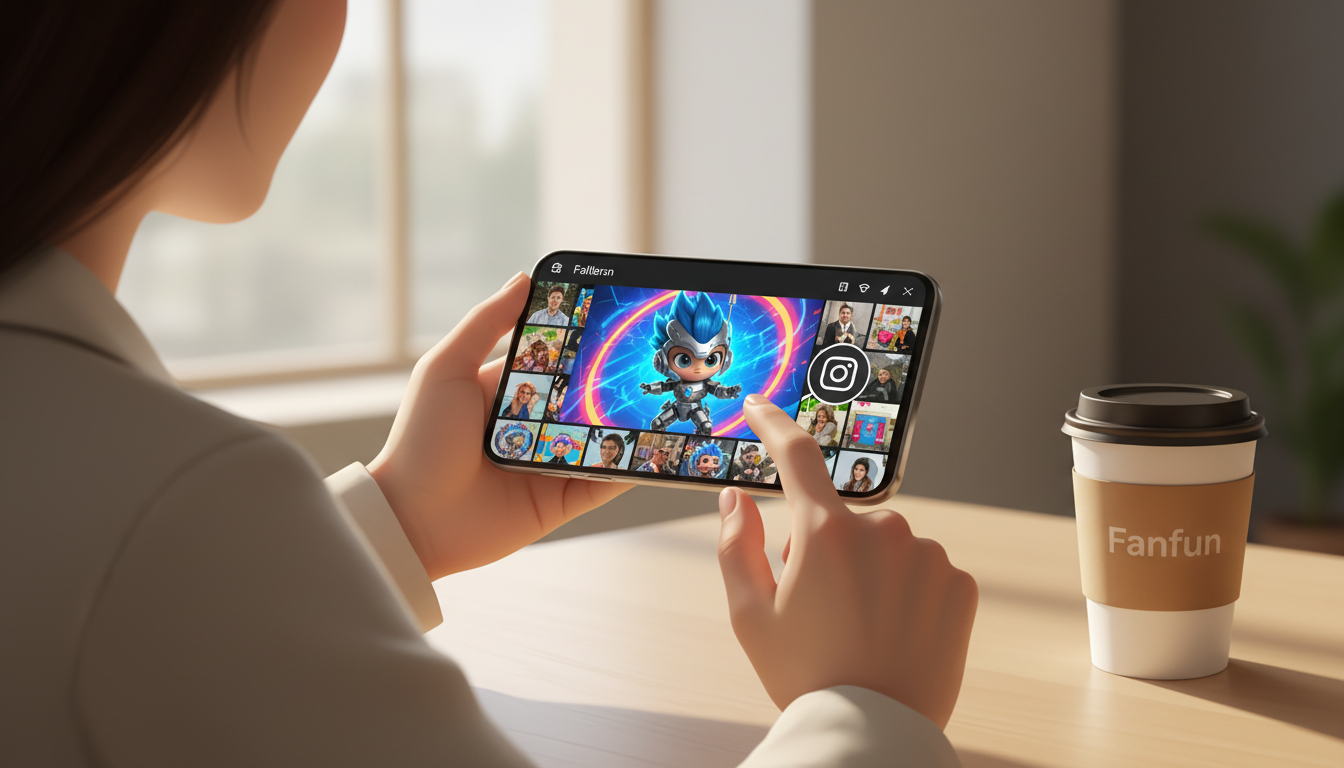
1. Posting to Instagram Reels
Reels are the best format for short, engaging character scripts. Since Fanfun video gifts are optimized for quick, entertaining deliveries, they fit naturally into the Reels feed.
- Open the Instagram app and tap the + (Create) icon at the bottom.
- Select Reel from the bottom slider.
- Tap the gallery icon in the bottom-left corner and select your downloaded 9:16 character video.
- Add a fun caption, tag any friends who should see it, and tap Share.
2. Posting to Instagram Stories
Stories are temporary (lasting 24 hours) and perfect for casual, real-time greetings or daily fun.
- Swipe right from your main Instagram feed to open the Stories camera.
- Tap the gallery icon in the bottom-left corner and choose your character video.
- Use interactive stickers like countdowns, location tags, or mentions to make the character greeting feel highly personal and interactive.
- Tap Your Story to publish.
3. Posting to Your Instagram Feed
If you want the video to remain permanently on your profile grid as a digital keepsake, a classic feed post is the way to go.
- Tap the + (Create) icon and select Post.
- Select your character video and tap Next.
- Write a meaningful caption and share it to your grid.
Keep in mind that custom animated character videos offer a unique, stylized digital look that differs from live actor shoutouts. This stylized appearance is perfect for standing out visually on a crowded feed, but it also means the video relies heavily on clear audio and proper framing to look its best.

The Instagram Quality Checklist: Keeping Audio and Video Crisp
Because Instagram compresses video files to save bandwidth, digital animations can sometimes lose their sharpness. Use this checklist to help maintain clear audio and visual quality:
| Setting/Feature | Best Practice for Virtual Characters | Why It Matters |
|---|---|---|
| Media Upload Quality | Toggle on "Upload at Highest Quality" in Instagram Settings. | Prevents Instagram from heavily compressing your high-resolution MP4. |
| Aspect Ratio | 9:16 vertical for Reels/Stories; 1:1 or 4:5 for Feed. | Avoids awkward cropping or black bars on the sides of your character. |
| Audio Settings | Do not layer loud Instagram music stickers over the speech. | AI character voices rely on precise synthesis; background noise can drown out the dialogue. |
| Video Length | Keep scripts under 30 seconds. | Helps align with typical viewer attention spans for short-form content. |
Creative Ways to Share Your Character Videos
Once you know how to upload your files, you can start experimenting with creative ways to share them with your followers:
- Send a Public Birthday Wish: Post a custom character greeting as a Reel, tag your friend, and let their favorite persona deliver the message publicly. For more inspiration on making these moments special, explore our favorite creative digital birthday ideas that genuinely surprise people.
- Share Educational Fun: If you are using character videos to engage students, post a teaser of the character's lesson on your school or classroom Instagram page to build excitement. It is a fantastic way to bridge digital learning with interactive social media.
Why does my virtual character video look blurry after uploading to Instagram?
Instagram automatically compresses videos to save data. To fix this, open your Instagram profile, tap the menu icon, go to Settings and Privacy, find "Media Quality," and ensure "Upload at Highest Quality" is turned on. Also, make sure you are uploading over a strong Wi-Fi connection.
How long can my virtual character video be on Instagram Reels?
While Instagram Reels can be up to 90 seconds long, custom character videos are most effective when they are short and sweet. Keeping your script under 30 seconds can help keep your audience engaged and ensure the character's message remains concise.