The Micro-Interaction Soundboard: How to Design and Sync Custom Audio for Web Animations
Web animation is no longer just about visual motion—it is about sensory feedback. Discover how to map, optimize, and generate custom character audio and UI barks that load instantly in any browser.
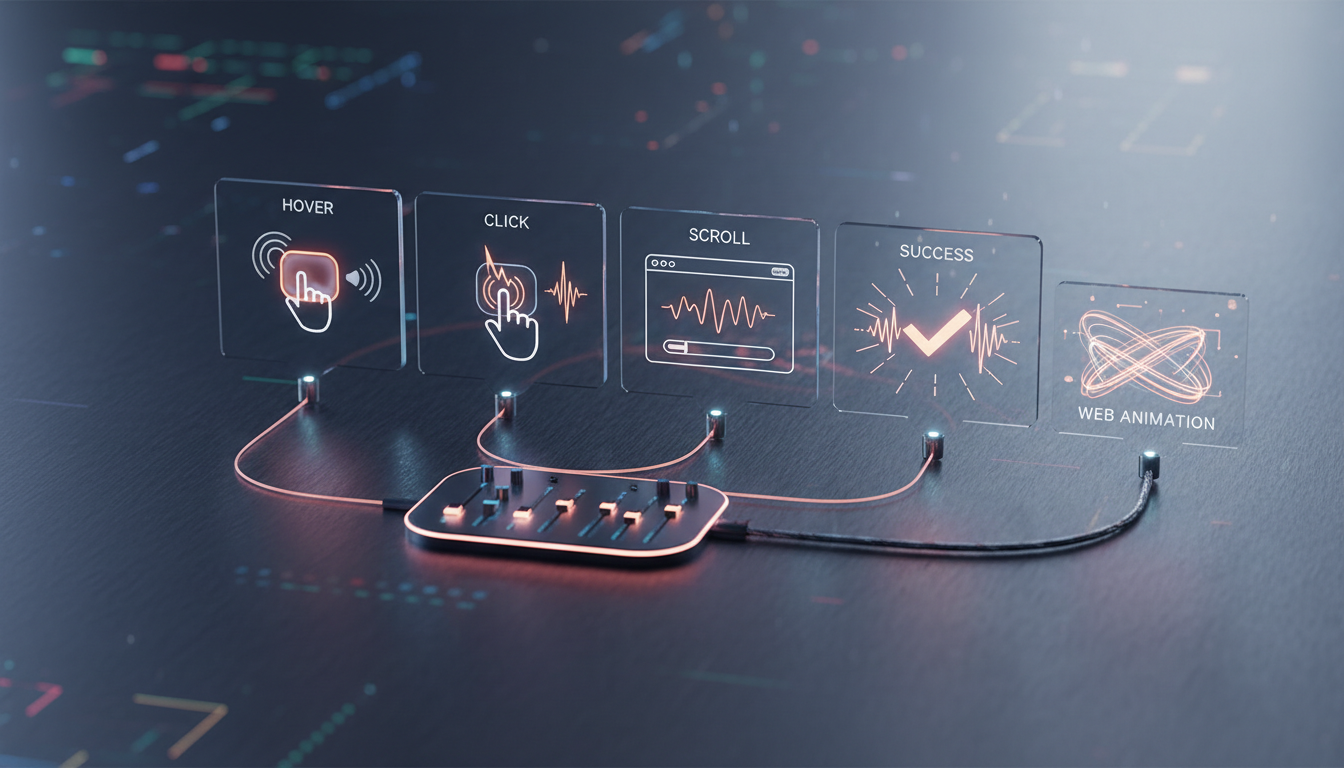
Static landing pages are rapidly losing ground to dynamic, motion-driven web experiences. Modern web designers use Lottie, SVG, and Rive animations to make buttons dance, icons spin, and illustrations morph in real-time. Yet, even the most visually stunning micro-interactions can feel hollow and disconnected when they happen in absolute silence.
Adding sound to these visual triggers transforms a passive browse into an active sensory journey. The challenge lies in introducing audio without bloating your page weight or annoying your users. By designing a lightweight, responsive audio system, you can turn routine clicks into delightful moments of engagement that keep users exploring your interface.
The Web Animation Audio Dilemma: Speed vs. Personality
In traditional video production, audio is linear, predictable, and baked directly into a single media file. Web animations, however, are dynamic, state-driven, and highly interactive. When a user hovers over an SVG icon, toggles a dark mode switch, or triggers a Lottie confetti burst, the corresponding audio must play instantly. This means the browser must load, decode, and play sound files on demand, introducing a delicate balance between personality and performance.
The primary bottleneck is page load speed. Standard uncompressed audio formats like WAV are far too heavy for production environments, easily adding hundreds of kilobytes to a page weight that needs to remain under a few megabytes. If your interactive sound effects cause the page to stutter or delay, the user experience is broken before the sound even plays. Designers must treat audio assets with the same optimization discipline they apply to images and code.
Despite these technical constraints, the psychological payoff of well-designed audio is immense. Known as "micro-rewards," subtle auditory cues provide tactile feedback in a flat digital landscape. A satisfying, organic pop when a toggle slides shut or a soft synth swell upon hovering over a navigation menu validates the user's actions. This sensory feedback loop increases user engagement, builds brand recall, and transforms mechanical tasks into satisfying interactions.
Mapping Audio to Motion: A Framework for Web Micro-Interactions
Designing audio for the web requires a structured approach to ensure sounds match the visual weight and intent of your animations. A heavy explosion sound paired with a tiny toggle switch feels jarring, while a weak click on a major checkout success animation feels anti-climactic. You must map your audio profiles directly to your UI states.

| Interaction Type | Visual Trigger | Audio Profile & Tone | Target Duration |
|---|---|---|---|
| Hover State | Navigation link expand, button glow | High-frequency, soft synth swell, low volume | 50ms - 100ms |
| Action Trigger | Checkbox toggle, form submission click | Mid-range mechanical click, organic pop, or snap | 100ms - 150ms |
| Progress Loop | Loading spinner, file upload bar | Rhythmic, low-frequency hum or subtle ticking | Continuous (looping) |
| Success State | Confetti burst, checkmark animation | Harmonious major chord, bright chime, or character cheer | 300ms - 600ms |
| Error/Warning | Form validation failure, shake animation | Dissonant double-thud, low-frequency buzz | 200ms - 400ms |
When mapping these states, designing for repetition is critical. A sound that is delightful the first time can become incredibly annoying by the tenth. To prevent user fatigue, keep your interactive sounds under 300 milliseconds and use the Web Audio API to introduce slight pitch randomization (varying the pitch by +/- 5% on each trigger). This subtle variation mimics real-world physics, making the interface feel alive rather than robotic.
Before writing any code or generating assets, map out your motion and sound design concurrently. You can streamline this process by aligning your visual assets with a dedicated aligning your visual assets with a dedicated script-to-screen audio guide. This ensures your keyframes, visual transitions, and audio cues are perfectly synchronized from the very beginning of your design phase.
Generating Expressive Character Audio Instantly
For modern, highly branded web experiences—especially those featuring mascots, gamified onboarding, or interactive characters—standard UI blips and clicks aren't enough. You need expressive character barks, custom voice lines, and unique reactions that match the personality of your brand. Historically, securing these assets meant hiring voice actors, booking studio time, and managing complex editing pipelines—a process too slow and expensive for tiny web interactions.
This is where Fanfun’s AI Voice Generator changes the game. Instead of relying on generic stock audio, designers and developers can instantly generate expressive, multi-tonal character lines that fit their animation’s visual style. Whether you need a friendly, high-energy mascot to celebrate a user's milestone or a whimsical cartoon voice to guide them through a tutorial, Fanfun lets you create custom audio assets at scale without sacrificing quality or budget. This is highly effective when designing custom character audio tracks that perfectly match your visual aesthetics designing custom character audio tracks that perfectly match your visual aesthetics, giving your interactive vectors a distinct, memorable voice.
Writing Punchy Scripts for Web Audio Barks
When generating audio for web animations, your script formatting must adapt to the constraints of the browser. Long, rambling sentences do not work for micro-interactions. Focus on creating "barks"—one- or two-syllable expressions that convey immediate emotion.
- Keep it under three words: Use punchy expressions like "Woohoo!", "Oh-oh!", "Got it!", or "Let's go!".
- Emphasize clean articulation: AI generation tools perform best with clear phonetics. Avoid complex tongue-twisters that can sound muddy when compressed for the web.
- Match the visual cadence: If your mascot animation has a quick three-frame bounce, generate an audio bark with a sharp, rising intonation to match that upward momentum.
Optimization and Implementation: From Raw Waveform to Web-Ready Asset
Once you have generated your custom character barks and UI sound effects, you must optimize them for production. Your goals are minimal file size, fast decoding times, and flawless cross-browser compatibility.
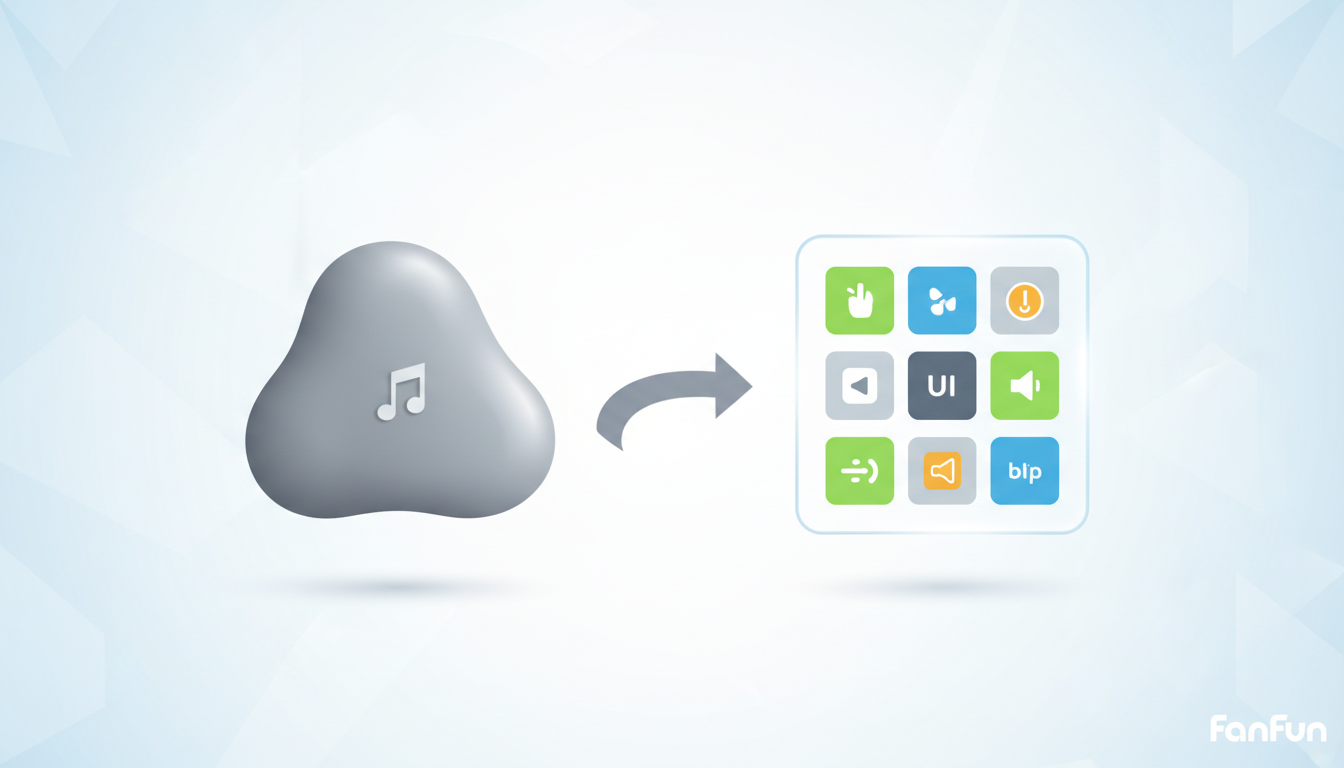
For web audio, format choice is everything. While WAV is perfect for editing, you must export your production assets as WebM (for modern browsers) with an MP3 fallback (for legacy support). WebM offers incredible compression ratios with minimal quality loss, making it the ideal choice for keeping page load speeds lightning-fast. OGG is also a strong alternative, though WebM has wider modern support.
To minimize HTTP requests, avoid loading dozens of separate tiny audio files. Instead, use the Audio Sprite Sheet technique. This involves combining all of your UI sound effects into a single audio file, separated by brief moments of silence. Using the Web Audio API, you can load this single file once and play specific segments by defining precise start and end timestamps in your JavaScript.
// Example of playing a specific sound from an audio sprite
const audioSprite = new Audio('sounds/ui-sprite.webm');
const spriteData = {
  hover: { start: 0, duration: 0.1 },
  click: { start: 0.5, duration: 0.15 },
  success: { start: 1.0, duration: 0.5 }
};

function playSound(action) {
  const sound = spriteData[action];
  audioSprite.currentTime = sound.start;
  audioSprite.play();
  setTimeout(() => {
    audioSprite.pause();
  }, sound.duration * 1000);
}
The Web Audio Optimization Checklist
Before deploying your interactive audio system, run through this quick checklist to ensure maximum performance:
- Compress all audio files using a tool like FFmpeg or Audacity, targeting a bit rate of 96kbps to 128kbps.
- Ensure all assets are mono rather than stereo, which instantly cuts the file size in half.
- Remove any silence from the beginning and end of individual sound files to eliminate latency.
- Implement a global "Mute" toggle that saves the user's preference to LocalStorage.
Additionally, you must account for modern browser autoplay policies. Browsers like Chrome and Safari block any audio from playing automatically before a user interacts with the page. To prevent errors, initialize your Web Audio AudioContext or load your audio elements only after the user performs their first gesture, such as clicking a "Get Started" button or toggling an initial menu.
Elevating Interactive Web Pages with Pop-Culture and Meme Cues
Web design is increasingly cultural. Incorporating recognizable, high-energy audio trends can turn a standard web interaction into a shareable, viral moment. When a user completes a difficult task, submits a form, or uncovers a hidden easter egg on your site, rewarding them with a familiar pop-culture sound bite or meme cue builds an instant connection.
Gamifying your interface with these trending auditory cues keeps your brand feeling modern, relevant, and human. You can easily generate these culturally aware sound bites by leveraging an AI meme sound generator to inject high-retention audio cues into your interactive elements leveraging an AI meme sound generator to inject high-retention audio cues into your interactive elements. This approach bridges the gap between clean UX design and internet culture, giving your web app a playful edge that resonates with younger audiences.
However, balancing branding with humor is essential. While a funny sound effect can delight a user the first time, it can quickly become intrusive if overused. Keep these high-energy pop-culture cues reserved for major, low-frequency milestones—like completing an entire onboarding sequence, achieving a personal best, or unlocking a special discount. For routine navigation and minor clicks, stick to subtle, organic interface sounds. By combining structured UX sound mapping with instantly generated, expressive character audio, you can create a highly engaging, lightweight web experience that sounds just as good as it looks.
How do I add sound to a Lottie animation on a website?
To add sound to a Lottie animation, you need to sync the animation's frame updates with the Web Audio API or standard HTML5 Audio elements. Using the lottie-web player, you can listen for specific events like enterFrame or use custom markers within your Lottie file to trigger JavaScript functions that play your optimized audio assets at the exact millisecond required.
What is the best audio file format for web animations?
The best combination for web compatibility and performance is WebM (using the Opus codec) for modern browsers, paired with an MP3 fallback for legacy support. WebM files offer incredible compression, keeping file sizes tiny while maintaining high-quality audio playback for short UI sounds and barks.
How do I prevent web animation audio from being blocked by browsers?
Modern browsers block autoplaying audio to protect the user experience. To prevent your audio from being blocked, ensure all sound playback is tied directly to a user interaction, such as a click, tap, or hover. Always initialize your Web Audio API AudioContext inside a user-triggered event listener.
Can I use AI voice generators to create UI sound effects?
Yes! AI voice generators like Fanfun are excellent for creating custom vocal UI sound effects, character barks, and voice-guided micro-interactions. You can generate short, expressive vocalizations (like "Woohoo!" or "Aha!") and compress them into lightweight web-ready assets that match your interface's unique visual style.