How to Format Dialogue for Multiple Virtual Characters in One Script
Writing for multiple AI personas requires acting like a digital director. Learn how to use the standard bracket system and strategic line breaks to keep your master scripts organized and streamline your video editing workflow.
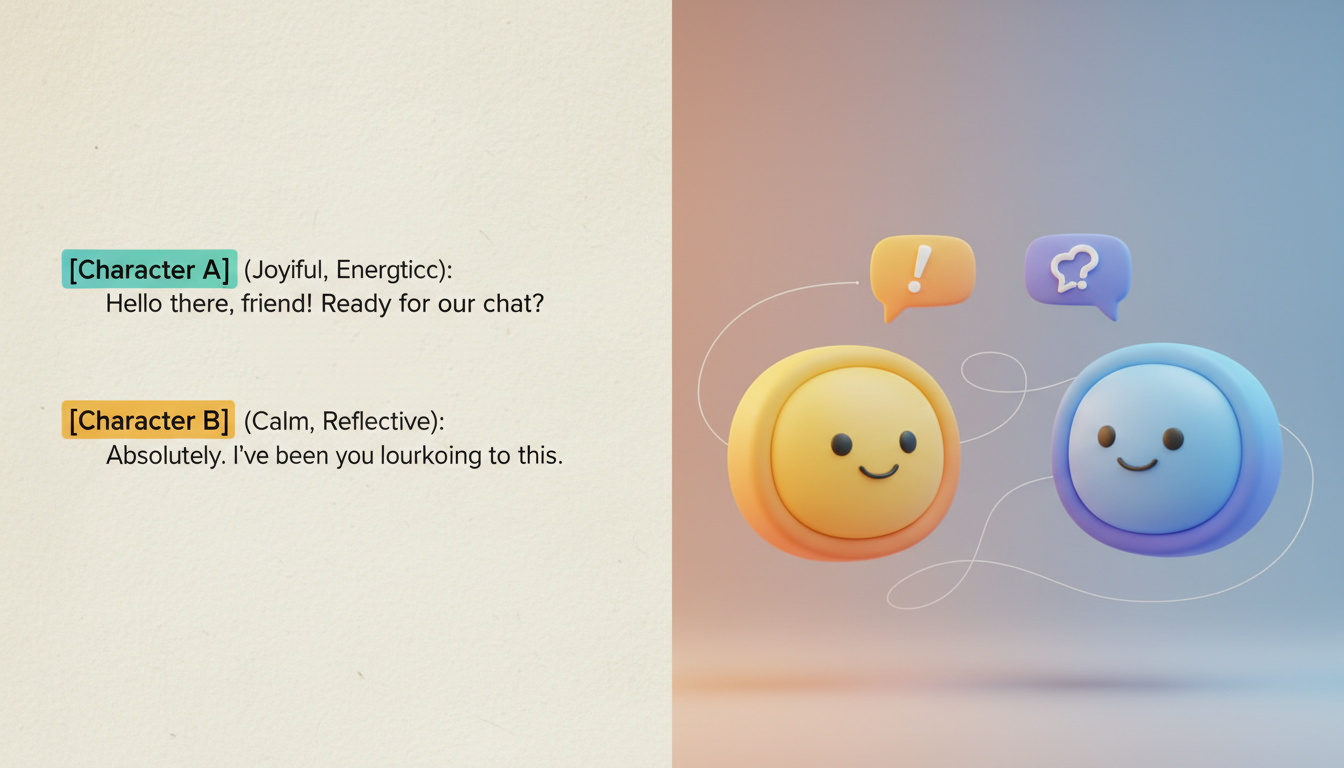
To format dialogue for multiple virtual characters in a single master script, use a standardized bracket system like [Character Name] on its own line, separated by double line breaks before the next speaker's turn. While some advanced tools process text sequentially, organizing your script with distinct visual and spatial markers is primarily a best practice for your own pre-production and editing workflow. Because standard AI video generators typically focus on rendering one character at a time, structuring your script as a clear back-and-forth conversation helps you plan individual voice generations that you can later stitch together in post-production.
Why Multi-Character Formatting Matters for AI Video
When you write a script for human actors, they instinctively understand context clues, pauses, and conversational flow. When working with AI voice generators, however, you are typically generating individual lines or clips for one character at a time. Keeping your master script meticulously formatted ensures you do not lose track of which line belongs to which persona during the generation process.
On platforms like Fanfun, you can select a favorite virtual persona to deliver a custom video message, such as a playful roast or a heartfelt birthday wish. If you want to create a video featuring multiple characters interacting, the best approach is to write a unified script first, generate each character's lines individually on Fanfun, and then combine them in your favorite video editor. Clear formatting keeps this multi-step process organized and efficient.
The Standard Bracket System for Multi-Speaker Scripts
To keep your script organized and readable during pre-production, adopt the standard bracket system. This simple layout uses bold, bracketed identifiers to clearly separate dialogue blocks.
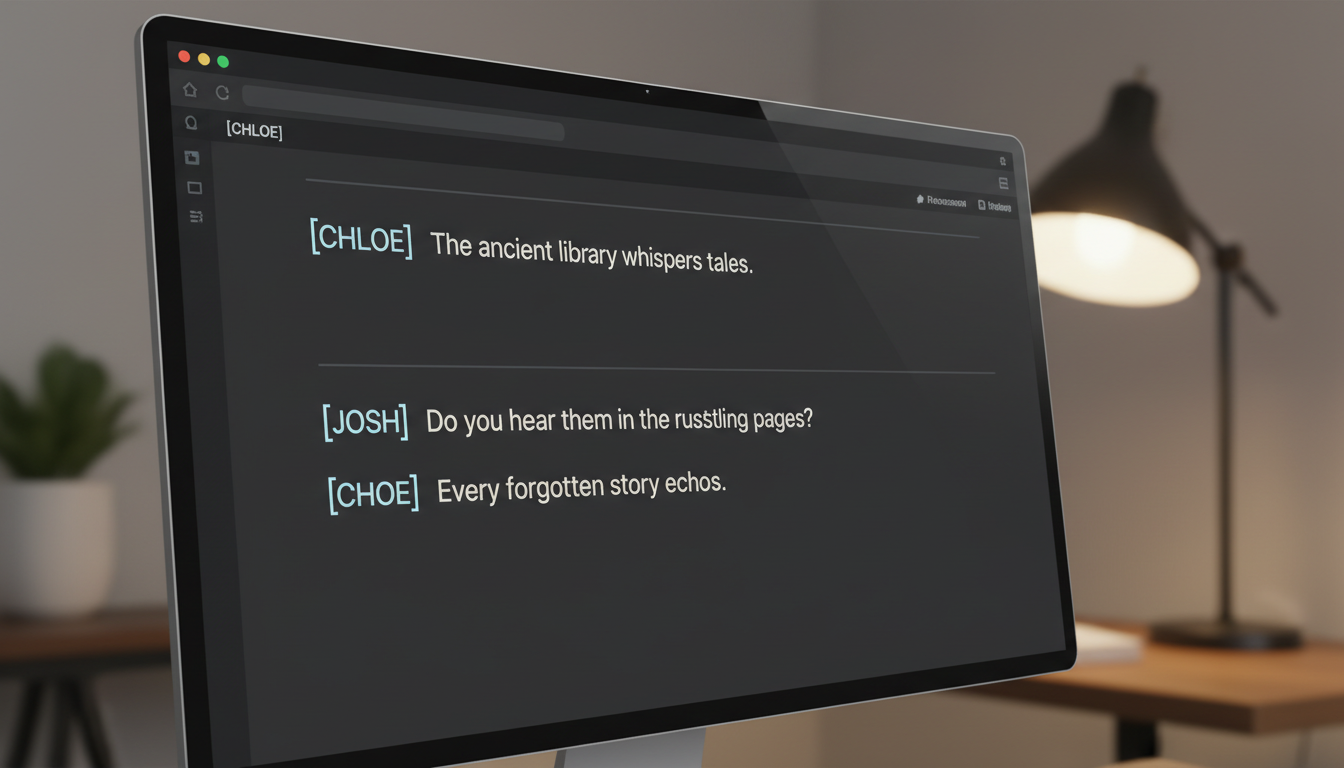
Here are the rules to follow:
- Use bold, bracketed identifiers: Place the character's name in brackets (e.g.,
[Character Name]) on its own line directly before their spoken dialogue. This makes it easy to copy and paste individual lines into your generator. - Maintain absolute consistency: Use the exact same name throughout the script. If you start with
[Captain Cosmo], do not switch to[Cosmo]halfway through, to avoid confusion when managing your audio assets. - Insert double line breaks: Always hit "Enter" twice between different speakers. This physical space provides a clear visual separation, helping you quickly distinguish where one character's turn ends and the next begins.
By structuring your layout this way, you make it easy to learn how to script virtual cartoon characters for high-impact video greetings without getting lost in your files.
Comparing Script Formats: Traditional vs. AI-Optimized
| Format Element | Traditional Screenplay Format | AI-Optimized Script Format |
|---|---|---|
| Speaker Tags | Centered uppercase name above dialogue. | Bold name in brackets on its own line: [Name]. |
| Spacing | Single line spacing with indented margins. | Double line breaks between speaker blocks for clear visual separation during asset generation. |
| Parentheticals | Used for actor direction: (whispering). | Avoided or kept separate, as they can accidentally be copied into the text generator. |
| Simultaneous Speech | Dual-column dialogue side-by-side. | Strictly sequential; planned as separate clips to be combined in editing. |
Controlling Pacing, Pauses, and Conversational Beats
A great multi-character script relies on natural timing. Because you are often generating lines individually and combining them later, you must plan the pacing directly into your writing and editing workflow.
- Ellipses (...) for trailing thoughts: Use ellipses to indicate where a character hesitates or trails off. This serves as a visual cue for you to insert a brief pause or overlap during the post-production editing phase.
- Em-dashes (—) for sharp interruptions: Use an em-dash at the end of a line to indicate a sudden stop, helping you align the timing when cutting between different character clips in your video editor.
- Avoid simultaneous talking in a single generation: Standard AI voice engines render one voice at a time. Instead of trying to generate overlapping speech, script rapid, single-sentence exchanges that you can easily sequence side-by-side in post-production.
Before committing your script to final generation, it is highly recommended to test the rhythm of your dialogue. If you want to practice how your characters bounce off one another, explore how to chat with virtual characters for creative roleplay to refine their conversational dynamics in an interactive setting first.
Sample Script: A Two-Character Banter Template
Here is a copy-pasteable template demonstrating the bracket system, double line breaks, and punctuation-based pacing cues. This layout is highly effective if you want to write a housewarming roast script for a virtual character video or craft a playful birthday message.
[Host Logan]
Welcome back to the channel, everyone! Today, I am joined by our resident expert in... well, mostly expert in taking up couch space. Say hello, Sparky.

[Sparky the Sidekick]
Hey! I do more than take up space. I also consume snacks at an alarming rate. It is a highly specialized skill, Logan—

[Host Logan]
Clearly. Anyway... we are here to celebrate Sarah's new apartment! Sparky, did you bring a gift, or just your appetite?

[Sparky the Sidekick]
I brought the gift of my presence. And a very empty stomach. Sarah, congratulations!
By keeping the speaker tags clean and inserting a clear line break between each turn, you can easily copy each block into your video generator, giving you a polished, natural-sounding final product once edited together.
Can standard AI voice generators render two virtual characters speaking at the exact same time?
No. Most standard AI voice engines process audio sequentially and cannot cleanly render overlapping speech or simultaneous talking on a single track. To create the illusion of a fast-paced conversation, write short, rapid back-and-forth lines and sequence them in a video editor.
How do I keep my script organized when generating lines for multiple characters?
Use bold bracketed speaker tags (like [Character Name]) on a separate line and insert a double line break (hitting "Enter" twice) between speakers. This clear visual separation makes it easy to copy and paste individual lines into your generator without mixing up the characters.
Do I need to export separate video files for each character and edit them together manually?
Yes, in most cases. Since platforms like Fanfun focus on generating high-quality custom video messages for a single selected character at a time, you will typically generate each character's lines as individual clips and then stitch them together in a video editing program to create a multi-character scene.