How to Generate Anime Character Voices for Video Memes
Anime memes thrive on extreme emotional delivery, from dramatic villain monologues to comedic panic. Learn how to write scripts and edit AI-generated character voices to match the high-energy pacing of fast-paced video edits.
Generating high-quality anime character voices for video memes requires balancing expressive AI voice generation with deliberate script formatting. By using a platform like Fanfun, you can select distinct character personas, write custom scripts, and generate an AI-interpreted video clip in minutes. To make these voiceovers sound authentic rather than robotic, creators can actively experiment with phonetic spelling, stylized punctuation, and precise timeline syncing in post-production.
Understanding the Tropes of Anime Voice Acting
Anime voice acting is defined by its theatricality. Unlike standard voice narration, which favors a steady, neutral cadence, anime dialogue relies heavily on hyper-exaggerated archetypes. Whether it is the screaming, hyper-energetic protagonist, the whispery and cold rival, or the overly dramatic villain, these voices rely on dramatic emotional spikes to convey personality.
Dynamic range is the secret weapon of anime memes. A sudden shift in volume, pitch, or speed is often what drives the comedic timing of a video edit. Fanfun allows creators to tap into this creative energy by selecting distinct character personas, inputting custom scripts, and receiving generated videos with expressive voiceovers in minutes. This turns the AI into an on-demand voice actor that responds directly to how you structure your text.
Scripting for High-Impact Anime Delivery
AI voice generators interpret text based on their underlying models. To get an expressive delivery, you may want to adjust your script's formatting rather than writing it like a standard essay. Experimenting with line breaks and phrasing can be a helpful step when writing authentic anime dialogue that feels true to the character's personality.
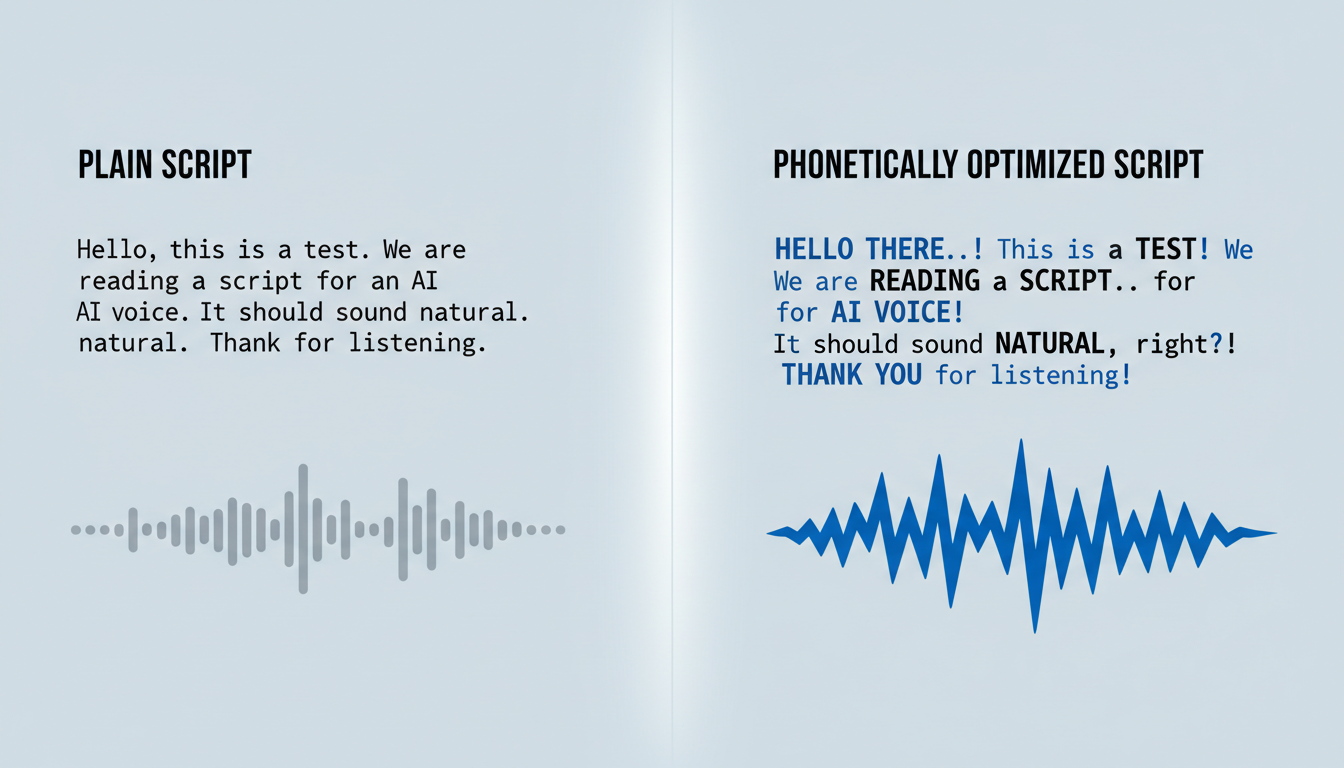
First, you can try using phonetic spelling for iconic Japanese catchphrases, attack names, or honorifics. Standard English spelling may not always yield the exact pronunciation you want. For instance, instead of writing "Rasengan," some creators try spelling it phonetically as "Rah-sen-gahn" to see if it improves the output.
Second, you can experiment with punctuation to influence the pacing. Some creators find that adding ellipses (...) or exclamation points (!) can help guide the timing and inflection, though results vary. Adjusting these elements is a common approach when optimizing voice expressions and timing for memes.
Anime Meme Pacing Styles
| Pacing Style | Scripting Technique | Best Used For |
|---|---|---|
| The Rapid-Fire Rant | Short, punctuation-heavy sentences. Use multiple commas and exclamation points (e.g., "Wait, wait, stop, what are you doing?!"). | Comedic panic, fast-paced edits, and sudden realizations. |
| The Dramatic Revelation | Use long ellipses, drawn-out vowels, and lowercase phrasing (e.g., "So... it was you... all along..."). | Villain monologues, serious plot twists, and slow-motion sequences. |
Syncing and Editing Your Generated Voice Clips
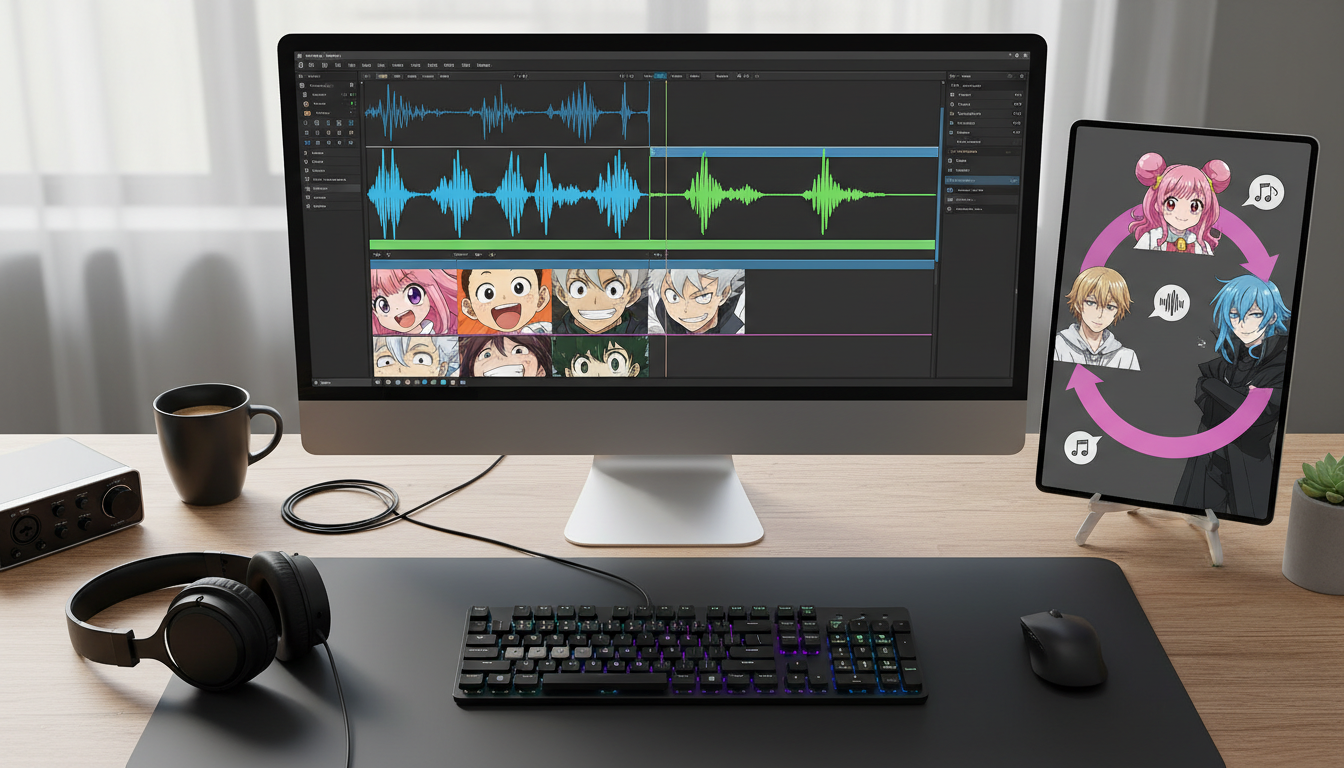
Once you have generated your custom video clip on Fanfun, the next step is moving the audio into your post-production pipeline. After downloading the generated asset from the platform, you can extract the audio track and import it into a timeline editor like CapCut, Premiere Pro, or DaVinci Resolve. Successfully integrating character voices into video editors requires a few specific steps to maximize the comedic and visual impact of your meme.
Step 1: Align Visual Cuts with Audio Peaks
Do not let your visuals drift independently of the voiceover. Identify the exact frames where the voice shifts in volume or delivers a punchline. Slice your video clips on these peaks. For high-energy moments, sync the audio punchline with visual effects like screen shakes, radial blurs, sudden zoom-ins, or green-screen overlays.
Step 2: Layer Classic Anime Sound Effects
To make the generated voice sound like it belongs in an actual episode, layer classic anime sound effects (SFX) underneath the track. A sharp "whoosh" during a quick transition, a heavy bass drop during a dramatic realization, or a comedic "gasp" sound effect can instantly elevate the production value. Place these SFX slightly before or exactly on the key vocal delivery.
Step 3: Balance Your Background Music
An intense anime original soundtrack (OST) is great for setting the mood, but it should never drown out the dialogue. Keep your background music levels low—typically between -15dB and -20dB—while keeping the generated character voice track around -3dB to -6dB. This ensures the dialogue remains crisp and intelligible, even over dramatic orchestral arrangements.
How do I fix mispronounced anime terms or Japanese words in the generator?
Because AI voice generators may struggle with specific Japanese phonetics, you can try spelling the words out phonetically in your script. For example, instead of writing "Nani," you might try "Nah-nee," or "Shee-nee-gah-mee" for "Shinigami." Previewing the generated output and adjusting the spelling is a practical way to find a pronunciation that works.
Can I use these generated anime voices for commercial video projects?
Generally, character-inspired voices should not be used for commercial advertising, paid promotions, or product endorsements without verifying the proper licensing and intellectual property rights. It is important to review the specific platform's terms of service and respect creative ethics when sharing your creations.
What video editing software works best for syncing AI character voices?
For quick mobile or desktop edits intended for TikTok, Instagram Reels, or YouTube Shorts, CapCut is highly efficient due to its auto-syncing tools and built-in effects. For more complex, multi-track audio editing where you need precise control over background music, sound effects, and voice tracks, professional non-linear editors like Adobe Premiere Pro or DaVinci Resolve are recommended.