How to Integrate AI Character Voices into Your Video Editing Workflow
Integrating AI character voices into your video editing workflow requires treating the AI as an actor. Learn how to select the right voice, optimize your script for natural pacing, and mix the audio in post-production for a seamless finish.
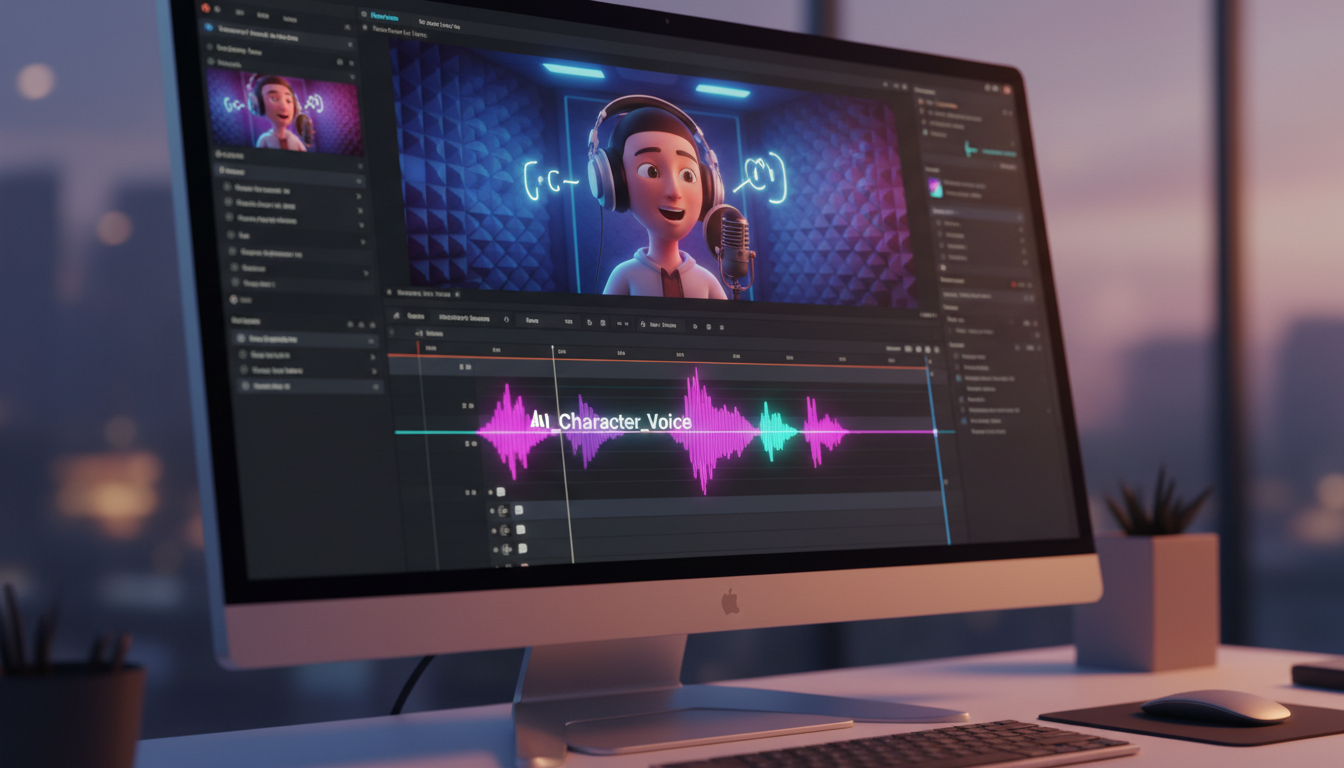
Integrating AI character voices into your video editing workflow requires a structured approach: matching the voice archetype to your content style, formatting the script with phonetic spelling and punctuation cues, and mixing the final audio with ambient sound in your video editor. While AI voiceovers provide rapid, scalable narration, they are creative interpretations rather than exact human clones, meaning the final quality depends heavily on your post-production direction and script pacing.
The Core Workflow of AI Character Voiceovers
Adding dynamic, fictional character voiceovers to your video workflow is a powerful way to boost viewer retention. However, getting a professional result involves more than just pasting text. The process is a three-part workflow: voice selection, script optimization, and post-production synchronization. Platforms like Fanfun simplify this process by offering a rapid, creative character-style video and voice generation platform. This allows creators to skip complex audio editing when they need quick, engaging character messages—such as custom birthday wishes, roasts, or memes—and get finished assets in minutes. For more complex projects, understanding how to direct and mix these voices ensures your content stands out.
Casting the Right Voice Persona for Your Video
Not all AI voices suit every video style. To maximize viewer engagement, you must match the voice's emotional baseline and tone to your video's goal. For fast-paced feeds, choosing a voice with high energy and distinct personality is crucial. If you are producing social media content, using online fictional character voice generators for social media can help you tap into established archetypes that viewers instantly recognize and connect with.
| Video Type | Voice Archetype | Key Characteristics |
|---|---|---|
| Memes & Short-Form Video | High-Energy / Comedic | Expressive, varied pitch, fast-paced delivery |
| Narrative & Animation | Dramatic / Character-Specific | Rich emotional range, deliberate pacing, stylized accent |
| Tutorials & Explaners | Authoritative / Friendly | Clear articulation, steady pace, neutral tone |
Scripting for AI: How to Write for Natural Pacing and Pronunciation
AI voice generators read text literally. To get a natural-sounding performance, you must write your script with the AI's technical limitations in mind. Standard spelling and punctuation often lead to a robotic, flat delivery. Instead, treat your script as a set of stage directions. First, use phonetic spelling for complex words, brand names, or slang that the AI might mispronounce (for example, write 'buh-lo-nee' instead of 'bologna'). Second, use punctuation strategically to guide the AI's breathing and pausing. Commas introduce short pauses, ellipses (...) create dramatic tension, and dashes (—) signal abrupt transitions. Finally, write in the specific vocabulary and cadence of the chosen character. When directing character AI voice generators for narrative impact, these small adjustments prevent the voice from sounding flat.
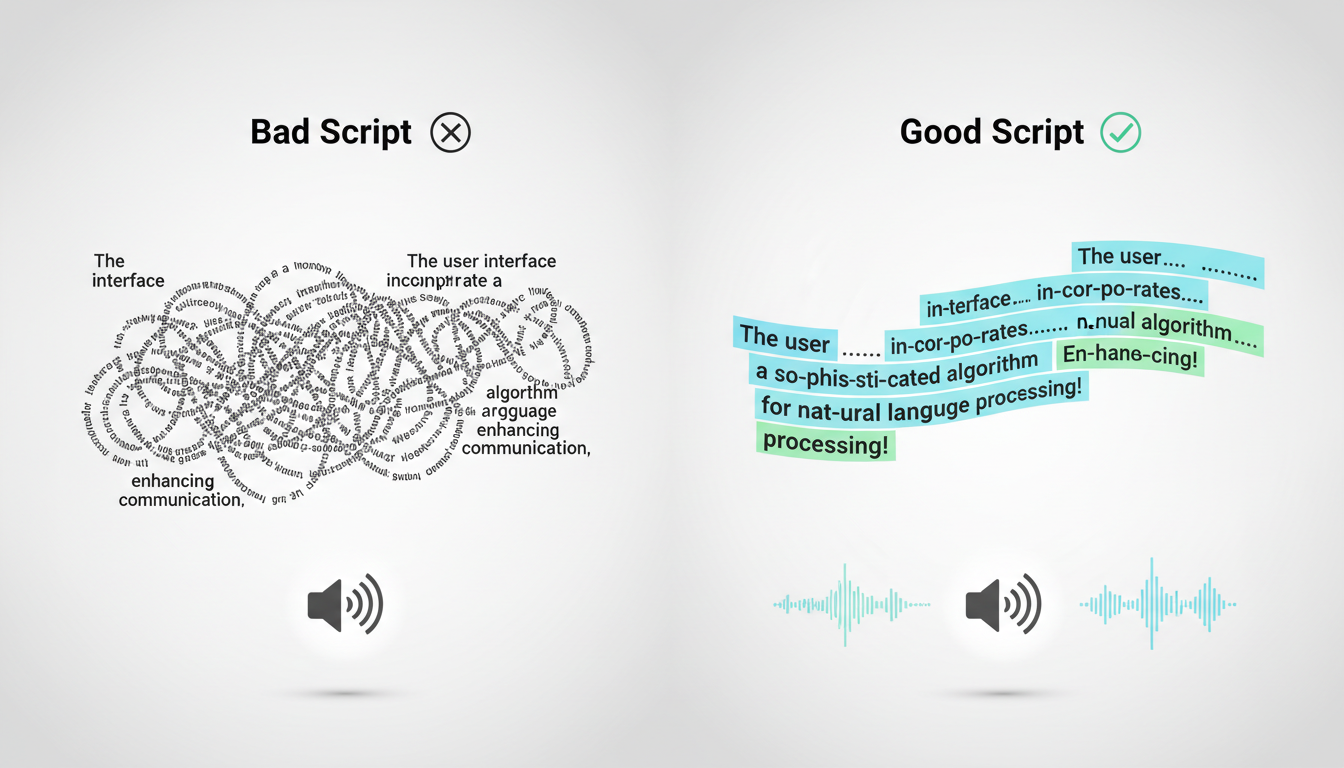
Script Optimization Example:
- Standard Script: 'Welcome back to my channel. Today we are looking at the ultimate video editing hack.'
- AI-Optimized Script: 'Welcome back... to my channel! Today, we are looking at the *ultimate*... video-editing hack.'
Post-Production: Mixing AI Dialogue into Your Video Editor
Once you generate your character voice track, the final step is mixing it into your video editing software (such as Premiere Pro, CapCut, or DaVinci Resolve) to make it sound organic. Raw AI voice files can sometimes sound sterile because they lack the natural background noise of a physical recording studio. To fix this, follow these steps: First, import the audio file and clean up any unnatural silence blocks by cutting the track and adjusting clip spacing. Second, apply a subtle 'room tone' or low-volume ambient background noise to ground the voice in the scene's environment. Third, synchronize the voice track with your visual elements. If you are working with animated characters, animating to custom voice generator outputs requires aligning key audio cues—like sudden pitch shifts or exclamation points—with the character's facial expressions and body language to maintain visual believability.
How do I fix an AI voice that is pronouncing a word incorrectly?
Use phonetic spelling in your script. Spell out the word exactly how it sounds (e.g., write 'feenix' instead of 'Phoenix') and run a quick test generation to verify the pronunciation.
Can I adjust the emotional tone of an AI character voice within the script?
Yes, you can influence the tone using punctuation and capital letters. Exclamation marks often increase excitement or volume, while ellipses (...) encourage a slower, more dramatic or hesitant tone.
What is the best way to sync AI character voices with animated mouth movements?
Cut the generated audio track into smaller phrases in your video editor. Align these phrases with keyframes on your video timeline, and adjust the timing or clip duration as needed to match the visual pacing of your animation.