How to Generate Custom Audio Narratives for Social Media Video Edits
Stop using the same generic, robotic text-to-speech voices on your social feeds. Learn how to design, generate, and mix custom, character-driven audio narratives that capture attention instantly and keep viewers hooked.
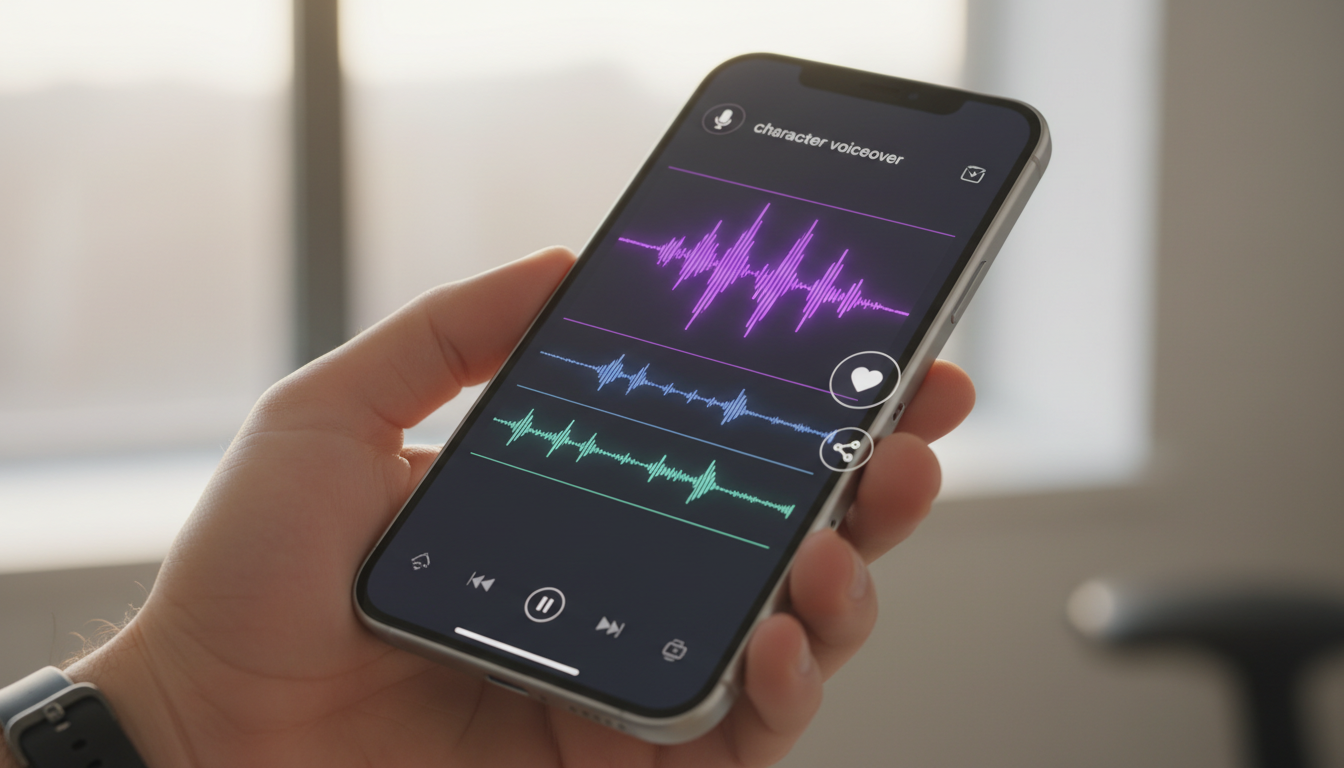
To generate custom audio narratives for social media video edits, you need to draft a punchy script optimized for digital pacing, generate a character-driven voiceover using a specialized platform like Fanfun, and layer the resulting audio track with background music and sound effects in a video editor. Moving away from generic, robotic text-to-speech options in favor of distinct character personalities is one of the fastest ways to increase viewer retention on TikTok, Reels, and Shorts. However, because AI-generated voices are creative interpretations rather than exact clones, success depends on strategic phonetic scripting and precise audio ducking during post-production.
The Anatomy of a Scroll-Stopping Audio Narrative
Modern social media feeds are saturated with the same three robotic text-to-speech voices. Audiences have developed "audio blindness," instantly scrolling past videos the moment they hear those familiar, flat narrators. To capture and hold attention, your video edits require custom audio assets that build an immediate, recognizable brand identity.
A successful social media narrative track relies on three core pillars:
- Distinct Character Personality: Instead of a sterile narrator, use a voice with built-in attitude, humor, or cultural relevance. This immediately sets a specific mood.
- Dynamic Pacing: Humans do not speak at a perfectly constant speed. Great audio narratives incorporate pauses, gasps, and shifts in speed to mirror natural human emotion.
- Contextual Sound Design: Layering your voiceover with low-volume background tracks and timely sound effects keeps the viewer's brain actively engaged.
Creating these custom audio tracks does more than just explain what is on screen; it acts as an audio watermark for your channel. When viewers hear a unique voice style, they instantly associate it with your brand. To see how this fits into a broader content strategy, you can reference our complete custom meme audio blueprint for building scroll-stopping assets.
Step 1: Scripting for Voice and Pacing
Writing for digital voice generation is completely different from writing a blog post or a standard script. AI engines read punctuation and spelling literally. To get a natural performance, you must write phonetically and use punctuation to control the voice's breathing and pacing.
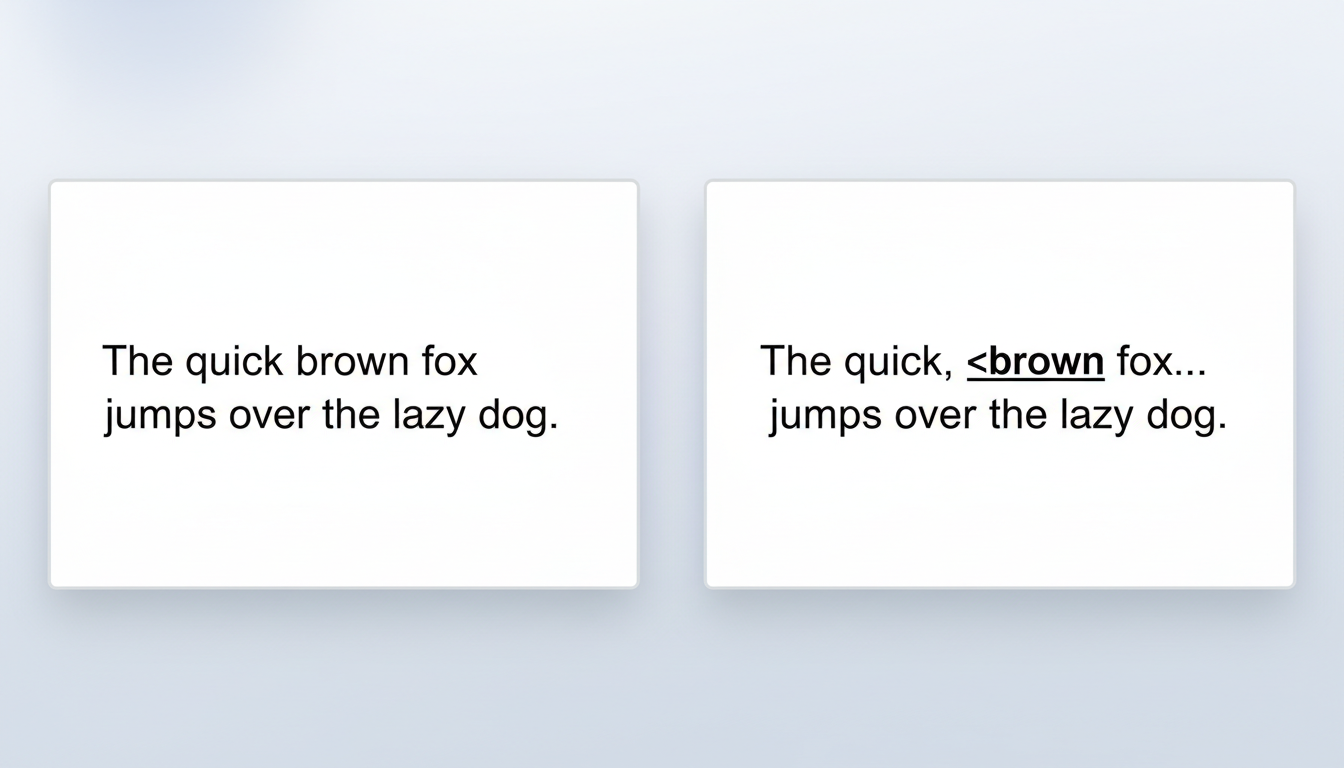
First, front-load your script. The first three seconds must contain a hook that promises immediate value or entertainment. Second, use punctuation strategically: commas create short pauses, ellipses (...) build suspense, and dashes (—) indicate sudden shifts in thought. To see these principles in action, you can learn how to write funny parody voiceover scripts that land every punchline.
Phonetic Scripting Comparison
This illustrative comparison shows how minor adjustments in spelling and punctuation can transform a flat, robotic delivery into a dynamic, well-paced voiceover:
| Standard Script (Robotic Delivery) | Phonetically Optimized Script (Dynamic Delivery) |
|---|---|
| Do you want to know how to edit videos faster? First, you need to organize your media folder. Then, use keyboard shortcuts. | Want to edit videos... twice as fast? Yeah, I thought so. Step one: organize your media. Step two? Use. Keyboard. Shortcuts. |
| This is the ultimate recipe for homemade pizza. It takes only ten minutes to bake. | This is the ultimate recipe... for home-made peet-suh! It takes only... ten minutes... to bake. |
Step 2: Generating Character-Driven Voiceovers with Fanfun
Once your script is optimized, it is time to generate the voiceover. Standard text-to-speech platforms limit you to generic assistant voices, but Fanfun allows you to select from a rich library of stylized characters and celebrity interpretations to give your edit a distinct creative edge. To understand how these stylized voices elevate your edits, you can explore how to use cartoon text to speech for social media edits.
To generate your audio asset on Fanfun, follow these steps:
- Select Your Character: Browse the Fanfun library and pick a persona that matches the tone of your video—whether it is a dramatic movie narrator, a cartoon character, or a high-energy personality.
- Input Your Script: Paste your phonetically optimized script into the generator. Keep in mind that these voices are artistic AI interpretations, not exact biometric clones, so focus on matching the general energy and delivery style.
- Generate and Export: Generate the custom video file. Once delivered, you can import this video directly into your editing software and extract the audio track to use as your standalone voiceover.
Step 3: Mixing and Layering Your Narrative Track
The magic of a social media edit happens in the mix. Simply dropping a voiceover onto a video file will feel disjointed. You must layer the voiceover, background music, and environmental sound effects so they work together as a cohesive unit.
First, import your generated Fanfun audio asset into your timeline. For detailed step-by-step instructions on aligning these tracks, consult our guide on how to generate and layer custom character voiceovers for perfect synchronization.
Next, apply these three key mixing techniques:
- Audio Ducking: Lower the volume of your background music by 3dB to 6dB whenever the voiceover is active. This helps prevent the background track from overpowering the narrator's voice.
- Meme and Interaction Cues: Insert subtle sound effects—like swooshes, camera shutters, or light comedic cues—at the exact moment of visual transitions or punchlines to keep the edit dynamic.
- Room Tone and Noise Gates: If there is any digital hum or silence in your generated voiceover, apply a subtle noise gate or layer a low-volume ambient track underneath to glue the entire mix together.
A Quick Checklist for Audio Narrative Quality Control
Before you export your video and upload it to TikTok, Reels, or Shorts, run through this final quality control checklist to ensure your audio sounds professional across all playback devices:
| Quality Check | Action Items |
|---|---|
| Mobile Speaker Test | Listen to your mix on a mobile device speaker at a moderate volume level. Check if the narrative voice is easily understood over the background music, and adjust the music track level if needed. |
| Pacing & Gaps | Scan the timeline for gaps longer than 1.5 seconds. Cut out unnecessary silence to maintain a tight, fast-paced rhythm native to modern social feeds. |
| Pronunciation Audit | Listen closely to brand names, slang, or technical terms. If the AI voice mispronounces a word, split the audio clip and replace that specific word using a phonetic spelling variant. |
| Visual Alignment | Ensure that key visual cuts and text overlays appear exactly on the beat or at the precise moment a new point is introduced in the audio narrative. |
Can I use these custom audio narratives for commercial social media ads?
It depends on the platform terms and the specific voice persona used. AI character voices are typically designed for personal entertainment, parody, and creative social media edits. For commercial advertisements or direct brand endorsements, ensure you have the explicit rights and licensing for the specific voice profile before running paid campaigns.
How do I fix mispronounced words in a generated character voiceover?
The easiest fix is phonetic spelling. If the generator struggles with a word like "facade," try spelling it "fuh-sahd" in your script. Adjusting the spelling to match the phonetic sound usually solves the issue without requiring complex manual editing.
What is the ideal audio level ratio between the narrative voice and background music?
As a general rule of thumb, set your primary voiceover track to peak between -6dB and -12dB. Your background music should sit much lower, typically between -25dB and -35dB when the voiceover is active, to prevent the music from drowning out the narrative.