How to Create Fan Dubs with AI Character Voices
Want to bring your fan animations to life with custom voice acting? Discover the step-by-step production workflow to script, generate, and mix AI character voices into a polished, cinematic final cut.
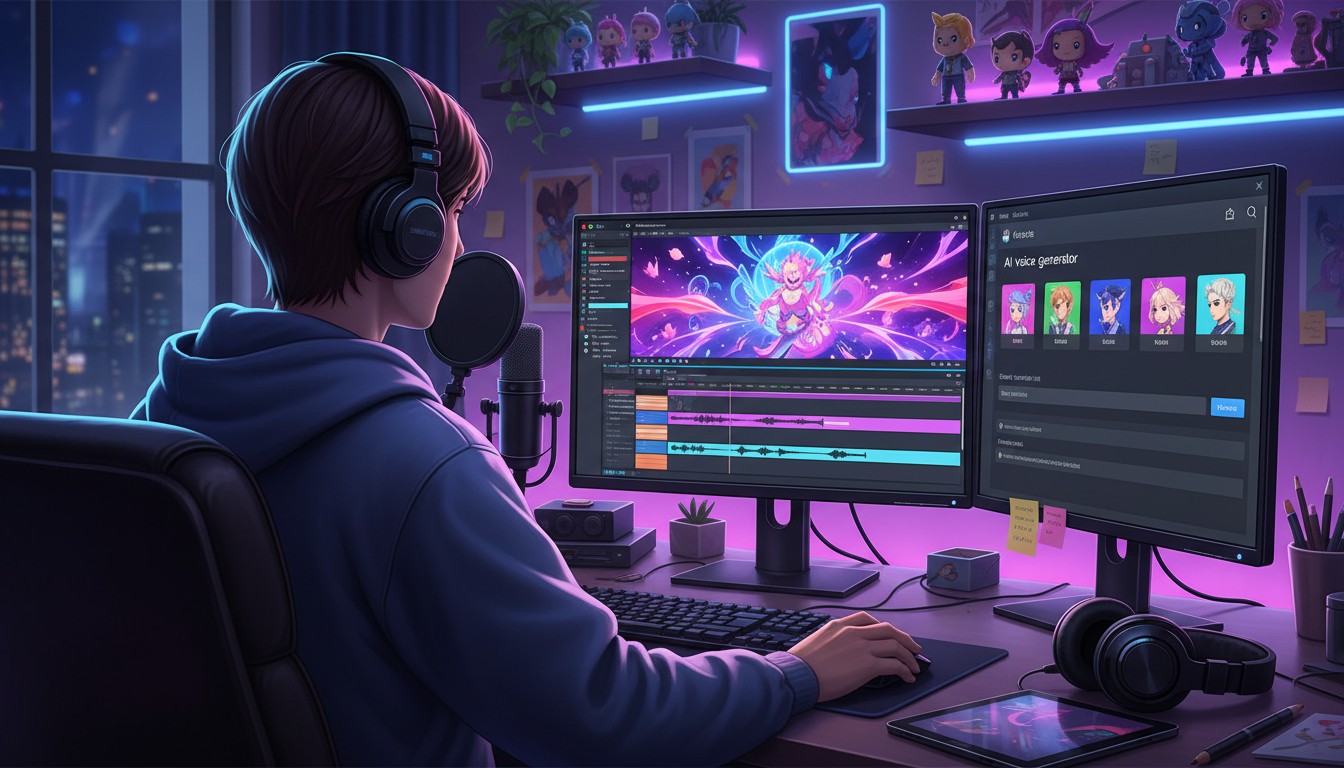
Creating a high-quality fan dub with AI character voices requires a structured three-phase workflow: writing an AI-optimized script, generating multiple vocal takes, and mixing the audio with environmental sound effects. While creative platforms like Fanfun make it easy to instantly generate custom character-style video clips, raw AI output must be treated as a starting point. To make the dialogue sound natural and grounded within your animation, you must actively shape the pacing during generation and blend the voice into a dynamic soundstage during post-production.
The Anatomy of a High-Quality AI Fan Dub
A successful fan dub is more than just a clean voice recording; it is an illusion of physical presence. In traditional voice acting, actors adjust their posture, distance from the microphone, and breathing to match the visual scene. When using AI voice generators, you must recreate these physical cues artificially. Because AI-generated voices are artistic interpretations of iconic personas rather than perfect, context-aware clones, your role shifts from actor to director. By breaking your workflow into preparation, generation, and post-production mixing, you can transform flat, synthetic speech into a performance that matches the energy of your animation.
Step 1: Write and Format Your Script for AI Pacing
AI models read text literally, which means standard script formatting can lead to robotic, monotonous delivery. To guide the AI’s cadence, you must use punctuation as physical cues. Commas create brief pauses for breath, ellipses introduce dramatic hesitation, and exclamation points inject energy. Additionally, fantasy names or complex terms should be spelled phonetically to prevent pronunciation glitches. Breaking long monologues into separate, shorter sentences also helps the generator maintain consistent energy. If your project features dialogue between multiple personas, learn how to manage casting and workflow in our guide to directing multi-character fan dubs.
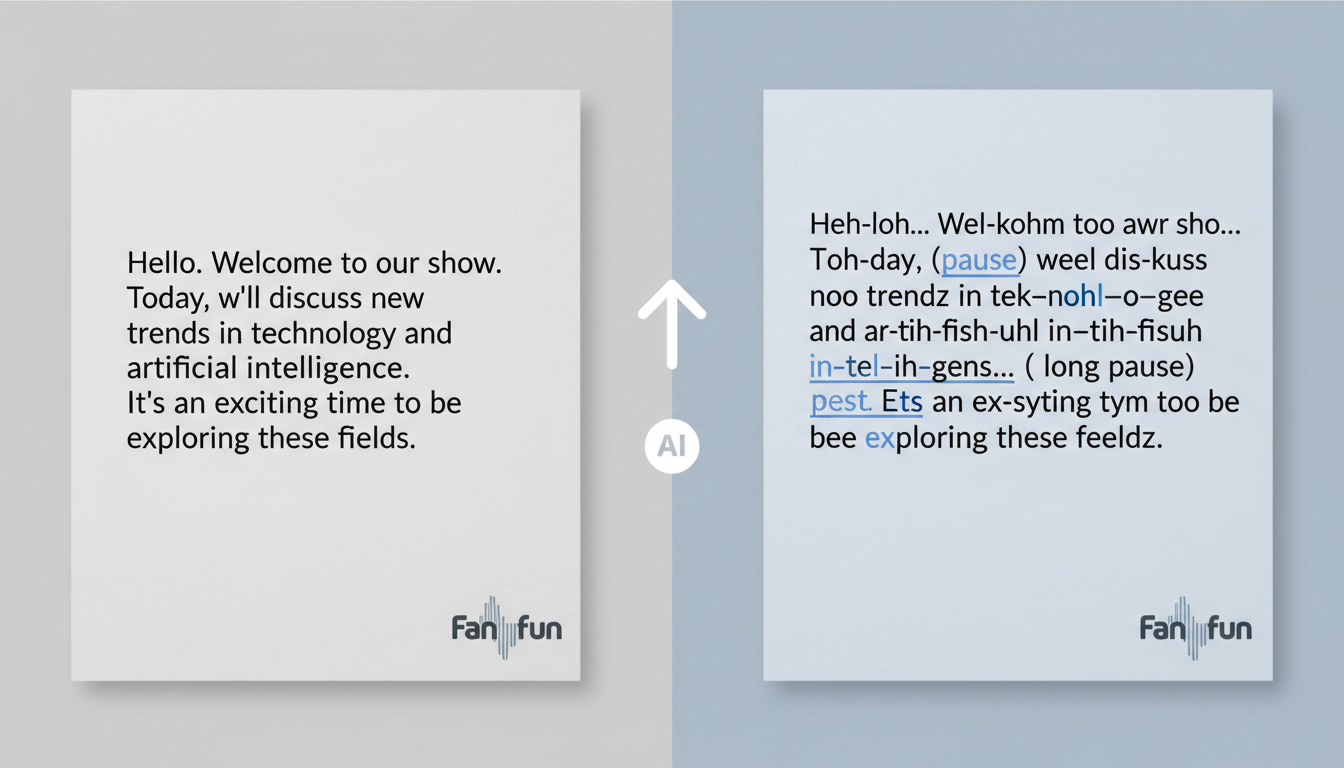
| Standard Script Line | AI-Optimized Script Line | Intended Delivery Effect |
|---|---|---|
| "I cannot believe you did this, Kakarot!" | "I... I cannot believe you did this... Kah-kah-rot!" | Adds dramatic hesitation and corrects name pronunciation. |
| "We must go now before the ship explodes." | "We must go. Now! Before the ship... explodes!" | Forces urgent pacing and natural pauses between actions. |
Step 2: Generate and Select the Right Character Voice
Once your script is ready, select your target persona from the Fanfun library. Since AI interpretations can vary based on the length and tone of your input, never rely on a single generation. Instead, generate three to four variations of key lines. This gives you a pool of different inflections, emphasis points, and pacing styles to piece together in your editing software. Once you have the ideal takes, you can extract the audio from your generated video clips for editing. For those working on futuristic or space-themed projects, check out our specialized advice on directing sci-fi character voices.
Step 3: Post-Production Mixing and Sound Design
The final step is where the magic happens. Drop your generated vocal tracks into your video editor of choice, such as CapCut, Premiere Pro, or DaVinci Resolve. To remove the sterile "studio" feel of raw AI, always layer a subtle room tone or environmental ambient track underneath the dialogue. If your character is in a cave, add a slight wet reverb; if they are outdoors, layer faint wind or rustling leaves. Finally, employ audio ducking: ensure your background music automatically dips by 3 to 6 decibels whenever a character speaks, keeping the dialogue crisp and intelligible. For a deep dive into balancing background music and vocal tracks for animation, explore our guide on how to direct and mix anime fan dubs.
Raw AI Voice vs. Production-Ready Mix
To understand why post-production is essential, consider how raw generation compares to a fully mixed track:
| Vocal Parameter | Raw AI Voice Generation | Production-Ready Mix |
|---|---|---|
| Environmental Reverb | Dead silent, sterile studio background. | Subtle room tone, hall echo, or outdoor space simulation. |
| Background Music | Fights with the vocal frequencies. | Ducked background tracks to keep the voice prominent. |
| Pacing & Timing | Fixed pauses based entirely on punctuation. | Custom-trimmed silences matched to on-screen lip movement. |
| EQ & Presence | Can sound flat or slightly tinny. | Boosted mid-ranges and rolled-off bass for cinematic clarity. |
How do I fix a word that the AI character voice keeps mispronouncing?
Use phonetic spelling. If the AI struggles with "Sasuke," try typing "Sah-soo-kay" or "Sahs-kay." Experiment with hyphens, spaces, and intentional typos to trick the voice generator into the correct pronunciation.
Can I use AI-generated character voices for commercial projects?
Generally, no. AI interpretations of established pop culture characters are intended for personal, creative, and transformative fan works. Always check the licensing terms of your voice platform and respect the intellectual property rights of the original creators.
What is the best way to sync AI voiceovers to existing animation frames?
Instead of trying to force the AI to match the video, adjust the video's timing to match the voiceover. Slice your animation frames and use speed ramps or hold frames to stretch or compress the visuals around the natural cadence of the generated dialogue.